

Every service in the stack — Radarr, Sonarr, Prowlarr, SABnzbd, qBittorrent, the Traefik dashboard — sits behind Authentik. You log in once with a username, password, and TOTP code, and that session covers everything. No per-service logins, no basic auth pop-ups, no storing credentials in browser password managers for a dozen different tools.
One login, one session · TOTP enforced
Checks every request · Redirects to Authentik if unauth
- SSO identity provider
- Forward auth via Traefik
- TOTP enforced on all users
Accessible after SSO login · Session shared across apps
postgres:16-alpine · Persists all auth data
How forward auth works
Authentik doesn’t sit inline between the browser and your services. Instead it uses forward authentication via Traefik:
- A request arrives at Traefik for
radarr.yourdomain.com - Traefik calls Authentik’s forward auth endpoint before passing the request on
- Authentik checks the session cookie — if valid, it returns 200 and Traefik forwards the request to Radarr
- If there’s no valid session, Authentik returns 401 and Traefik redirects the browser to the Authentik login page
- After login (password + TOTP), Authentik sets a session cookie for
.yourdomain.com— covering every subdomain at once
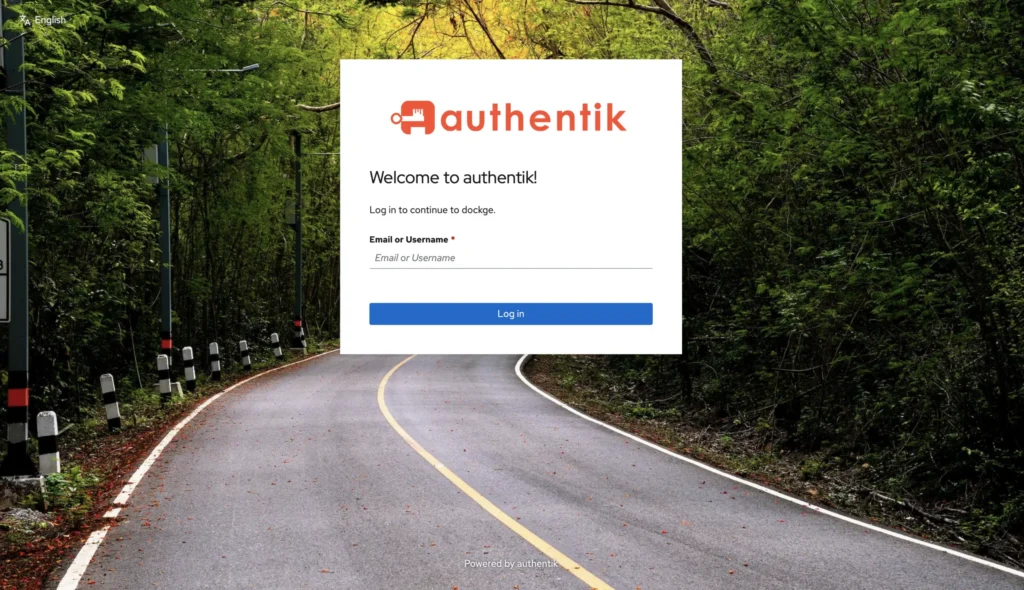
The result: one login page, one session cookie, every service protected.
What you need before you start
- Traefik already running — Authentik plugs in as a middleware
- A subdomain for Authentik itself, e.g.
authentik.yourdomain.com, routed through your Cloudflare tunnel to port 9000 - A strong secret key — generate one with
openssl rand -base64 36 - A strong PostgreSQL password — generate one with
openssl rand -base64 24
Docker Compose
Create /mnt/tank/stacks/authentik/compose.yaml:
services:
  postgresql:
    image: docker.io/library/postgres:16-alpine
    container_name: authentik-postgres
    restart: unless-stopped
    env_file:
      - .env
    environment:
      POSTGRES_DB: ${PG_DB:-authentik}
      POSTGRES_USER: ${PG_USER:-authentik}
      POSTGRES_PASSWORD: ${PG_PASS}
    volumes:
      - database:/var/lib/postgresql/data
    healthcheck:
      test: ["CMD-SHELL", "pg_isready -d $${POSTGRES_DB} -U $${POSTGRES_USER}"]
      interval: 30s
      timeout: 5s
      retries: 5
      start_period: 20s

  server:
    image: ghcr.io/goauthentik/server:${AUTHENTIK_TAG:-2026.5.3}
    container_name: authentik-server
    command: server
    restart: unless-stopped
    depends_on:
      postgresql:
        condition: service_healthy
    env_file:
      - .env
    environment:
      AUTHENTIK_POSTGRESQL__HOST: postgresql
      AUTHENTIK_POSTGRESQL__NAME: ${PG_DB:-authentik}
      AUTHENTIK_POSTGRESQL__USER: ${PG_USER:-authentik}
      AUTHENTIK_POSTGRESQL__PASSWORD: ${PG_PASS}
      AUTHENTIK_SECRET_KEY: ${AUTHENTIK_SECRET_KEY}
      AUTHENTIK_LISTEN__TRUSTED_PROXY_CIDRS: "0.0.0.0/0"
      AUTHENTIK_HOST: "https://authentik.yourdomain.com"
      AUTHENTIK_COOKIE_DOMAIN: "yourdomain.com"
    ports:
      - "9000:9000"
      - "9443:9443"
    volumes:
      - /mnt/tank/configs/authentik/data:/data
      - /mnt/tank/configs/authentik/templates:/templates
    shm_size: 512mb

  worker:
    image: ghcr.io/goauthentik/server:${AUTHENTIK_TAG:-2026.5.3}
    container_name: authentik-worker
    command: worker
    restart: unless-stopped
    user: root
    depends_on:
      postgresql:
        condition: service_healthy
    env_file:
      - .env
    environment:
      AUTHENTIK_POSTGRESQL__HOST: postgresql
      AUTHENTIK_POSTGRESQL__NAME: ${PG_DB:-authentik}
      AUTHENTIK_POSTGRESQL__USER: ${PG_USER:-authentik}
      AUTHENTIK_POSTGRESQL__PASSWORD: ${PG_PASS}
      AUTHENTIK_SECRET_KEY: ${AUTHENTIK_SECRET_KEY}
    volumes:
      - /mnt/tank/configs/authentik/data:/data
      - /mnt/tank/configs/authentik/certs:/certs
      - /mnt/tank/configs/authentik/templates:/templates
    shm_size: 512mb

volumes:
  database:
    driver: local
Create the .env file in the same directory:
PG_USER=authentik
PG_DB=authentik
PG_PASS=your-strong-postgres-password
AUTHENTIK_SECRET_KEY=your-strong-secret-key
AUTHENTIK_TAG=2026.5.3
Create the config directories and bring it up:
mkdir -p /mnt/tank/configs/authentik/{data,certs,templates}
cd /mnt/tank/stacks/authentik
docker compose up -d
docker compose logs -f server
Authentik will be available at http://<nas-ip>:9000 once the server and PostgreSQL are both healthy — usually around 60 seconds on first boot.
AUTHENTIK_COOKIE_DOMAIN is the key setting for SSO across subdomains. Setting it to
yourdomain.com(without the leading dot) means the session cookie is valid for every subdomain — log in once atauthentik.yourdomain.comand that session coversradarr.yourdomain.com,sonarr.yourdomain.com, and everything else.
First-time setup
1 — Create the admin account
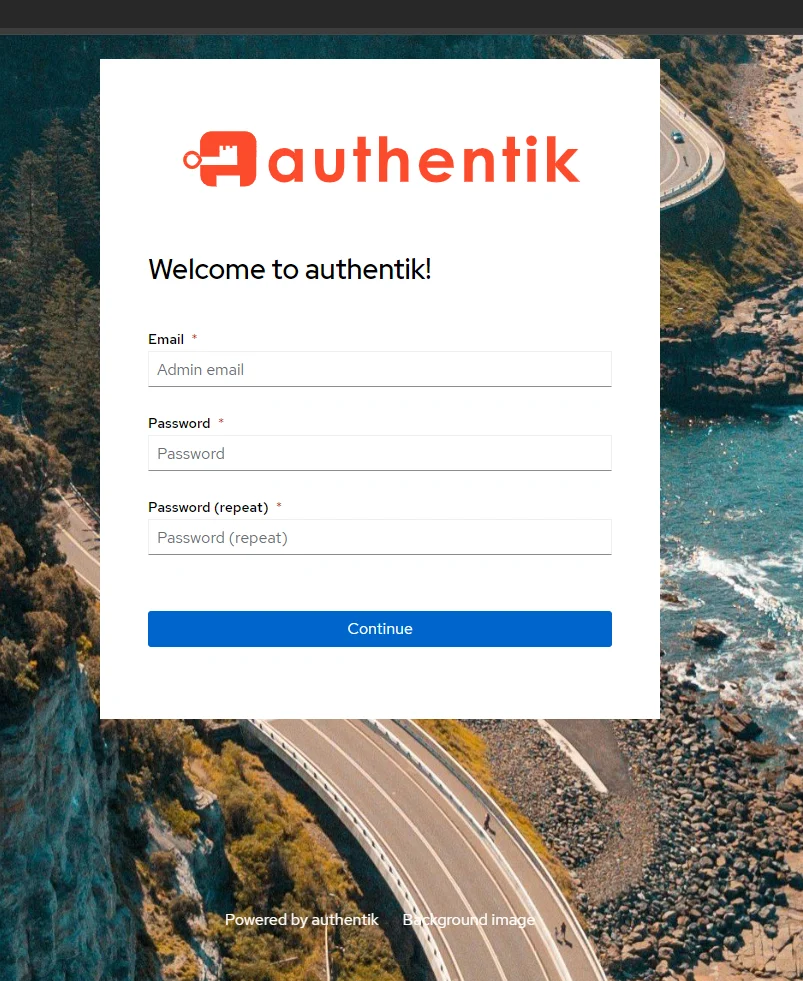
Visit http://<nas-ip>:9000/if/flow/initial-setup/. Set your admin email and password. This creates the default admin user (akadmin).
2 — Deploy the Embedded Outpost
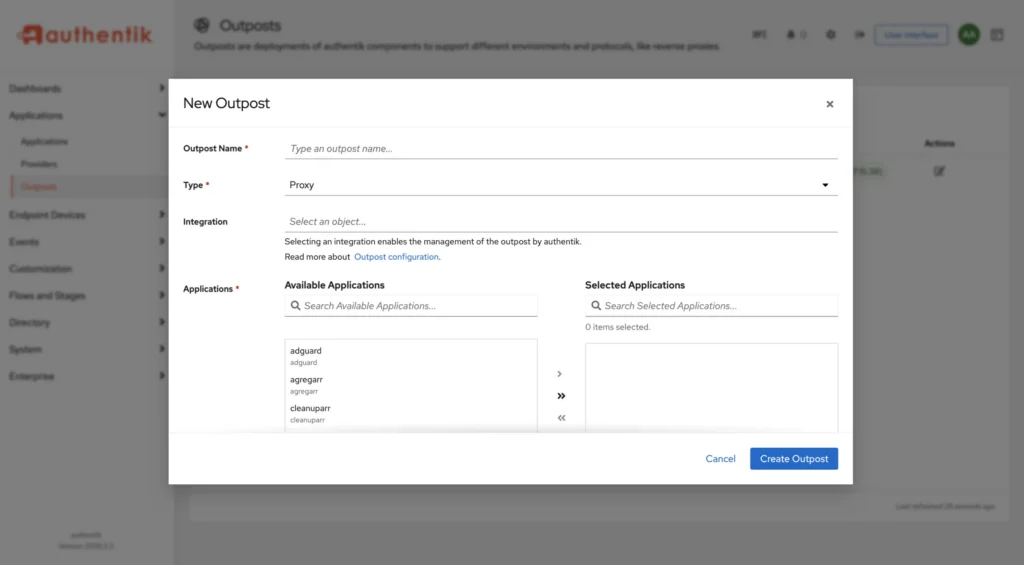
Go to Applications → Outposts. You’ll see a default authentik Embedded Outpost already listed. Edit it and make sure the Integration URL is set to http://authentik-server:9000 and it’s set to type Proxy. Save and deploy.
The outpost is what handles the actual forward auth requests from Traefik — it runs inside the Authentik server container.
3 — Create a Proxy Provider
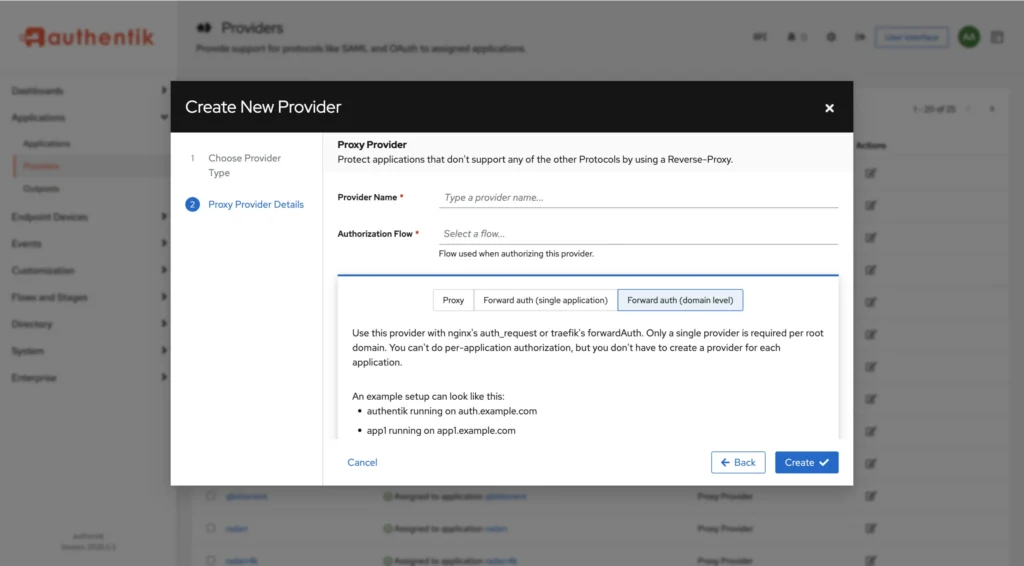
Go to Applications → Providers → Create and choose Proxy Provider.
- Name: e.g.
radarr-proxy - Authentication flow: default-authentication-flow
- Authorisation flow: default-provider-authorization-implicit-consent
- Forward auth (domain level): select this
- Cookie domain:
yourdomain.com
Using domain-level forward auth means one provider covers every subdomain — you don’t need a separate provider per service.
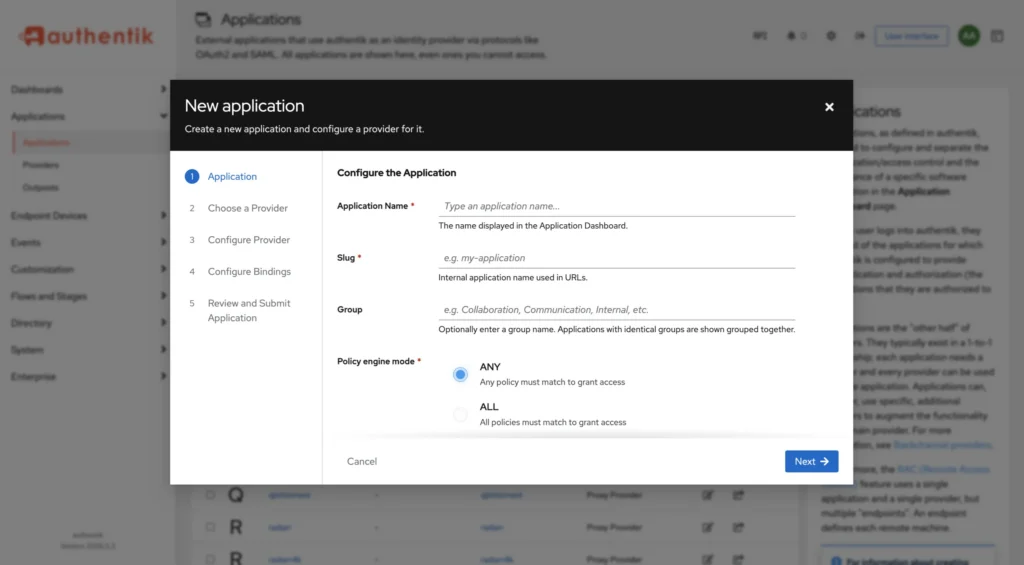
4 — Create an Application
Go to Applications → Applications → Create:
- Name: anything descriptive
- Slug: e.g.
homelab - Provider: the proxy provider you just created
Then go back to Outposts, edit the embedded outpost, and add this application to it.
5 — Wire up Traefik
Add the Authentik middleware to your Traefik dynamic.yml:
http:
  middlewares:
    authentik:
      forwardAuth:
        address: "http://127.0.0.1:9000/outpost.goauthentik.io/auth/traefik"
        trustForwardHeader: true
        maxResponseBodySize: 10240
        authResponseHeaders:
          - X-authentik-username
          - X-authentik-groups
          - X-authentik-email
          - X-authentik-name
          - X-authentik-uid
          - X-authentik-jwt
Then attach it to any router you want to protect:
  routers:
    radarr:
      rule: "Host(`radarr.yourdomain.com`)"
      entryPoints: [web]
      service: radarr
      middlewares:
        - authentik
Traefik hot-reloads — save the file and the route is protected immediately.
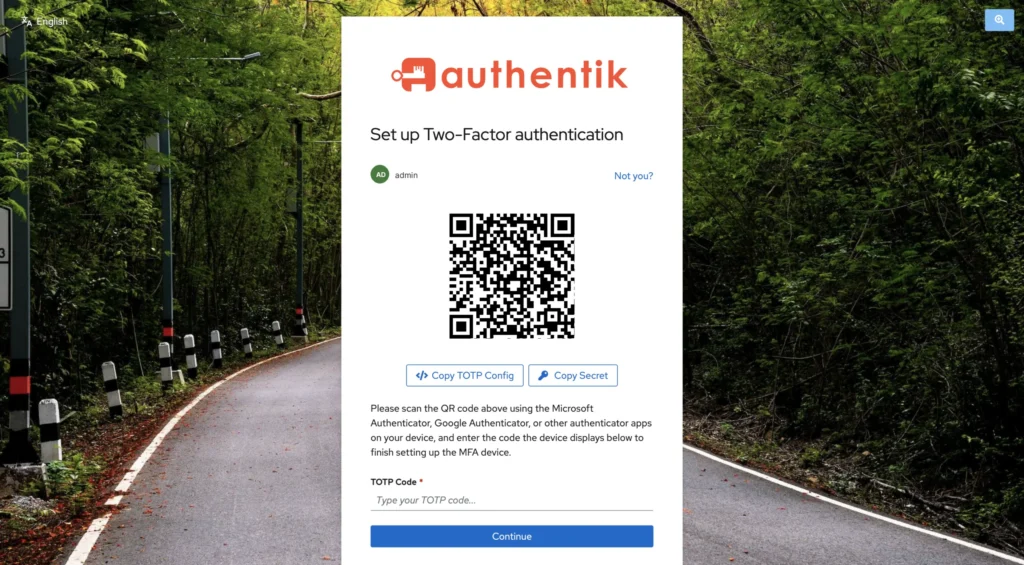
6 — Enforce TOTP
Go to Flows → Flows and edit default-authentication-flow. Add a stage:
- Click Stage Bindings → Bind existing stage
- Add default-authenticator-totp-setup — this prompts users to set up an authenticator app on first login
- Add default-authenticator-validate — this enforces the TOTP check on every login
Order matters: place the TOTP validate stage after the password stage. Users who haven’t set up TOTP yet will be prompted to do so on their next login.
7 — Optional: log in with Plex
Authentik can use your Plex account as a login source — useful if you want to let Plex users (yourself, or friends you’ve shared your server with) sign in without you creating them a separate password.
Go to Directory → Federation & Social login → Sources → Create and choose Plex Source:
- Name / Slug: anything descriptive, e.g.
plex - Authentication flow: default-authentication-flow
- Enrollment flow: default-source-enrollment (creates an Authentik user automatically the first time someone logs in via Plex)
- User matching mode: pick how a Plex login should map to an Authentik user — match by email is the common choice
- Allow friends to authenticate: enable this if you want people who have access to your Plex server as a “friend” (not just you, the server owner) to be able to log in — leave it off to restrict login to your own Plex account only
- Allowed servers: optionally restrict which of your Plex servers count for matching, if you have more than one
After creating the source, Authentik needs you to actually authorize it against your Plex account — it walks you through a plex.tv authorization popup the first time, then stores the resulting token against the source.
Finally, add the source to your login page: edit default-authentication-identification (Flows & Stages → Stages), and add your new Plex source under its Sources setting. A “Log in with Plex” button will now show up on the login screen alongside the normal username/password form.
Plex login is an alternative front door, not a replacement for TOTP. Users who authenticate via Plex still go through whatever stages are bound to
default-authentication-flow— if you’ve enforced TOTP there (Step 6), a Plex-authenticated user will still be prompted to set up or validate their authenticator app.
Adding a new protected service
Once the middleware is in Traefik and the outpost is deployed, protecting a new service is a single line in dynamic.yml:
    new-service:
      rule: "Host(`new-service.yourdomain.com`)"
      entryPoints: [web]
      service: new-service
      middlewares:
        - authentik
No changes needed in Authentik itself — the domain-level proxy provider covers every subdomain automatically.
Useful commands
# Check all three containers are healthy
docker compose ps

# Stream server logs
docker compose logs -f server

# Stream worker logs (handles background tasks)
docker compose logs -f worker

# Reset akadmin password if locked out
docker exec authentik-server ak create_recovery_key 1 akadmin
Common problems
| Problem | Likely cause |
|---|---|
| Login page loops or redirects infinitely | AUTHENTIK_HOST doesn’t match the URL you’re accessing, or cookie domain is wrong |
| 502 from Traefik on protected services | Authentik server not reachable at 127.0.0.1:9000 — check it’s running and on host network or correct port |
| Session not shared across subdomains | AUTHENTIK_COOKIE_DOMAIN not set, or set with a leading dot — remove the dot |
| TOTP not being enforced | Stage order in the authentication flow is wrong — validate must come after password |
| Outpost shows as disconnected | Integration URL wrong, or Authentik server container name doesn’t match |
| Worker container keeps restarting | PostgreSQL not healthy yet — check postgres logs, wait for healthcheck to pass |