

Every service in this stack is reachable from anywhere in the world — but there are zero open ports on the router. No port-forwarding rules, no exposed IPs, no firewall exceptions. That’s what Cloudflare Tunnel combined with Traefik gives you: a fully public, HTTPS-secured entry point that the router never needs to know about.
DDoS protection · TLS termination + CDN
No open ports on router · Outbound-only connection
- Reverse proxy & router
- Dynamic config — no restarts
- Per-route middleware (Authentik)
- Cloudflared as sole ingress
No auth middleware attached
All behind Authentik forward auth + TOTP
Separate from the public Authentik-protected route
How it works
The traffic flow looks like this:
- A request hits
yourdomain.com— Cloudflare’s edge handles TLS and DDoS protection before the packet ever reaches your network - Cloudflare routes the request down a persistent outbound tunnel (cloudflared) running on your TrueNAS box — no inbound connection, no open port
- Cloudflared hands the request to Traefik on port 8000 (plain HTTP — the tunnel itself is already the encrypted hop)
- Traefik matches the
Hostheader against its router rules and forwards to the right container — optionally passing through Authentik forward auth first - The response travels back the same way
Traefik reads its routing rules from a single dynamic.yml file and hot-reloads it whenever it changes — no container restarts needed to add or remove a service.
Traefik also terminates its own real HTTPS, separately from Cloudflare. Alongside the plain
web:8000entrypoint that the tunnel talks to, Traefik can run a secondwebsecureentrypoint with a genuine Let’s Encrypt certificate (issued via a DNS-01 challenge, so no inbound port 80/443 is needed to prove domain ownership). That gets you valid HTTPS — no browser warnings — when hitting a hostname directly from your LAN, bypassing the tunnel entirely. Both entrypoints can be bound to the exact same routers, so every hostname works either way.
What you need before you start
- A Cloudflare account with your domain added and DNS managed by Cloudflare
- A Cloudflare Zero Trust account (free tier is fine) — this is where you create the tunnel
- Docker running on your TrueNAS box
- Optionally, a Cloudflare API token scoped to
Zone:DNS:Editfor your domain, if you also want Traefik’s own Let’s Encrypt certificate (needed for the LAN-direct HTTPS access described above) — not required if you’re happy relying on Cloudflare’s edge TLS alone
Part 1 — Traefik
Create /mnt/tank/stacks/traefik/compose.yaml:
services:
  traefik:
    image: traefik:v3
    container_name: traefik
    network_mode: host
    restart: unless-stopped
    env_file:
      - .env
    command:
      - --entrypoints.web.address=:8000
      - --entrypoints.websecure.address=:8443
      - --entrypoints.websecure.http.tls=true
      - --entrypoints.websecure.http.tls.certresolver=cloudflare
      - --entrypoints.websecure.http.tls.domains[0].main=yourdomain.com
      - --entrypoints.websecure.http.tls.domains[0].sans=*.yourdomain.com
      - --providers.file.filename=/config/dynamic.yml
      - --providers.file.watch=true
      - --api.dashboard=true
      - --log.level=INFO
      - --accesslog=true
      - --certificatesresolvers.cloudflare.acme.dnschallenge=true
      - --certificatesresolvers.cloudflare.acme.dnschallenge.provider=cloudflare
      - --certificatesresolvers.cloudflare.acme.dnschallenge.resolvers=1.1.1.1:53,8.8.8.8:53
      - [email protected]
      - --certificatesresolvers.cloudflare.acme.storage=/certs/acme.json
      - --ping=true
      - --ping.entrypoint=web
    volumes:
      - /mnt/tank/stacks/traefik/config:/config:ro
      - /mnt/tank/stacks/traefik/certs:/certs
      - /etc/localtime:/etc/localtime:ro
    healthcheck:
      test: ["CMD", "wget", "--quiet", "--tries=1", "--spider", "http://localhost:8000/ping"]
      interval: 30s
      timeout: 5s
      retries: 3
      start_period: 10s
Create the .env file in the same directory (skip this and drop the websecure/certificatesresolvers lines above entirely if you don’t want Traefik’s own certificate — Cloudflare’s edge TLS alone is enough for a public-only setup):
CF_DNS_API_TOKEN=your-cloudflare-api-tokenTraefik runs with network_mode: host so it can reach every container’s port on localhost without any Docker networking gymnastics.
Create the config directory and an empty dynamic config file:
mkdir -p /mnt/tank/stacks/traefik/config /mnt/tank/stacks/traefik/certs
touch /mnt/tank/stacks/traefik/config/dynamic.yml
Bring Traefik up:
cd /mnt/tank/stacks/traefik
docker compose up -d
docker compose logs -f traefik
Part 2 — Cloudflare Tunnel
Create the tunnel in Cloudflare Zero Trust
- Log in to one.dash.cloudflare.com
- Go to Networks → Tunnels → Create a tunnel
- Choose Cloudflared, give it a name (e.g.
truenas), and save - Copy the tunnel token shown on the next screen
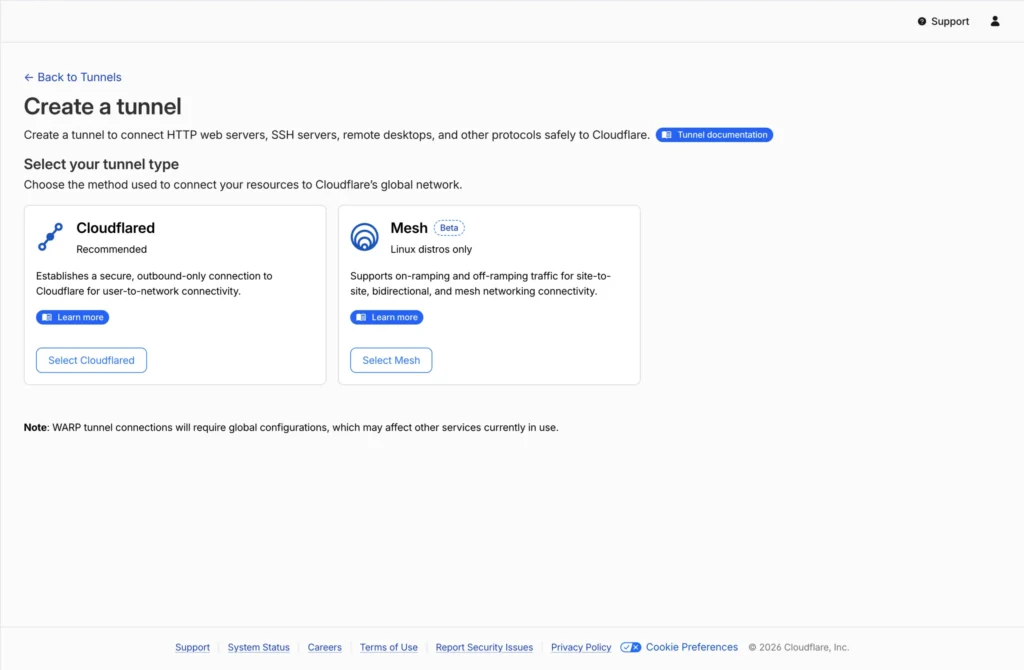
Install cloudflared from the TrueNAS Apps catalog
On TrueNAS SCALE, cloudflared ships as a proper Apps catalog app (community train) — you don’t hand-write a compose file for it. Go to Apps → Discover Apps, search for cloudflared, and install it. During setup, paste the tunnel token you copied above into the Tunnel Token field.
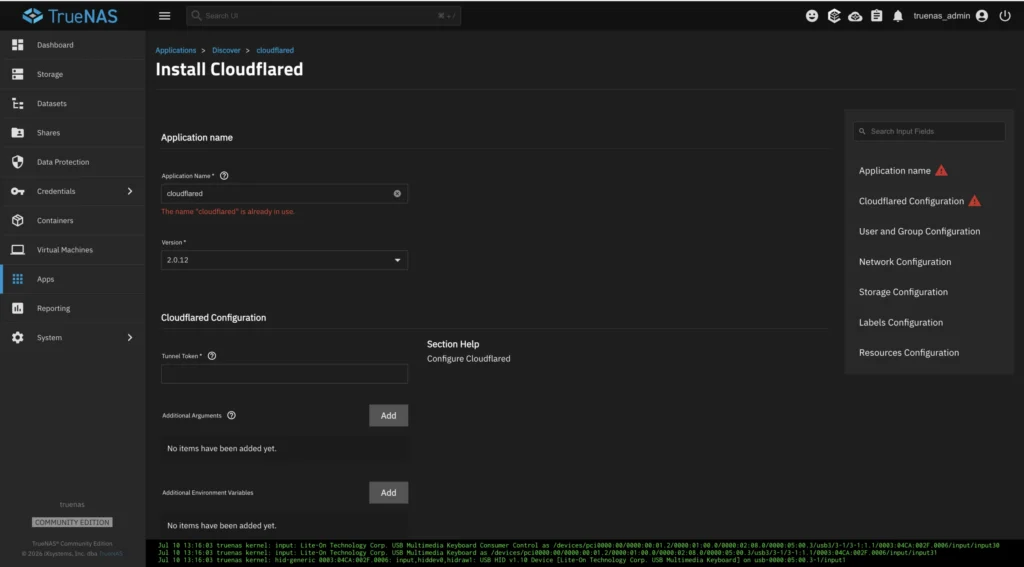
Once it starts you’ll see the tunnel show as Healthy in the Cloudflare dashboard within a few seconds.
Not a Dockge stack. Unlike most of the other guides on this site, cloudflared here isn’t a manual
docker-compose.yml— it’s installed and updated the same way as any other TrueNAS Apps-catalog app (same category as Dockge itself). If you’d rather run it as a hand-rolled container instead, the image iscloudflare/cloudflared:latest, run astunnel runwith aTUNNEL_TOKENenvironment variable andnetwork_mode: hostso it can reach Traefik athttp://localhost:8000— but the Apps-catalog route is less to maintain.
Part 3 — Add your first public hostname
In Cloudflare Zero Trust → Networks → Tunnels → your tunnel → Public Hostnames → Add a hostname:
| Field | Value |
|---|---|
| Subdomain | leave blank (or www for the www version) |
| Domain | yourdomain.com |
| Service Type | HTTP |
| URL | localhost:8000 |
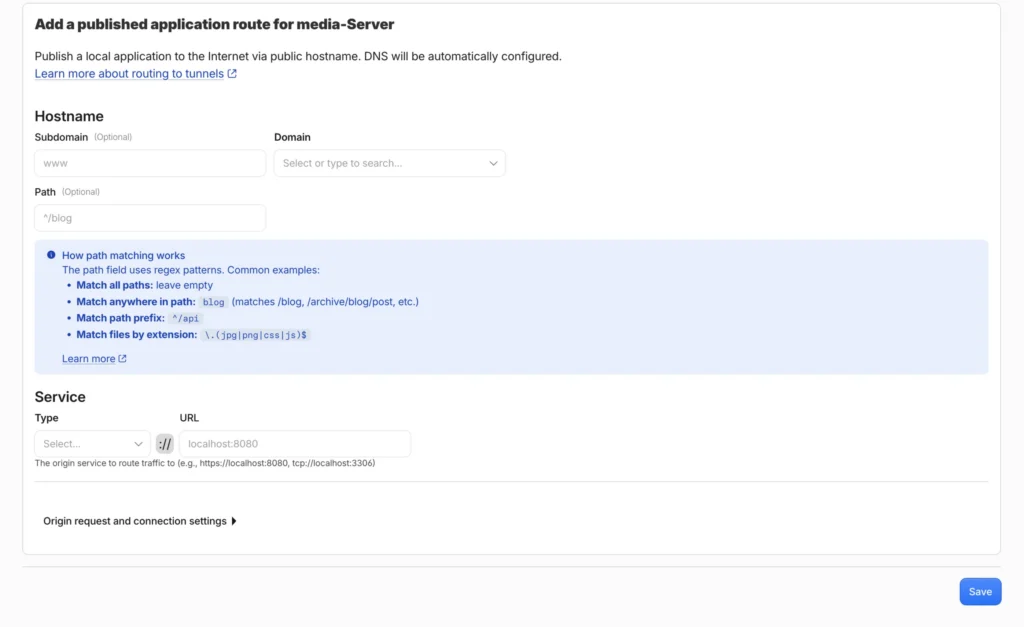
This tells Cloudflare to send all traffic for yourdomain.com down the tunnel to Traefik on port 8000. Traefik then handles routing from there.
Part 4 — Configure Traefik routing
Edit /mnt/tank/stacks/traefik/config/dynamic.yml. Traefik watches this file and reloads it instantly on every save — no container restart needed.
A minimal config routing two services on both entrypoints:
http:
  routers:
    wordpress:
      rule: "Host(`yourdomain.com`)"
      entryPoints: [web, websecure]
      service: wordpress
      priority: 1

    radarr:
      rule: "Host(`radarr.yourdomain.com`)"
      entryPoints: [web, websecure]
      service: radarr
      middlewares:
        - authentik

  middlewares:
    authentik:
      forwardAuth:
        address: "http://127.0.0.1:9000/outpost.goauthentik.io/auth/traefik"
        trustForwardHeader: true
        authResponseHeaders:
          - X-authentik-username
          - X-authentik-groups

  services:
    wordpress:
      loadBalancer:
        servers:
          - url: "http://127.0.0.1:8082"

    radarr:
      loadBalancer:
        servers:
          - url: "http://127.0.0.1:7878"
Each router matches on the Host header and forwards to a service. Attach a middleware to any router to add authentication, redirects, or headers. Include both web and websecure in entryPoints if you set up Traefik’s own certificate in Part 1 — otherwise just [web] is enough. The file hot-reloads — add a new service, save the file, it’s live within a second.
Two useful advanced patterns
Path + priority, for carving out an exception on a hostname you already route elsewhere — useful for letting Authentik’s own callback URL reach it directly even though the same hostname is otherwise protected:
  routers:
    wordpress-outpost:
      rule: "Host(`yourdomain.com`) && PathPrefix(`/outpost.goauthentik.io`)"
      entryPoints: [web, websecure]
      service: authentik
      priority: 100

    wordpress:
      rule: "Host(`yourdomain.com`)"
      entryPoints: [web, websecure]
      service: wordpress
      priority: 1
Higher priority wins when two rules could both match the same request — Traefik doesn’t guess by rule specificity on its own, so an overlapping catch-all router needs an explicit lower priority.
A serversTransport, for a backend with a self-signed certificate — e.g. TrueNAS’s own web UI, which serves HTTPS on a non-standard port with a cert Traefik won’t trust by default:
  serversTransports:
    truenas-api:
      insecureSkipVerify: true

  services:
    truenas-api:
      loadBalancer:
        serversTransport: truenas-api
        servers:
          - url: "https://127.0.0.1:9993"
Protecting the Traefik dashboard
--api.dashboard=true on its own exposes the dashboard with no authentication at all on every router that points at api@internal — worth locking down before you forget about it. A common pattern: allow LAN access with HTTP basic auth, and public access only through Authentik.
  routers:
    dashboard:
      rule: "Host(`traefik.yourdomain.com`)"
      entryPoints: [web, websecure]
      service: api@internal
      middlewares:
        - authentik

    dashboard-internal:
      rule: "Host(`192.168.1.10`)"
      entryPoints: [web]
      service: api@internal
      middlewares:
        - dashboard-auth

  middlewares:
    dashboard-auth:
      basicAuth:
        users:
          - "admin:$2y$12$replace-with-your-own-generated-hash"
Generate your own bcrypt hash for the basicAuth line (Python’s bcrypt module works without installing anything extra like htpasswd):
python3 -c "import bcrypt; print(bcrypt.hashpw(b'your-password', bcrypt.gensalt()).decode())"Paste the result after admin:. This goes straight into dynamic.yml — a plain YAML file read by Traefik’s file provider, not a Compose file — so no $ escaping is needed here.
Adding a new service
The workflow for exposing any new container is the same three steps:
- Add a public hostname in Cloudflare Zero Trust pointing to
localhost:8000 - Add a router and service to
dynamic.yml— Traefik picks it up immediately - The subdomain is live within seconds, HTTPS included, no router config touched
Useful commands
# Check Traefik is running and seeing your config
docker compose logs --tail 50 traefik

# Check cloudflared tunnel status (Apps-catalog app, not a compose stack)
docker logs cloudflared --tail 50

# Verify Traefik has loaded your routes (dashboard on LAN)
curl -s http://<nas-ip>:8080/api/http/routers | python3 -m json.tool

# Test a route responds correctly
curl -sI https://yourdomain.com/
Common problems
| Problem | Likely cause |
|---|---|
| Tunnel shows as unhealthy | Wrong tunnel token, or cloudflared can’t reach Cloudflare (check DNS/outbound) |
| 502 Bad Gateway | Traefik can’t reach the service — check the port in dynamic.yml matches the container |
| Service unreachable externally but works on LAN | Cloudflare public hostname not added, or pointing to wrong port |
| Changes to dynamic.yml not picked up | Check --providers.file.watch=true is in Traefik’s command and the config volume is mounted :ro |
| Auth loop / redirect loop | Authentik outpost URL wrong, or the outpost isn’t running |
| www not redirecting | Add www as a second public hostname in Cloudflare, and a redirectRegex middleware in Traefik pointing it at the non-www router |
| Traefik’s own certificate fails to issue | CF_DNS_API_TOKEN missing/wrong scope, or the DNS resolvers in dnschallenge.resolvers can’t reach Cloudflare — check docker compose logs traefik for ACME errors |
| Traefik dashboard reachable with no login | A router pointing at api@internal has no middlewares attached — every dashboard router needs either authentik or dashboard-auth |