

Seerr is the front door to your media stack. Instead of logging into Radarr or Sonarr yourself, your family and friends log into Seerr with their Plex accounts, search for what they want to watch, and click Request. Seerr sends the request straight to Radarr for movies or Sonarr for TV shows, and notifies them when it lands in Plex. From their perspective, they asked for something and it appeared. That’s the whole point.
Users sign in via Plex · Shows what’s already available
Log in with Plex account · Request movies or TV shows
- Media request management
- Plex login for all users
- Auto-approve or admin review
- Sends requests to Radarr / Sonarr
Receives movie requests · Searches & downloads automatically
Receives TV requests · Monitors episodes automatically
Alert on request approved · Alert when content is ready
What you need before you start
- Plex running and accessible — Seerr uses Plex OAuth for user login, so this must be set up first
- Radarr running — Seerr sends movie requests directly to it via the API
- Sonarr running — same for TV shows
- A Plex account for each person you want to give access to — they use their own Plex credentials to log in
Docker Compose
Create /mnt/tank/stacks/seerr/docker-compose.yml:
services:
  seerr:
    image: ghcr.io/seerr-team/seerr:latest
    container_name: seerr
    environment:
      - PUID=568
      - PGID=568
      - TZ=Europe/London
      - LOG_LEVEL=info
    volumes:
      - /mnt/tank/configs/seerr:/app/config
    ports:
      - 5055:5055
    restart: unless-stopped
Then bring it up:
cd /mnt/tank/stacks/seerr
docker compose up -d
docker compose logs -f seerr
Seerr will be available at http://<your-nas-ip>:5055 in a few seconds.
First-time setup
1 — Sign in with Plex
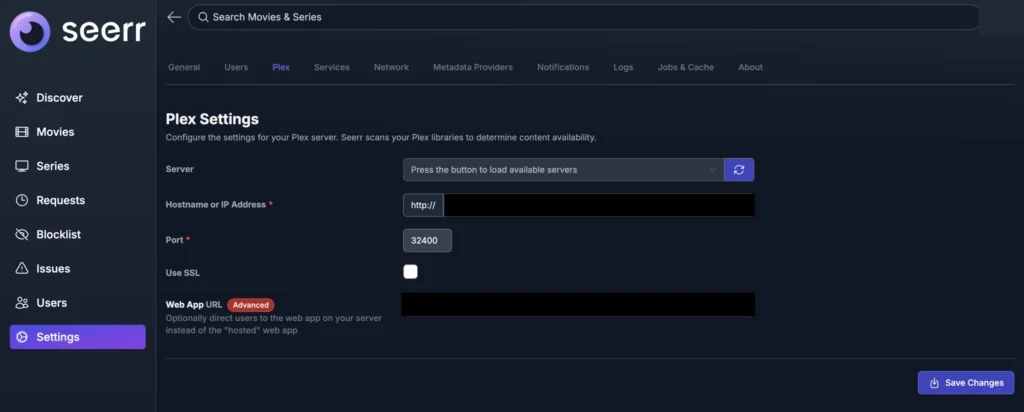
Open Seerr at http://<nas-ip>:5055. The setup wizard asks you to sign in with your Plex account — this links Seerr to your Plex server and makes you the admin. It also pulls in your Plex server list so Seerr can check what’s already in your library before someone requests it.
2 — Connect your Plex server
After signing in, the wizard shows all Plex servers attached to your account. Select the one running on your TrueNAS. Seerr will test the connection and sync your libraries so it knows what you already have.
3 — Connect Radarr
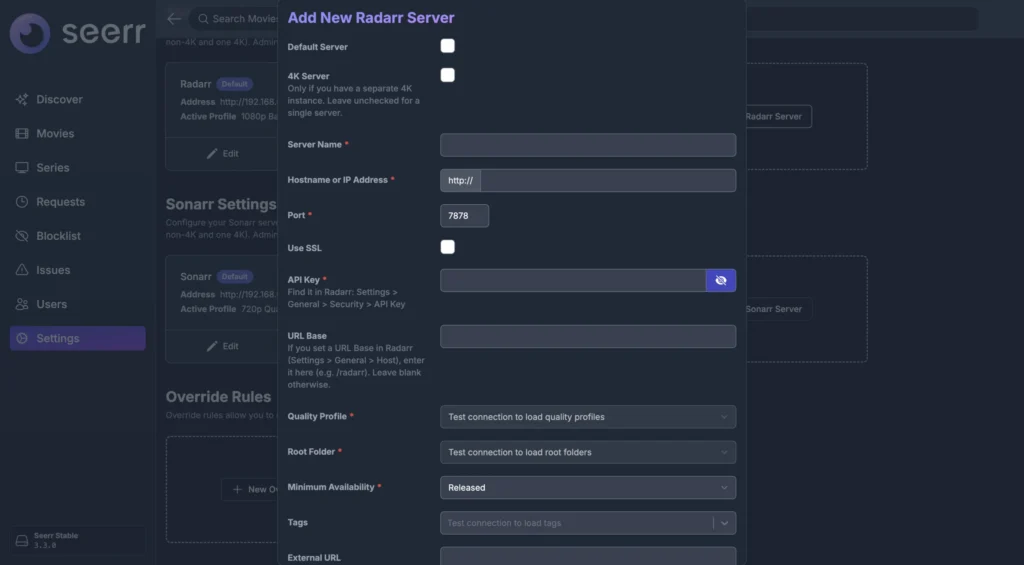
Go to Settings → Services → Radarr → Add:
- Server name: anything you like
- Hostname / IP: your NAS IP
- Port:
7878 - API key: copy from Radarr → Settings → General
- Quality profile: pick your default (e.g. HD-1080p)
- Root folder:
/movies - Enable Default Server
Click Test, then Save.
4 — Connect Sonarr
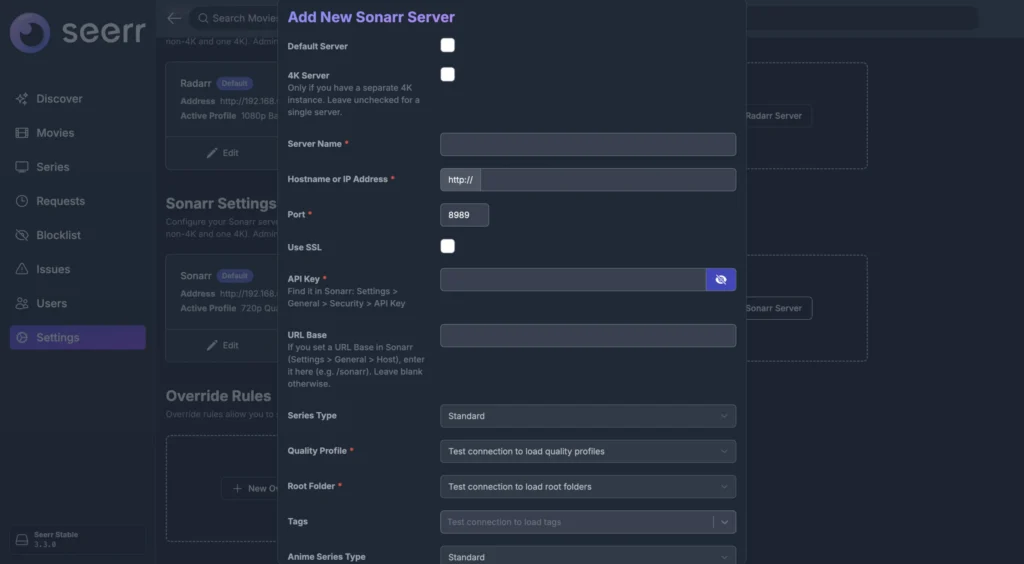
Go to Settings → Services → Sonarr → Add and repeat the same process:
- Port:
8989 - API key: from Sonarr → Settings → General
- Root folder:
/tv
5 — Set request permissions
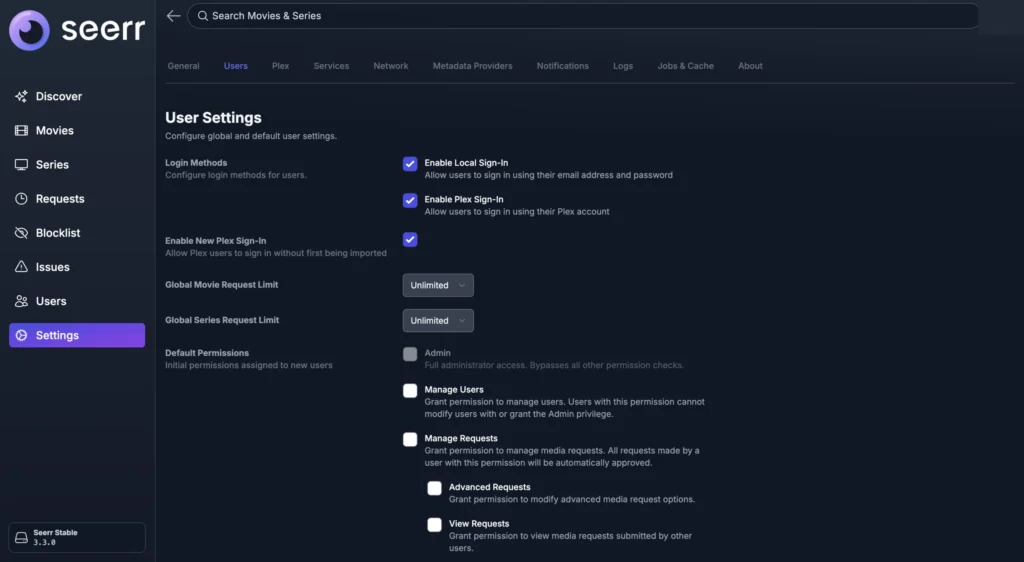
Go to Settings → Users. By default, new users can request but an admin must approve. You can change this per-user or globally:
- Auto-approve — requests go straight to Radarr/Sonarr without review. Good for trusted users
- Request limit — cap how many requests a user can make per day/week to avoid the queue being flooded
6 — Invite users
Share the Seerr URL with anyone you want to give access. They sign in with their own Plex account — no extra registration needed. If they’re already a friend on your Plex server, Seerr will recognise them automatically on first login.
How a request flows through the stack
- User searches for a title in Seerr and clicks Request
- Seerr checks your Plex library — if it’s already there, it says so and skips the request
- If it’s not available, Seerr sends the request to Radarr (movies) or Sonarr (TV)
- Radarr/Sonarr search your indexers, grab the release, and import it into your library
- Plex picks it up via library refresh and it appears on the user’s account
- Seerr sends the user a notification (Discord, email, or push) that their request is ready
The user never needs to know any of this is happening. They click Request, they get a notification, they open Plex.
Notifications
Go to Settings → Notifications. Seerr supports Discord, Slack, email, Telegram, Pushover, and more. A Discord webhook is the easiest to set up — paste the webhook URL and every request, approval, and availability alert goes to your server.
Useful commands
# Stream live logs
docker compose logs -f seerr

# Restart after a config change
docker compose restart seerr

# Check the container is running
docker ps | grep seerr
Common problems
| Problem | Likely cause |
|---|---|
| Can’t sign in with Plex | Seerr can’t reach plex.tv — check DNS and outbound internet from the container |
| Plex server not showing in setup | Plex not running, or not linked to the same Plex account you signed in with |
| Request sent but nothing happens in Radarr/Sonarr | API key wrong, or hostname/port misconfigured in Services settings |
| Already-owned content showing as available to request | Plex library sync not complete — wait a minute and refresh |
| User can’t log in | They need a Plex account and must be a friend on your Plex server, or have sharing enabled |