
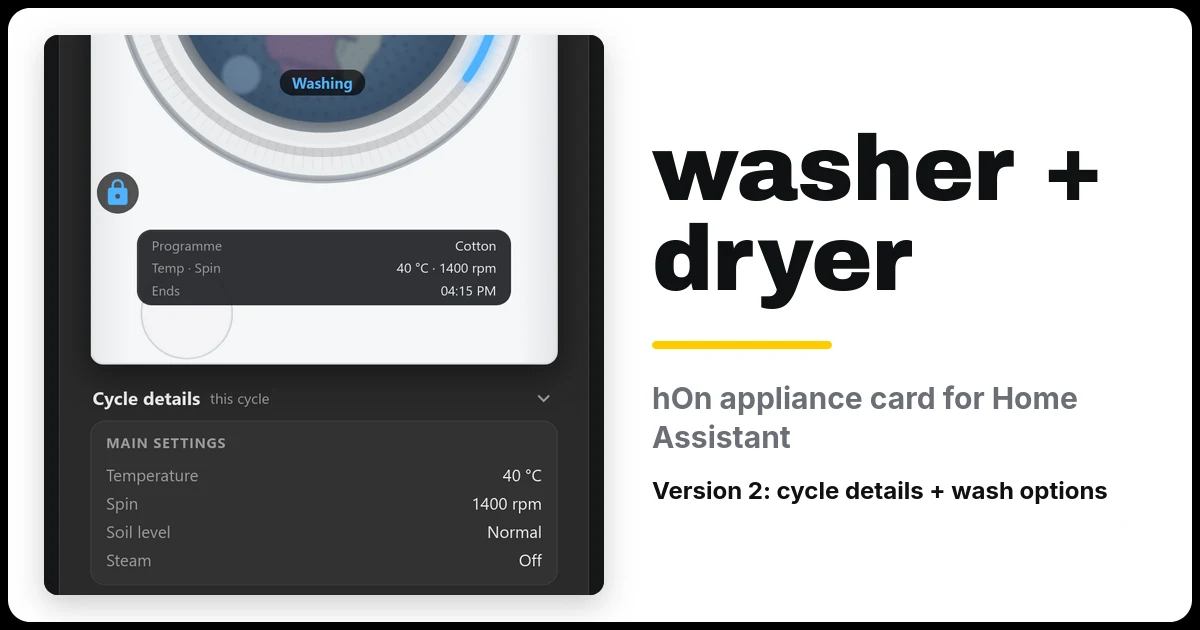
The hOn app tells you when the washing is done, but I wanted the washer and tumble dryer on my Home Assistant dashboard looking like the actual machines: the time left on the machine’s own display, a progress ring round the door, the laundry spinning in the drum while it runs, and buttons to pause it or start a programme without walking to the utility room.
This guide covers the washer and dryer card for Home Assistant I built for my Hoover machines. It works with any machine in the hOn app: Haier, Candy and Hoover. You can try it below with pretend machines before you set anything up.
New in version 3 (October 2026)
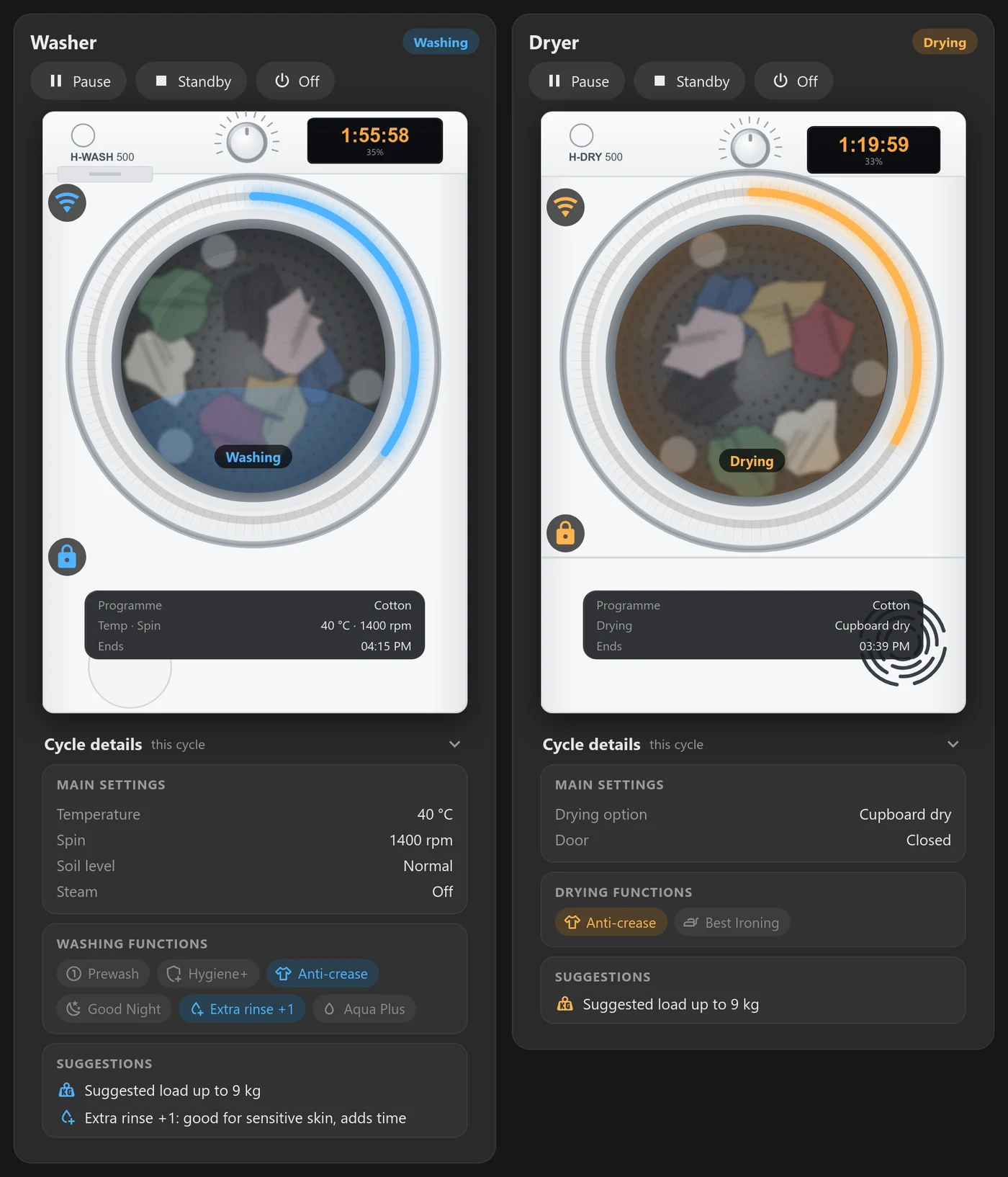
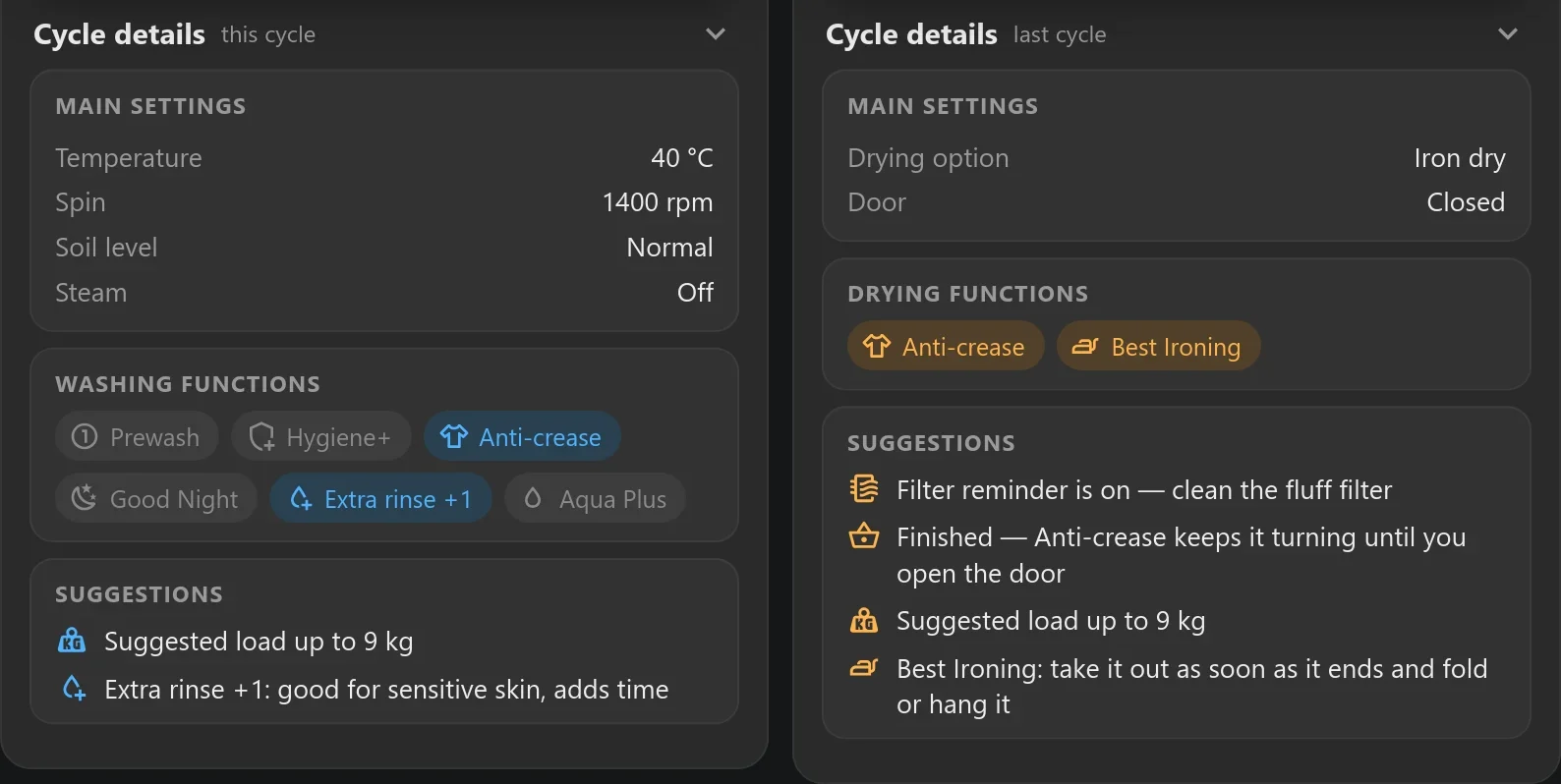
- Cycle details under each machine: the main settings (temperature, spin, soil level and steam on the washer, the drying option on the dryer), which washing or drying functions are on, and suggestions such as a load size for the programme, “clean the fluff filter” and “take it out now”.
- Choose functions before you start. Tap a programme and pick Prewash, Hygiene+, Anti-crease, Good Night, Extra rinse +1/+2/+3 or Aqua Plus on the washer, and Iron, Hang, Cupboard or Extra dry plus Anti-crease and Best Ironing on the dryer.
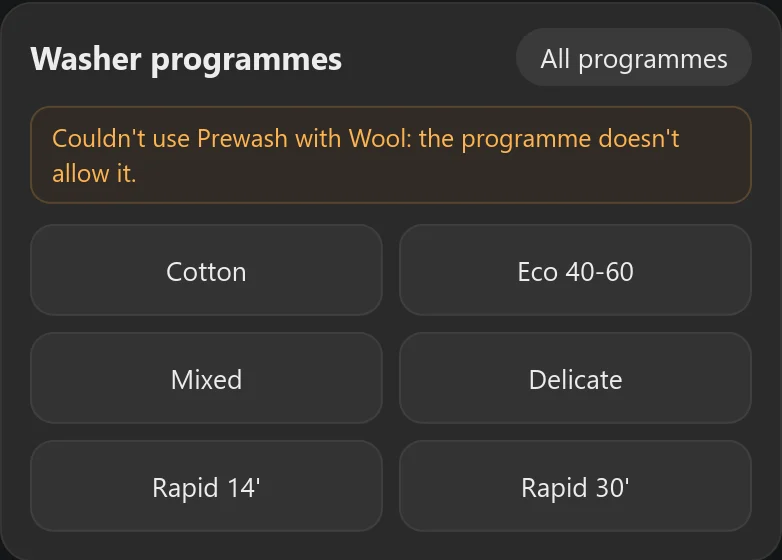
- If a programme doesn’t allow one of your choices, the card tells you a minute after it starts, instead of the machine quietly ignoring it.
- Small fixes: an idle washer no longer shows “Programme #12”, the dryer no longer shows “Level 0”, and a new
codesoption names programmes the machine only reports as a number. - Dark machines: got a dark machine?
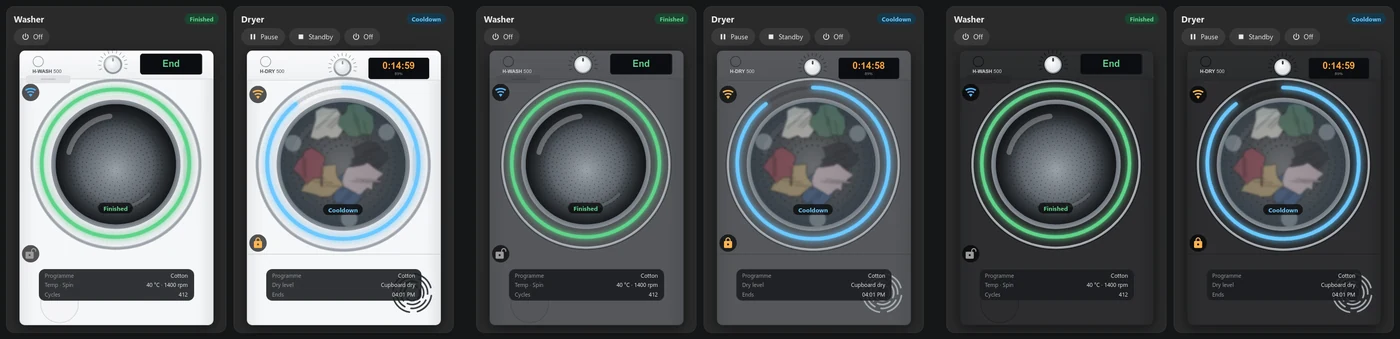
finish: graphiteorfinish: blackturns the built-in washer and dryer dark grey or black. Try it with the Colour button in the demo.
Version 3 is a free download from this page (Step 1). The cycle details and the choices need one extra, optional setup step (Step 4). Without it, everything works as before.
Try the live demo
These are the real cards running in your browser, with pretend machines in place of my hOn account. Start a programme from the buttons under each machine, pause it, put it in standby, skip ahead to watch the ring fill, or open the dryer door mid-cycle. To try the version 3 choices, put the washer in standby, tap a programme and pick some washing functions. The pretend Wool and Rapid programmes refuse Prewash, so you can see what happens then.
What the washer and dryer card for Home Assistant does
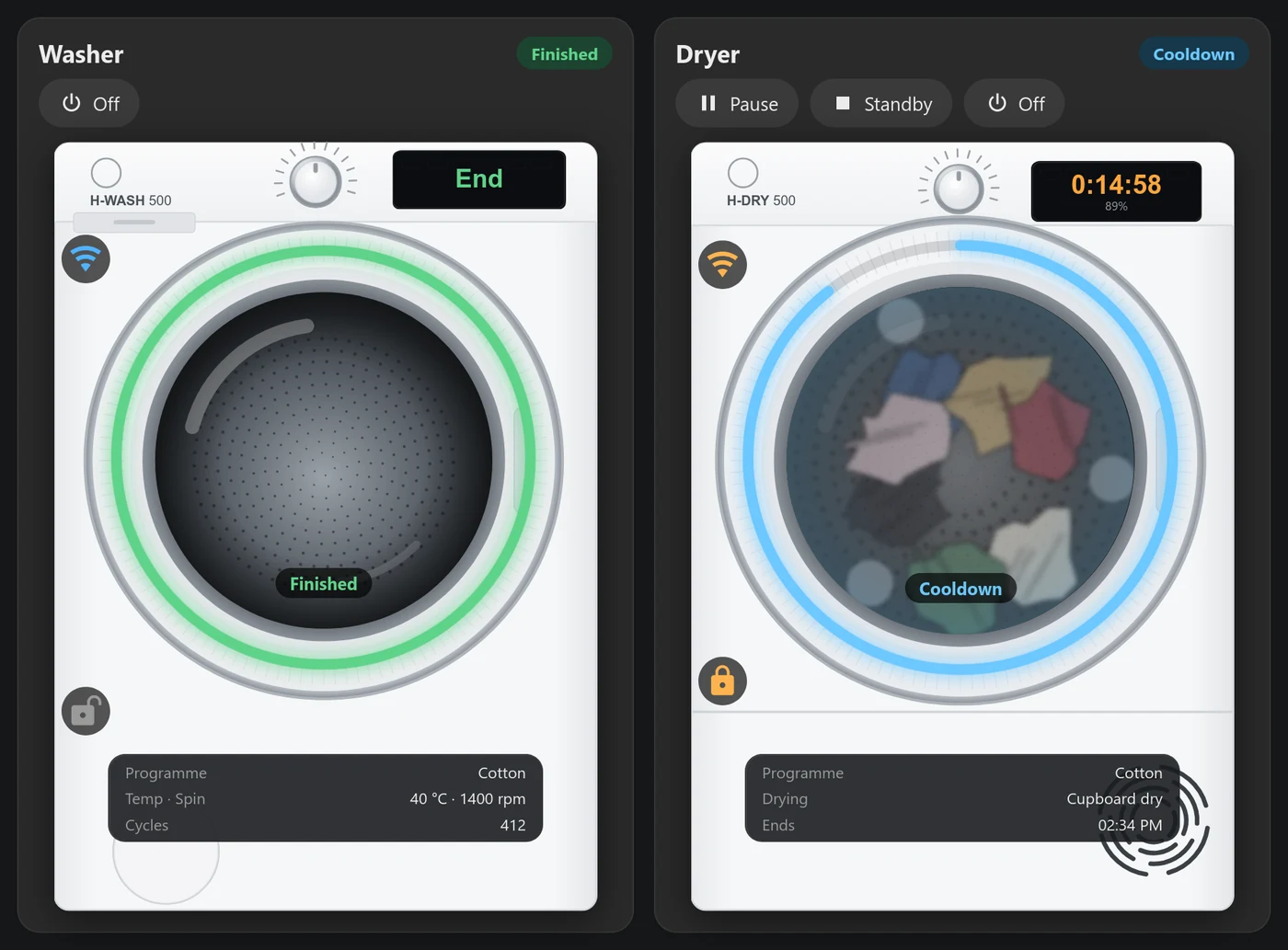
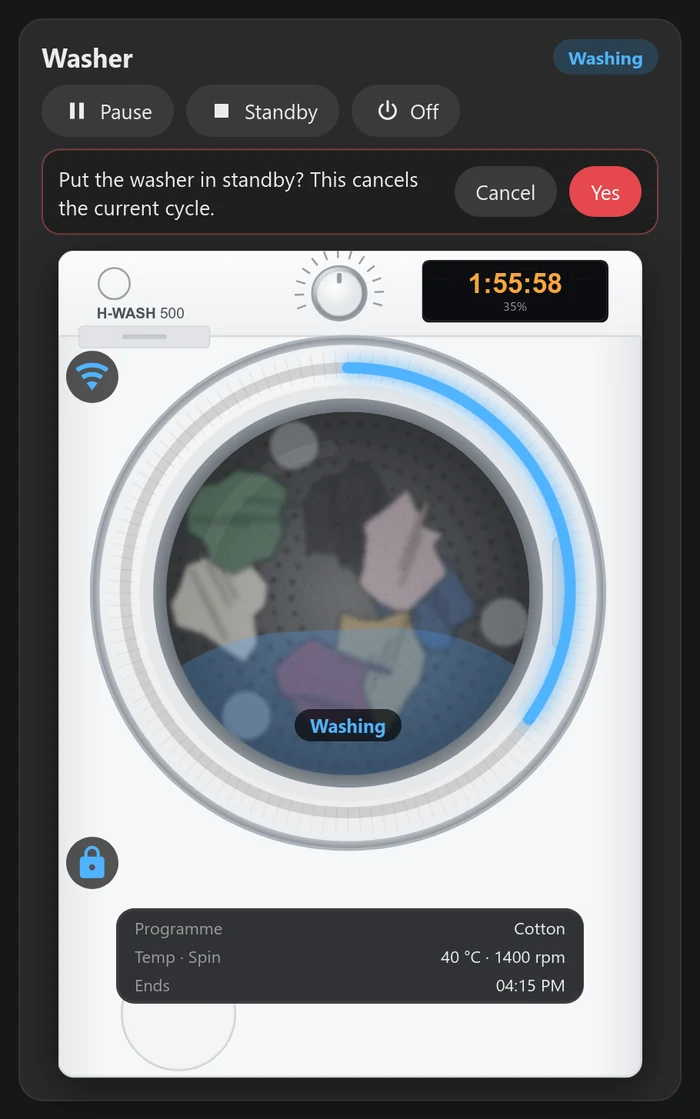
- The machine’s own display. The time left counts down every second, with the percentage done underneath. Before a cycle starts it shows the selected programme’s length and “Ready”, the same as the machine.
- A progress ring round the door. It fills in the machine’s colour (blue for the washer, orange for the dryer), turns light blue while the dryer cools down, and green when the cycle has finished.
- A drum that turns while it runs, with water in the washer and a warm glow in the dryer. The current phase (Washing, Rinse, Spin, Drying, Cooldown) sits on the glass.
- The details that matter: the programme, temperature and spin speed or dry level, and the time it will finish. When it’s idle you get the total number of cycles instead.
- Door and Remote Control icons. The dryer’s door sensor shows open or closed. The washer has no door sensor, so the card shows it locked while a cycle is under way.
- Pause, Resume, Standby and Off buttons, shown only when the machine’s Remote Control is on. Standby and Off cancel the cycle, so they ask first.
- A programmes card with your favourite programmes as buttons and a searchable list of the rest. Tap one, confirm, and it starts.
- Cycle details (new in version 3): the settings, functions and suggestions for the cycle that’s running, selected or just finished.
- Functions and drying options on Start (new in version 3), with a warning if the programme doesn’t take one.
Before you start
- Home Assistant with your washer and/or dryer added to the hOn app on your phone.
- The hOn custom integration. I use gvigroux/hon, the actively maintained fork. The older Andre0512 version hasn’t been updated since 2024 and no longer logs in. Add it in HACS as a custom repository, install it, restart Home Assistant, then add the hOn integration under Settings → Devices & services and sign in with your hOn account.
- Remote Control switched on at the machine if you want to start, pause or stop it from Home Assistant. Without it the card still shows everything, it just can’t send commands.
Quickest way: install the cards with HACS
The cards are on GitHub too, so HACS can install them and keep them updated. In HACS, open ⋮ → Custom repositories, paste https://github.com/spikey1965/ha-hon-appliance-card, choose the type Dashboard and click Add. Then search for hOn Washer & Dryer Card and download it.
That replaces Steps 1 and 2, so skip to Step 3. Note: HACS installs version 2 (the simpler card, with the dark colours). For version 3 (cycle details and the choices on Start), use the download in Step 1 instead.
Step 1: Get the card
The cards are one JavaScript file, hon-appliance-card.js, with both cards in it: hon-appliance-card (the machine) and hon-programmes-card (the programme buttons). It comes with clean illustrations of the Hoover H-WASH 500 and H-DRY 500 (my machines) and a laundry drum that spins behind the glass. If your machine looks different, style: drawn swaps them for a simple generic drawing.
It’s free. This is version 3.0.0. Download the file, then save it in your Home Assistant config folder as config/www/hon-appliance-card.js. That one file is everything: the pictures are built in, so there’s no image folder to copy.
It’s MIT licensed, so use it, change it and share it. If it saves you a few trips to check the washing, you can buy me a coffee. It helps keep guides like this one coming.
Step 2: Register it as a dashboard resource
- Go to Settings → Dashboards, open the ⋮ menu → Resources. If you can’t see Resources, turn on Advanced mode in your user profile first.
- Click Add resource, enter
/local/hon-appliance-card.js?v=4and choose JavaScript module. - Refresh the browser.
Updating from an older version? Replace the file, then edit the resource and change the number at the end (?v=1, ?v=2 or ?v=3) to ?v=4. Your cards keep their settings.
Tip: if you edit the file later, bump the number again (?v=5 and so on). Tablets and the Home Assistant app cache the old file hard, and bumping the number is the only reliable way to get every screen onto the new version.
Step 3: Add the cards
Add a Manual card to your dashboard and paste this. It puts each machine above its programme buttons, washer on the left and dryer on the right:
type: grid
columns: 2
square: false
cards:
  - type: vertical-stack
    cards:
      - type: custom:hon-appliance-card
        appliance: washer
        max_width: 380px
      - type: custom:hon-programmes-card
        appliance: washer
  - type: vertical-stack
    cards:
      - type: custom:hon-appliance-card
        appliance: dryer
        max_width: 380px
      - type: custom:hon-programmes-card
        appliance: dryer
The card looks for entities starting washing_machine and tumble_dryer, which is what the hOn integration creates if your machines are named “Washing machine” and “Tumble dryer” in the hOn app. If yours are different, find your machine’s power sensor under Settings → Entities (it ends in _status, for example binary_sensor.hoover_washer_status) and add the start of its name to both cards:
type: custom:hon-appliance-card
appliance: washer
entity: hoover_washer
Options
appliance:washerordryer(required).entity: the start of your entity IDs, as above.name: the card title. Defaults to Washer or Dryer.colour: the accent colour, for example"#4fb3ff".max_width: how wide the machine can get, for example380px.style:photo(the default, the H-WASH 500 / H-DRY 500 illustrations) ordrawn(a simple drawing that suits any front loader).finish(version 3): the colour of the built-in machines,white(the default),graphiteorblack. The door ring, knob and glass stay silver, like on the real dark models.images: only if you want your own pictures. Point it at a folder with your ownwasher.svg,dryer.svgandlaundry-drum.webp, such as/local/myimg/. Otherwise the built-in ones are used. To make the ring and display line up, draw them like the built-in ones: 600 × 850, door centre at 298, 352, display at the top right (about 374, 10 to 565, 74). Your own pictures replacefinish.favourites(programmes card): the programme buttons to show, as hOn programme keys such asiot_wash_cotton.programmes(programmes card): the full list for the “All programmes” search.capacity(version 3): your drum size in kg, for the suggested loads, for examplecapacity: 9. Defaults to 8.details: false(version 3): hides the Cycle details section.codes(version 3): names programmes the machine only reports as a number. Dial-started cycles often show up as “Programme #35”; addcodes: {35: xxl_load}and it shows “XXL Load”. Some numbers cover more than one programme (on my dryer, Bathrobe is 35 too), so a programme you start from the card keeps its own name.drying_options(version 3, dryer): the dryer’s drying option values, if yours differ from the H-DRY 500’s. The default is{1: Iron dry, 2: Hang dry, 3: Cupboard dry, 4: Extra dry}.
Step 4 (optional): turn on cycle details and the choices on Start
Version 3 can show far more than the hOn integration’s sensors: soil level, steam, every washing function, the dryer’s drying option, Best Ironing and the filter reminder. The integration only makes entities for a handful of these, but its hon.get_setting action can read the machine’s whole live state. It doesn’t hand the answer back, though. It fires an event instead, so this step adds a small automation that asks once a minute while a machine is on, and a template sensor per machine that catches the answer.
- Download the setup file, or copy it from the box below.
- Paste it into your
configuration.yaml. If you already have atemplate:,automation:,logger:orrecorder:section, add these entries to it rather than adding a second one. If your automations live inautomations.yaml(the usual case), paste the automation there instead, without theautomation:line, and indent it to match. - If your entities don’t start with
washing_machineandtumble_dryer, change every occurrence. No dryer? Delete the dryer sensor block and the twotumble_dryerlines in the automation. - Check the configuration under Developer tools → YAML → Check configuration, then restart Home Assistant.
- Switch a machine on. Within a minute, Developer tools → States should list
sensor.washing_machine_cycle_settings(or the dryer’s), and the Cycle details section appears under the machine.
⬇Download hon-cycle-settings.yaml
# hOn washer & dryer card v2: cycle settings for "Cycle details" and the Start choices
# https://mymediabuild.uk/home-assistant-washer-dryer-card/
#
# The hOn integration only makes entities for a few settings. hon.get_setting can read the machine's whole live state,
# but it doesn't return it: it fires a hon_get_setting_result event. So an automation asks once a minute while a machine
# is on, and a template sensor per machine catches the answer.
#
# Paste this into configuration.yaml (if you already have template:, automation: or logger: sections, merge these
# entries into them instead of adding a second copy), then restart Home Assistant once.
# Your entities start with something other than washing_machine / tumble_dryer? Change every occurrence below.
# No dryer? Delete the dryer sensor block and the two tumble_dryer lines in the automation.

template:
  - triggers:
      - trigger: event
        event_type: hon_get_setting_result
    variables:
      r: "{{ trigger.event.data.results.get(device_id('binary_sensor.washing_machine_status')) }}"
    conditions:
      - "{{ r is mapping and r.parameters is defined and r.parameters is mapping }}"
    sensor:
      - name: Washing machine cycle settings
        unique_id: hon_washing_machine_cycle_settings
        icon: mdi:washing-machine
        state: "{{ r.parameters.get('prCode', '') }}"
        attributes:
          settings: >-
            {% set k = ['temp','spinSpeed','dirtyLevel','steamLevel','prewash','hygiene','anticrease','goodNight',
                        'extraRinse1','extraRinse2','extraRinse3','acquaplus','delayTime','nightWashStatus','prCode','machMode'] %}
            {{ dict(r.parameters | items | selectattr(0, 'in', k) | list) }}
          options: >-
            {% set c = r.get('commandHistory', {}).get('command', {}) %}
            {{ c.get('applianceOptions', {}) }}
          last_command: >-
            {% set c = r.get('commandHistory', {}).get('command', {}) %}
            {% set p = c.get('parameters', {}) %}{% set a = c.get('ancillaryParameters', {}) %}
            {{ {'program': p.get('program'), 'prCode': p.get('prCode'), 'at': c.get('timestamp'), 'load': a.get('suggestedLoadW')} }}

  - triggers:
      - trigger: event
        event_type: hon_get_setting_result
    variables:
      r: "{{ trigger.event.data.results.get(device_id('binary_sensor.tumble_dryer_status')) }}"
    conditions:
      - "{{ r is mapping and r.parameters is defined and r.parameters is mapping }}"
    sensor:
      - name: Tumble dryer cycle settings
        unique_id: hon_tumble_dryer_cycle_settings
        icon: mdi:tumble-dryer
        state: "{{ r.parameters.get('prCode', '') }}"
        attributes:
          settings: >-
            {% set k = ['dryLevel','dryTime','anticrease','bestIroning','delayTime','dryFilterStatus','waterTankStatus',
                        'doorStatus','machMode','prCode'] %}
            {{ dict(r.parameters | items | selectattr(0, 'in', k) | list) }}
          options: >-
            {% set c = r.get('commandHistory', {}).get('command', {}) %}
            {{ c.get('applianceOptions', {}) }}
          last_command: >-
            {% set c = r.get('commandHistory', {}).get('command', {}) %}
            {% set p = c.get('parameters', {}) %}{% set a = c.get('ancillaryParameters', {}) %}
            {{ {'program': p.get('program'), 'prCode': p.get('prCode'), 'at': c.get('timestamp'), 'load': a.get('suggestedLoadW')} }}

automation:
  - id: hon_cycle_settings_poll
    alias: hOn - read cycle settings
    description: Reads the washer/dryer's live settings once a minute while one is on, for the hOn card's Cycle details.
    mode: single
    triggers:
      - trigger: time_pattern
        minutes: /1
      - trigger: state
        entity_id:
          - binary_sensor.washing_machine_status
          - sensor.washing_machine_mode
          - sensor.washing_machine_program_code
          - binary_sensor.tumble_dryer_status
          - sensor.tumble_dryer_mode
          - sensor.tumble_dryer_program_code
      - trigger: homeassistant
        event: start
    conditions:
      - condition: or
        conditions:
          - condition: state
            entity_id: binary_sensor.washing_machine_status
            state: "on"
          - condition: state
            entity_id: binary_sensor.tumble_dryer_status
            state: "on"
          - condition: template
            value_template: "{{ trigger.platform != 'time_pattern' }}"
    actions:
      - delay: 2
      - action: hon.get_setting
        continue_on_error: true
        data:
          device_id: >-
            {{ [device_id('binary_sensor.washing_machine_status'), device_id('binary_sensor.tumble_dryer_status')] | select | list }}
          parameter: attributes

# Optional, but recommended: hon.get_setting writes every answer to the log as a warning, and the event to the database.
# These keep both quiet. (Already have a logger: or recorder: section? Add just the inner lines to it.)
logger:
  default: warning
  filters:
    custom_components.hon:
      - "get_setting results"
      - "^<entity unknown"

recorder:
  exclude:
    event_types:
      - hon_get_setting_result
The logger and recorder parts are optional but worth having. hon.get_setting writes every answer to the log as a warning, and the event to your history database, once a minute while a machine is on. Those lines keep both quiet.
What Cycle details shows:
- Main settings: temperature, spin, soil level, steam and any delay on the washer. The drying option (Iron, Hang, Cupboard or Extra dry), timed-dry length, delay and door on the dryer.
- Functions: every function your washer offers (hOn tells the card which ones), lit when it’s on. Anti-crease and Best Ironing on the dryer.
- Suggestions: a suggested load for the programme, care tips for the settings (a cold wash, a hot wash, heavy soil without Prewash, a high spin on synthetics), and the dryer’s own reminders: water tank full and clean the filter. Set
capacityto your drum size so the loads fit your machine. When you started the cycle from the hOn app, the card uses hOn’s own suggested load instead.
Good to know: I’ve tested this on my own Hoover H-WASH 500 and H-DRY 500. Other models can number things differently, so if a drying option shows as “Option 13”, tell the card with drying_options. A dryer sitting in Ready reports its default settings until the cycle starts, so the dryer’s details settle once it’s running. The card says so under the heading.
Starting programmes
The programmes card starts a cycle with the hon.start_program action, using the programme’s default temperature and spin. Tap a programme and it asks before it starts:
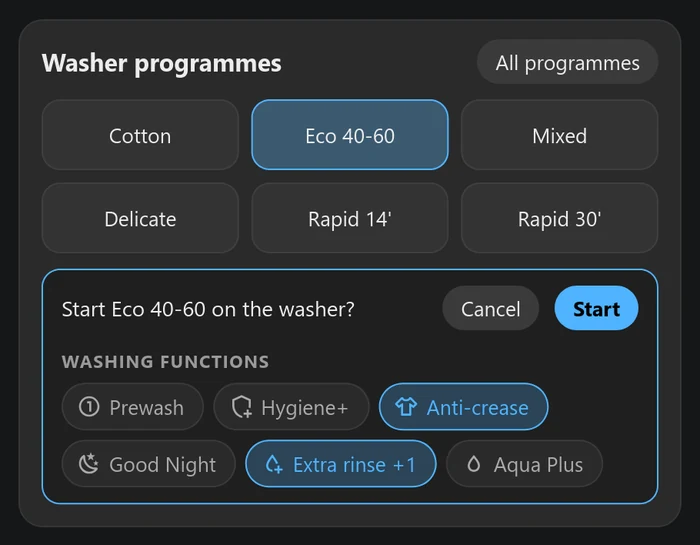
To find the programme keys your machine accepts, go to Developer tools → Actions, pick the hOn start program action (hon.start_program), choose your machine and enter a made-up programme name such as test. The error lists every programme it accepts. Paste the ones you use most into favourites, and the full list into programmes if you want the search.
Choosing functions and drying options (version 3)
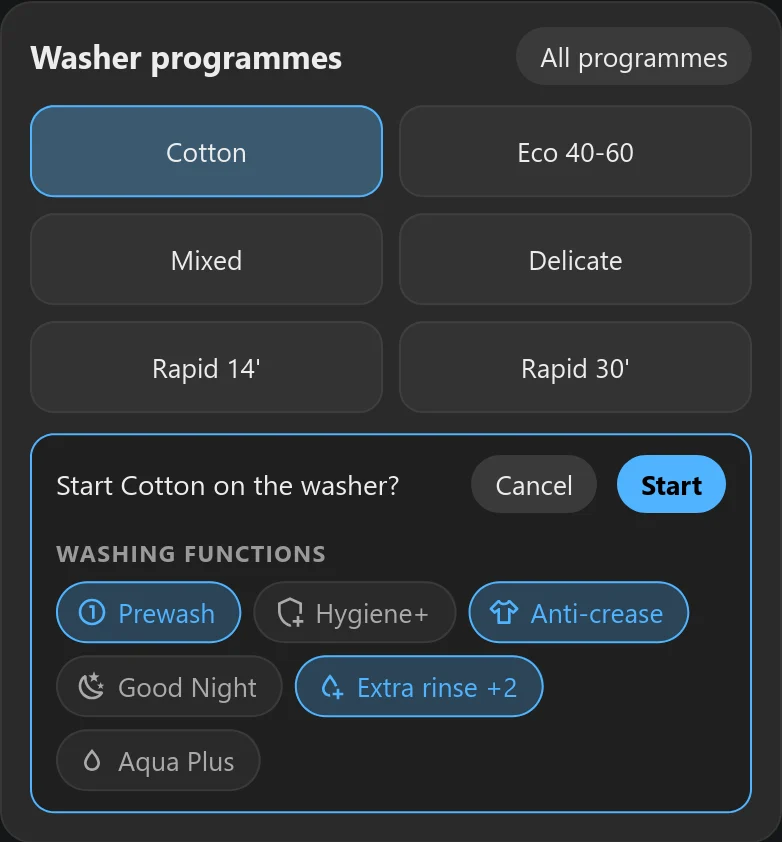
With Step 4 set up, the confirm box also offers the machine’s functions. On the washer they start from whatever the machine is set to now. Tap one to switch it on or off. Extra rinse goes off, +1, +2, +3.
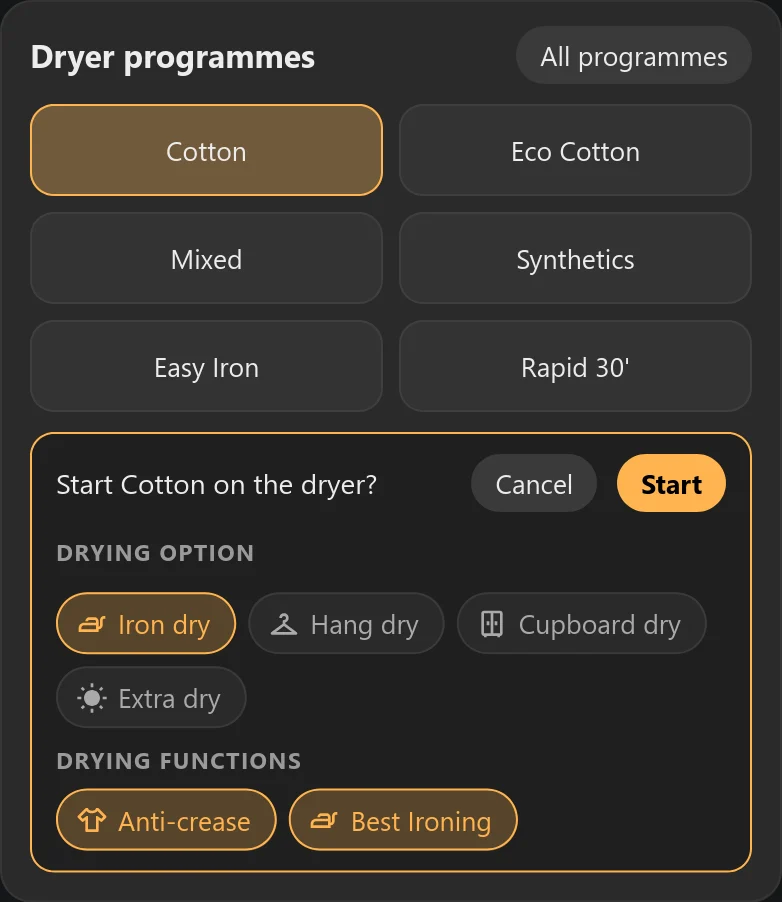
On the dryer you also pick the drying option. Nothing is picked at first, which means “the programme’s default”. Tap one to choose it, or tap it again to go back to the default. Anti-crease and Best Ironing sit underneath.
Your choices go to the machine with the programme. Not every programme allows every function (Wool usually refuses Prewash, for example), and the integration quietly skips anything the programme won’t take. So about a minute after the start, the card checks what the machine actually reports and tells you if something didn’t make it:
Pause and Resume act straight away. Standby and Off cancel the cycle, so the card asks first:
How it knows what the machine is doing
This took the most working out, so here’s how it works in case you want to build automations on the same sensors.
binary_sensor.*_statusis the power state, not “running”. It’s on as soon as you switch the machine on, even before you start a programme.sensor.*_modeis what the machine is doing: 1 Ready, 2 Running, 3 Paused, 4/5 Scheduled, 7 Finished, 9 Ending. The card treats 2, 3, 4, 5 and 9 as “a cycle is under way”.sensor.*_program_phasegives the phase. For the dryer, phase 3 is the cooldown.sensor.*_start_timeandsensor.*_end_timedrive the ring and the countdown. If your version doesn’t have them, the card falls back toremaining_time.- Cycles started on the dial often report the programme as “No program”. The card shows “Programme #code” while the machine is on (name it with the
codesoption), and remembers programmes you start from the programmes card. - Version 3’s cycle details come from
hon.get_settingwithparameter: attributes: the machine’s whole live state, plus the last programme started from the hOn app with hOn’s suggested load for it. On my H-DRY 500 the drying option isdryLevel: 1 Iron dry, 2 Hang dry, 3 Cupboard dry, 4 Extra dry.
So a “washing finished” automation should trigger on sensor.washing_machine_mode changing to 7, not on the status sensor turning off.
Troubleshooting
- “Custom element doesn’t exist: hon-appliance-card”: the resource isn’t loaded. Check the path in Step 2 matches where you put the file, then refresh. On a tablet, bump
?v=. - The card says Off while the machine is on: the
entityoption doesn’t match your entity IDs. Find yourbinary_sensor.…_statusand use the part betweenbinary_sensor.and_status. - No Pause/Standby/Off buttons: Remote Control is off on the machine. They only appear when it’s on, because the machine ignores remote commands otherwise.
- “Couldn’t start”: the programme key isn’t one your machine accepts, the door is open, or Remote Control is off at the machine. Check it on the machine’s panel and switch it back on.
- No Cycle details section: it only appears once
sensor.washing_machine_cycle_settings(or the dryer’s) exists. Check Step 4, restart Home Assistant and switch the machine on. Then look for the sensor in Developer tools → States, and check that the automation “hOn – read cycle settings” is on. - “Couldn’t use … with …”: the programme doesn’t allow that function or drying option. The cycle runs without it. Pick a different programme, or start it without that choice.
- The drying option shows “Option 13” (or another number): your dryer numbers its options differently. Set
drying_optionson both dryer cards. - Times are a minute or two behind: the hOn cloud only updates every minute or so. The card counts down between updates so the display keeps moving.
Version history
- 3.0.0 (15 October 2026, download from this page): everything in version 2 on GitHub, plus cycle details, washing functions and drying options on Start with a “couldn’t use” warning, the
capacity,details,codesanddrying_optionsoptions, drying option names for the H-DRY 500, programmes started from the card keeping their own name when the machine reports a shared number (my dryer reports Bathrobe and XXL Load both as 35), and fixes for “Programme #code” and “Level 0” showing on idle machines. It was briefly numbered 2.0.0 to 2.1.0 on this page the same day. - 2.0.0 (15 October 2026, GitHub and HACS): the
finishoption (white, graphite or black machines), and the card redraws straight away when you change its settings in the dashboard editor. - 1.0.0 (13 October 2026): first release, on GitHub and HACS.
Wrapping up
The card lives on the Utility page of my wall tablets, and it’s the one the whole house actually uses: a glance tells you whether the washing is done or how long the dryer has left. If you build on it, I’d love to see what you make in the comments.
New to Home Assistant? Start with my guide to installing Home Assistant with Docker Compose.
More Home Assistant guides: setting up a Home Assistant wall tablet, a live 3D floor plan for Home Assistant and a Toyota car card.
Thank you
This card wouldn’t work without the hOn integration maintained by gvigroux, building on the original by Andre0512. If it’s useful to you, give the project a star on GitHub. The look was inspired by the Miele appliance card shared on the Home Assistant community forum.
If you like the card, consider buying me a coffee. It helps keep projects like this one free.