
The MyToyota app is fine for checking the car from your phone, but I wanted the car on the same wall dashboards as everything else in the house: how much fuel is in it, whether it’s locked, whether someone left the bonnet open, and when it was last serviced. Home Assistant can do that with a community integration for Toyota Connected Services, and with one small custom card you get something that looks a lot nicer than a list of sensors.
This guide covers the whole thing: installing the Toyota integration from HACS, what data it actually gives you (and the two gotchas that will confuse you), then building, registering and laying out a custom Toyota card for Home Assistant. Mine is for a 2024 Yaris Hybrid, but it works for any Toyota the MyToyota app can see.
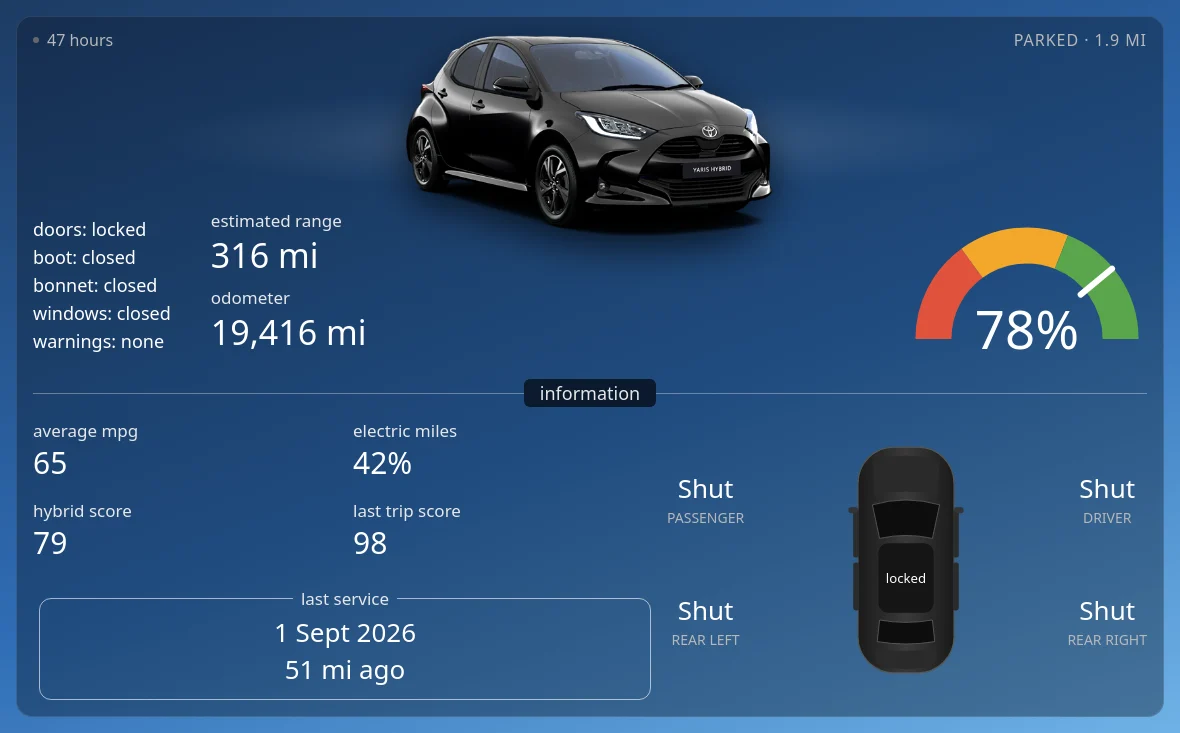
What the card shows
- When the car last reported in (tap it to ask the car for a fresh update), and where it’s parked as a distance from home (tap to open the spot in Google Maps).
- A photo of your actual car, in your colour, straight from Toyota.
- Doors, boot, bonnet, windows and warning lights, in amber or red when something needs attention.
- Range, odometer and a fuel gauge in red, amber and green.
- Average mpg, the share of miles driven on electric, the hybrid score and the last trip score.
- The last service date and miles since.
- A top-down car with each door’s state at its corner.
Before you start
- Home Assistant with HACS installed.
- A Toyota that shows up in the MyToyota app with connected services active, and your MyToyota email and password. The integration talks to Toyota’s European servers, so it’s aimed at European (including UK) cars.
- About 20 minutes.
Step 1: Install the Toyota integration from HACS
There is no built-in Toyota integration in Home Assistant, so don’t go looking for it in Settings yet. You need the community one, pytoyoda/ha_toyota, from HACS:
- Open HACS and search for Toyota Connected Services. Check the author is pytoyoda.
- If it isn’t listed, use the ⋮ menu → Custom repositories, paste
https://github.com/pytoyoda/ha_toyotaand pick the Integration type. - Click Download, then restart Home Assistant.
Tip: make sure the download actually happened before you restart. The first time I did this, HACS looked finished but nothing had been written. Check that a custom_components/toyota folder now exists in your Home Assistant config folder. If it doesn’t, open the repository in HACS and download it again.
Step 2: Add your car
After the restart, refresh your browser, then go to Settings → Devices & services → Add integration, search for Toyota Connected Services and log in with your MyToyota email and password. The first time can take a minute while Home Assistant installs the pytoyoda library it uses.
Your car appears as a device, with its VIN in every entity name. In this guide I’ve written that part as <vin>, so sensor.<vin>_fuel_level means your car’s fuel level sensor. Keep your VIN out of screenshots you share.
Step 3: What the integration gives you
On my Yaris it created around 40 entities. These are the ones the card uses:
| Entity | What it is |
|---|---|
sensor.<vin>_fuel_level, _fuel_range, _odometer |
Fuel %, range and mileage (in km) |
device_tracker.<vin>_parking_location |
Where the car was last parked. Its entity_picture is a photo of your car |
binary_sensor.<vin>_driverseat_door, _window, _lock (and the same for passengerseat, leftrearseat, rightrearseat) |
Each door, window and lock |
binary_sensor.<vin>_trunk, _trunk_lock, _hood |
Boot and bonnet |
sensor.<vin>_warning_lights, binary_sensor.<vin>_vehicle_health |
Dashboard warning lights |
sensor.<vin>_current_year_statistics (also day, week, month) |
Distance, with average speed, fuel use, EV distance and hybrid score as attributes |
sensor.<vin>_recent_trips, _last_service |
Last trip (with scores) and service history |
sensor.<vin>_status_last_reported_by_car |
When the car itself last sent an update |
button.<vin>_refresh_vehicle_status |
Asks the car for a fresh update |
Gotcha 1: a lock sensor that is “on” means unlocked. The lock binary sensors use Home Assistant’s lock device class, where on means unlocked and off means locked. Doors, windows, the boot and the bonnet are the usual way round: on means open. If your first dashboard says everything is unlocked, check this before you run out to the car.
Gotcha 2: the data is only as fresh as the car’s last report. The integration polls Toyota regularly, but Toyota only has what the car last sent, which is usually after a drive or when it’s locked. Look at status_last_reported_by_car, not the integration’s own “last fetch” time. That’s why the card shows “47 hours” in the corner and lets you tap it to ask for a refresh. Also, binary_sensor.<vin>_driving only means the odometer went up between two polls. It isn’t a live ignition signal.
Everything comes in kilometres and litres per 100 km, so the card converts to miles and UK mpg itself.
Quickest way: install the card with HACS
The card is on GitHub too, so HACS can install it and keep it updated. In HACS, open ⋮ → Custom repositories, paste https://github.com/spikey1965/ha-toyota-card, choose the type Dashboard and click Add. Then search for Toyota Card and download it.
That replaces Steps 4 and 5, so skip to Step 6. The YAML there works as it is, or use the new name type: custom:toyota-card.
Step 4: Create the card
Create a file called yaris-card.js in the www folder of your Home Assistant config (create www if it doesn’t exist, then restart once so Home Assistant serves it at /local/). Paste in the code below. It has no dependencies: it’s one plain web component.
// yaris-card.js - a Home Assistant dashboard card for a Toyota, using the
// Toyota Connected Services integration (pytoyoda/ha_toyota, installed from HACS).
// Shows: last update, parked distance from home, photo, doors/boot/bonnet/windows/warnings,
// range + odometer, a fuel gauge, mpg / electric / hybrid scores, last service, and a
// top-down car with each door's state.
// The integration reports km and L/100 km; this card shows miles and UK mpg.
// Usage: type: custom:yaris-card
// prefix: <your car's entity prefix> (optional - the first Toyota found is used)
const KM_MI = 0.621371, L100_MPG = 282.481;
const esc = s => String(s ?? "").replace(/[&<>"]/g, c => ({ "&": "&", "<": "<", ">": ">", '"': """ }[c]));
const num = v => (v === undefined || v === null || v === "" || isNaN(+v)) ? null : +v;
const mi = (km, dp = 0) => km === null ? "–" : (km * KM_MI).toLocaleString("en-GB", { maximumFractionDigits: dp, minimumFractionDigits: dp });
const since = iso => {
const t = Date.parse(iso); if (isNaN(t)) return "–";
const m = Math.round((Date.now() - t) / 60000);
return m < 60 ? `${Math.max(m, 0)} min` : m < 2880 ? `${Math.round(m / 60)} hours` : `${Math.round(m / 1440)} days`;
};
const dist = (a, b, c, d) => { // metres between two lat/lon points
const r = Math.PI / 180, x = Math.sin((c - a) * r / 2) ** 2 + Math.cos(a * r) * Math.cos(c * r) * Math.sin((d - b) * r / 2) ** 2;
return 12742000 * Math.asin(Math.sqrt(x));
};
const CSS = `
:host { --fg:#ffffff; --muted:#b8b8b8; --red:#e0533d; --amber:#f4a72c; --green:#5aa54b; display:block; height:100%; }
ha-card { background:var(--car-card-bg,#000); border:1px solid #ffffff1a; border-radius:16px; box-shadow:none; padding:12px 16px 16px; color:var(--fg);
font-family:Roboto,system-ui,-apple-system,sans-serif; container-type:inline-size;
height:100%; box-sizing:border-box; display:flex; flex-direction:column; overflow-x:hidden; overflow-y:auto; } /* fills a panel/full-page view; the photo takes the spare height */
.top { display:flex; justify-content:space-between; align-items:center; font-size:13px; color:var(--muted); }
.top .upd { display:flex; align-items:center; gap:8px; cursor:pointer; } .top .upd i { width:6px; height:6px; border-radius:50%; background:#666; }
.top .upd.busy i { background:var(--amber); animation:blink 1s infinite; } @keyframes blink { 50% { opacity:.2; } }
.top .park { text-transform:uppercase; letter-spacing:.06em; cursor:pointer; } .top .park.drive { color:var(--green); }
.hero { position:relative; display:flex; justify-content:center; align-items:center; margin:2px 0 6px; flex:1 1 0; min-height:140px; }
.hero::before { content:""; position:absolute; left:50%; top:58%; width:78%; height:70%; transform:translate(-50%,-50%);
background:radial-gradient(ellipse at center, #ffffff2e 0%, #ffffff0d 45%, transparent 70%); }
.hero img { position:relative; max-width:88%; max-height:100%; width:auto; height:auto; object-fit:contain; filter:drop-shadow(0 10px 14px #000a) brightness(1.1); transform:translateY(6%) scale(1.35); }
.hero ha-icon { --mdc-icon-size:100px; color:#ffffff40; margin:24px 0; }
.mid { display:grid; grid-template-columns:auto auto 1fr; gap:18px; align-items:center; }
.list { font-size:14px; line-height:1.55; } .list b { font-weight:500; } .list .bad { color:var(--red); } .list .warn { color:var(--amber); }
.kv span { display:block; font-size:14px; color:#e8e8e8; } .kv b { display:block; font-size:24px; font-weight:400; margin-bottom:8px; }
.gauge { justify-self:end; width:min(170px,100%); }
.gauge svg { width:100%; height:auto; display:block; }
.hr { position:relative; text-align:center; margin:18px 0 14px; } .hr::before { content:""; position:absolute; left:0; right:0; top:50%; border-top:1px solid #ffffff55; }
.hr span { position:relative; background:#0b1a2e; border-radius:6px; padding:2px 16px; font-size:16px; color:#e8e8e8; }
.info { display:grid; grid-template-columns:minmax(0,1.3fr) minmax(0,1fr); gap:10px; align-items:center; }
.cells { display:grid; grid-template-columns:1fr 1fr; gap:14px 12px; }
.cells span { display:block; font-size:14px; color:#e8e8e8; } .cells b { display:block; font-size:22px; font-weight:400; }
.box { grid-column:1 / -1; border:1px solid #ffffff99; border-radius:12px; padding:4px 10px 12px; margin:8px 6px 0; text-align:center; min-width:0; }
.box legend { margin:0 auto; padding:0 8px; font-size:14px; color:#e8e8e8; }
.box b { display:block; font-size:20px; font-weight:400; line-height:1.4; }
.topdown { display:grid; grid-template-columns:auto 1fr auto; grid-template-rows:1fr 1fr; align-items:center; gap:4px; }
.topdown svg { grid-row:1 / 3; grid-column:2; width:100%; max-width:110px; height:auto; justify-self:center; }
.corner { text-align:center; } .corner b { display:block; font-size:20px; font-weight:400; } .corner span { font-size:12px; color:var(--muted); text-transform:uppercase; }
.corner.bad b { color:var(--red); }
/* wide screens (e.g. an iPad in landscape): bigger type */
@container (min-width:700px) {
ha-card { padding:18px 28px 24px; } .top { font-size:16px; } .list { font-size:18px; } .kv span, .cells span, .box legend { font-size:17px; }
.kv b { font-size:34px; } .cells b { font-size:30px; } .box b { font-size:26px; } .corner b { font-size:26px; } .corner span { font-size:14px; }
.gauge { width:240px; } .mid { gap:40px; } .hr span { font-size:18px; } .topdown svg { max-width:120px; } .cells { gap:16px 16px; }
}
/* phones: stack it, and let the card scroll instead of squeezing */
@container (max-width:520px) { .mid { grid-template-columns:1fr 1fr; gap:12px; } .gauge { grid-column:1 / -1; justify-self:center; width:200px; }
.info { grid-template-columns:1fr; } .topdown svg { max-width:90px; } .hero { flex:0 0 auto; } .hero img { transform:none; max-width:100%; } .top { gap:8px; } }
`;
class YarisCard extends HTMLElement {
setConfig(c) { this._config = c || {}; }
getCardSize() { return 9; }
set hass(h) {
this._hass = h;
let p = this._config.prefix;
if (!p) { const k = Object.keys(h.states).find(e => /^sensor\..+_fuel_range$/.test(e) && h.states[e.replace("_fuel_range", "_odometer")]); p = k && k.slice(7, -11); }
this._p = p;
// only redraw when something shown changes (plus once a minute for the "x hours" clock)
const sig = p ? Object.keys(h.states).filter(e => e.includes(p)).map(e => e + h.states[e].last_updated).join() + Math.floor(Date.now() / 60000) : "none";
if (sig === this._sig) return; this._sig = sig;
this._render();
}
_render() {
if (!this.shadowRoot) this.attachShadow({ mode: "open" });
const r = this.shadowRoot, h = this._hass, p = this._p;
if (!p) { r.innerHTML = `<style>${CSS}</style><ha-card>No Toyota car found (pytoyoda/ha_toyota integration).</ha-card>`; return; }
const S = s => h.states[`sensor.${p}_${s}`], B = s => h.states[`binary_sensor.${p}_${s}`]?.state;
const fuel = num(S("fuel_level")?.state), range = num(S("fuel_range")?.state), odo = num(S("odometer")?.state);
// binary sensors: door/window/hood/trunk on = open, lock on = unlocked
const doors = { driverseat: "driver", passengerseat: "passenger", leftrearseat: "rear left", rightrearseat: "rear right" };
const unlocked = [...Object.keys(doors), "trunk"].some(k => B(`${k}_lock`) === "on") || h.states[`lock.${p}_door_lock`]?.state === "unlocked";
const winsOpen = Object.keys(doors).some(k => B(`${k}_window`) === "on");
const driving = B("driving") === "on";
const tr = h.states[`device_tracker.${p}_parking_location`], z = h.states["zone.home"]?.attributes, la = tr?.attributes?.latitude, lo = tr?.attributes?.longitude;
const away = z && la ? dist(z.latitude, z.longitude, la, lo) : null;
const where = driving ? "driving" : away === null ? "parked" : away < 200 ? "parked · home" : `parked · ${(away / 1609.34).toFixed(1)} mi`;
const yr = S("current_year_statistics")?.attributes || {}, yrKm = num(S("current_year_statistics")?.state);
const mpg = num(yr.Average_fuel_consumed) ? Math.round(L100_MPG / yr.Average_fuel_consumed) : null;
const evPct = yrKm && num(yr.EV_distance) !== null ? Math.round(100 * yr.EV_distance / yrKm) : null;
const trip = (S("recent_trips")?.attributes?.trips || [])[0];
const svc = S("last_service"), svcOdo = num(svc?.attributes?.odometer);
const warn = (num(S("warning_lights")?.state) || 0) > 0 || B("vehicle_health") === "on";
const pic = tr?.attributes?.entity_picture;
const st = (label, open, word = ["closed", "open"], cls = "bad") => `${label}: <b class="${open ? cls : ""}">${open ? word[1] : word[0]}</b><br>`;
// fuel gauge: red / amber / green bands, white needle, big %
const f = Math.max(0, Math.min(100, fuel ?? 0)), arc = (a0, a1, c) => {
const P = a => [100 + 78 * Math.cos(Math.PI * (1 - a)), 100 - 78 * Math.sin(Math.PI * (1 - a))];
const [x0, y0] = P(a0), [x1, y1] = P(a1);
return `<path d="M${x0.toFixed(1)} ${y0.toFixed(1)} A78 78 0 0 1 ${x1.toFixed(1)} ${y1.toFixed(1)}" fill="none" stroke="${c}" stroke-width="30"/>`; };
const na = Math.PI * (1 - f / 100), nx = 100 + 92 * Math.cos(na), ny = 100 - 92 * Math.sin(na), nx0 = 100 + 58 * Math.cos(na), ny0 = 100 - 58 * Math.sin(na);
const gauge = `<svg viewBox="0 0 200 112">${arc(0, .3, "var(--red)")}${arc(.3, .62, "var(--amber)")}${arc(.62, 1, "var(--green)")}
<line x1="${nx0.toFixed(1)}" y1="${ny0.toFixed(1)}" x2="${nx.toFixed(1)}" y2="${ny.toFixed(1)}" stroke="#fff" stroke-width="5" stroke-linecap="round"/>
<text x="100" y="108" text-anchor="middle" fill="#fff" font-size="44" font-weight="500">${fuel === null ? "–" : Math.round(fuel)}%</text></svg>`;
// top-down car (front at the top); doors at the corners. UK cars are right-hand drive, so the driver's door is top right
const corner = (k, lbl) => { const o = B(`${k}_door`) === "on"; return `<div class="corner ${o ? "bad" : ""}"><b>${o ? "Open" : "Shut"}</b><span>${lbl}</span></div>`; };
const doorCol = k => B(`${k}_door`) === "on" ? "#e0533d" : "#2b2b2b";
const car = `<svg viewBox="0 0 100 200">
<defs><linearGradient id="yb" x1="0" x2="1"><stop offset="0" stop-color="#1a1a1a"/><stop offset=".5" stop-color="#3a3a3a"/><stop offset="1" stop-color="#1a1a1a"/></linearGradient></defs>
<rect x="10" y="6" width="80" height="188" rx="30" fill="url(#yb)" stroke="#555" stroke-width="1"/>
<path d="M22 18 Q50 8 78 18 L76 46 Q50 40 24 46 Z" fill="${B("hood") === "on" ? "#e0533d" : "#2a2a2a"}"/>
<path d="M22 54 Q50 46 78 54 L72 82 Q50 77 28 82 Z" fill="#0d0d0d" stroke="#666" stroke-width=".6"/>
<rect x="27" y="86" width="46" height="58" rx="8" fill="#151515"/>
<text x="50" y="119" text-anchor="middle" fill="#fff" font-size="11">${unlocked ? "unlocked" : "locked"}</text>
<path d="M28 150 Q50 154 72 150 L74 168 Q50 172 26 168 Z" fill="#0d0d0d" stroke="#666" stroke-width=".6"/>
<path d="M24 174 Q50 178 76 174 L74 188 Q50 194 26 188 Z" fill="${B("trunk") === "on" ? "#e0533d" : "#2a2a2a"}"/>
<rect x="6" y="58" width="5" height="40" rx="2" fill="${doorCol("passengerseat")}"/><rect x="89" y="58" width="5" height="40" rx="2" fill="${doorCol("driverseat")}"/>
<rect x="6" y="102" width="5" height="40" rx="2" fill="${doorCol("leftrearseat")}"/><rect x="89" y="102" width="5" height="40" rx="2" fill="${doorCol("rightrearseat")}"/>
<rect x="2" y="56" width="8" height="5" rx="2" fill="#333"/><rect x="90" y="56" width="8" height="5" rx="2" fill="#333"/></svg>`;
r.innerHTML = `<style>${CSS}</style><ha-card>
<div class="top"><span class="upd ${this._busy ? "busy" : ""}" title="Ask the car for an update"><i></i>${since(S("status_last_reported_by_car")?.state)}</span>
<span class="park ${driving ? "drive" : ""}" title="Open in Google Maps">${esc(where)}</span></div>
<div class="hero">${pic ? `<img src="${esc(pic)}" alt="">` : `<ha-icon icon="mdi:car-hatchback"></ha-icon>`}</div>
<div class="mid">
<div class="list">${st("doors", unlocked, ["locked", "unlocked"], "warn")}${st("boot", B("trunk") === "on")}${st("bonnet", B("hood") === "on")}
${st("windows", winsOpen)}${st("warnings", warn, ["none", "on"])}</div>
<div class="kv"><span>estimated range</span><b>${mi(range)} mi</b><span>odometer</span><b>${mi(odo)} mi</b></div>
<div class="gauge">${gauge}</div>
</div>
<div class="hr"><span>information</span></div>
<div class="info">
<div class="cells">
<div><span>average mpg</span><b>${mpg ?? "–"}</b></div><div><span>electric miles</span><b>${evPct ?? "–"}%</b></div>
<div><span>hybrid score</span><b>${yr.Hybrid_score ? Math.round(yr.Hybrid_score) : "–"}</b></div><div><span>last trip score</span><b>${trip?.scores?.global ?? "–"}</b></div>
<fieldset class="box"><legend>last service</legend><b>${svc?.state ? new Date(svc.state).toLocaleDateString("en-GB", { day: "numeric", month: "short", year: "numeric" }) : "–"}</b>
<b>${svcOdo !== null && odo !== null ? `${mi(odo - svcOdo)} mi ago` : ""}</b></fieldset>
</div>
<div class="topdown">${corner("passengerseat", "passenger")}${car}${corner("driverseat", "driver")}${corner("leftrearseat", "rear left")}${corner("rightrearseat", "rear right")}</div>
</div>
</ha-card>`;
r.querySelector(".upd").addEventListener("click", () => {
h.callService("button", "press", { entity_id: `button.${p}_refresh_vehicle_status` });
this._busy = true; this._sig = null; this._render(); setTimeout(() => { this._busy = false; this._sig = null; this._render(); }, 60000);
});
if (la) r.querySelector(".park").addEventListener("click", () => window.open(`https://www.google.com/maps/search/?api=1&query=${la},${lo}`, "_blank"));
}
}
customElements.define("yaris-card", YarisCard);
You don’t need to change anything for your car. The card finds the first Toyota by looking for a sensor.*_fuel_range with a matching *_odometer. If you have more than one Toyota, add prefix: <vin> (lower case) to the card’s config to pick one.
Step 5: Register it as a dashboard resource
- Go to Settings → Dashboards, open the ⋮ menu → Resources. If you can’t see Resources, turn on Advanced mode in your user profile first.
- Click Add resource, enter
/local/yaris-card.js?v=1and choose JavaScript module. - Refresh the browser.
Tip: every time you edit the file, change ?v=1 to ?v=2 and so on. Browsers (and especially iPads and the Home Assistant app) cache the old file hard, and bumping the number is the only reliable way to make every screen load the new version.
Step 6: Add it to a dashboard
Edit a dashboard, add a Manual card and paste:
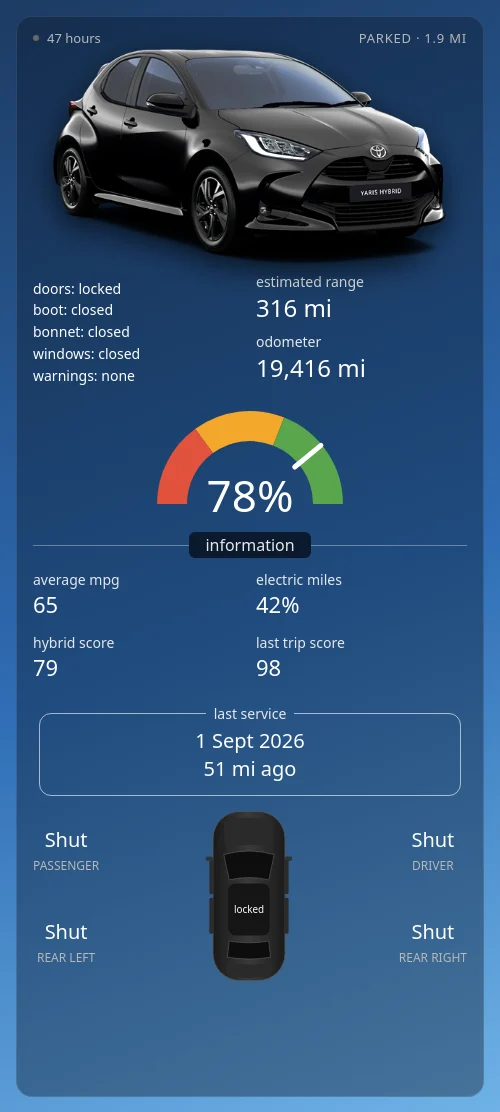
type: custom:yaris-cardIt works in a normal column, but it looks best with a page to itself. Add a new view, set its View type to Panel (single card), and put the card in it. The card fills the height it’s given, and the car photo grows to use the spare space. On a phone it stacks into a single scrolling column:
Working with the car image
The nicest part of the card is the photo, and it costs nothing: the integration gives the parking-location tracker an entity_picture, which is a transparent PNG of your model in your colour, hosted by Toyota. The card reads it from the entity, so you don’t have to find or upload an image yourself. A few things I learned getting it to look right:
- Dark cars vanish on dark backgrounds. My Yaris is Black Mica, and on a dark card it was barely visible. A soft radial glow behind the car plus a CSS
drop-shadowunder it fixes that without changing the photo (see the.hero::beforeand.hero imgrules). - Make it bigger with
transform: scale(), not width. The PNG has a lot of transparent space around the car. Scaling with a transform makes the car bigger without pushing the rest of the layout down, and the transparent edges can overlap the empty space around it harmlessly. - Don’t scale it on phones. On a narrow screen the enlarged photo overlapped the range figure, so the phone layout turns the scale off.
- If Toyota’s image ever disappears, the card falls back to a car icon. You can also save the PNG into
wwwand point the card at/local/instead, so it doesn’t depend on Toyota’s servers.
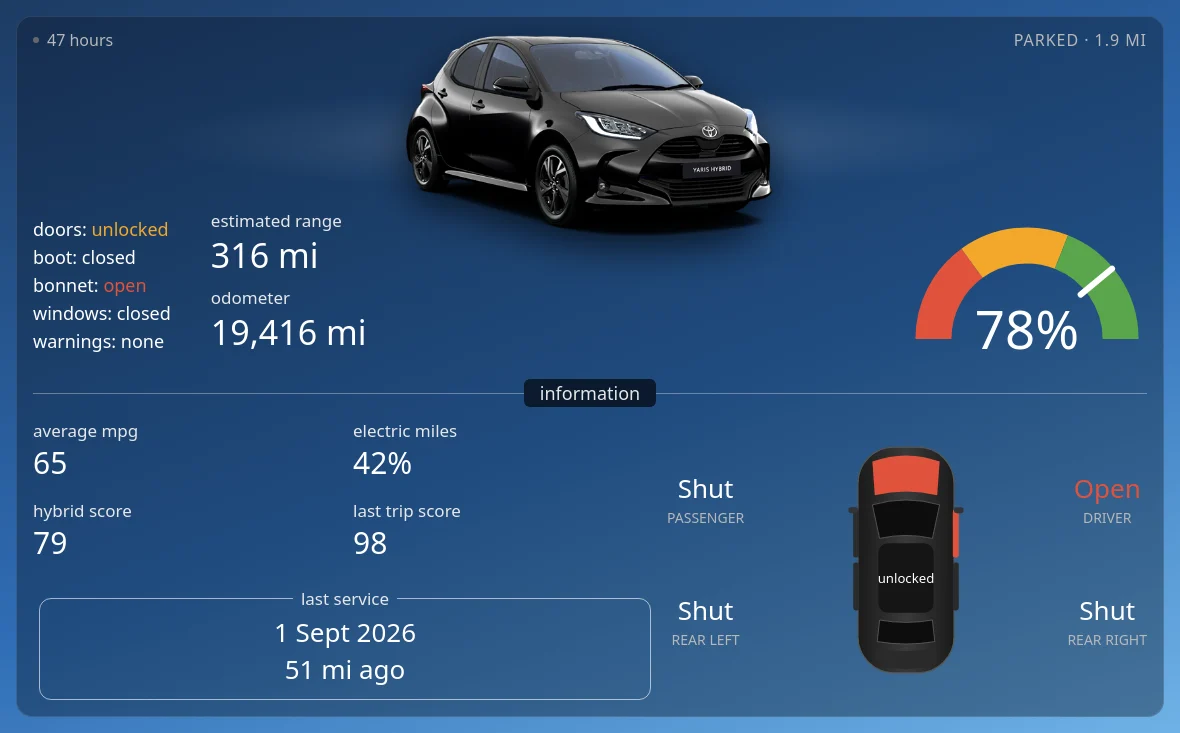
When something needs attention, the card shows it at a glance. Here the car had last reported with the driver’s door and the bonnet open and the doors unlocked:
How the card works
- It only redraws when the car changes. Home Assistant hands every card the whole state of the house several times a second. The card builds a signature from just its own car’s entities (plus the current minute, for the “x hours” clock) and skips the redraw if nothing changed.
- Unit conversions: miles = km × 0.621371, and UK mpg = 282.481 ÷ (litres per 100 km).
- Distance from home is worked out in the browser from the car’s parked position and your
zone.home, so no extra sensors are needed. - Right-hand drive: the integration names doors by seat (driverseat, passengerseat), not by side. On a UK car the driver’s door is on the right, so the top-down drawing puts it top right.
- Layout uses CSS container queries, so the card picks its layout from its own width, not the screen’s. That’s what lets the same card work in a narrow column, full screen on an iPad, and on a phone.
Troubleshooting
| Problem | Fix |
|---|---|
| Toyota isn’t in the Add integration list | It’s a HACS integration. Install it (Step 1), check custom_components/toyota exists, restart, and refresh the browser |
| “Custom element doesn’t exist: yaris-card” | The resource isn’t registered or the browser has the old list. Check Step 5, then do a hard refresh |
| Your edits don’t show up on a tablet | Bump the ?v= number on the resource |
| Everything says unlocked | Check the car really is locked, then remember lock sensors are on when unlocked (Gotcha 1) |
| The data is days old | Tap the time in the top-left corner to ask the car for an update. Toyota only has what the car last sent |
| Find car / hazard buttons do nothing | Remote commands depend on your car and your Toyota subscription. Mine reports no remote services, so the card leaves those out |
Wrapping up
With the Toyota integration doing the hard work, the card itself is one file and three lines of setup. The car now has its own page on the wall tablets, next to the cameras and the energy page, so fuel, locks and the bonnet are a glance away instead of an app login. The same approach works for any car with a Home Assistant integration: get the entities, check what “on” really means for each one, then build the card around the few numbers you actually look at.
New to Home Assistant? Start with my guide to installing Home Assistant with Docker Compose.
More Home Assistant guides: setting up a Home Assistant wall tablet, a live 3D floor plan for Home Assistant and a washer and dryer card.
Thank you
This card only exists because of the Toyota Connected Services integration and the pytoyoda library behind it. Thank you to the maintainers, CM000n and deejay1, and to Simon Hansen (DurgNomis-drol), who started the project. Both are open source under the MIT licence. There’s no official Toyota API, so they keep it working as Toyota changes things. If it’s useful to you, give the project a star on GitHub and report any problems there.