
For educational purposes only. This guide shows how to install self-hosted software on your own hardware. I don't condone piracy: only use these apps with media you own or have the right to use, and follow the law where you live. Back up your data first. Full disclaimer
Updated 8 November 2026
You’ve installed Docker. Now what? This guide walks you through installing your first app with Docker Compose, on Windows, Mac or Linux. Every other guide on this site works the same way, so once you’ve done this one, the rest will feel familiar.
The app is Uptime Kuma. It checks that your websites and apps are up and tells you when they’re not. It’s one container with a proper web page, so it shows the three things every app needs: a port, a data folder and a restart rule. It takes about 10 minutes.
On this page (13 sections)
- 1See how it fits together
- 2What you need for your first app with Docker Compose
- 3Step 1: Make a folder for the app
- 4Step 2: Create the compose file
- 5Step 3: Start it
- 6Step 4: Open it and set it up
- 7Step 5: Add your first monitor
- 8The commands you’ll use for every app
- 9On a NAS instead?
- 10If something’s wrong
- 11Removing it
- 12What next?
- 13Frequently asked questions
See how it fits together
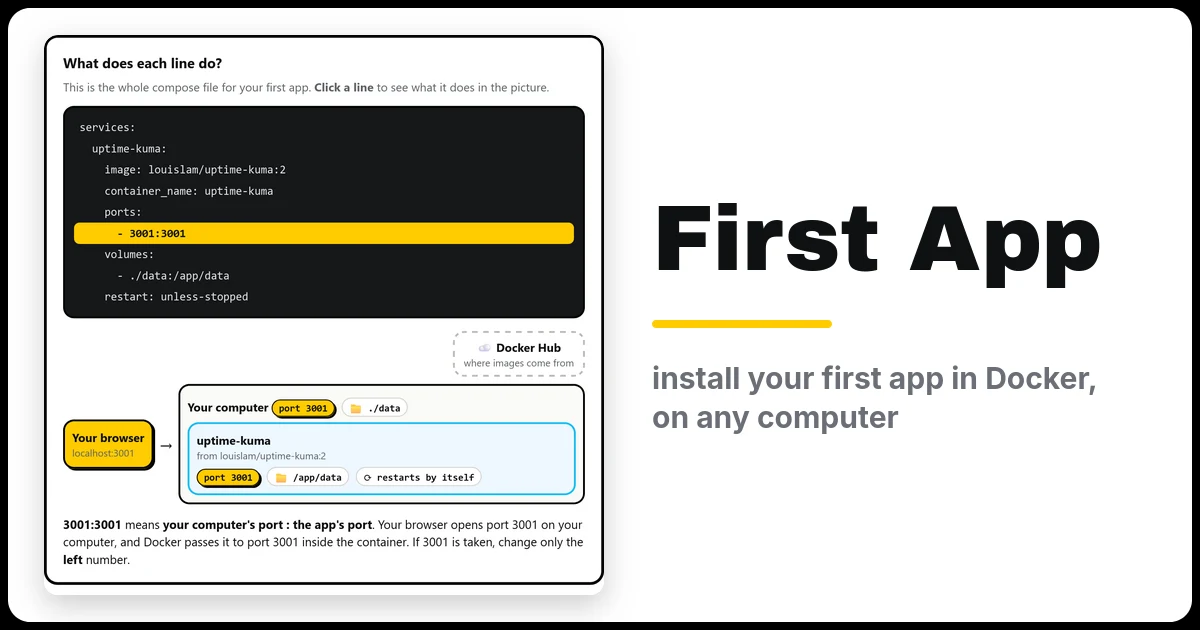
Click any line of the compose file to see what it does. Then try the five everyday commands. Under that, pick your computer to get your exact steps.
What you need for your first app with Docker Compose
- Docker installed and running. If not, follow my Docker install guide first.
- A terminal: the Ubuntu window on Windows (not PowerShell), Terminal on a Mac, or any terminal on Linux.
Step 1: Make a folder for the app
Every app gets its own folder. The compose file goes in it, and so does the app’s data. In your terminal:
mkdir -p ~/docker/uptime-kuma && cd ~/docker/uptime-kuma~ means your home folder, so this works the same on all three computers.
Step 2: Create the compose file
The compose file tells Docker which app to run and how. Paste this whole block, down to and including EOF. It writes the file for you, so you don’t need a text editor:
cat > compose.yaml <<'EOF'
services:
  uptime-kuma:
    image: louislam/uptime-kuma:2
    container_name: uptime-kuma
    ports:
      - 3001:3001
    volumes:
      - ./data:/app/data
    restart: unless-stopped
EOF3001:3001 and ./data:/app/data, the left side is your computer and the right side is inside the app. If port 3001 is already used on your computer, change only the left number, for example 3002:3001. The demo above shows each line.Prefer a text editor? Save the same lines as compose.yaml in that folder. Indents must be spaces, not tabs. On a Mac, avoid TextEdit, which saves rich text: use nano compose.yaml in Terminal instead.
Step 3: Start it
docker compose up -dThe first time, Docker downloads the app (the “image”), then starts it. -d runs it in the background, so you get your terminal back. Check it’s running:
docker compose psYou want Up and, after a minute, (healthy). On Windows and Mac you’ll also see it in Docker Desktop → Containers.
Step 4: Open it and set it up
Open http://localhost:3001 in your browser. From your phone or another computer, use your computer’s IP instead of localhost, like http://192.168.1.10:3001.
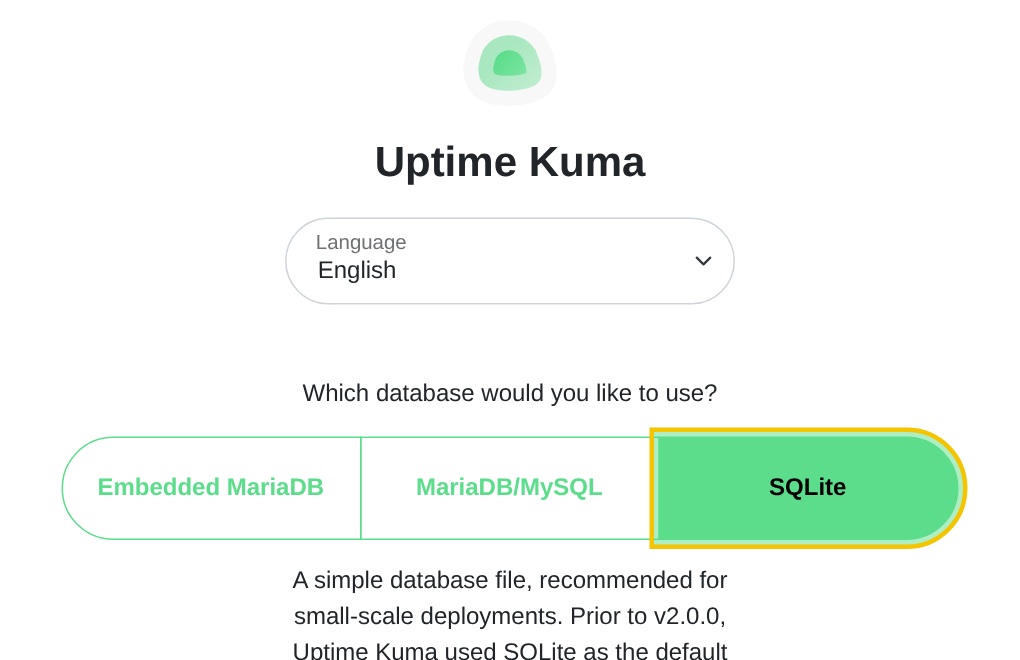
- Uptime Kuma asks which database to use. Pick SQLite (the simple one, stored in your data folder) and click Next.
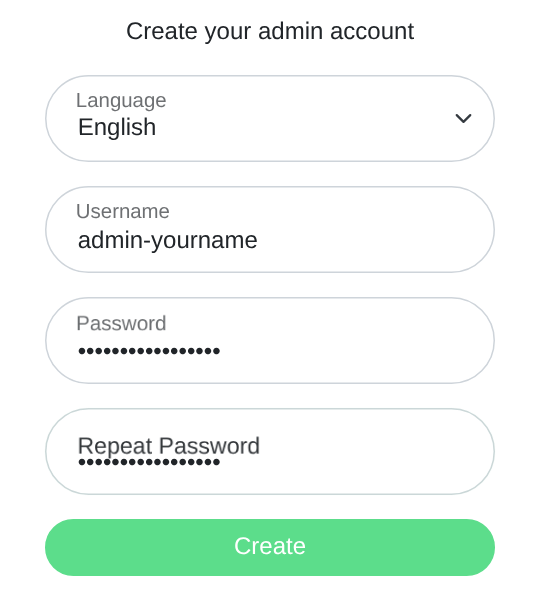
- Create your admin account with a username and a strong password.
Step 5: Add your first monitor
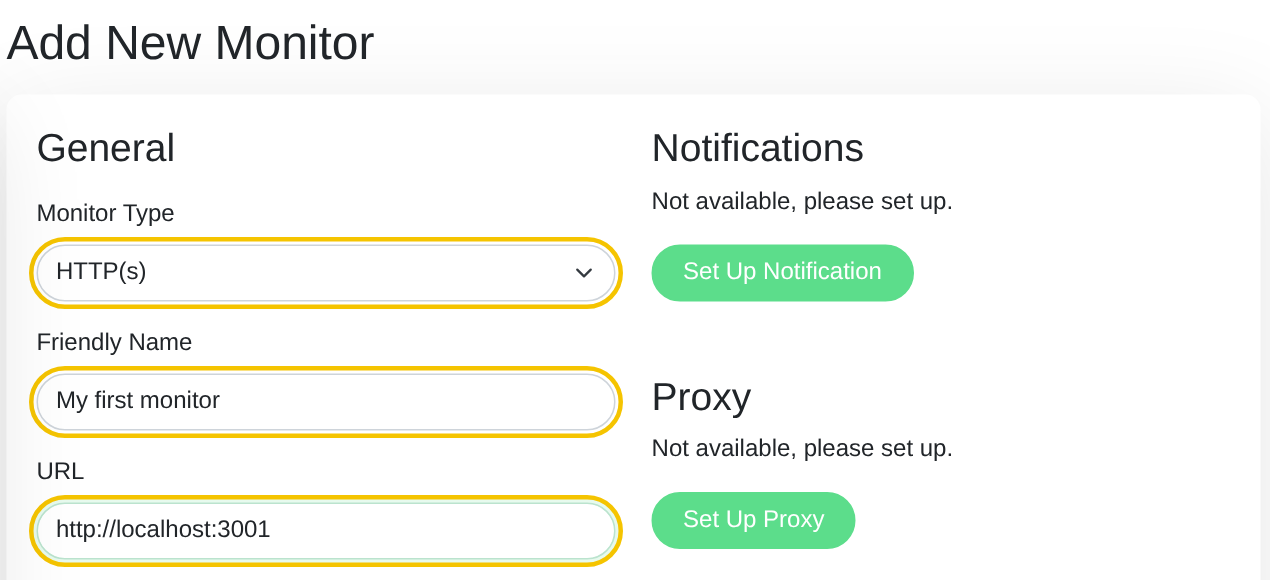
Click Add New Monitor. Leave the type as HTTP(s), give it a name, and enter a website address to watch: your own site, your router’s page, or any site you like. To test, you can even use Uptime Kuma itself: http://localhost:3001. Click Save.
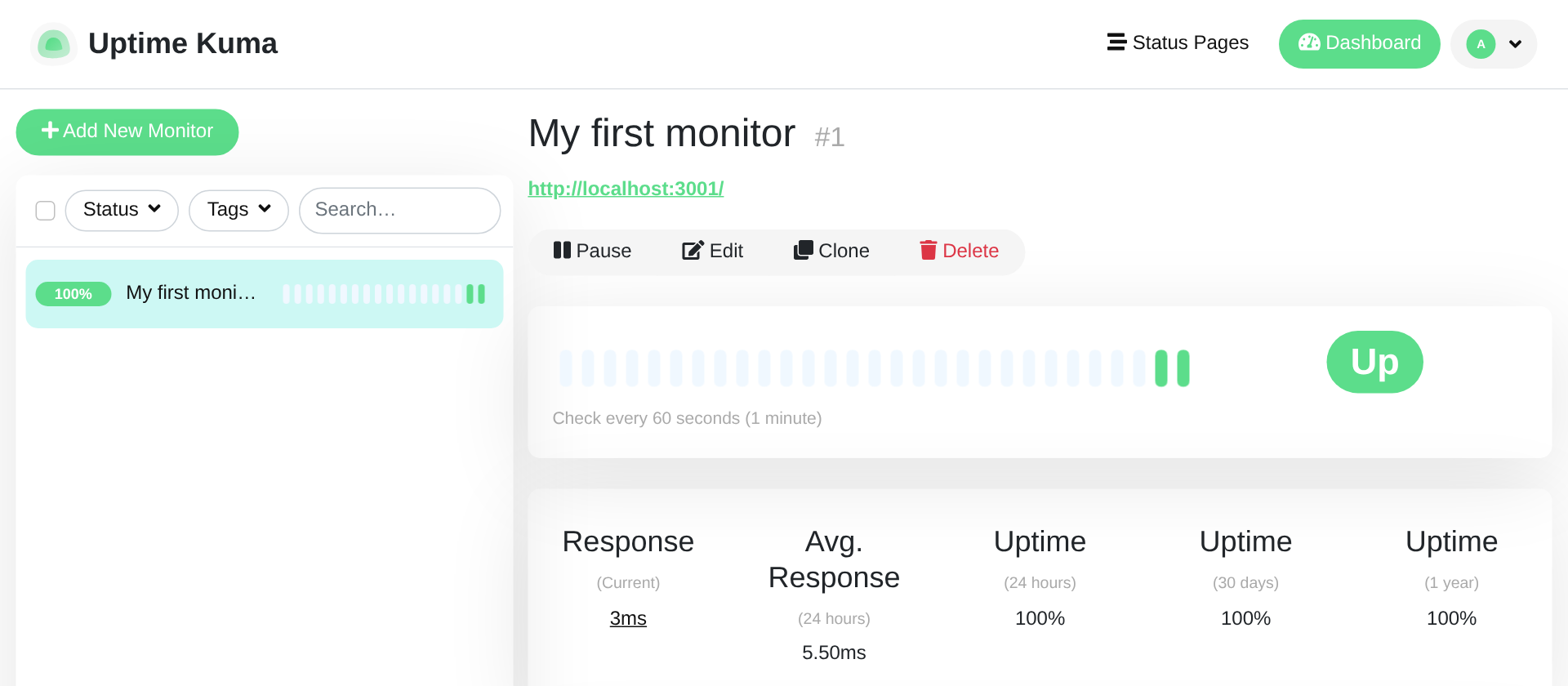
That’s your first app running in Docker. 🎉
The commands you’ll use for every app
Run these inside the app’s folder (cd ~/docker/uptime-kuma first):
docker compose ps: is it running?docker compose logs -f: what is it saying? The first place to look when something’s wrong. Ctrl+C stops watching.docker compose down: stop and remove it. Your settings stay safe in./data.docker compose up -d: start it again, or apply changes after you editcompose.yaml.docker compose pull && docker compose up -d: update to the newest version.
On a NAS instead?
The same compose file works on a NAS. On Synology, open Container Manager → Project → Create, pick a folder and paste the file. On TrueNAS, use Apps → Discover Apps, then the ⋮ menu → Install via YAML; there, change ./data to a full path on your pool, like /mnt/tank/configs/uptime-kuma:/app/data.
If something’s wrong
- “port is already allocated”. Something else uses port 3001. Change the left number in
compose.yaml(for example3002:3001), rundocker compose up -d, and open:3002instead. - “no configuration file provided: not found”. You’re not in the app’s folder. Run
cd ~/docker/uptime-kumafirst. - “yaml: line 3: found character that cannot start any token”. The file has tabs in it. Use spaces only, or recreate it with the
catblock from Step 2. - The page won’t load from your phone but works on the computer. Use the computer’s IP address, not
localhost, and check its firewall allows the port. - “permission denied … docker.sock” or “Cannot connect to the Docker daemon”. See the troubleshooting in my Docker install guide.
Removing it
Done experimenting? This removes the container, then the folder with its data:
cd ~/docker/uptime-kuma && docker compose down
cd ~ && rm -rf ~/docker/uptime-kuma
What next?
You now know the whole pattern: folder → compose.yaml → docker compose up -d → open the port. Try AdGuard Home to block ads on every device, Home Assistant, or the full arr stack. Their generators write the compose file for you.
Frequently asked questions
Why does Docker say "port is already allocated"?
Something else uses that port. Change the left number in compose.yaml, for example 3002:3001, run docker compose up -d, and open the new port.
What does "no configuration file provided: not found" mean?
You're not in the app's folder. cd into the folder with compose.yaml first.
What does "found character that cannot start any token" mean?
The YAML file has tabs in it. Use spaces only.
Why does the app work on my computer but not my phone?
Use the computer's IP address instead of localhost, and check its firewall allows the port.
Thank you
Uptime Kuma is free and open source, made by Louis Lam and its contributors.
Related guides: Install Docker · AdGuard Home · Home Assistant · Gluetun
If this guide helped you, consider buying me a coffee. It helps keep guides like this one coming.
Get new guides by email
About one email a month: new step-by-step guides and card releases. No spam, unsubscribe any time.