
For educational purposes only. This guide shows how to install self-hosted software on your own hardware. I don't condone piracy: only use these apps with media you own or have the right to use, and follow the law where you live. Back up your data first. Full disclaimer
Updated 16 November 2026 Tested with: Cantinarr 1.1.0
Every home media server has the same problem: someone wants a film, and they have to message whoever runs the server. Cantinarr gives your household its own app for that. They browse, tap Request, and it goes to Radarr or Sonarr for them. You can see the queue and manage your library from the same place.
This guide sets up Cantinarr with Docker Compose in six short steps. It takes about 15 minutes. I’ve used it at home since September, when it replaced Seerr, and two other people in my house make requests with it.
On this page (14 sections)
- 1Watch: install Cantinarr with Docker Compose
- 2See how a request works
- 3What you need
- 4Step 1: Make your compose file
- 5Step 2: Start it and create your admin account
- 6Step 3: Connect Radarr and Sonarr
- 7Step 4: Add your download client and media server
- 8Step 5: Decide what people can request
- 9Step 6: Invite your household
- 10Optional: Using it away from home
- 11The good and the not so good
- 12If it doesn’t work
- 13Updating Cantinarr
- 14Frequently asked questions
Watch: install Cantinarr with Docker Compose
The video has subtitles at the bottom and no sound. It was recorded on a clean test install of Cantinarr 1.1.0 connected to a test Radarr. Film posters were turned off for the recording.
See how a request works
Press Next to follow a pretend request from Emma to your media server. Then turn on approval, use up her limit or switch to the 4K library, and press Start again. Under the demo is the generator that writes your files.
Open the generator full screen
What you need
- A computer or NAS running Docker. New to Docker? The Docker install guide covers Windows, Mac and Linux.
- A working Radarr or Sonarr, with a root folder, a quality profile, indexers and a download client already set up. Cantinarr passes requests on. It doesn’t find or download anything itself.
- Optional: Plex, Jellyfin or Emby, so people can open what’s ready to watch.
Step 1: Make your compose file
In the generator, pick your apps and fill in your server details. Save compose.yaml and .env in a new folder. The compose file looks like this:
services:
  cantinarr:
    image: ghcr.io/windoze95/cantinarr:latest
    container_name: cantinarr
    environment:
      - TZ=${TZ}
      - PUID=${PUID}
      - PGID=${PGID}
      # The address Radarr and Sonarr use to tell Cantinarr about changes
      - CANTINARR_ARR_CALLBACK_URL=http://${SERVER_IP}:8585
      # Phone notifications, through Cantinarr's community relay
      - CANTINARR_PUSH_GATEWAY_URL=https://push.cantinarr.com
    volumes:
      - ${CONFIG_ROOT}/cantinarr:/config
    ports:
      - 8585:8585
    restart: unless-stopped
Phone notifications go through an outside service run by the project. If you don’t want that, untick Phone notifications in the generator.
Step 2: Start it and create your admin account
sudo mkdir -p /opt/arr/config/cantinarr
docker compose up -d
Open http://your-server-ip:8585, choose a username and password, and press Create Account. You can browse straight away, because Cantinarr has a built-in key for film and TV listings.
encryption.key. Without that key, every password and API key you saved in Cantinarr has to be entered again.Step 3: Connect Radarr and Sonarr
- Go to Settings → Add Instance.
- Pick Radarr, give it a name, and enter its URL and API key. The generator’s Connect tab lists the addresses. The API key is in Radarr, under Settings → General.
- Press Test Connection, then Add Instance.
- Do the same for Sonarr.
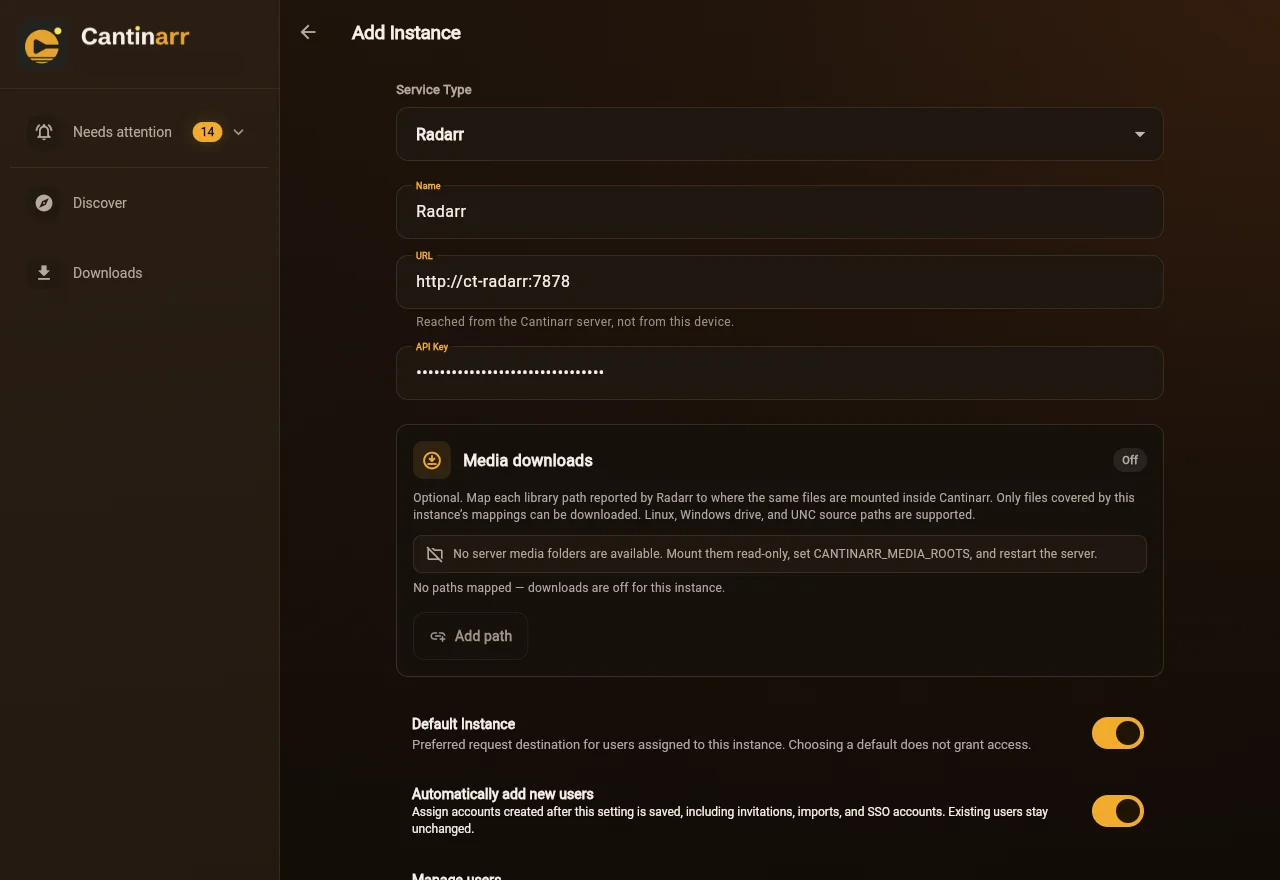
The first one of each type becomes the default, and new users get access to it automatically. Saving also adds a Cantinarr connection to that app, under its Settings → Connect, so changes show up straight away. In a test it added one to Radarr and Sonarr by itself.
Step 4: Add your download client and media server
Still in Add Instance, add your download client so the Downloads page can show progress, then Plex, Jellyfin or Emby so people can open what’s ready. Both are optional, and you can come back to them later.
Step 5: Decide what people can request
Open Settings → Request Settings. Look at these before you invite anyone:
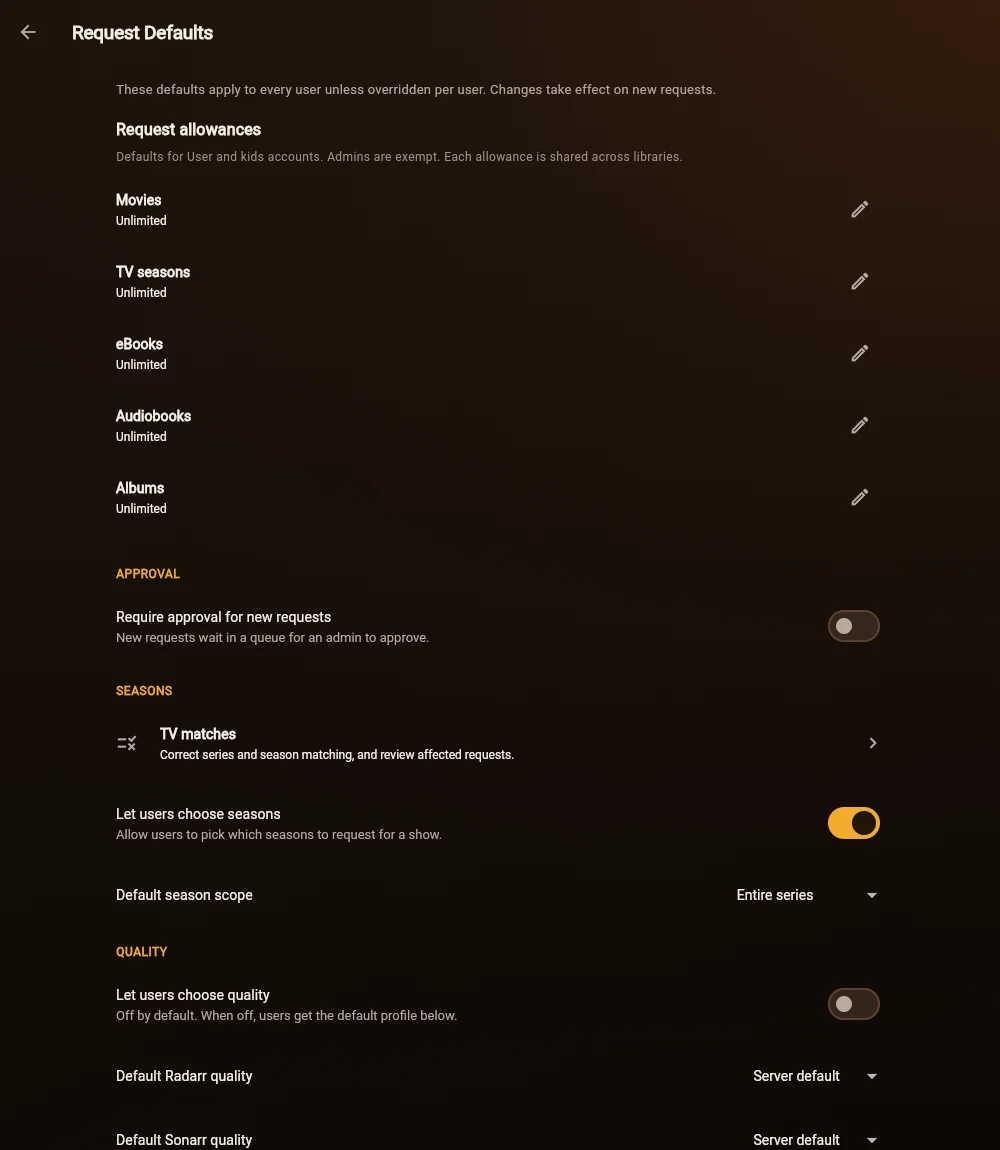
- Require approval is off on a new install, so a request goes straight to Radarr. Turn it on and it waits for you under Needs attention → Approvals.
- Request allowances are unlimited to start with. A limit stops someone filling your disk, and admins are exempt.
- Let users choose quality is off, so everyone gets your default profile.
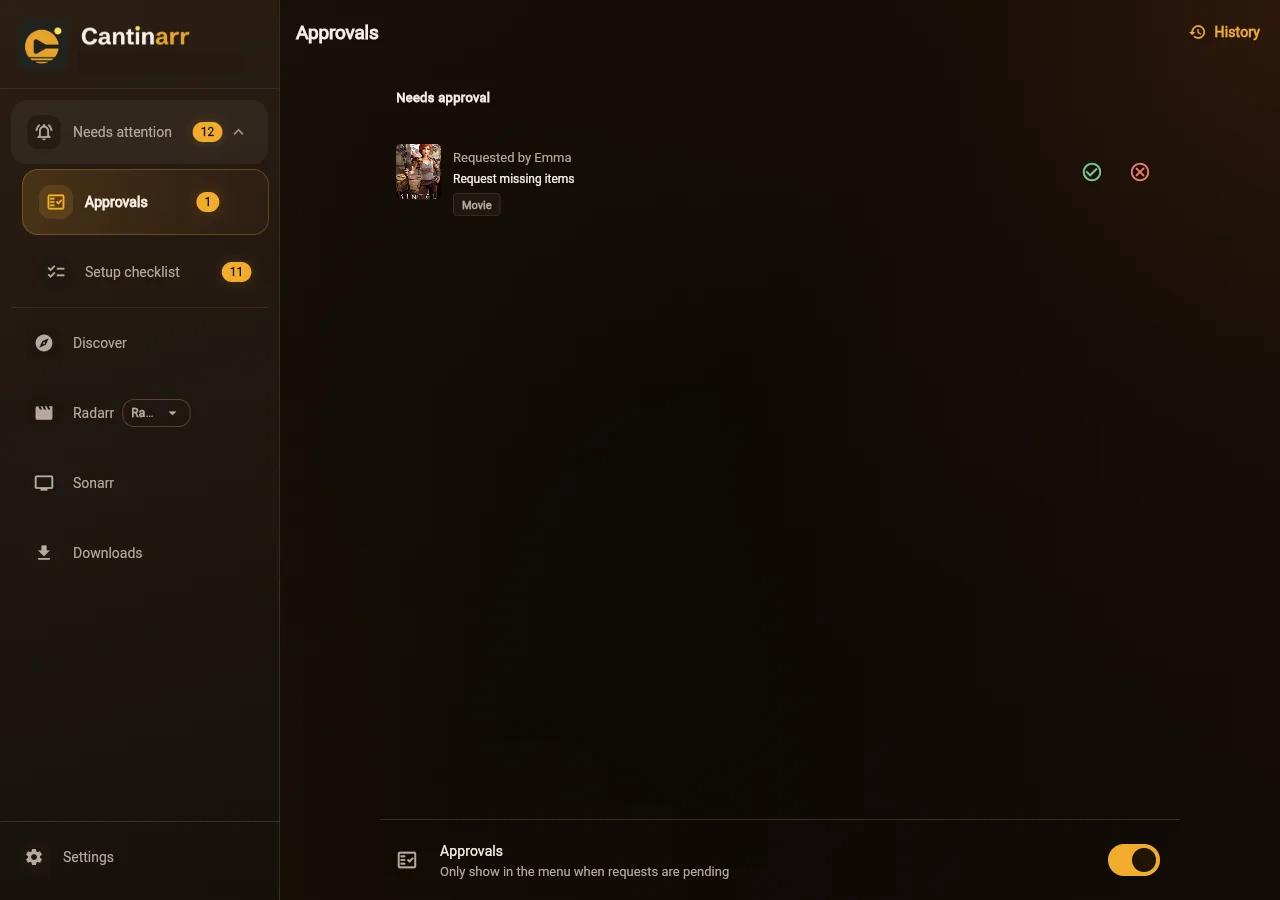
The poster above is Sintel from the Blender Foundation (CC BY), which I used as a test request.
Step 6: Invite your household
- If anyone will use it away from home, set Settings → External Address first. Invite links have the address built in.
- Go to Settings → Users → Invite user, type a name and press Create invite.
- Send them the link. They open Cantinarr, choose Use a connection link, paste it and press Connect.
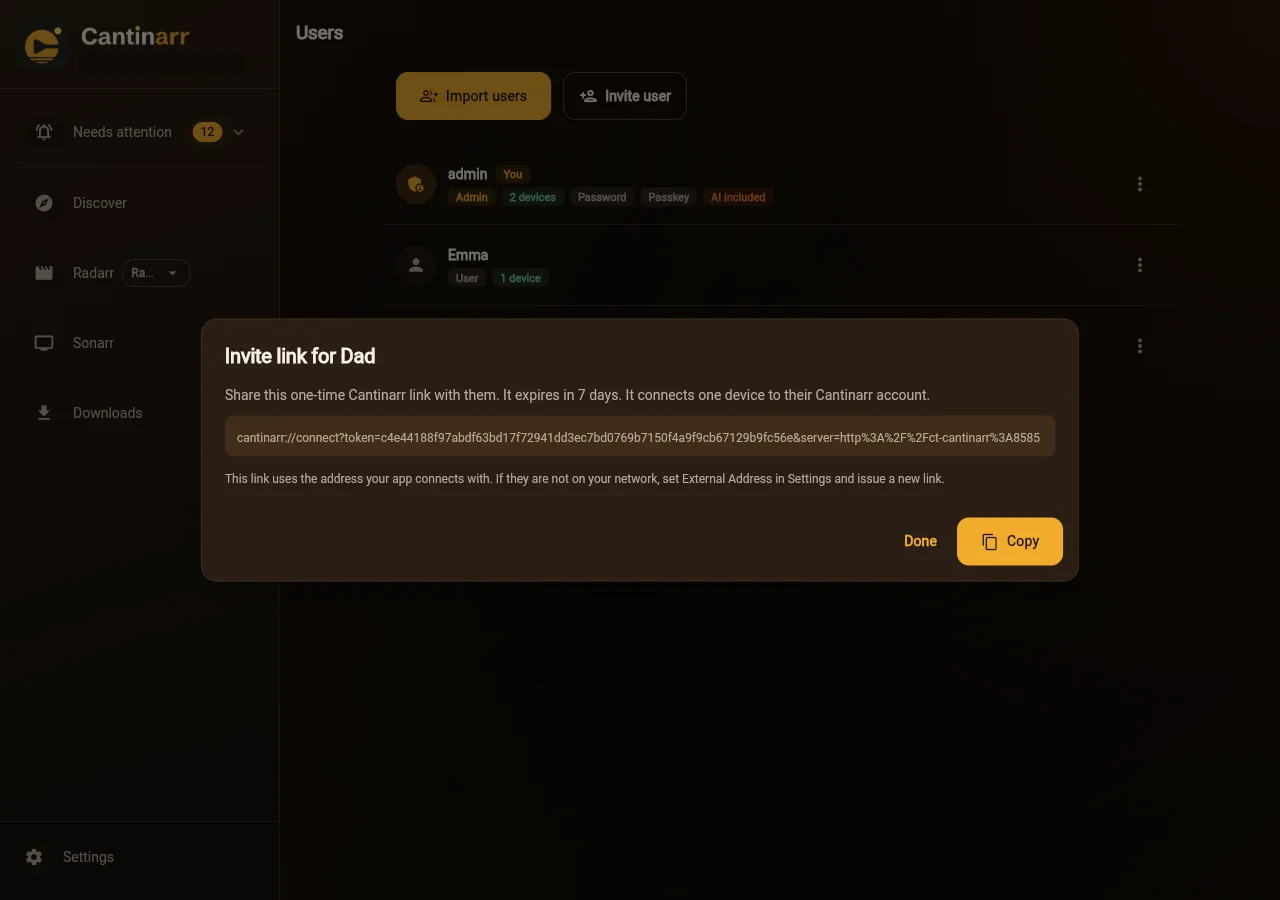
Each link works once, for one device, and expires after 7 days. For a second device, make another link. Android users can get the app from Google Play. On iPhone and iPad it’s on TestFlight while it waits for App Store review. Everyone can also use it in a web browser.
To check it all works, ask someone to request a film you don’t have, approve it if needed, and look for it in Radarr. In a test, the film was in Radarr within seconds of being approved, with the right root folder and default profile.
Optional: Using it away from home
Don’t open Radarr or Sonarr to the internet for this. Only Cantinarr needs to be reachable, and it talks to your apps at home. Give it its own address through a reverse proxy, such as Cloudflare Tunnel with Traefik, then set it as your External Address.
Using Authentik? The phone apps can’t complete a browser login in front of Cantinarr. One way round it is to let the API paths skip Authentik and send everything else through it. Cantinarr still checks a session on every API call. This was tested on an older version, not on 1.1.0. Cantinarr now has its own single sign-on option too, which may suit you better.
http:
  routers:
    cantinarr-api:
      rule: "Host(`cantinarr.example.com`) && (PathPrefix(`/api`) || PathPrefix(`/mcp`) || PathPrefix(`/oauth`) || PathPrefix(`/.well-known`))"
      entryPoints: [websecure]
      service: cantinarr
      priority: 100
    cantinarr:
      rule: "Host(`cantinarr.example.com`)"
      entryPoints: [websecure]
      service: cantinarr
      middlewares: [authentik]
      priority: 1
  services:
    cantinarr:
      loadBalancer:
        servers:
          - url: "http://192.168.1.10:8585"
The good and the not so good
| Good | Not so good |
|---|---|
| Requests and library management are in one app | It’s a young project with one main developer and frequent releases, so expect changes |
| Connect links make it easy for people who aren’t technical | The iPhone app is still on TestFlight |
| Separate 1080p and 4K libraries work side by side | The webhook can stop matching after you re-add an app (see below) |
| Free and open source, and it can also do books and music | The optional AI assistant can run up a real bill if you share a paid key |
If it doesn’t work
| What you see | What to do |
|---|---|
connection test failed: invalid API key |
Copy the key again from that app’s Settings → General. |
could not reach server with connection refused |
The address must work from the Cantinarr container. Don’t use localhost. Use your server’s IP. |
| An app behind Gluetun won’t connect | It has no address of its own. Use your server’s IP and the port Gluetun publishes for it. |
Radarr’s Cantinarr connection fails with 404 unknown instance |
The app was removed and added again in Cantinarr. Open it in Settings and press Configure instant updates. Editing the address in Radarr won’t work, because the connection also carries a secret only Cantinarr knows. |
| Status changes only appear after a while | Radarr or Sonarr can’t reach Cantinarr. Check CANTINARR_ARR_CALLBACK_URL, run docker compose up -d, then press Configure instant updates. |
| A film stays at Requested | Cantinarr did its part. Look at the search results and indexers in Radarr. |
Movies: 1 requested, 0 remaining |
That person has reached their allowance. Change it in Request Settings, or wait. |
| An invite link only works at home | Set External Address and make a new link. |
Updating Cantinarr
cd ~/cantinarr
docker compose pull && docker compose up -d
This guide was tested on version 1.1.0 with Radarr and Sonarr: the setup, the invite link, approval and limits. The test had no indexers, so films stopped once they reached Radarr. The rest comes from using an older version at home, and from the official docs.
Frequently asked questions
What is Cantinarr?
An app your household uses to request films and shows. They browse, tap Request, and it goes to Radarr or Sonarr. You see the queue and manage your library from the same place.
Cantinarr or Seerr?
They do the same job. I replaced Seerr with Cantinarr in September 2026 and two other people in my house use it. The section "What I like, and what I don't" covers the differences.
Why does Cantinarr say "connection refused"?
The address must work from inside the Cantinarr container, so don't use localhost. Use your server's IP address.
Why does a film stay at Requested?
Cantinarr did its part. Look at the search results and indexers in Radarr.
Why does an invite link only work at home?
Set External Address in Cantinarr's settings, then make a new link.
Thank you
Cantinarr is free and open source (AGPL-3.0), built and maintained by Julian Dice (windoze95). If it’s useful to you, give the project a star on GitHub, and report any bugs you find there.
Related guides: Media Server Stack · Radarr · Sonarr · Plex
If this guide helped you, consider buying me a coffee. It helps keep guides like this one coming.
Get new guides by email
About one email a month: new step-by-step guides and card releases. No spam, unsubscribe any time.
 spikey1965
Hey, I’m the creator of Cantinarr, I came across this and wanted to say thanks for putting it together
Thanks Julian, really appreciate your comments. Everyone I know uses your app, it’s brilliant. Keep up the good work!