
For educational purposes only. This guide shows how to install self-hosted software on your own hardware. I don't condone piracy: only use these apps with media you own or have the right to use, and follow the law where you live. Back up your data first. Full disclaimer
Updated 13 November 2026
Every guide on this site starts with “you need Docker“. This is the guide for that bit. Docker runs each app in its own neat box, called a container, and Docker Compose starts them from a simple text file. Once it’s installed, adding an app is usually one file and one command.
This guide shows how to install Docker and Docker Compose on Windows, Mac and Linux, then check it works. It takes 10 to 20 minutes.
Last tested November 2026: the Linux steps below were run word for word on fresh Ubuntu 24.04, Debian 13 and Debian 12 systems and installed Docker 29.9.3 with Docker Compose 5.7.1.
On this page (13 sections)
- 1Install Docker: try it, then get your steps
- 2How to install Docker on Windows 10 and 11 (WSL 2)
- 3How to install Docker on Mac (Apple silicon and Intel)
- 4How to install Docker and Docker Compose on Ubuntu and Debian
- 5How to install Docker on a Raspberry Pi
- 6Check it works
- 7docker-compose vs docker compose
- 8Already have a NAS?
- 9If something’s wrong
- 10Updating Docker
- 11How to uninstall Docker
- 12What next?
- 13Frequently asked questions
Install Docker: try it, then get your steps
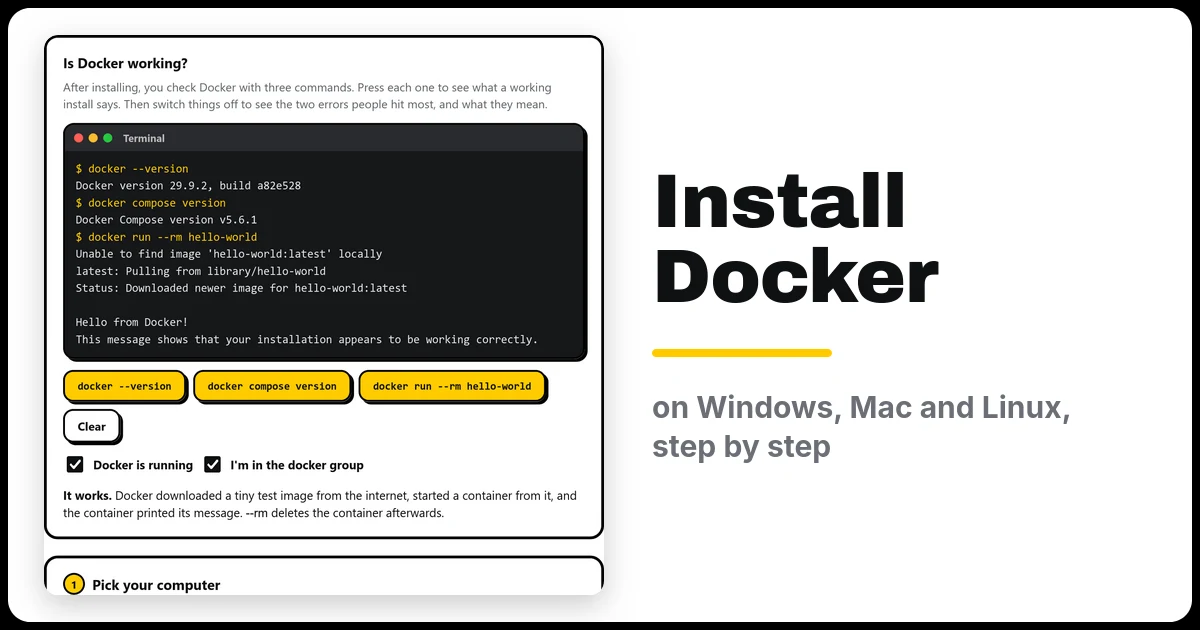
The terminal below shows what a working install says, and the two errors almost everyone meets (switch the ticks off to see them). Under it, pick your computer to get the exact steps, the commands to check it, and the folders to use in my other guides.
How to install Docker on Windows 10 and 11 (WSL 2)
On Windows you install Docker Desktop. It runs your containers inside WSL 2, a small Linux system built into Windows. You need Windows 10 22H2 or Windows 11 23H2 (or newer), and 8 GB of RAM.
- Right-click Start → Terminal (Admin) or PowerShell (Admin) and run:
wsl --installRestart when it asks. This also installs Ubuntu.
- Open Ubuntu from the Start menu once and choose a Linux username and password.
- Download Docker Desktop for Windows from docker.com. Run the installer and leave Use WSL 2 ticked.
- Start Docker Desktop and accept the agreement.
- In Docker Desktop, go to Settings → Resources → WSL integration and make sure Ubuntu is switched on. Click Apply & restart.
Run my guides in the Ubuntu window, not PowerShell. The commands then work exactly as written, and your app folders (like /opt/arr/config and /data) live inside Ubuntu, which is much faster than the C: drive.
How to install Docker on Mac (Apple silicon and Intel)
- Check your chip: Apple menu → About This Mac. “Apple M1, M2, M3…” means Apple silicon; otherwise it’s Intel.
- Download Docker Desktop for Mac for your chip from docker.com.
- Open Docker.dmg and drag Docker into Applications.
- Open Docker from Applications and accept the agreement. The whale icon in the menu bar means it’s running.
One Mac difference: macOS won’t let you make a /data folder at the top of the disk, and Docker Desktop only shares your home folder by default. In my generators, set the config folder to ~/docker/config and the data folder to ~/docker/data, and leave out sudo on the mkdir and chown lines. Run id in Terminal for your PUID and PGID (usually 501 and 20).
How to install Docker and Docker Compose on Ubuntu and Debian
On Linux you install Docker Engine from Docker’s own repository. The commands below are for Ubuntu 22.04, 24.04 and 26.04. On Debian 12 or 13, use the Debian version of step 1 just under it. A Raspberry Pi has its own section below, and Fedora and others are in the helper above.
1. Add Docker’s repository (paste it all in one go):
sudo apt update
sudo apt install -y ca-certificates curl
sudo install -m 0755 -d /etc/apt/keyrings
sudo curl -fsSL https://download.docker.com/linux/ubuntu/gpg -o /etc/apt/keyrings/docker.asc
sudo chmod a+r /etc/apt/keyrings/docker.asc
sudo tee /etc/apt/sources.list.d/docker.sources <<EOF
Types: deb
URIs: https://download.docker.com/linux/ubuntu
Suites: $(. /etc/os-release && echo "${UBUNTU_CODENAME:-$VERSION_CODENAME}")
Components: stable
Architectures: $(dpkg --print-architecture)
Signed-By: /etc/apt/keyrings/docker.asc
EOF
sudo apt update
On Debian 12 or 13, use this for step 1 instead. Three things change: both web addresses say debian, and the Suites line uses your Debian version name (bookworm or trixie):
sudo apt update
sudo apt install -y ca-certificates curl
sudo install -m 0755 -d /etc/apt/keyrings
sudo curl -fsSL https://download.docker.com/linux/debian/gpg -o /etc/apt/keyrings/docker.asc
sudo chmod a+r /etc/apt/keyrings/docker.asc
sudo tee /etc/apt/sources.list.d/docker.sources <<EOF
Types: deb
URIs: https://download.docker.com/linux/debian
Suites: $(. /etc/os-release && echo "$VERSION_CODENAME")
Components: stable
Architectures: $(dpkg --print-architecture)
Signed-By: /etc/apt/keyrings/docker.asc
EOF
sudo apt update
2. Install Docker and Docker Compose:
sudo apt install -y docker-ce docker-ce-cli containerd.io docker-buildx-plugin docker-compose-plugin3. Let your user run Docker without sudo:
sudo usermod -aG docker $USERThen log out and back in (or reboot). Docker starts by itself now and on every boot.
apt install docker.io. The version in Ubuntu’s and Debian’s own lists is older and doesn’t always include the docker compose command my guides use. Also note: being in the docker group is the same as having root on that machine, so only add people you trust.How to install Docker on a Raspberry Pi
A Raspberry Pi 4 or 5 with 4 GB or more makes a good little Docker server. It needs the 64-bit Raspberry Pi OS, which is Debian underneath, so it uses the Debian steps. Docker publishes Raspberry Pi (arm64) packages for both current versions, Bookworm and Trixie.
- Check you’re on 64-bit Raspberry Pi OS:
uname -mIt should say
aarch64. If it saysarmv7l, you’re on the 32-bit version: reinstall with the 64-bit one in Raspberry Pi Imager, because most apps no longer make 32-bit images. - Run the Debian version of step 1 above to add Docker’s repository.
- Run step 2 and step 3 above, then log out and back in.
Keep your app folders on a USB SSD rather than the SD card if you can. SD cards are slow and wear out with lots of small writes.
Check it works
On every computer, run these three commands (in the Ubuntu window on Windows, in Terminal on a Mac):
docker --version
docker compose version
docker run --rm hello-world
The last one should end with “Hello from Docker!”. If it does, you’re done. 🎉
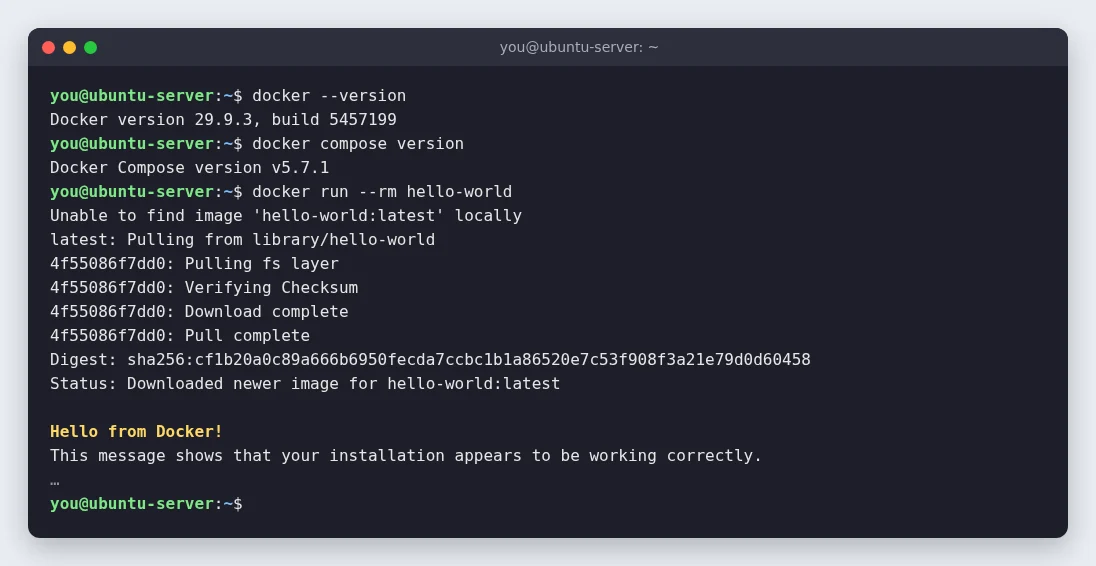
What a working install looks like (Docker 29.9.3, Compose 5.7.1).
docker-compose vs docker compose
Older guides tell you to type docker-compose with a dash. That was Compose version 1, a separate program that Docker stopped updating in 2023. Today Compose is part of Docker and you type docker compose with a space. A fresh install doesn’t have the old command at all:
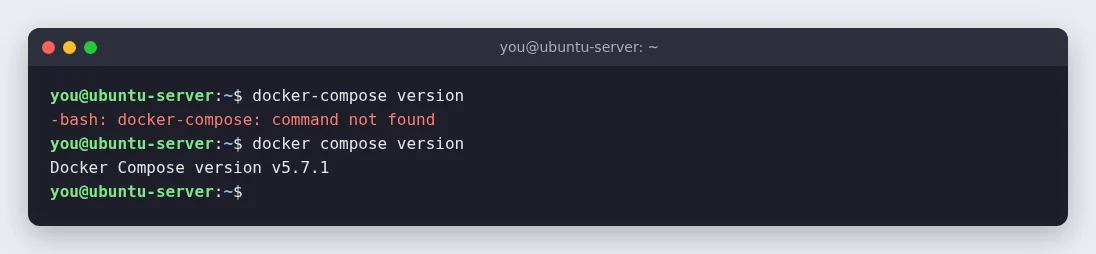
If a guide says docker-compose up -d, type docker compose up -d instead. The compose files themselves work the same. If one starts with a version: line, Compose ignores it and you can delete it.
Already have a NAS?
You may not need to install anything. TrueNAS and Unraid come with Docker built in, and on a Synology you install Container Manager from Package Center, which runs compose files as “Projects”. My guides’ compose files work on all three; just use your NAS’s own folder paths.
If something’s wrong
- “permission denied while trying to connect to the Docker daemon socket”. Your user isn’t in the docker group yet, or you haven’t logged out and back in since adding it. Run
sudo usermod -aG docker $USERand log in again. - “Cannot connect to the Docker daemon… Is the docker daemon running?” On Windows or Mac, open Docker Desktop and wait for it to finish starting. On Linux, run
sudo systemctl enable --now docker. - “docker: ‘compose’ is not a docker command”. The Compose plugin is missing, usually because Docker came from
docker.io. Remove it and install from Docker’s repository as above. - Windows: “docker: command not found” in Ubuntu. Switch on Ubuntu under Settings → Resources → WSL integration in Docker Desktop.
- Windows: “Virtualization support not detected”. Switch on virtualization (often called Intel VT-x or AMD SVM) in your PC’s BIOS.
- Raspberry Pi: “no matching manifest for linux/arm/v7”. You’re on 32-bit Raspberry Pi OS. Reinstall with the 64-bit version;
uname -mshould sayaarch64.
Updating Docker
- Windows and Mac: Docker Desktop tells you when there’s an update. Click it.
- Ubuntu, Debian and Raspberry Pi: Docker updates with everything else:
sudo apt update && sudo apt upgrade
How to uninstall Docker
- Windows: Settings → Apps → Installed apps → Docker Desktop → Uninstall.
- Mac: open Docker Desktop, click the Troubleshoot (bug) icon at the top right and choose Uninstall. Then drag Docker from Applications to the Bin.
- Ubuntu, Debian and Raspberry Pi:
sudo apt purge -y docker-ce docker-ce-cli containerd.io docker-buildx-plugin docker-compose-plugin docker-ce-rootless-extras
sudo apt autoremove -y
sudo rm -rf /var/lib/docker /var/lib/containerd
sudo rm /etc/apt/sources.list.d/docker.sources /etc/apt/keyrings/docker.asc
The rm -rf line deletes all your containers, images and Docker volumes. Folders you made for your apps yourself (like /opt/arr/config and /data) are not touched. Leave that line out if you plan to reinstall and want to keep everything.
What next?
New to this? Start with your first app, a 10-minute walk-through of how every app is installed. Then good places to go next: Home Assistant, AdGuard Home, or the whole arr stack in one go.
Frequently asked questions
Which computer should I run Docker on?
Your Windows PC or Mac is fine for trying things out. For a home server that runs all day, use Linux, such as an old PC or mini PC with Ubuntu or Debian, or a Raspberry Pi.
Why do I get "permission denied" on the Docker socket?
Your user isn't in the docker group yet, or you haven't logged out and back in since adding it. Run sudo usermod -aG docker $USER and log in again.
Why does it say "'compose' is not a docker command"?
The Compose plugin is missing, usually because Docker came from your distribution's docker.io package. Install Docker from Docker's own repository as this guide shows.
Why does a Raspberry Pi say "no matching manifest for linux/arm/v7"?
You're on 32-bit Raspberry Pi OS. Reinstall with the 64-bit version. uname -m should say aarch64.
Is it docker-compose or docker compose?
Use docker compose with a space. The old docker-compose command was Compose version 1, which Docker stopped updating in 2023, and a fresh install doesn't include it. Compose files work the same with either.
Does Docker run on a Raspberry Pi?
Yes, on a Raspberry Pi 4 or 5 with the 64-bit Raspberry Pi OS. It uses the Debian install steps. uname -m should say aarch64.
How do I uninstall Docker?
On Windows, uninstall Docker Desktop from Settings → Apps. On a Mac, use Troubleshoot → Uninstall in Docker Desktop. On Ubuntu, Debian or a Raspberry Pi, remove the packages with sudo apt purge as shown in the guide.
Thank you
Docker Engine is open source, from the Moby project and Docker. The install steps here follow Docker’s own documentation.
Related guides: Gluetun · qBittorrent · SABnzbd · Home Assistant
If this guide helped you, consider buying me a coffee. It helps keep guides like this one coming.
Get new guides by email
About one email a month: new step-by-step guides and card releases. No spam, unsubscribe any time.