
For educational purposes only. This guide shows how to install self-hosted software on your own hardware. I don't condone piracy: only use these apps with media you own or have the right to use, and follow the law where you live. Back up your data first. Full disclaimer
Updated 16 November 2026
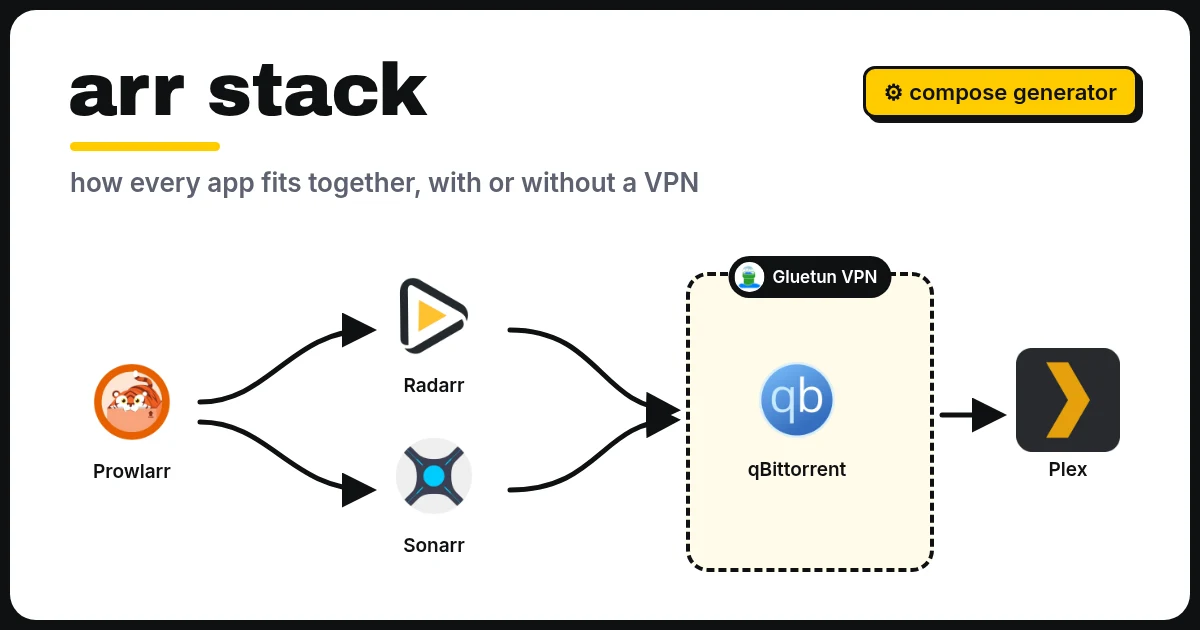
An arr stack is a set of free, self-hosted apps that find, download and organise films and TV shows for you, then hand them to Plex or Jellyfin. You ask for a film once, and a few minutes later it’s in your library with the right name, artwork and subtitles. The apps are named after the “-arr” at the end: Radarr for films, Sonarr for TV and Prowlarr for search sites (indexers), plus a download client like qBittorrent or SABnzbd. A VPN container called Gluetun is optional, and keeps your downloads private.
Use these tools with media you own or have the rights to, and with legal sources such as Linux downloads and public-domain films. Downloading copyrighted material without permission is illegal in the UK and most other countries.
This guide shows you how to set up a complete arr stack with Docker Compose, from an empty server to your first automatic download, with or without a VPN. It starts with a generator that writes your compose file for you, then walks through each app’s settings in order. Each step says which choice it’s for, so you can skip the ones that don’t apply. I tested every step on a spare server, in every layout the generator makes for these core apps.
On this page (16 sections)
- 1Build your own arr stack compose file
- 2How the arr stack works
- 3What you need to set up an arr stack with Docker Compose
- 4Step 1: Create the folders
- 5Step 2: Save the compose file and fill in the .env
- 6Step 3: Start the stack
- 7Step 4: Set up your download client
- 8Step 5: Set up Radarr and Sonarr
- 9Step 6: Set up Prowlarr
- 10Step 7: Plex and Seerr
- 11Test it end to end
- 12One compose file or three?
- 13Common problems when you split the stack into three files
- 14Troubleshooting
- 15Useful commands
- 16Frequently asked questions
Build your own arr stack compose file
Pick your apps and your VPN provider, and this tool writes a working docker-compose.yml for you. It does the fiddly parts too: routing the download clients through Gluetun if you want a VPN, moving ports so apps inside the VPN don’t clash, and using one data folder so Radarr and Sonarr can hardlink instead of copying. It also writes your .env file, the command to create your folders, and a table showing the exact address each app uses to reach the others. It all runs in your browser, so nothing you type is sent anywhere.
Open the generator full screen
Keep the generator open in another tab. The steps below refer to its .env, Folders and Connect the apps tabs. It starts with the apps this guide covers already picked. You can also add extras such as Bazarr, Tdarr or Cleanuparr. This guide doesn’t set those up, but the Media Server Stack page links to a guide for each one.
How the arr stack works
Each app does one job and passes the result to the next. This is what happens when someone asks for a film:
Sonarr does the same job as Radarr for TV shows. It also keeps watching for new episodes and grabs each one as it airs.
| App | What it does | Needed? |
|---|---|---|
| Gluetun | VPN container. Anything that shares its network can only reach the internet through the VPN. | Optional, recommended for torrents |
| qBittorrent / SABnzbd | The download clients: torrents and Usenet. | At least one |
| Prowlarr | Manages your indexers in one place and syncs them to every arr app. | Yes |
| Radarr / Sonarr | Films and TV. They decide what to grab, then rename and file it. | Yes |
| Bazarr | Downloads subtitles for everything Radarr and Sonarr import. | Optional |
| Seerr | A request page for family and friends, so they don’t have to ask you. Cantinarr is a newer alternative with its own phone apps. | Optional |
| Plex / Jellyfin | The media server you actually watch on. | Yes |
What you need to set up an arr stack with Docker Compose
- A Linux server or NAS with Docker and Docker Compose v2 (the
docker composecommand, with a space). If you’re starting from nothing, Step 1 of my Home Assistant Docker guide covers installing Docker. - Enough disk for your library, with downloads and media on the same disk or pool (more on why in Step 1).
- Optional: a VPN subscription, if you want your downloads on a private connection. The stack works without one. If you use one, pick a provider with port forwarding, like ProtonVPN Plus, PIA or AirVPN, so qBittorrent can accept incoming connections.
- For SABnzbd, an account with a Usenet provider and at least one Usenet indexer.
- About an hour for the first setup.
Step 1: Create the folders
Open the generator’s Folders tab and run that command on your server. It creates one config folder per app and a single data folder laid out like this:
/data
├── torrents
│   ├── movies
│   └── tv
├── usenet
│   ├── complete
│   └── incomplete
└── media
    ├── movies
    └── tv
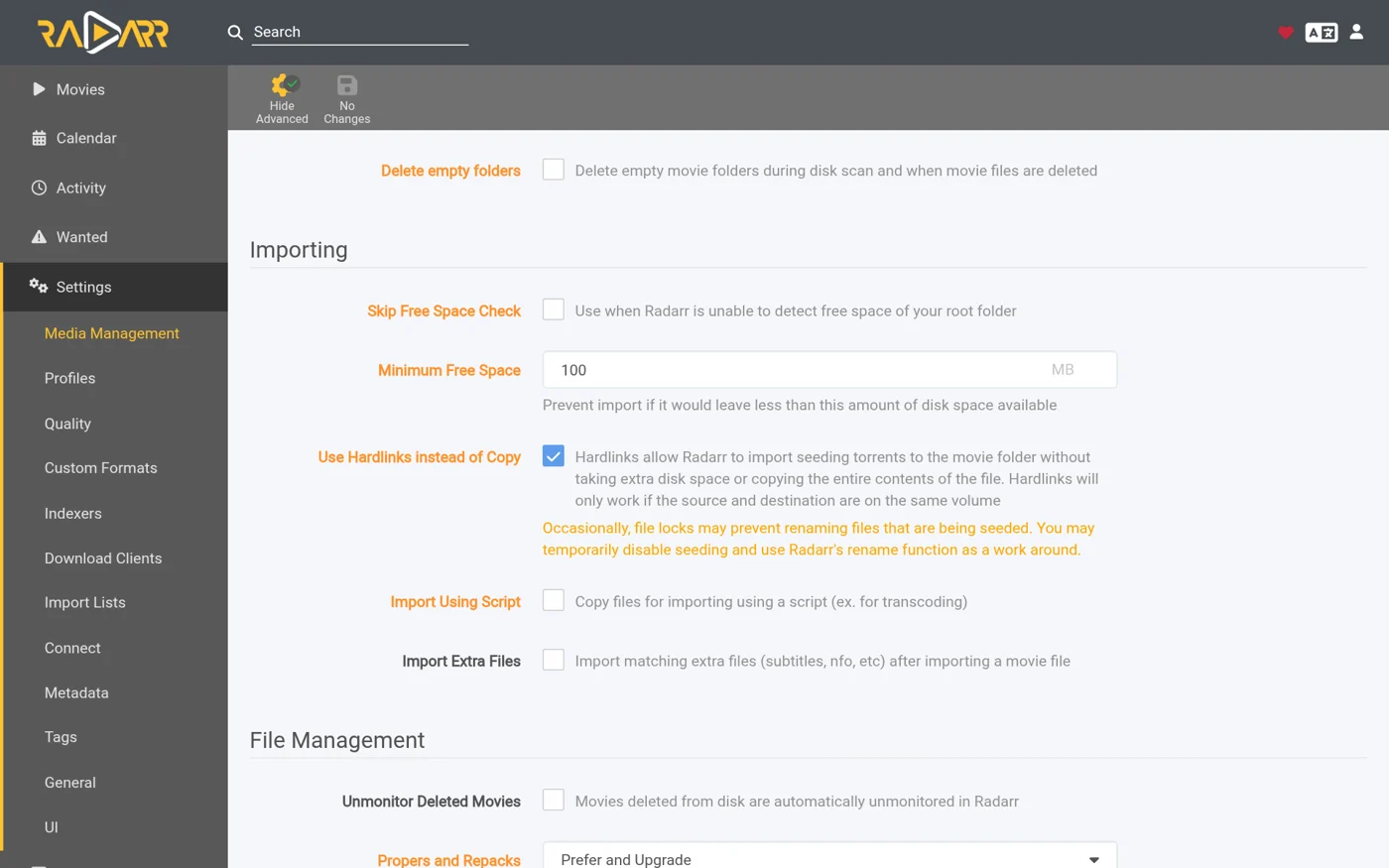
This layout matters more than anything else in the guide. Every app sees the same /data path, and downloads and media sit on the same filesystem. That lets Radarr and Sonarr hardlink a finished download into your library: the file appears in both places instantly but only takes up space once. You keep seeding the torrent, and nothing gets copied. If downloads and media are on different disks or mounted as separate volumes, every import becomes a slow full copy that uses double the space.
The command finishes with chown, so the folders belong to the user the containers run as. Use your own IDs: run id on the server and put the uid and gid numbers in the generator’s PUID and PGID boxes. On TrueNAS that’s usually 568 for the apps user.
Step 2: Save the compose file and fill in the .env
- Make a folder for the stack, for example
mkdir -p ~/arr-stack && cd ~/arr-stack. - Save the generator’s compose.yaml into it. Use the Download button, or paste it into
nano compose.yaml. If you picked Split into 3, make a folder for each file the generator gives you (gluetun,downloadsandapps) and save each file into its own folder. - Save the .env tab next to it as
.env(the download is calledenv.txt, because browsers hide files starting with a dot, so rename it). With split files, put a copy in each folder. - Fill in the blanks in
.env.
If you turned on the VPN: the important blank is WIREGUARD_PRIVATE_KEY. Get it from your VPN provider’s website. In ProtonVPN it’s under Downloads → WireGuard configuration: turn on NAT-PMP (port forwarding), create a config, and copy the PrivateKey line. Mullvad, AirVPN and Surfshark also give you an address for WIREGUARD_ADDRESSES on the same page.
Keep .env private. It holds your VPN key. Don’t paste it into forums and don’t commit it to git.
Step 3: Start the stack
docker compose up -d
docker compose ps
With split files, start them in order: gluetun first, then downloads, then apps (run the same commands in each folder).
If you turned on the VPN: check it
Give Gluetun 20-30 seconds to connect, until it shows (healthy). Then check it really is on the VPN by asking for its public IP. It should be your VPN server’s address, not your home one:
docker exec gluetun wget -qO- https://ipinfo.io/jsonNow check qBittorrent shares that same IP. This proves it can only reach the internet through the tunnel:
docker exec qbittorrent curl -s https://ipinfo.io/ipIf you turned on port forwarding, Gluetun logs the port it was given, and passes it straight to qBittorrent:
docker logs gluetun 2>&1 | grep -i "port forward"Step 4: Set up your download client
Do the one you picked, or both. Set them up before Radarr and Sonarr, because those need to connect to them.
If you picked qBittorrent
qBittorrent makes a temporary password the first time it starts. Find it in the logs:
docker logs qbittorrent 2>&1 | grep -i passwordOpen the web UI (the generator’s Connect the apps tab lists every address), sign in as admin with that password, then go to Tools → Options:
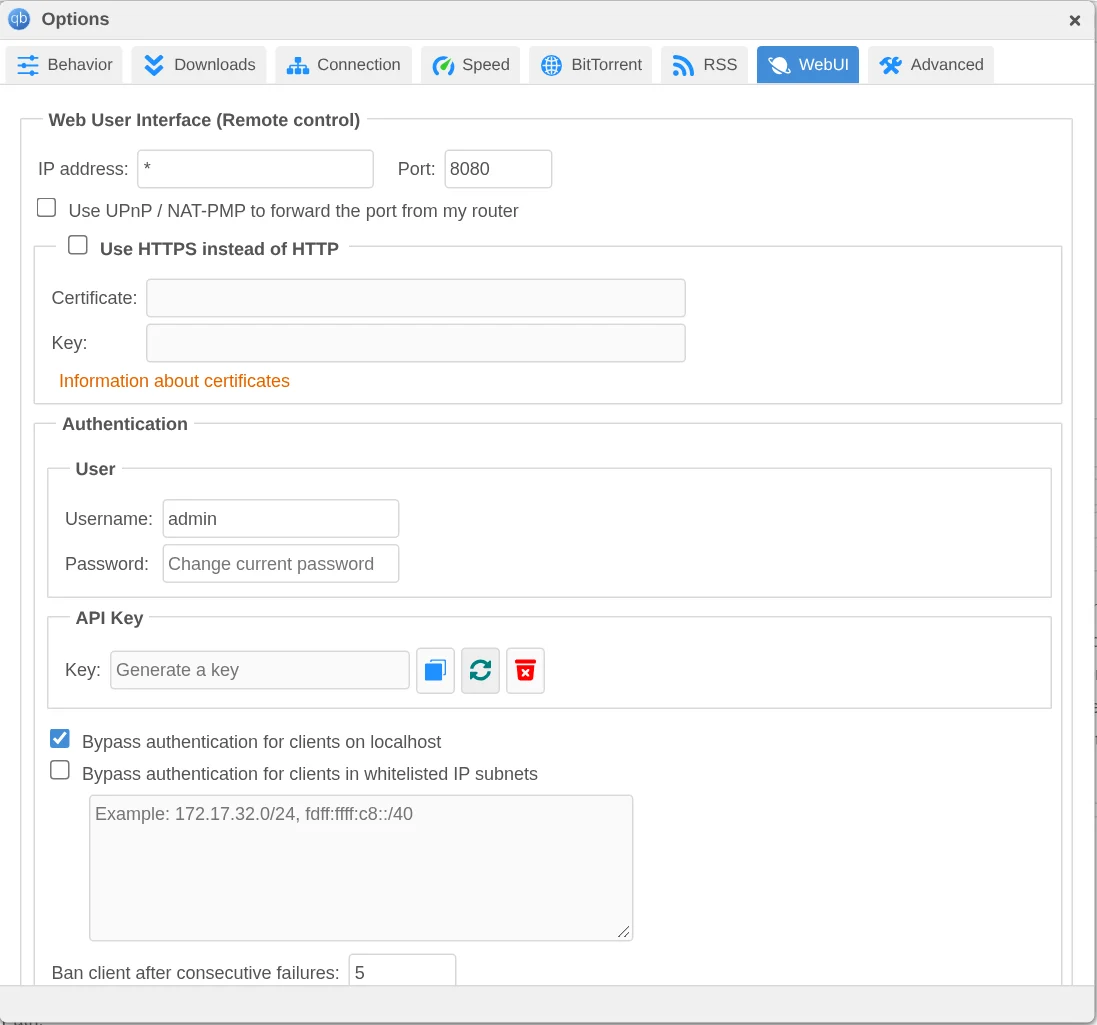
- WebUI: set your own username and password. If you use ProtonVPN or PIA, also tick Bypass authentication for clients on localhost. That’s how Gluetun updates qBittorrent’s listening port each time the VPN reconnects.
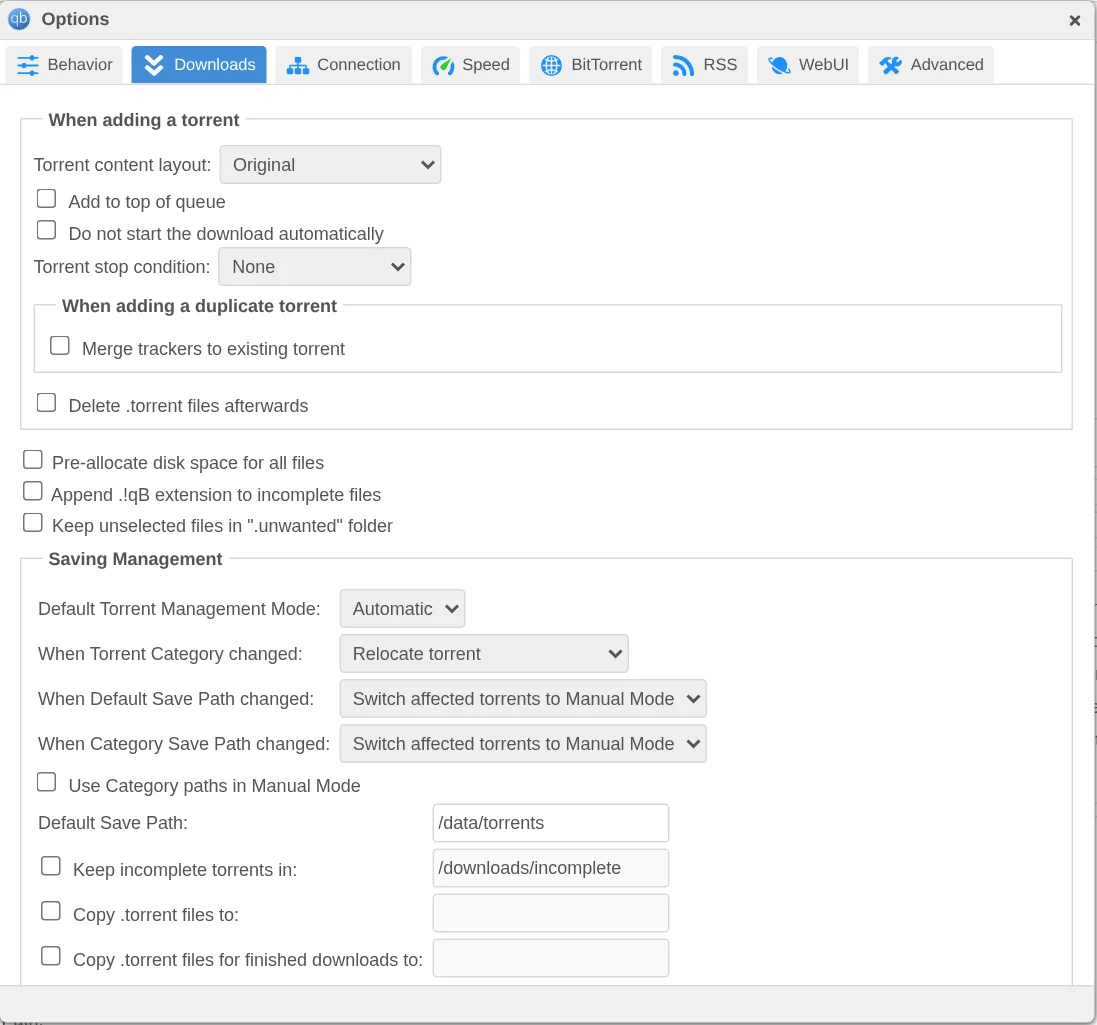
- Downloads: set Default Torrent Management Mode to Automatic and the Default Save Path to
/data/torrents. Torrents then land in a subfolder named after their category, so Radarr’s go to/data/torrents/movies. - BitTorrent: set seeding limits if you want torrents removed after a ratio or time. Radarr and Sonarr have already hardlinked the file by then, so removing the torrent doesn’t touch your library.
If you picked both download clients, the generator moved qBittorrent to port 8090, because SABnzbd also uses 8080. More detail, including speed limits and a download schedule, is in my qBittorrent guide.
If you picked SABnzbd
- Open SABnzbd’s web UI. The first visit starts a short wizard: add your Usenet server (the host, port, username and password from your Usenet provider, with SSL on) and click Next until it’s done.
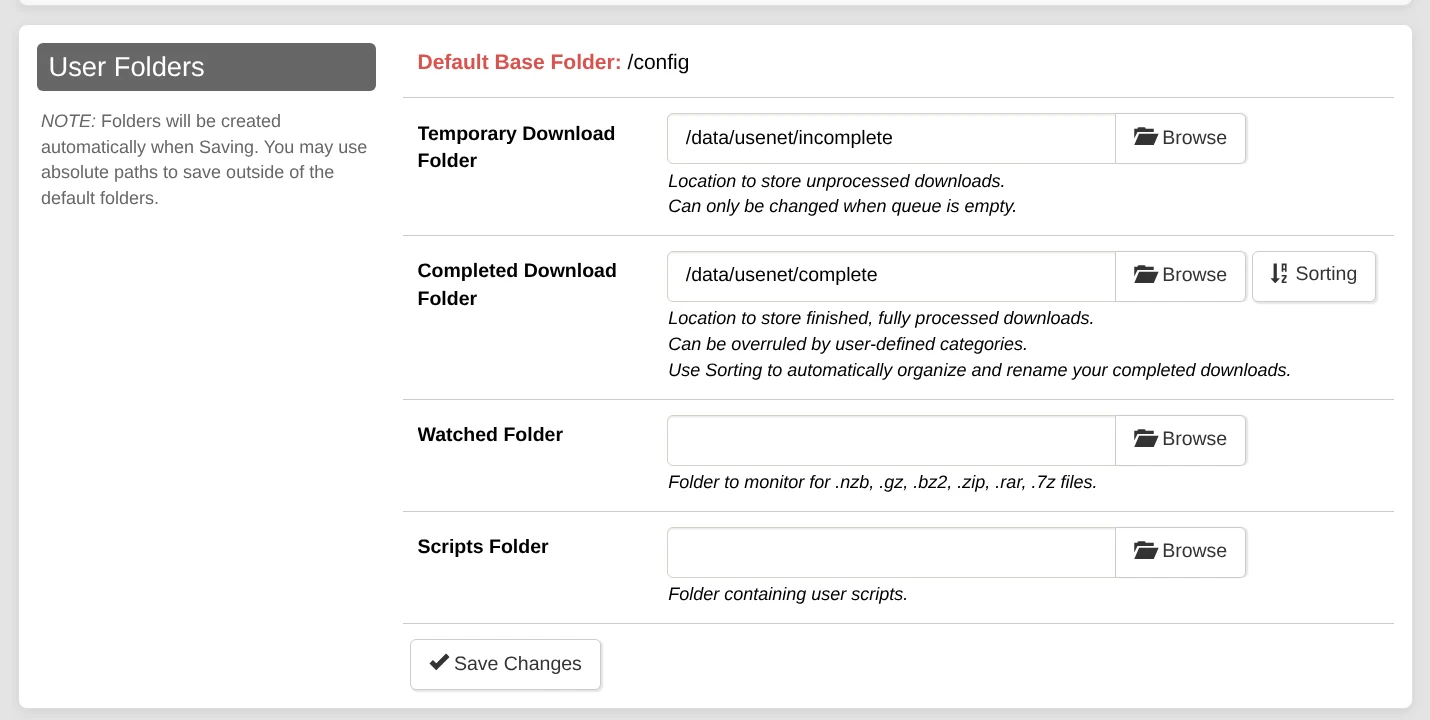
- Config (cog) → Folders: set the Temporary Download Folder to
/data/usenet/incompleteand the Completed Download Folder to/data/usenet/complete, then Save Changes. - Config → General: copy the API Key. Radarr and Sonarr need it in the next step.
- Leave Categories as they are. SABnzbd already has a
moviesand atvcategory.
One more setting, or Radarr and Sonarr get “403 Forbidden”. SABnzbd only answers requests addressed to a name it knows, and Radarr and Sonarr reach it by a name like gluetun or sabnzbd. Go to Config → Special, scroll to host_whitelist, keep what’s there, add a comma and the name, and Save Changes. The generator’s notes tell you exactly which name your setup needs: gluetun if SABnzbd is behind the VPN, sabnzbd without the VPN. If Radarr and Sonarr reach it by your server’s IP, which is what split files use, you don’t need this.
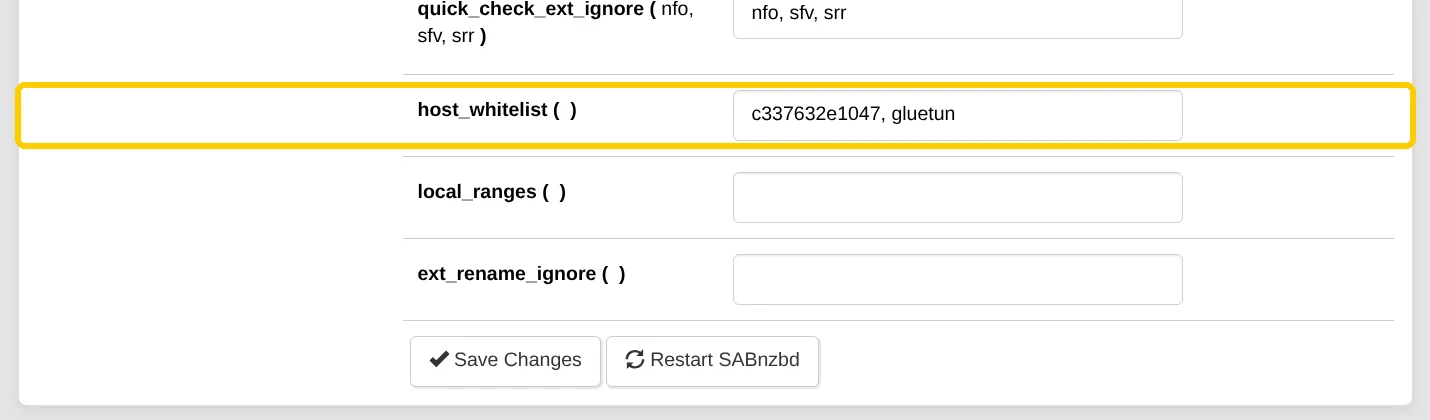
My SABnzbd guide has more on servers, speed and categories.
Step 5: Set up Radarr and Sonarr
In each one, the first visit asks you to create a login. Then:
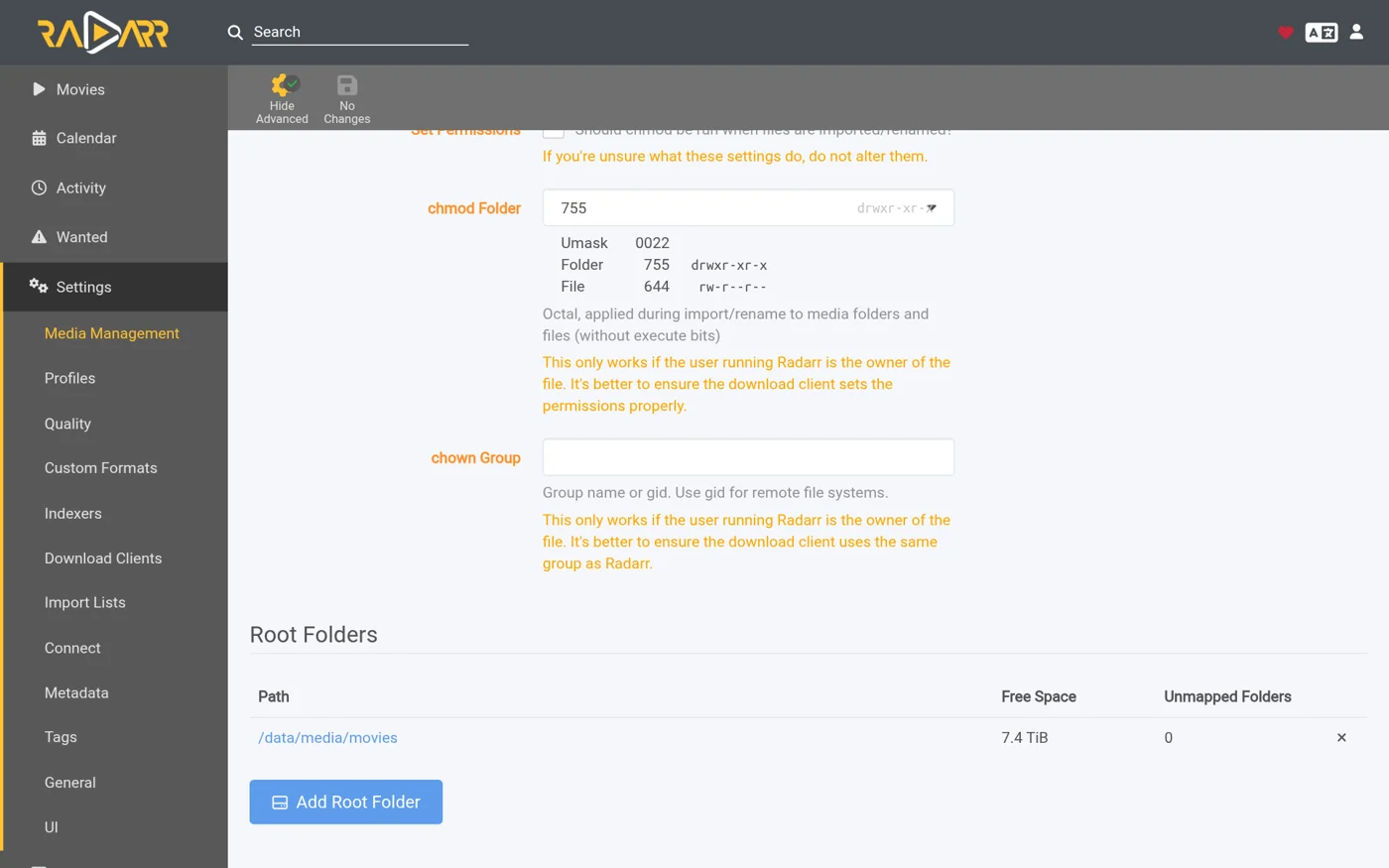
- Settings → Media Management → Root Folders: add
/data/media/moviesin Radarr and/data/media/tvin Sonarr. Click Show Advanced at the top and check that Use Hardlinks instead of Copy is on. It is by default. While you’re there, tick Rename Movies (or Rename Episodes) if you want tidy file names. - Settings → Download Clients → +: add each download client you picked. Use the address from the generator’s Connect the apps tab.
- qBittorrent: the username and password you set, and the category
moviesin Radarr ortvin Sonarr. - SABnzbd: the API key from Step 4, and the same categories.
- qBittorrent: the username and password you set, and the category
- Settings → Profiles: pick the quality you want. “HD-1080p” is a sensible start. If you want something more exact, Profilarr can import tested profiles for you.
- Settings → General: copy the API Key. You need it in the next step.
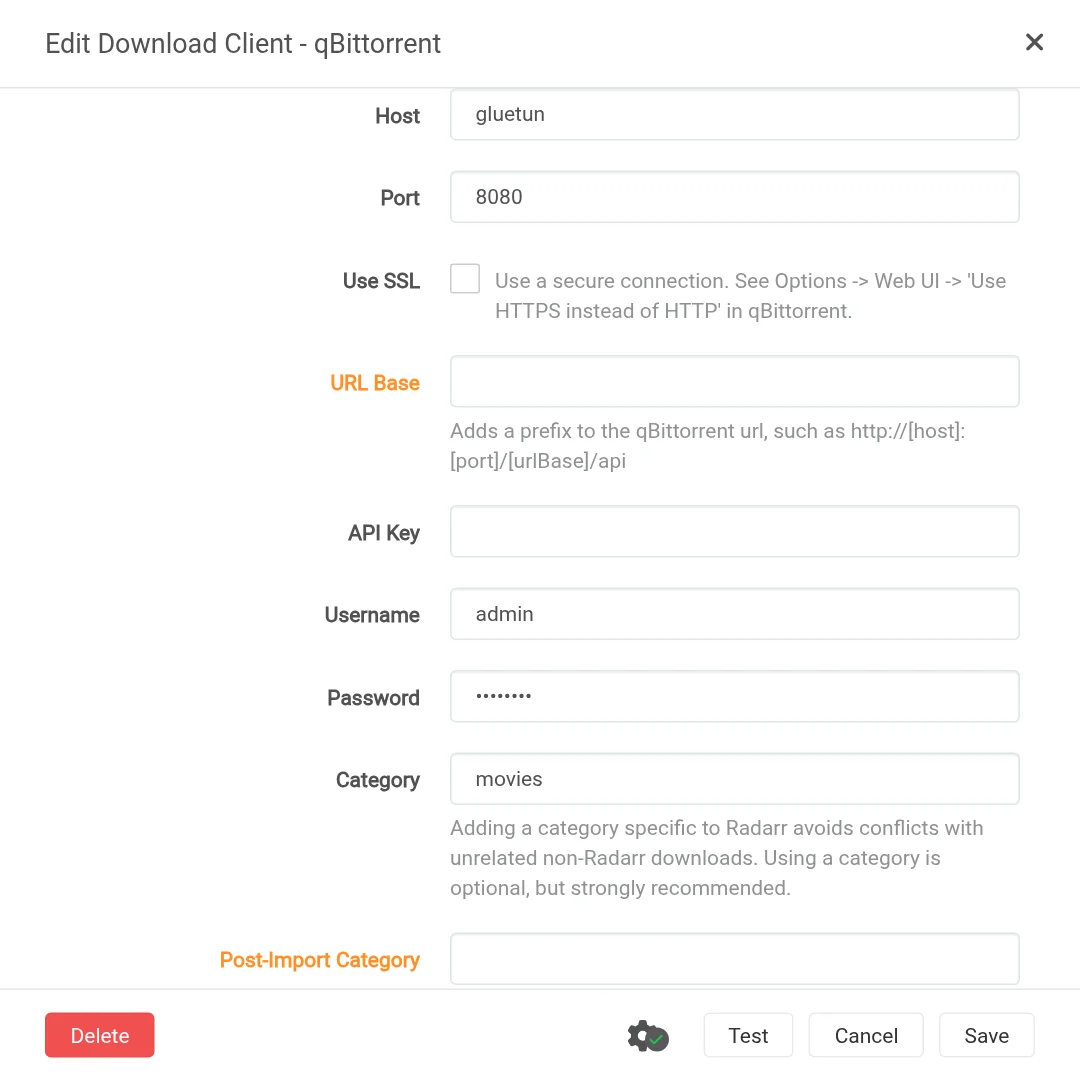
“Category does not exist” for SABnzbd? Right after SABnzbd’s first start, Radarr can say this even though the category is there. Wait a minute or two and click Test again. In my tests it then passed without changing anything.
The addresses depend on how the generator wired things, and that’s why the table exists. Apps inside the VPN reach each other on localhost. Apps outside the VPN reach the ones inside through gluetun instead of the app’s own name. Apps inside the VPN reach the ones outside through your server’s IP, because Gluetun uses its own DNS and can’t look up Docker container names. With split files, apps in different files also reach each other through your server’s IP.
For each app’s settings in more depth, see my Radarr and Sonarr guides. Want the newest versions? See what’s new in Sonarr 5 and Radarr 7, and how to try them safely.
Step 6: Set up Prowlarr
- Settings → Apps → +: add Radarr and Sonarr. Prowlarr Server is how Radarr or Sonarr reach Prowlarr, and Radarr Server or Sonarr Server is how Prowlarr reaches them. The generator’s table lists both. Paste the API keys from Step 5.
- Indexers → Add Indexer: add the indexers you have an account with, then Test and Save. To try it without an account, add the Internet Archive and search for
debian. The Prowlarr video guide shows every click.
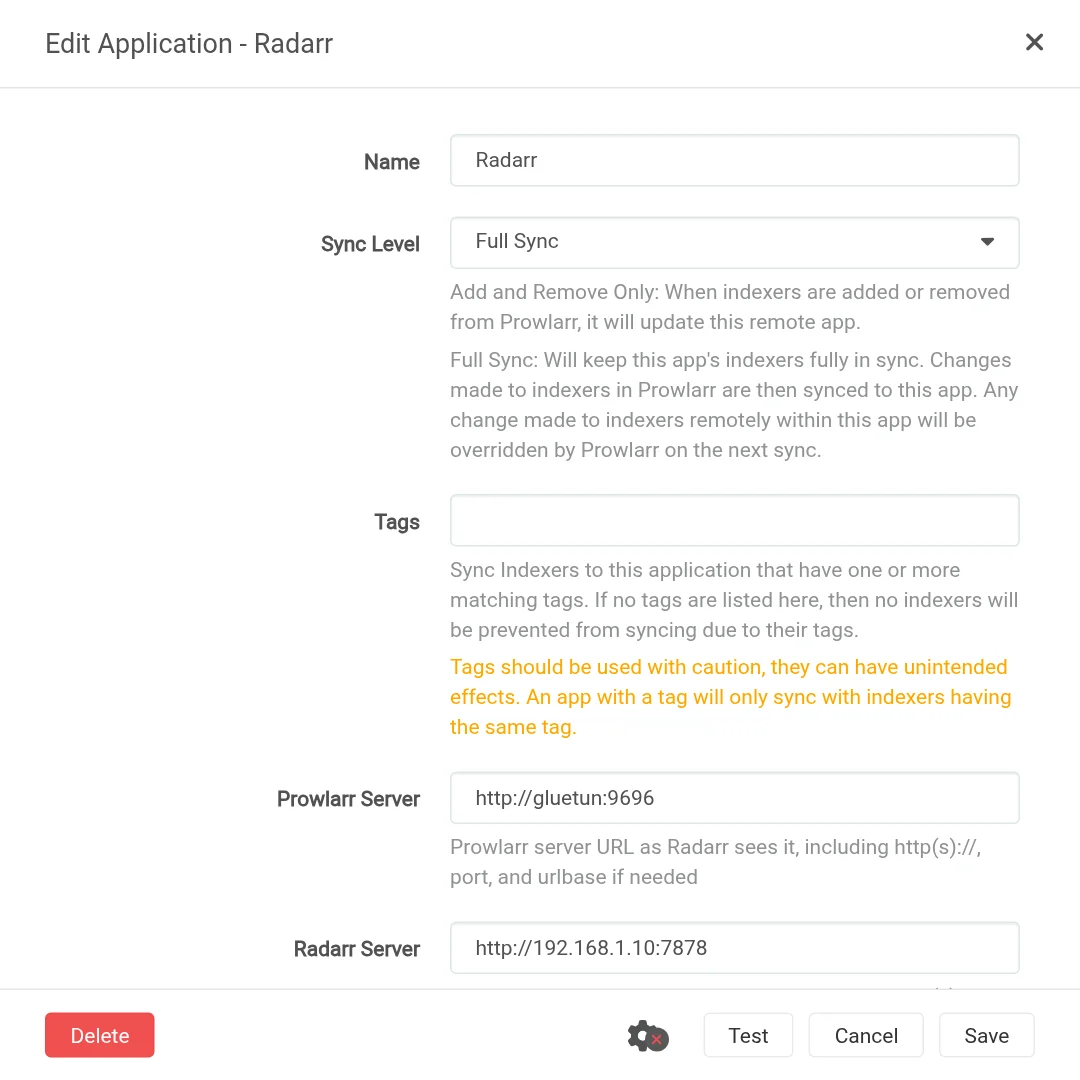
Prowlarr pushes every indexer to Radarr and Sonarr automatically. You never add indexers in those apps directly. A films-only indexer only appears in Radarr, and a TV one only in Sonarr. That’s normal.
The Prowlarr guide has more on adding indexers and testing them.
Step 7: Plex and Seerr
Plex: grab a claim token from plex.tv/claim and put it in .env before the first start. It expires after 4 minutes, so if you were too slow, paste a fresh one and run docker compose up -d plex. Then open http://YOUR_SERVER:32400/web, and add a Films library pointing at /data/media/movies and a TV library pointing at /data/media/tv. Plex runs on the host network, so the Plex apps on your TV find it on their own. My Plex guide covers hardware transcoding and remote access.
Seerr: open it on port 5055, sign in with your Plex account and pick your server. Then add Radarr and Sonarr under Settings → Services with their API keys and root folders. Share the Seerr page with your household and they can request things themselves. Cantinarr is a newer alternative that works the same way.
Test it end to end
In Radarr, click Add New, search for a film you have the right to download (the free, open film Big Buck Bunny works well), pick your root folder and quality profile, tick Start search for missing movie and add it. Within a minute you should see:
- the film appear in Radarr’s Activity → Queue
- the download in qBittorrent under the
moviescategory, or in SABnzbd’s queue - once it’s finished, the film in
/data/media/moviesand showing in Plex
To check the hardlink worked, look at the file’s link count. 2 means it’s one file in two places (the download folder and your library), so it only takes up space once:
stat -c '%h %n' /data/media/movies/*/*.mkv | head/data/torrents/movies, Radarr imported it, and both copies showed a link count of 2: one file, the space used once.One compose file or three?
The generator gives you a choice. One file is simplest: everything starts together, and the VPN-routed apps use network_mode: service:gluetun with a depends_on health check. If Gluetun restarts, Docker restarts them too.
Bigger stacks work better split into three: Gluetun on its own, the download clients in a second file, and everything else in a third. Once a stack grows past about 20 containers, a single file means every unrelated change risks taking the VPN tunnel down. Split files use network_mode: "container:gluetun", which works across compose projects because it points at the container by name. The cost is that depends_on can’t cross files. If Gluetun is recreated (an update, or a change to its settings), the containers that share its network lose their connection. A plain docker restart doesn’t fix it: it fails with “No such container”, because they’re still pinned to the old Gluetun container. Run docker compose up -d --force-recreate in the downloads and apps folders instead.
On top of the core apps, I also run:
- Gluetun-WebUI: a dashboard showing the VPN status, exit IP and forwarded port
- Unpackerr: extracts RAR releases so Radarr and Sonarr can import them
- Checkrr: scans the library for corrupt files
- Profilarr: keeps quality profiles in sync with the TRaSH Guides
Common problems when you split the stack into three files
These are the problems that come up most often when you move a running stack into separate files and redeploy it.
- “Healthy” doesn’t mean working. Boxarr showed as healthy the whole time while its web UI was unreachable, because its health check only tested an internal API and the port mapping was wrong (its real port is 8888). Always open each web UI, or
curlevery port, after a change. - Not every image understands PUID and PGID. The linuxserver.io images do. Others, like the home-operations images, need
user: "568:568"in the compose file instead, or they fail with “AppFolder /config is not writable”. The home-operations images also have no:latesttag, so pin a version. - Docker creates missing folders as root. If a bind-mount folder doesn’t exist, Docker makes it owned by
root, and a container running as 568 can’t write to it. Create the folders first (Step 1). - Start order matters across files.
container:gluetunneeds the gluetun container to already exist, so start the Gluetun file first. Apps that start before the apps they connect to may log errors at first. Those clear on their own once everything is up. - Deleting a config folder doesn’t always mean a clean start. Some apps come back up with all their old settings and API keys after their config folders are deleted. If you really want a blank slate, check the folder is empty, and stays empty, before the new container starts. Don’t trust the delete alone.
Troubleshooting
- Gluetun never becomes healthy. Check
docker logs gluetun. Usually it’s a wrong or expired WireGuard key, or a server country your plan doesn’t include. The containers that share its network won’t start until it’s healthy. - Can’t open qBittorrent’s web UI, but Gluetun is fine. When an app shares Gluetun’s network, the port is published on gluetun, not on the app. Check it’s listed under Gluetun’s
ports:. - Downloads stuck at 0% or very slow. Check that port forwarding worked (Step 3) and that qBittorrent’s listening port matches it, under Options → Connection. Without a forwarded port you can only connect out, so torrents with few seeders crawl.
- Radarr says “No files found are eligible for import” or the path doesn’t exist. The download client and Radarr see different paths. Both must mount the same
/datafolder at the same path inside the container. - Imports are slow and use double the space. Hardlinks aren’t working. Downloads and media must be on the same filesystem and mounted together under
/data, not as two separate volumes. - An app inside the VPN can’t reach Plex or another app outside it. Gluetun’s firewall blocks your home network by default.
FIREWALL_OUTBOUND_SUBNETSin the compose file must include your LAN, for example192.168.1.0/24. - Radarr or Sonarr get “403 Forbidden” from SABnzbd. Add the name they use to reach it (
gluetunorsabnzbd) to Config → Special → host_whitelist in SABnzbd (Step 4). - “No such container” after updating Gluetun. With split files, run
docker compose up -d --force-recreatein the other folders, not a restart. - Permission denied in the logs. Run
ls -lnon the folder and check that the owner matches your PUID and PGID.
Useful commands
# update every app to the latest image
docker compose pull && docker compose up -d

# follow one app's logs
docker compose logs -f --tail 100 radarr

# check every web UI actually answers (change the IP and ports to yours)
for port in 7878 8989 9696 8080 5055 32400; do
  printf '%s port %s\n' "$(curl -s -o /dev/null -m 5 -w '%{http_code}' http://192.168.1.10:$port/)" "$port"
done
🧰 What I use
Proton VPN: works with Gluetun over WireGuard, with port forwarding for qBittorrent.
This is an affiliate link: if you sign up through it, I may earn a commission, at no extra cost to you. Use a VPN for privacy, and only download what you have the right to.
Frequently asked questions
What is an arr stack?
A set of free, self-hosted apps that find, download and organise films and TV for you: Radarr for films, Sonarr for TV, Prowlarr for indexers, plus a download client. Plex or Jellyfin then plays them.
Do I need a VPN for an arr stack?
It's optional. The generator on this page builds the stack with or without Gluetun. With it, your downloads go through the VPN and stop if it drops.
Why are imports slow and using double the space?
Hardlinks aren't working. Downloads and media must be on the same filesystem and mounted together under /data, not as two separate volumes.
Why can't apps inside the VPN reach Plex?
Gluetun's firewall blocks your home network by default. FIREWALL_OUTBOUND_SUBNETS must include your LAN, for example 192.168.1.0/24.
One compose file or several?
Either works. The section "One compose file or three? How I run mine" explains the trade-offs.
Thank you
None of this exists without the people who build it for free. Thank you to the Servarr team for Radarr, Sonarr, Prowlarr and Lidarr; to Quentin McGaw for Gluetun; to LinuxServer.io for the images most of this stack runs on; to the qBittorrent, SABnzbd, Bazarr and Seerr projects; and to the TRaSH Guides, whose folder layout this guide uses. If one of these apps has become part of your setup, a GitHub star or a donation means a lot to the people behind it.
Related guides: Gluetun · qBittorrent · SABnzbd · NZBGet · Radarr · Sonarr · Prowlarr · Plex
If this guide helped you, consider buying me a coffee. It helps keep guides like this one coming.
☕Buy me a coffeeGet new guides by email
About one email a month: new step-by-step guides and card releases. No spam, unsubscribe any time.
 spikey1965