
Follow this guide at your own risk, and back up your data first. Full disclaimer
Updated 8 November 2026 Tested with: AdGuard Home 0.107.80
AdGuard Home is a free ad and tracker blocker for your whole home network. You set it up once, point your router at it, and every phone, tablet, laptop and smart TV in the house gets fewer adverts and trackers, with nothing to install on them. You also get a log of what each device looks up, plus SafeSearch and parental controls.
This guide sets up AdGuard Home with Docker Compose in five short steps. It takes about 15 minutes.
On this page (12 sections)
- 1See how it works
- 2What you need to set up AdGuard Home with Docker Compose
- 3Step 1: Check port 53 is free
- 4Step 2: Make the compose file
- 5Step 3: Run the setup wizard
- 6Step 4: Test it
- 7Step 5: Point your router at AdGuard Home
- 8Check every device shows up
- 9Stop devices getting round it (optional)
- 10Parental controls
- 11Troubleshooting
- 12Frequently asked questions
See how it works
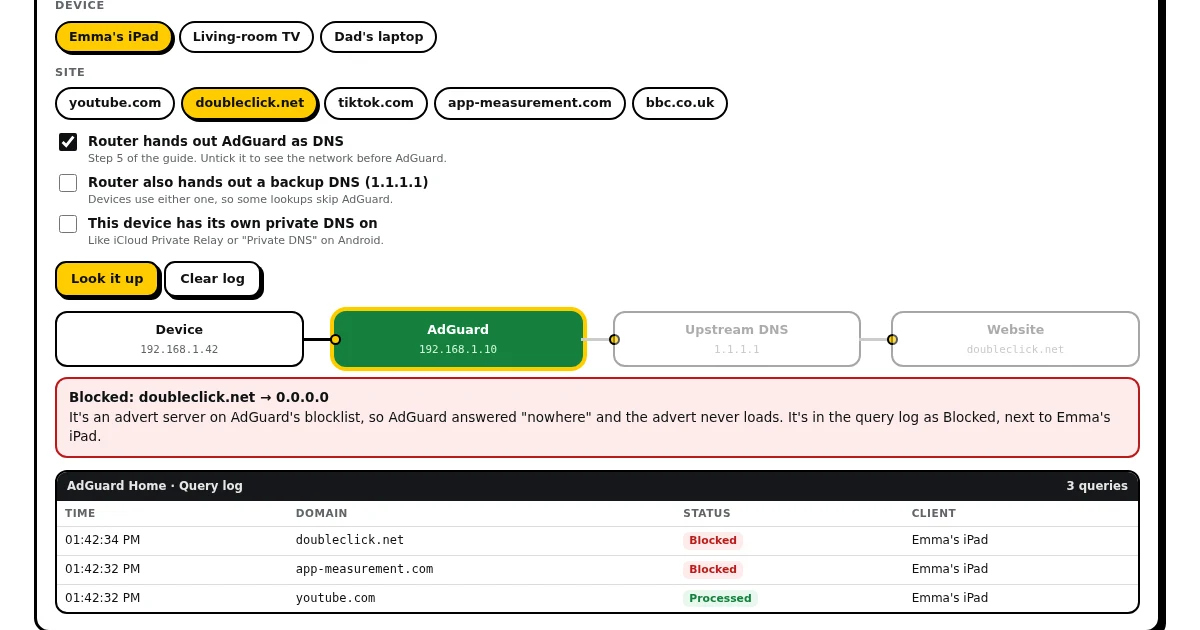
Pick a device and a site and press Look it up. Try doubleclick.net (an advert server) and then youtube.com, and watch the query log. Then tick Router also hands out a backup DNS and look up doubleclick.net a few times to see why the backup DNS box should stay empty. Under the demo is the generator you’ll use in Step 2.
Open the generator full screen
What you need to set up AdGuard Home with Docker Compose
- A computer or NAS that’s always on and runs Docker (the
docker composecommand). New to Docker? Step 1 of my Home Assistant guide shows how to install it. - The server’s address on your home network, for example
192.168.1.10. Give it a fixed address in your router (often called a DHCP reservation), so it never changes. - The login for your router’s settings page, for Step 5.
Step 1: Check port 53 is free
DNS uses port 53. On the server, run:
sudo ss -tulpn | grep ':53 '- No output: it’s free. Go to Step 2.
- Only
127.0.0.53or127.0.0.54: that’s Ubuntu’s own resolver. It’s fine with the generator’s default setting, Ports on your server’s address. - Anything on
0.0.0.0:53or your server’s address: something else is already a DNS server there, often an old Pi-hole or AdGuard. Stop it first.
Step 2: Make the compose file
In the generator above, type your server’s address and the folder for AdGuard’s files. Leave the network on Ports on your server’s address for now. Then, on the server:
mkdir -p ~/adguard && cd ~/adguard
nano compose.yaml
Paste the file from the generator, save it (Ctrl+O, Enter, Ctrl+X), and start AdGuard Home:
docker compose up -dStep 3: Run the setup wizard
- On any computer, open
http://your-server-address:3000, for examplehttp://192.168.1.10:3000, and click Get Started. - Admin Web Interface: leave All interfaces, and change the port to 3000. Important: it suggests 80. With Docker’s port setting from Step 2, the page disappears after setup if you leave 80.
- DNS server: leave All interfaces and port 53. Click Next.
- Make a username and password, then click through to Open Dashboard.
- Give it a minute to download its blocklist.
Step 4: Test it
On any computer (Windows, Mac or Linux), ask AdGuard Home for an advert server and a normal site:
nslookup doubleclick.net 192.168.1.10
nslookup bbc.co.uk 192.168.1.10
Use your server’s address. The advert server should come back as 0.0.0.0 (blocked), and the BBC with its real address. Both appear in AdGuard’s Query log.
Step 5: Point your router at AdGuard Home
- Open your router’s settings page and find the DHCP or LAN settings, where it hands out addresses.
- Set the DNS server (or “primary DNS”) to your server’s address.
- Leave the second DNS box empty. Devices use either DNS server whenever they like, so a backup like 1.1.1.1 lets lookups get round AdGuard (the demo shows this).
- Save. Devices pick it up when they reconnect, so turn Wi-Fi off and on, or wait a few hours.
Can’t change the DNS on your router? Some internet providers’ routers don’t allow it. You can still set the DNS by hand on each device, or turn off the router’s DHCP and use AdGuard Home’s own DHCP server (Settings → DHCP settings), which needs the Host network option in the generator.
Check every device shows up
Open Query log in AdGuard Home and use a few devices. Each one should appear with its own address.
- Every lookup shows the same
172.x.x.xaddress? Docker is hiding the devices. In the generator, pick Host network, updatecompose.yamland rundocker compose up -dagain. - Give devices names: Settings → Client settings → Add Client, for example “Emma’s iPad” with its address. The log and the stats then use the names.
Stop devices getting round it (optional)
Some devices and browsers have their own private DNS, which skips AdGuard completely. To stop that, go to Filters → Custom filtering rules and add:
||mask.icloud.com^
||mask-h2.icloud.com^
||use-application-dns.net^- The first two turn off iCloud Private Relay on your network. iPhones show a note that Private Relay is off for this Wi-Fi.
- The last one tells Firefox not to switch on its own DNS.
- On children’s Android devices, set Settings → Network → Private DNS to Off or Automatic.
Parental controls
- Settings → General settings: turn on Use AdGuard parental control web service (adult sites) and Use Safe Search (Google, YouTube, Bing and others).
- Filters → Blocked services: one-click blocks for apps like TikTok, Roblox or Snapchat, with a schedule if you want them only at certain times.
- Per device: Settings → Client settings → edit a device to give it its own settings, so the children’s devices can be stricter than yours.
Got Home Assistant? My Kid Watch integration uses AdGuard Home to show what each child is doing, their screen time and what’s on the TV, with pause, bedtime and app blocks from your dashboard.
Troubleshooting
- “address already in use” for port 53: something else is using port 53. Go back to Step 1.
- The page disappeared after the wizard: the web port was left on 80. Stop AdGuard (
docker compose down). Openadguardhome/conf/AdGuardHome.yaml, changeaddress: 0.0.0.0:80underhttp:toaddress: 0.0.0.0:3000, and start it again. - Nothing in the query log: the devices still use your router’s old DNS. Check Step 5, then reconnect a device’s Wi-Fi.
- A site you need is blocked: find it in the query log and click Unblock.
More guides: Gluetun, a simple VPN for your apps and installing Home Assistant with Docker Compose.
If this guide helped, consider buying me a coffee. It helps keep these guides free.
Frequently asked questions
What does AdGuard Home do?
It blocks ads and trackers for every device on your home network at the DNS level, with nothing to install on each device. You also get a query log, SafeSearch and parental controls.
AdGuard Home or Pi-hole?
Both block ads at the DNS level. AdGuard Home has encrypted DNS, SafeSearch and parental controls built in, without add-ons.
Why does it say "address already in use" for port 53?
Something else on the server is already using port 53, often a built-in DNS service. See Step 1 to find and free it.
Why is nothing in the query log?
Your devices still use the router's old DNS. Point the router's DNS at AdGuard Home (Step 5), then reconnect a device's Wi-Fi.
Get new guides by email
About one email a month: new step-by-step guides and card releases. No spam, unsubscribe any time.
 spikey1965