
Use this at your own risk, and test it before relying on it, especially anything that controls a real device. Full disclaimer
Updated 15 November 2026
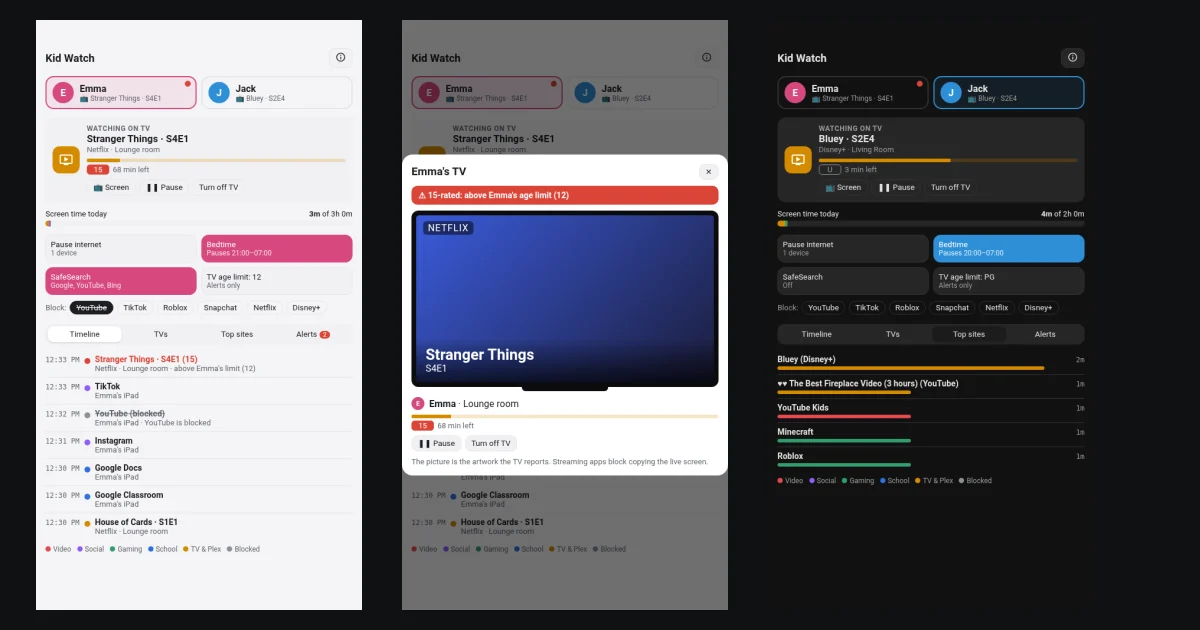
Want to know what the children are watching on the TV upstairs, or how long they’ve been on Roblox tonight? Kid Watch is a free Home Assistant integration and card for parents. It shows what each child is doing right now, their screen time today and a timeline of their evening. It also lets you pause their internet, set a bedtime or block an app with one tap.
This guide covers Kid Watch, parental controls for Home Assistant. It works with AdGuard Home for the internet side, and with your TVs and Plex for what’s on screen. Everything stays on your own network. You can try it below with pretend children before you set anything up.
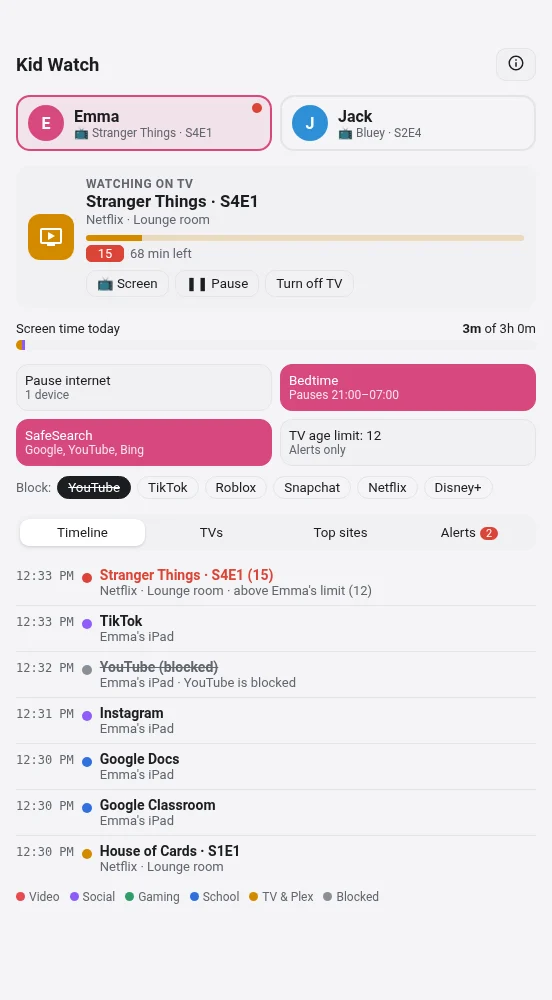
Here it is in a 54-second video with two pretend children: what each child is doing, Jack’s show on Plex, blocking TikTok, the pop-up when Emma starts a 15-rated show, and pausing the internet.
Beta: testers wanted
Kid Watch is brand new. I tested it against a real AdGuard Home and Home Assistant 2026.9, with simulated children’s devices and TVs, so it hasn’t run in a real family home yet. If you try it, please open an issue on GitHub to say how it went, good or bad.
That’s how it gets out of beta. This is version 0.2.0, now in 8 languages.
On this page (10 sections)
Try the live demo
This is a simulated evening with two pretend children, sped up so a minute passes every second. Block TikTok before 18:52, open the TVs tab, press 📺 Screen, or wait for Emma to start a 15-rated show at 20:38. Press ⚙ on the card to see the setup screens a parent fills in.
Parental controls for Home Assistant: what Kid Watch does
- What each child is doing now, for example “Watching Bluey S2E4 on Disney+, Living Room TV” or “Roblox on Jack’s iPad”.
- Screen time today, split into video, social, gaming, school and TV, against a daily budget you set.
- A timeline of the apps and shows they used today and when, plus anything that was blocked.
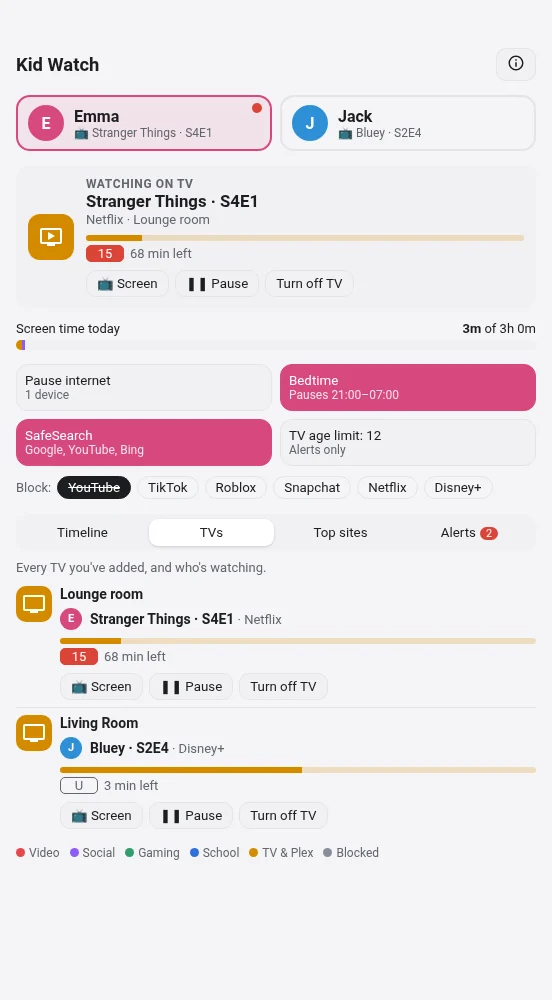
- Every TV you’ve added, what’s on it, its age rating and the time left, with Pause and Turn off TV buttons.
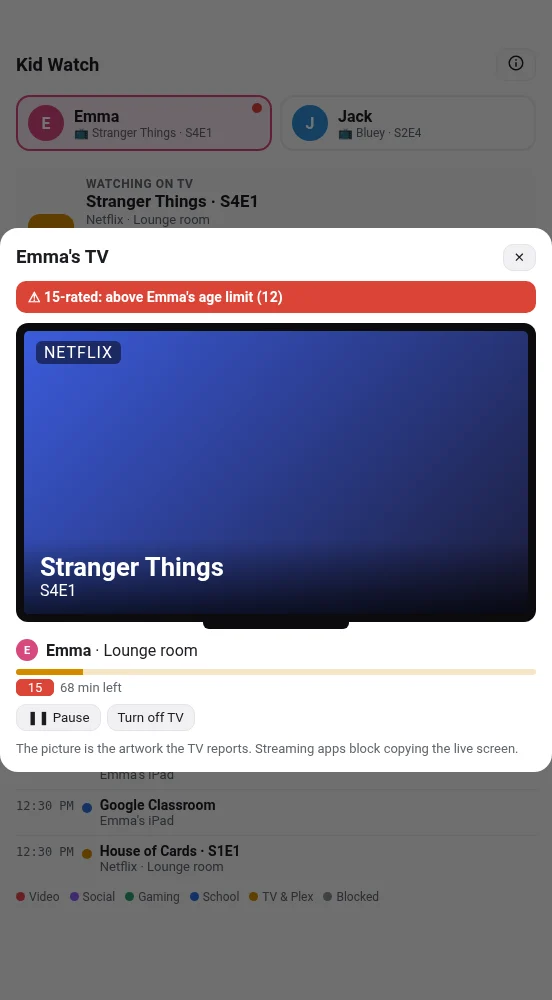
- A TV age limit for each child (U, PG, 12, 15 or 18). If a show above it starts, you get an alert and the card pops up the TV. You can also have the TV stopped automatically.
- One-tap controls through AdGuard Home: pause the internet, a bedtime that pauses and resumes by itself, SafeSearch, and block buttons for apps like YouTube, TikTok, Roblox, Snapchat, Netflix and Disney+.
- Alerts on your phone when a child tries a blocked adult site, starts a show above their limit, tries a blocked app, uses up their screen time, or is paused for bedtime. They can go to the Home Assistant app, Gotify, Telegram, email or any other notify service.
- Works in 8 languages: English, Deutsch, Français, Italiano, Español, Nederlands, Polski and Português (Brazilian Portuguese too). The setup screens, the card and the alerts follow your Home Assistant language.
What it can and can’t see
It’s worth knowing the limits before you rely on it:
- It sees which apps and sites each device uses, from AdGuard Home’s DNS log.
- On TVs it sees what’s playing. Plex reports exact titles, episodes and age ratings. Apple TV usually reports the title for Netflix, Disney+, iPlayer and YouTube. Many smart TVs only report the app name.
- It can’t see single pages, searches, or which YouTube video is playing, because HTTPS hides them.
- It can’t see anything on mobile data, or on a device that uses its own DNS (private DNS, a VPN or iCloud Private Relay). For phones away from home, use Apple Screen Time or Google Family Link as well.
- The live picture of the TV can’t be shown, because Netflix and the like block screen copying. The pop-up shows the show’s artwork instead.
Before you start
- AdGuard Home as the DNS server for the children’s devices, usually set in your router. Its query log must be on, which it is by default.
- Optional: the Plex integration in Home Assistant. Each child’s Plex profile then follows them to any TV.
- Optional: your TVs or streaming boxes in Home Assistant (Apple TV, Android TV, Samsung, LG, Roku and others).
Tip: give each child’s device a fixed address in your router, and turn off “private Wi-Fi address” (iPhone and iPad) or “randomised MAC” (Android) for your home network, so the device keeps the same address. Naming the devices in AdGuard Home (Settings → Client settings) makes them easy to pick.
No AdGuard Home yet? It’s a free ad blocker for your whole network. My step-by-step guide sets it up with Docker Compose in about 15 minutes: how to set up AdGuard Home.
Step 1: install Kid Watch from Marketplace
⚡Open in Marketplace (one click)


The button opens Marketplace in your own Home Assistant with Kid Watch filled in. If asked, connect GitHub and click Add, then click Install, then restart Home Assistant. The first time, it asks for your Home Assistant’s address. Or do it by hand:
In Settings → Marketplace, click Add from link, paste https://github.com/spikey1965/ha-kid-watch, choose the type Integration if asked and click Add. This asks you to connect GitHub. Find Kid Watch under New, open it, click Install and restart Home Assistant. Because it’s a beta, Marketplace shows a short code such as f5fa069 instead of a version number, which is normal. To get the numbered beta instead, open the ⋮ menu → Include pre-releases → Include before you install.
The first time you use Marketplace, tick I understand the risks and agree and click Continue. On a version older than 2026.11? Marketplace is still called HACS there (what changed in 2026.11). The same steps work, with Download in place of Install and ⋮ → Custom repositories in place of Add from link.
The dashboard card comes with it, so there’s no separate card to install. View it on GitHub →
Step 2: Add Kid Watch and your children
- Go to Settings → Devices & services → Add integration and search for Kid Watch.
- Connect: enter AdGuard Home’s address, port, username and password.
- Add a child: their name and a colour, then their devices (picked from AdGuard’s list), their TVs and their Plex profile. Last, set their TV age limit, daily screen time, bedtime and wake-up time.
- Add your other children the same way, then choose where alerts go and which app block buttons to show.
To add, change or remove a child later, press Configure on the Kid Watch integration.
Step 3: Add the card
Edit your dashboard, add a Manual card and paste:
type: custom:kid-watch-cardThat’s all it needs, because the card finds your children by itself. To show only some of them, add children: [Emma]. To stop the TV popping up on its own, add popup: false. The card speaks your Home Assistant language; to pick a different one, add language: de (or fr, it, es, nl, pl, pt, pt-BR, en).
What it changes in AdGuard Home
- Pause internet adds a rule for that child’s devices to your custom filtering rules, marked
! kid_watch pause. Resuming removes it again. - SafeSearch and the block buttons move that device from AdGuard’s global settings to its own. They start as a copy of your global settings, so nothing else changes.
- Removing a child from Kid Watch leaves their AdGuard settings as they are.
Every alert also fires a kid_watch_alert event, so you can build your own automations, such as flashing a light when a TV age-limit alert comes in. There’s an example on GitHub.
Talk to your children about it
Kid Watch only keeps today’s activity, and nothing leaves your home. It still works best when children know it’s there and why. Being open about it usually goes better than watching in secret, especially with teenagers. Agree the screen time, bedtime and age limits together if you can.
Help test it
If you try Kid Watch, I’d love to hear how it goes: which TVs and devices you have, what it got right and what it got wrong. Open an issue on GitHub.
New to Home Assistant? Start with my guide to installing Home Assistant with Docker Compose.
More Home Assistant guides: setting up a Home Assistant wall tablet, the hOn washer and dryer card and a live 3D floor plan for Home Assistant.
More cards in beta: GE washer and dryer (SmartHQ) · Candy, Haier and Hoover (Simply-Fi) · Frigate Timeline (CCTV) · all betas
If Kid Watch is useful to you, consider buying me a coffee. It helps keep projects like this one free.
Frequently asked questions
What do I need for Kid Watch?
Home Assistant and AdGuard Home as the DNS server for the children's devices. The Plex integration and your TVs in Home Assistant are optional extras.
Can Kid Watch see which YouTube videos my children watch?
No. HTTPS hides single pages, searches and YouTube videos. It sees which apps and sites a device uses, and on TVs what's playing.
Does Kid Watch work on mobile data?
No. It can't see devices on mobile data, or ones using their own DNS, a VPN or iCloud Private Relay. Use Apple Screen Time or Google Family Link for phones away from home.
Does Kid Watch send data anywhere?
No. Everything stays on your own network, and it only keeps today's activity.
More free Home Assistant cards
All free, with a live demo and step-by-step setup.

Want one made for your home? See custom cards and dashboards.
Get new guides by email
About one email a month: new step-by-step guides and card releases. No spam, unsubscribe any time.
 spikey1965