
For educational purposes only. This guide shows how to install self-hosted software on your own hardware. I don't condone piracy: only use these apps with media you own or have the right to use, and follow the law where you live. Back up your data first. Full disclaimer
Updated 16 November 2026 Tested with: Profilarr 2.3.1
Profilarr sets up Radarr and Sonarr’s quality profiles for you. Instead of copying dozens of custom formats from forum posts, you link a ready-made database, tick a profile like 1080p Balanced, and Profilarr pushes everything into Radarr: the profile, around 100 custom formats and their scores. When the database improves, your Radarr updates by itself.
This guide sets up Profilarr with Docker Compose in six short steps. It takes about 15 minutes.
On this page (13 sections)
- 1Watch: install Profilarr with Docker Compose
- 2See what Profilarr changes
- 3What you need to set up Profilarr with Docker Compose
- 4Step 1: Make your compose file
- 5Step 2: Create your login
- 6Step 3: Check the database
- 7Step 4: Add Radarr and Sonarr
- 8Step 5: Choose what to sync
- 9Step 6: Check it’s working
- 10Optional: Upgrades
- 11If something’s wrong
- 12Updating Profilarr
- 13Frequently asked questions
Watch: install Profilarr with Docker Compose
The video has subtitles at the bottom and no sound. It was recorded on a clean test install of Profilarr 2.3 connected to a test Radarr, syncing the 1080p Balanced profile.
See what Profilarr changes
Press Search to see which copy of a film Radarr grabs on its own. Then switch to With Profilarr, search again and try A few days later. The scores come from Radarr itself, after the profile in this guide was synced into it. Under the demo is the generator you’ll use in Step 1.
Open the generator full screen
What you need to set up Profilarr with Docker Compose
- A computer or NAS running Docker. New to Docker? The Docker install guide covers Windows, Mac and Linux.
- Radarr (version 5 or newer) and/or Sonarr (version 4 or newer), already running.
- Nothing else. Profilarr uses about 250 MB of memory with the parser.
Step 1: Make your compose file
In the generator, enter your PUID, PGID, time zone and server IP. Leave Updates on :2: you get every 2.x update, but never a surprise jump to a future 3.0. Then:
mkdir -p ~/profilarr && cd ~/profilarrSave compose.yaml and .env there, and run the commands from the Commands tab. Profilarr opens at http://YOUR-SERVER-IP:6868.
Step 2: Create your login
The first screen asks you to create an admin account. Pick a username and a password of at least 8 characters, and click Create Account. Unlike most arr apps, Profilarr has a login switched on from the start.
Step 3: Check the database
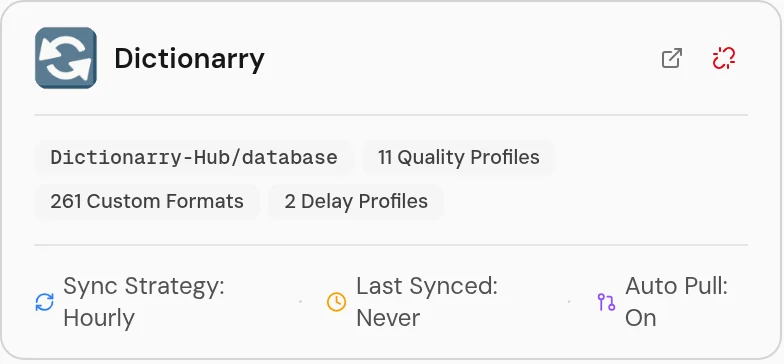
The database is where the profiles come from. Profilarr links Dictionarry, its own database, for you on first start. Open Databases to check: you should see 11 quality profiles and 261 custom formats. It pulls updates every hour.
Prefer the TRaSH Guides? Click + on the Databases page to link their database instead. This guide sticks with Dictionarry.
Step 4: Add Radarr and Sonarr
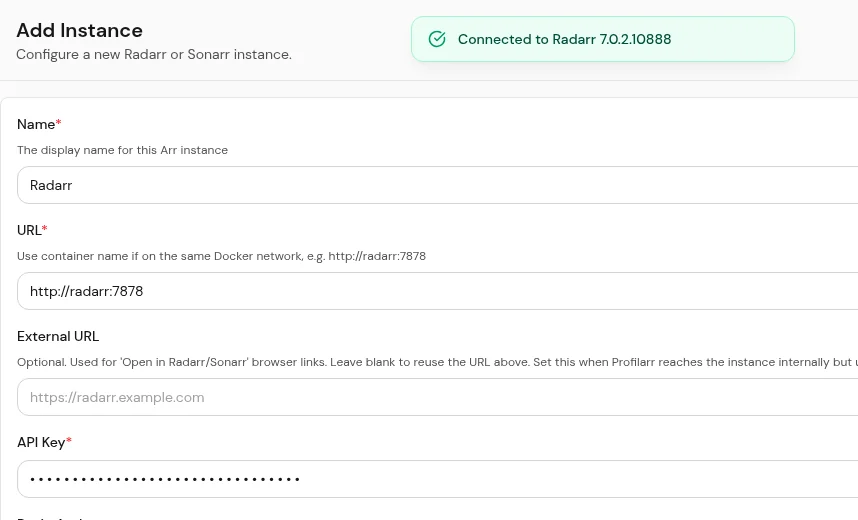
- In Radarr, go to Settings → General and copy the API Key.
- In Profilarr, open Arrs and click Add Instance.
- Name:
Radarr. Type:Radarr. URL: the one from the generator’s Connect tab, likehttp://192.168.1.10:7878. Paste the API Key. - Click Test Connection. When it works, Profilarr shows Radarr’s version. Click Save.
- Do the same for Sonarr, with port
8989and Sonarr’s API key.
Step 5: Choose what to sync
Open Arrs → Radarr → Sync. There are three boxes, and the order matters: Profilarr won’t sync a quality profile until a delay profile is set.
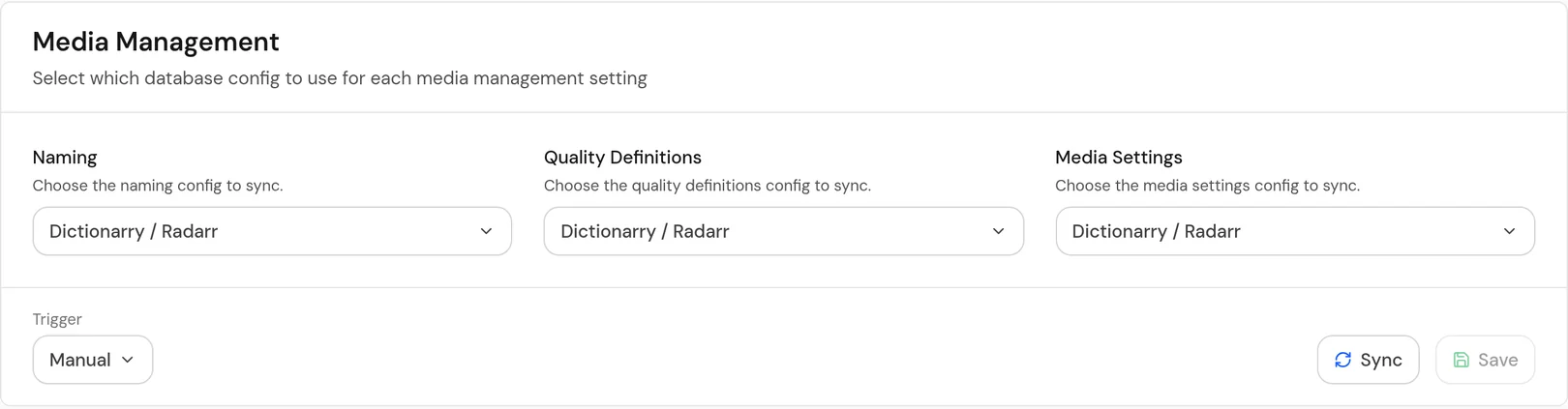
1. Media Management. Pick Dictionarry / Radarr in all three boxes (Naming, Quality Definitions, Media Settings) and click Save.
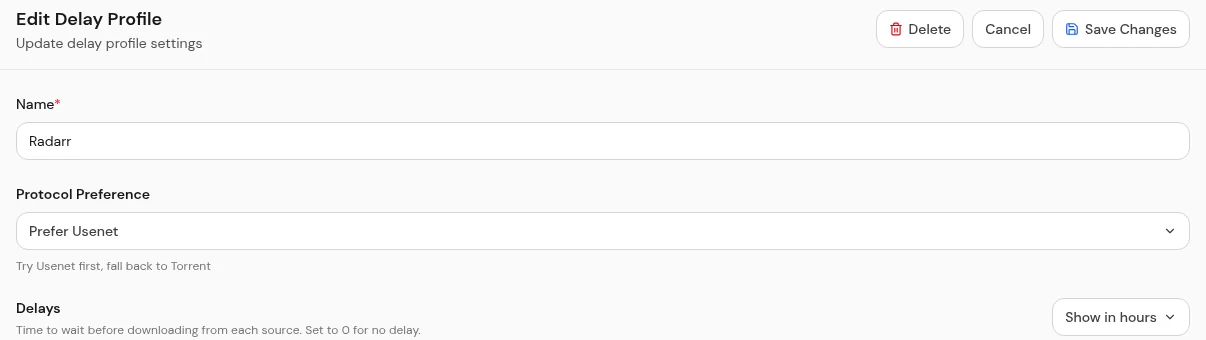
2. Delay Profile. Dictionarry’s delay profile prefers torrents and waits 6 hours before every download. If that’s not how you work, change it first: go to Delay Profiles → Radarr, set it how you like (for example Prefer Usenet and 0 hours for both), and click Save Changes. Your change is kept when the database updates. Then back on the Sync tab, tick Radarr under Delay Profiles and click Save.
3. Quality Profiles. Tick the profile you want and click Save. Not sure? Start with one of these:
- 1080p Balanced: 1080p web copies, about 4 to 8 GB per film. The best start for most people, and the one in the demo.
- 1080p Quality: top-quality 1080p encodes, about 10 to 15 GB per film.
- 2160p Balanced: 4K web copies with HDR, about 15 to 30 GB per film. Use it if you want 4K films.
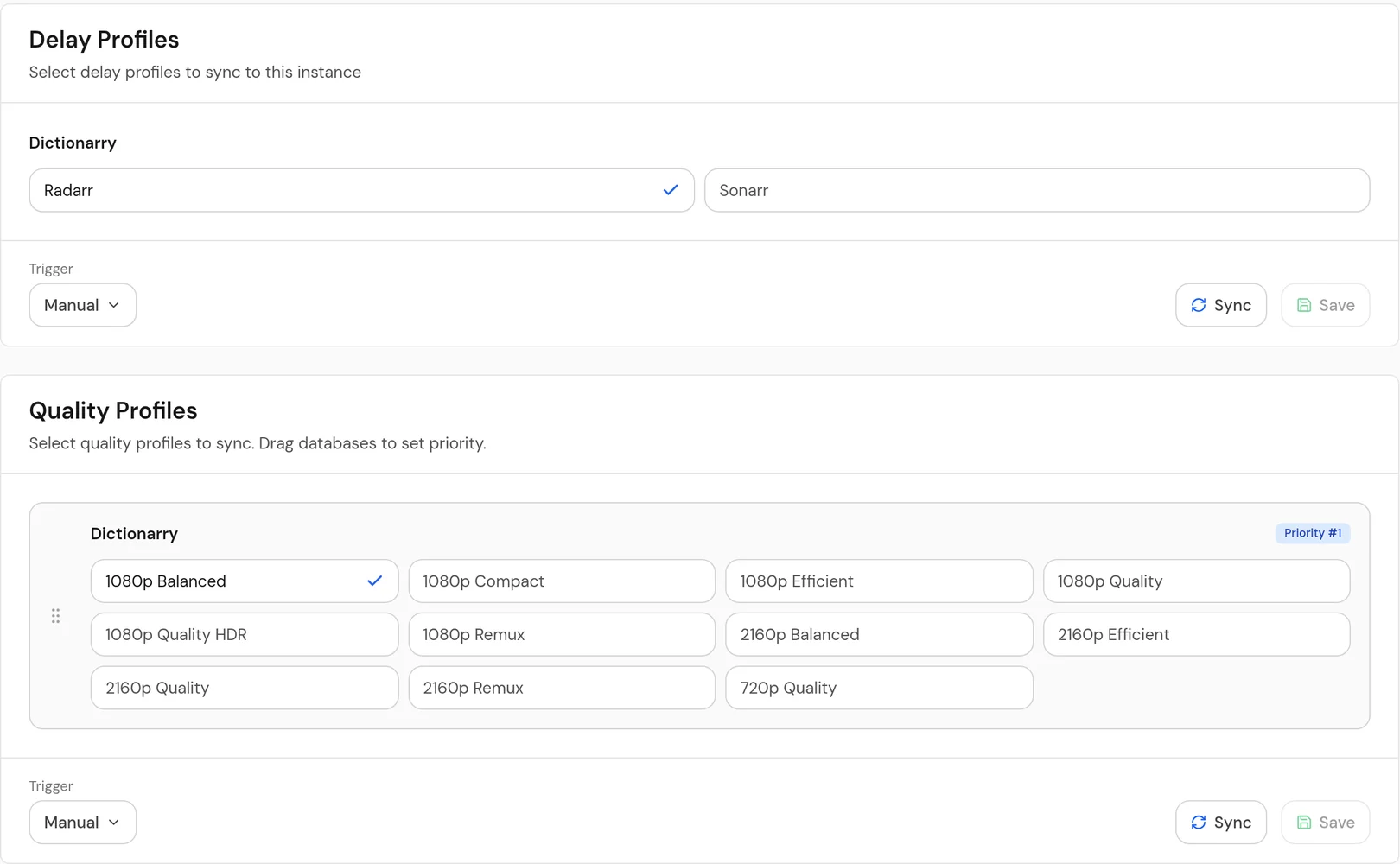
Finally, set each Trigger to On Pull, so Radarr gets every database update automatically, and click Sync in each box. Then do the same for Sonarr, using the Sonarr options.
Step 6: Check it’s working
Back on Arrs, your Radarr card now lists the profile, the delay profile and all three media settings.
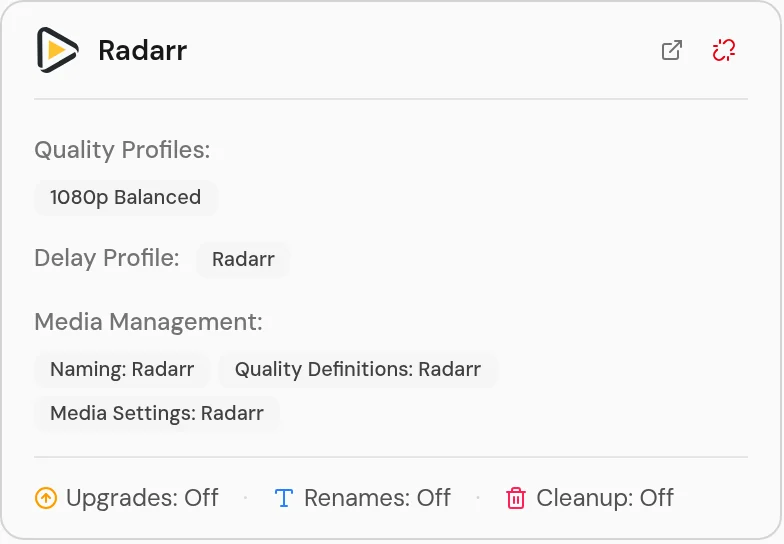
In Radarr, Settings → Profiles now has 1080p Balanced. New films use it when you pick it in the Add Movie screen. To move your existing films over, go to Movies, click Select Movies, tick them, click Edit and set Quality Profile to 1080p Balanced. 🎉
Optional: Upgrades
Radarr already grabs better copies as they appear in its RSS feed. Profilarr’s Upgrades tab is for catching up an existing library, for example after you switch everything to a new profile. It searches slowly on purpose (one film every 10 minutes) to keep your indexers happy. Most people can leave it off.
If something’s wrong
- “Quality profiles require a delay profile.” Tick a delay profile, click Save, then save the quality profile again.
- Test Connection fails. Check the URL and API key. Use your server’s IP, not
localhost: inside the Profilarr container,localhostmeans Profilarr itself. If Radarr runs behind Gluetun and you share its network, usehttp://gluetun:7878. - Downloads now wait hours before starting. That’s Dictionarry’s delay profile. Change it as in Step 5 and click Sync again.
- Radarr grabs nothing for a film. No copy scored above the minimum. 1080p Balanced only wants web copies, so for older films with no web release, try 1080p Quality on those films.
- Login doesn’t work behind a reverse proxy. Tick the reverse proxy box in the generator. It adds
ORIGIN, which has to match the address in your browser exactly.
Updating Profilarr
cd ~/profilarr
docker compose pull && docker compose up -d
Frequently asked questions
What does Profilarr do?
It copies ready-made quality profiles and custom formats from a database such as Dictionarry into Radarr and Sonarr, and keeps them up to date when the database changes.
Is Profilarr 2 compatible with Profilarr 1?
No. Profilarr 2 is a rewrite and cannot import a Profilarr 1 setup, so start with an empty config folder.
Do I need the parser container?
Only for the Testing pages that score real release names. Linking, syncing and upgrades work without it.
Will Profilarr change my Radarr settings?
Yes, for what you choose to sync: it adds the profile and custom formats, and replaces the naming pattern, quality sizes and default delay profile with the database versions. Existing profiles and films are not touched.
Thank you
Profilarr is free and open source (AGPL-3.0), made by santiagosayshey and the Dictionarry team, who also look after the Dictionarry database. If it saves you an evening of custom formats, give the project a star on GitHub.
Related guides: Radarr · Sonarr · Prowlarr · Complete Arr Stack
If this guide helped you, consider buying me a coffee. It helps keep guides like this one coming.
Get new guides by email
About one email a month: new step-by-step guides and card releases. No spam, unsubscribe any time.