
For educational purposes only. This guide shows how to install self-hosted software on your own hardware. I don't condone piracy: only use these apps with media you own or have the right to use, and follow the law where you live. Back up your data first. Full disclaimer
Updated 16 November 2026 Tested with: Transmission 4.1.4
Transmission is a small, free torrent client that’s been around for about 20 years. It uses very little memory, has a clean web page you can open from any device, and can slow itself down while the family is streaming. Running it in Docker means it lives on your server and downloads around the clock.
This guide sets up Transmission with Docker Compose in five short steps, either on its own or behind a VPN with Gluetun. It takes about 15 minutes.
On this page (13 sections)
- 1Watch: install Transmission with Docker Compose
- 2See Turtle Mode and seeding limits in action
- 3What you need to set up Transmission with Docker Compose
- 4Step 1: Make your compose file
- 5Step 2: Start it and sign in
- 6Step 3: Tell it where to save, and when to stop seeding
- 7Step 4: Turn on Turtle Mode
- 8Step 5: Test it with a real torrent
- 9Optional: connect Radarr and Sonarr
- 10Optional: a nicer web page
- 11If something’s wrong
- 12Updating Transmission
- 13Frequently asked questions
Watch: install Transmission with Docker Compose
The video has subtitles at the bottom and no sound. It uses the simplest setup, one downloads folder and no VPN, recorded on a clean test install. The generator and steps below make the same thing, plus the optional Gluetun VPN and the /data folder layout that Radarr and Sonarr need.
See Turtle Mode and seeding limits in action
Press Play the day to watch a big download from 6 pm to 6 pm the next day. Then tick Turtle Mode and play it again. Under the demo is the generator you’ll use in Step 1.
Open the generator full screen
What you need to set up Transmission with Docker Compose
- A computer or NAS running Docker. New to Docker? The Docker install guide covers Windows, Mac and Linux.
- Somewhere with space for downloads.
- Optional: a VPN subscription, if you want to run it through Gluetun.
Use it legally. Transmission is a download tool. What you download with it is up to you. Only download files you have the right to, such as Linux installers, open-source software and public-domain media. Downloading copyrighted material without permission is illegal in the UK and most other countries.
Step 1: Make your compose file
In the generator, choose With Gluetun or Without a VPN, fill in your details, and then on your server:
- Make a folder and go into it:
mkdir -p ~/transmission && cd ~/transmission - Save the generator’s compose.yaml there. Use the Download button, or run
nano compose.yaml, paste, then press Ctrl+O, Enter and Ctrl+X. - Do the same for .env. Put a password after
TRANSMISSION_PASS=, using letters and numbers only. With Gluetun, also paste your VPN key afterWIREGUARD_PRIVATE_KEY=. - With ProtonVPN or PIA, there’s also a port-up.sh tab. Save it where the tab says.
PUID and PGID are the user Transmission runs as, so its files belong to you. Type id on your server and use the uid and gid numbers.
Step 2: Start it and sign in
Run the commands from the generator’s Commands tab. They create the folders, give them to your user, and start everything. With Gluetun, give it about 30 seconds to connect.
Open http://YOUR-SERVER-IP:9091 and sign in with the TRANSMISSION_USER and TRANSMISSION_PASS from your .env. Unlike qBittorrent, there’s no temporary password to look up.
Step 3: Tell it where to save, and when to stop seeding
Click the ☰ menu (top right) and choose Edit preferences. On the Torrents tab:
- Set Download to to
/data/torrents/complete. - Tick Use temporary folder and set it to
/data/torrents/incomplete. Half-finished files stay out of the way until they’re done. - Tick Stop seeding at ratio and leave it on
2. Each torrent then uploads twice what it downloaded, and stops by itself.
Transmission saves each change straight away. There’s no Save button.
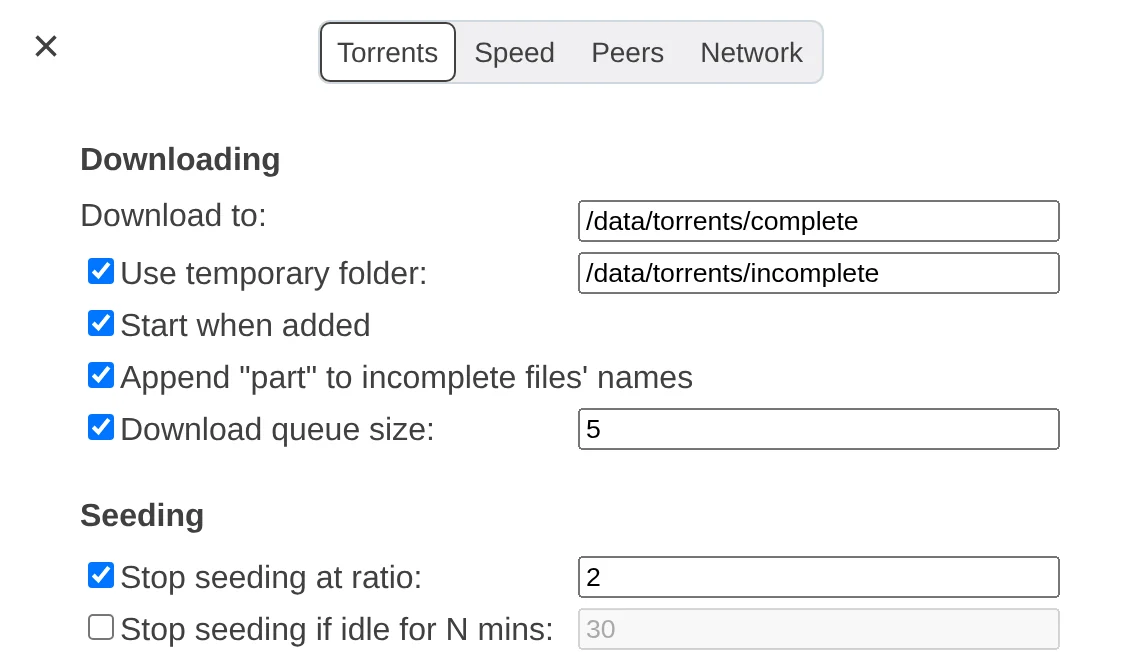
/data/torrents is the folder inside the container. The generator connected it to the data folder on your server, so finished downloads appear there.
Step 4: Turn on Turtle Mode
Turtle Mode is Transmission’s best trick: a second, slower speed limit that switches on by itself at set times. Open the Speed tab:
- Under Alternative Speed Limits, set Upload and Download. For example
500and2000kB/s, which leaves plenty for streaming. - Tick Scheduled times and pick when people are home, like
8:00to23:00.
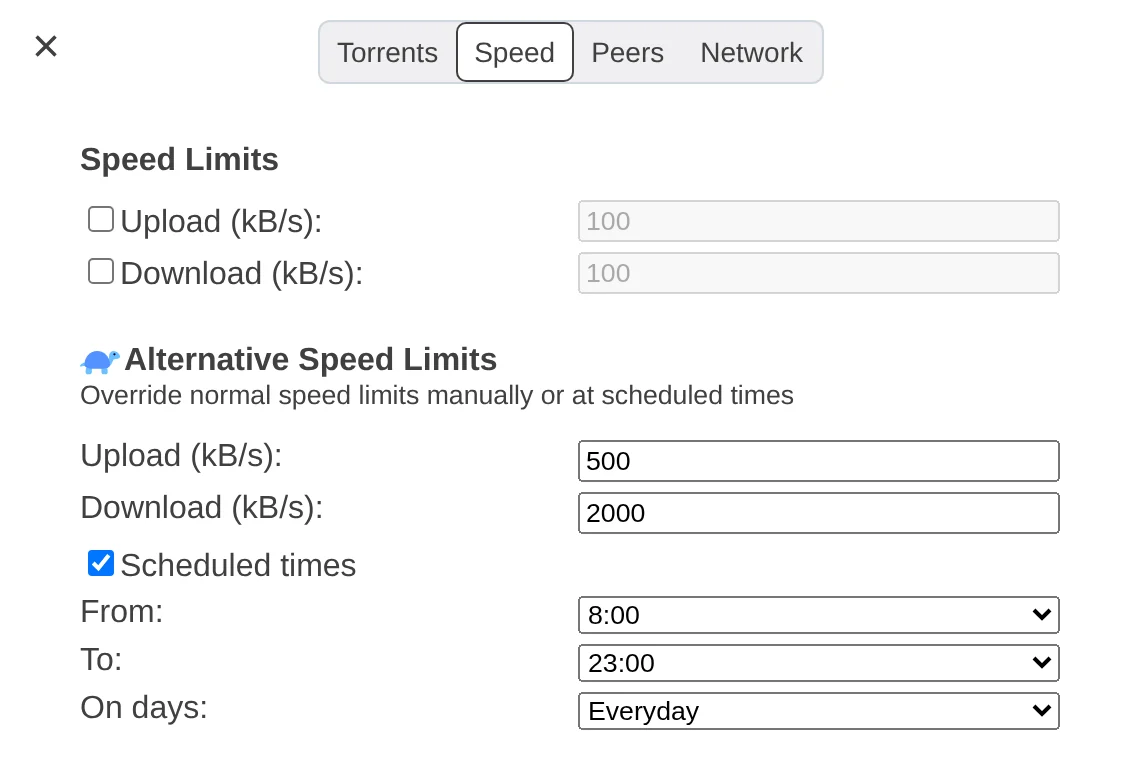
When it’s on, the turtle button at the top right turns blue. You can also click it to switch Turtle Mode on or off by hand.
Step 5: Test it with a real torrent
A free Linux installer is a good, legal test. The video uses Debian’s, and the screenshots below use Ubuntu’s:
- Copy the link to Debian’s netinst.iso.torrent from cdimage.debian.org, or to the latest Ubuntu Desktop torrent from ubuntu.com/download/alternative-downloads.
- In Transmission, click Open, paste it under Or enter a URL and click Add.
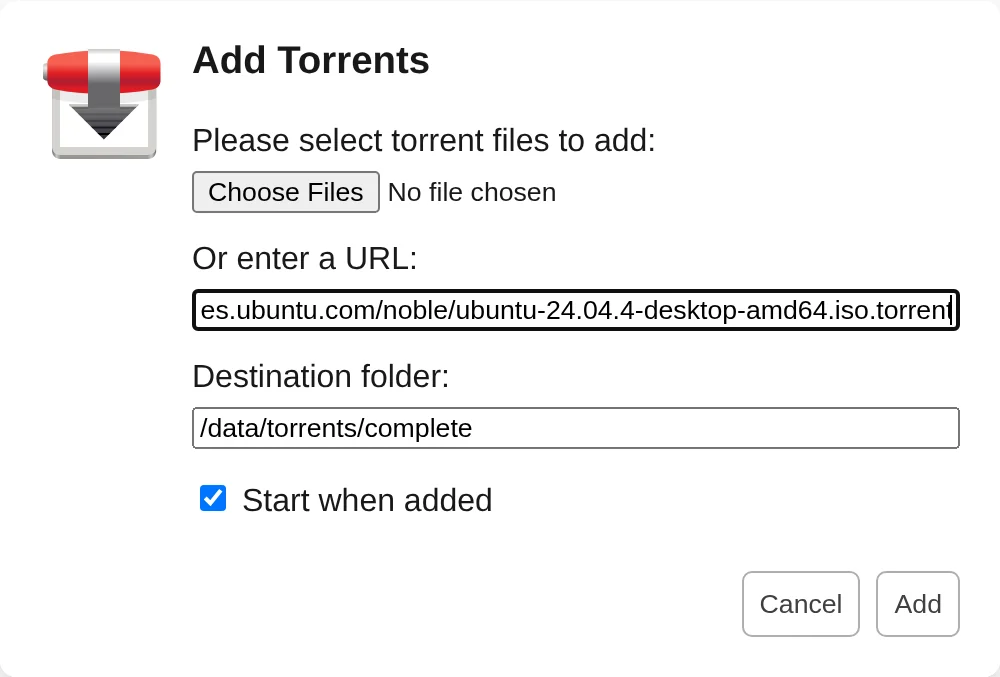
It should start within a few seconds. Here it’s held at 2 MB/s, because Turtle Mode was on:

With Gluetun, also check two things. First, that Transmission is using the VPN. This should show the VPN’s IP, not your home’s:
docker exec transmission curl -s https://ipinfo.io/ipSecond, with ProtonVPN or PIA, that the script handed over the port. You should see a “port forwarded” line and a “peer port set to” line with the same number:
docker logs gluetun 2>&1 | grep -iE "port forwarded|peer port set"In Transmission, Edit preferences → Network then shows the same number as the Peer listening port, and Port is Open. That’s it, Transmission is up and running. 🎉
Optional: connect Radarr and Sonarr
In Radarr, go to Settings → Download Clients, click + and choose Transmission. Enter your server IP, port 9091, and your Transmission username and password. Leave URL Base as /transmission/ and Category as radarr, then click Test and Save. Do the same in Sonarr. The generator’s Connect tab has these values filled in for you.
Optional: a nicer web page
Transmission’s own web page is plain but works fine. If you’d like something more modern, the image can swap it for one of these. I tried both:
- TrguiNG: looks like a desktop app, with labels, a files and peers panel, and a dark mode. My pick.
- Flood for Transmission: clean and simple, and good on a phone.
Add one line under environment: in your compose file and run docker compose up -d:
- DOCKER_MODS=linuxserver/mods:transmission-trguingFor Flood, use linuxserver/mods:transmission-floodui instead. To go back, delete the line and run docker compose up -d again.
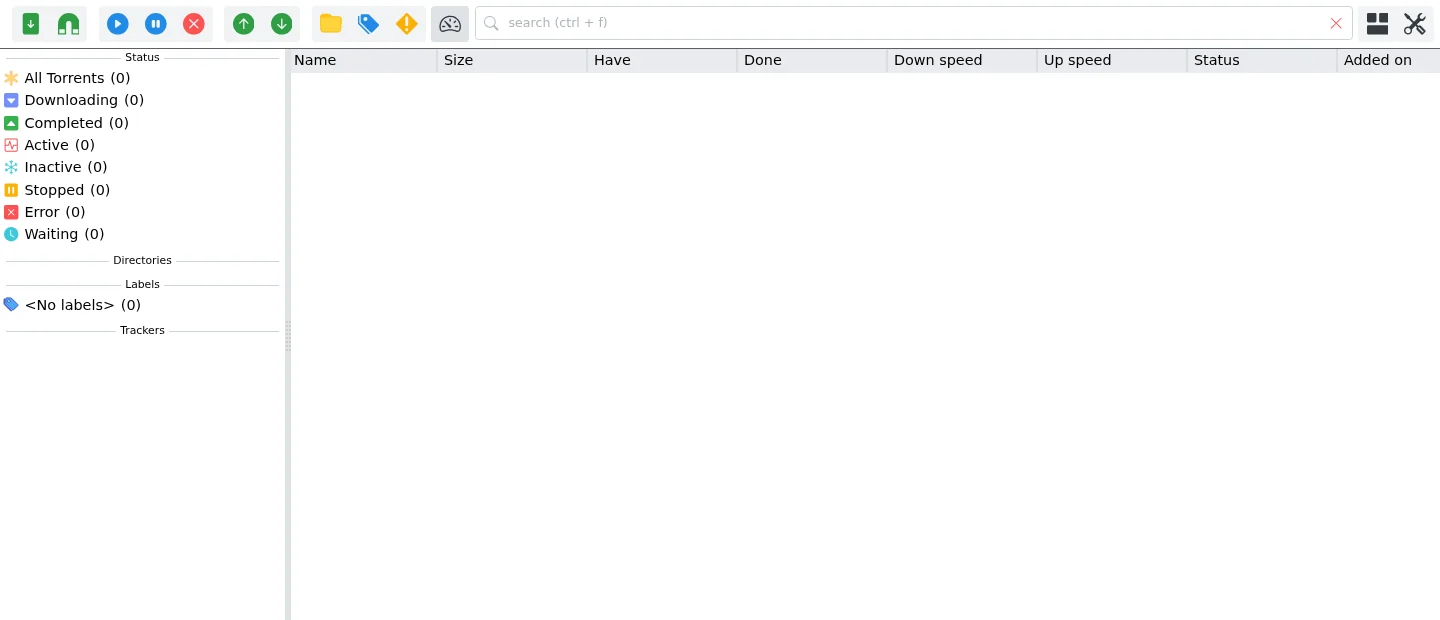
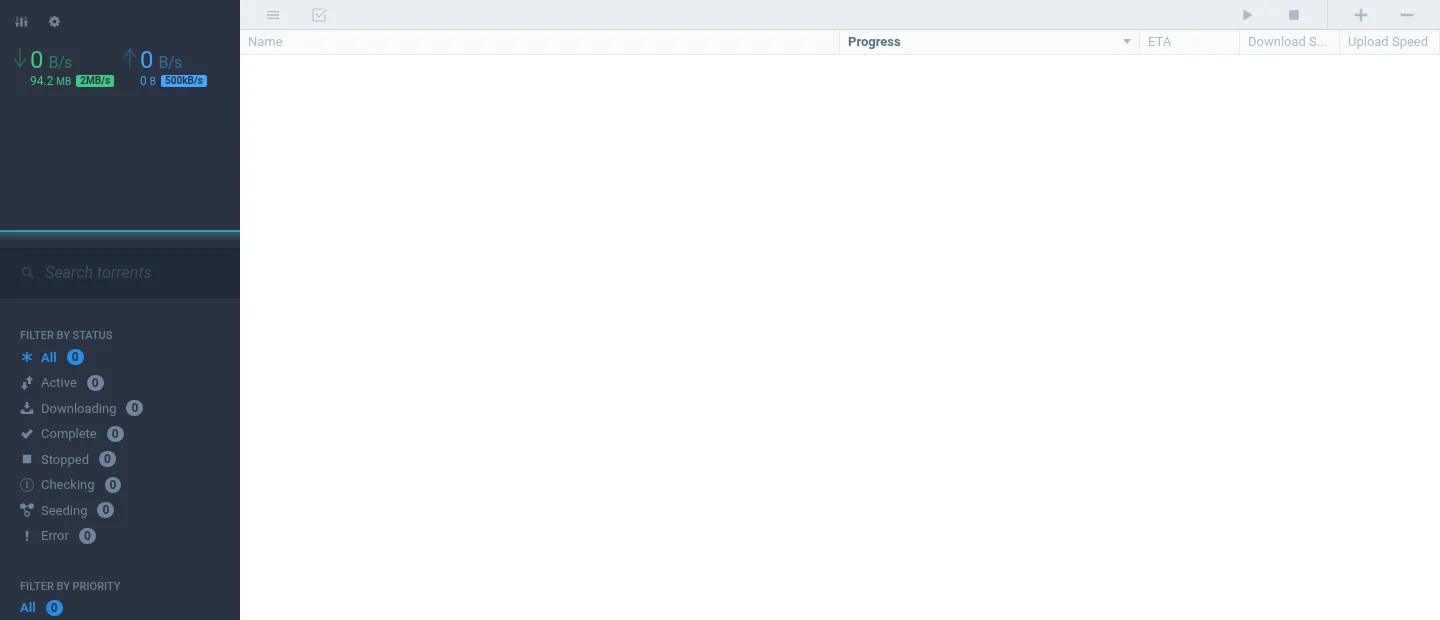
On an Android phone, Tremotesf connects to the same address with the same login.
If something’s wrong
- The web page won’t open. Check the containers are running with
docker compose ps. With Gluetun, the port has to be under gluetun’sports:(the generator does this), and Gluetun must be healthy. - It keeps asking for a password. Use the
TRANSMISSION_USERandTRANSMISSION_PASSfrom.env. If the password has symbols like$or&, change it to letters and numbers and rundocker compose up -d. - Downloads say “Permission denied”. The data folder doesn’t belong to your PUID/PGID. Run the
chownline from the Commands tab again. - The listening port doesn’t match Gluetun’s. Check
port-up.shis in the scripts folder and executable (chmod +x), and look for “Transmission did not answer” indocker logs gluetun. That means the user or password in.envis wrong. - Network says “Port is Closed”. Downloads still work, just slower. Without a VPN, forward port 51413 (TCP and UDP) on your router. With a VPN, choose one with port forwarding, such as ProtonVPN Plus, PIA or AirVPN.
- Downloads are slow during the day. That’s Turtle Mode doing its job. Click the turtle button to switch it off for now.
Updating Transmission
cd ~/transmission
docker compose pull && docker compose up -d
Your settings and downloads are kept, because they live in the config and data folders, not in the container.
🧰 What I use
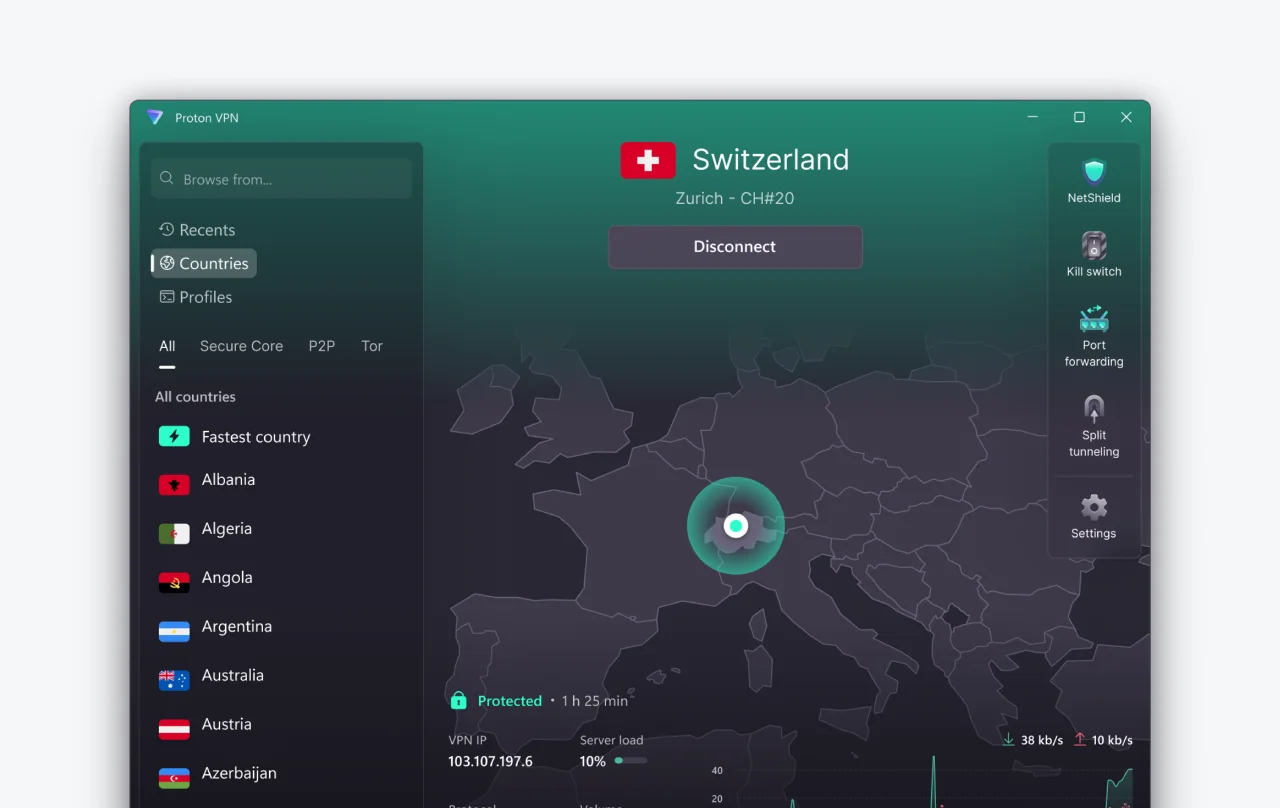
Proton VPN: works with Gluetun over WireGuard. Its port forwarding gives you an open port, so you can make more connections.
This is an affiliate link: if you sign up through it, I may earn a commission, at no extra cost to you. Use a VPN for privacy, and only download what you have the right to.
Frequently asked questions
Is Transmission or qBittorrent better for Radarr and Sonarr?
Both work well. Transmission is lighter and simpler; qBittorrent has more features such as categories with their own folders and a built-in search.
What is Turtle Mode in Transmission?
A second, lower speed limit that can switch on by itself at set times, so downloads do not slow down everyone else's internet in the evening.
How do I set the Transmission password in Docker?
The LinuxServer image reads USER and PASS from the environment. The generator puts them in .env as TRANSMISSION_USER and TRANSMISSION_PASS; use letters and numbers only.
Does Transmission work with Gluetun port forwarding?
Yes. With ProtonVPN or PIA, Gluetun runs a small port-up.sh script that tells Transmission the forwarded port each time it changes. Leave PEERPORT out, or it resets the port on every restart.
Thank you
Transmission is free and open source, made by volunteers at transmissionbt.com. Thanks also to LinuxServer.io for the Docker image and the web page mods, and to the TrguiNG and Flood for Transmission developers.
Related guides: qBittorrent · Gluetun · Radarr · Sonarr · Complete Arr Stack
If this guide helped you, consider buying me a coffee. It helps keep guides like this one coming.
☕Buy me a coffeeGet new guides by email
About one email a month: new step-by-step guides and card releases. No spam, unsubscribe any time.