

SABnzbd is a free, open-source Usenet binary downloader with a clean web interface, automatic post-processing, and support for SSL, scheduling, and category-based organization. This guide walks through deploying it with Docker Compose and configuring it for first use.
Prerequisites
- Docker and Docker Compose installed
- A Usenet provider account (server hostname, port, username/password or API key)
- Optionally, an indexer (like NZBgeek or NZBFinder) if you plan to automate downloads later
Step 1: Create the directory structure
SABnzbd needs a config folder and somewhere to store downloads:
mkdir -p ~/sabnzbd/config
mkdir -p ~/sabnzbd/downloads
Step 2: Write the docker-compose.yml
services:
  sabnzbd:
    image: lscr.io/linuxserver/sabnzbd:latest
    container_name: sabnzbd
    environment:
      - PUID=568
      - PGID=568
      - TZ=Europe/London
    volumes:
      - /mnt/tank/configs/sabnzbd:/config
      - /mnt/tank/media/downloads:/downloads
      - /mnt/tank/media/downloads/incomplete:/incomplete-downloads
    ports:
      - 8080:8080
    restart: unless-stopped
Adjust PUID/PGID to match the user that should own downloaded files (run id on your host to check), and point the volumes at whatever paths you want to use for permanent storage.
Step 3: Start the container
docker compose up -d
Check that it came up cleanly:
docker compose logs -f sabnzbd
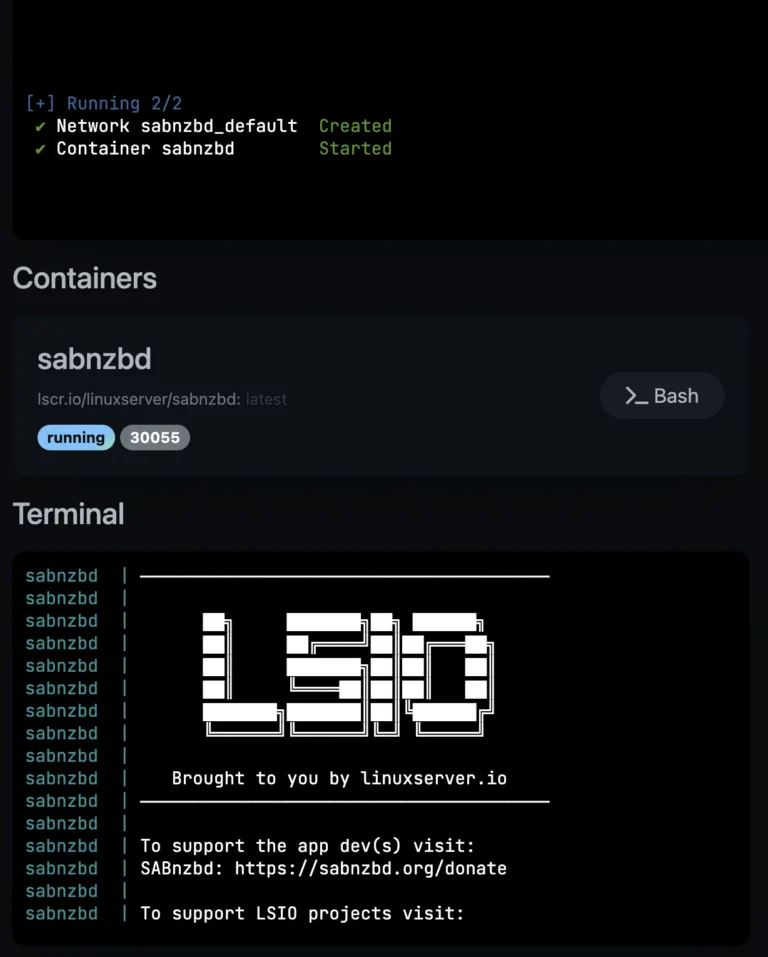
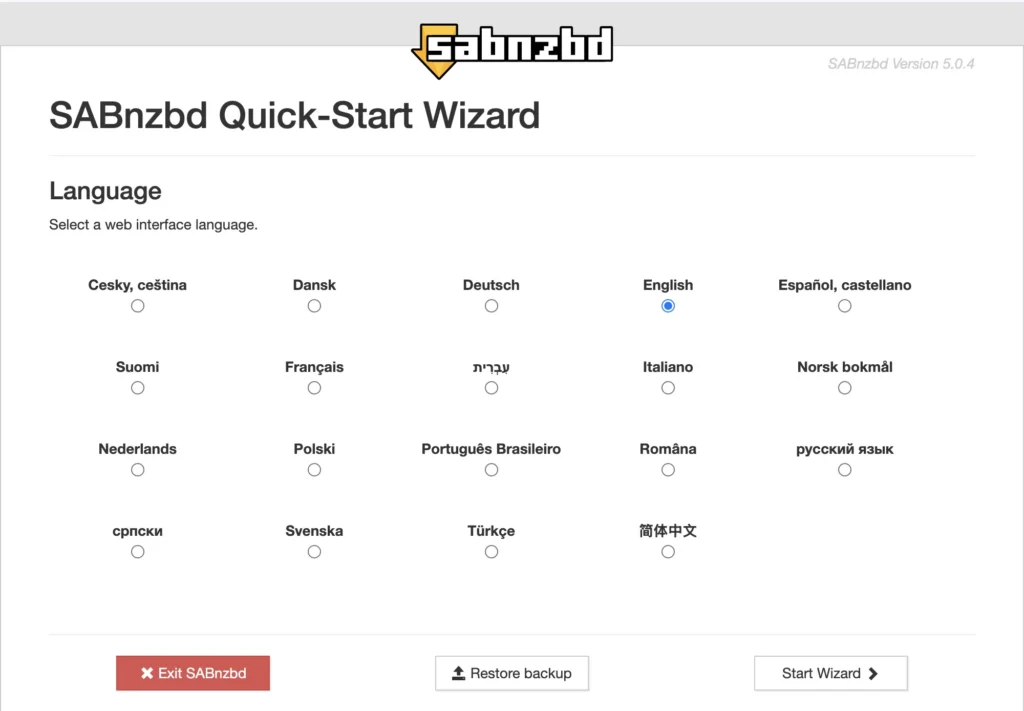
Step 4: Run the first-time setup wizard
Open http://<your-server-ip>:8080 in a browser. SABnzbd will launch its setup wizard on first access.
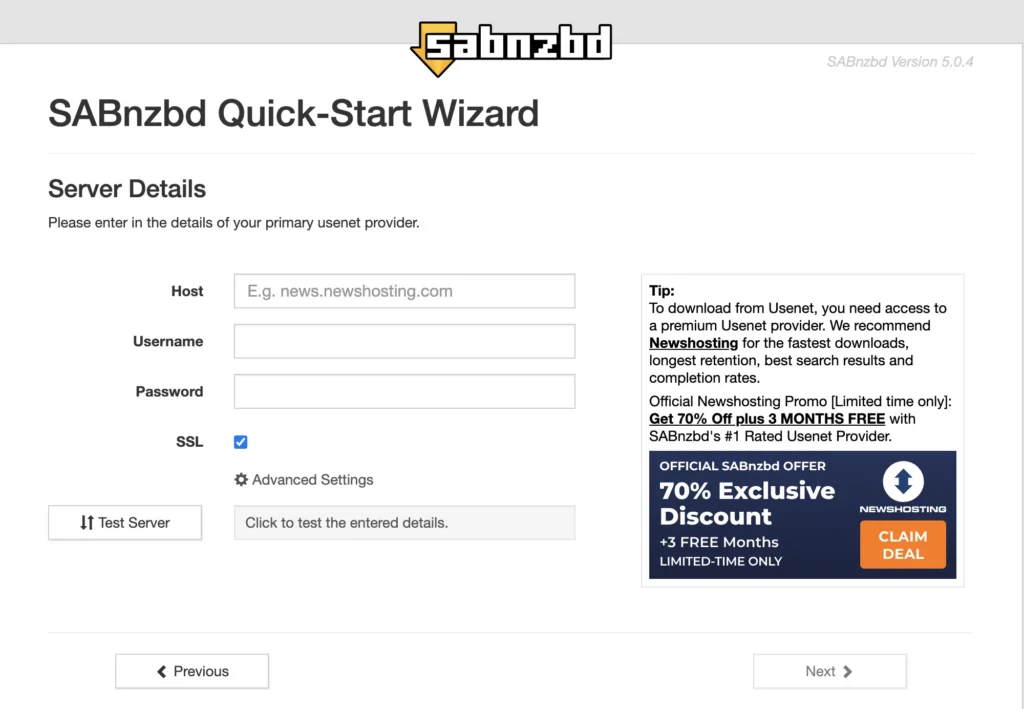
4a. Add your Usenet server
Enter the details provided by your Usenet provider: host, port (usually 563 for SSL), username, password, and connection count.
4b. Skip or configure indexer integration
You can skip this during initial setup and add indexers/automation (like Sonarr or Radarr) later.
4c. Finish the wizard
Confirm the settings and complete setup. You should land on the main SABnzbd queue interface.
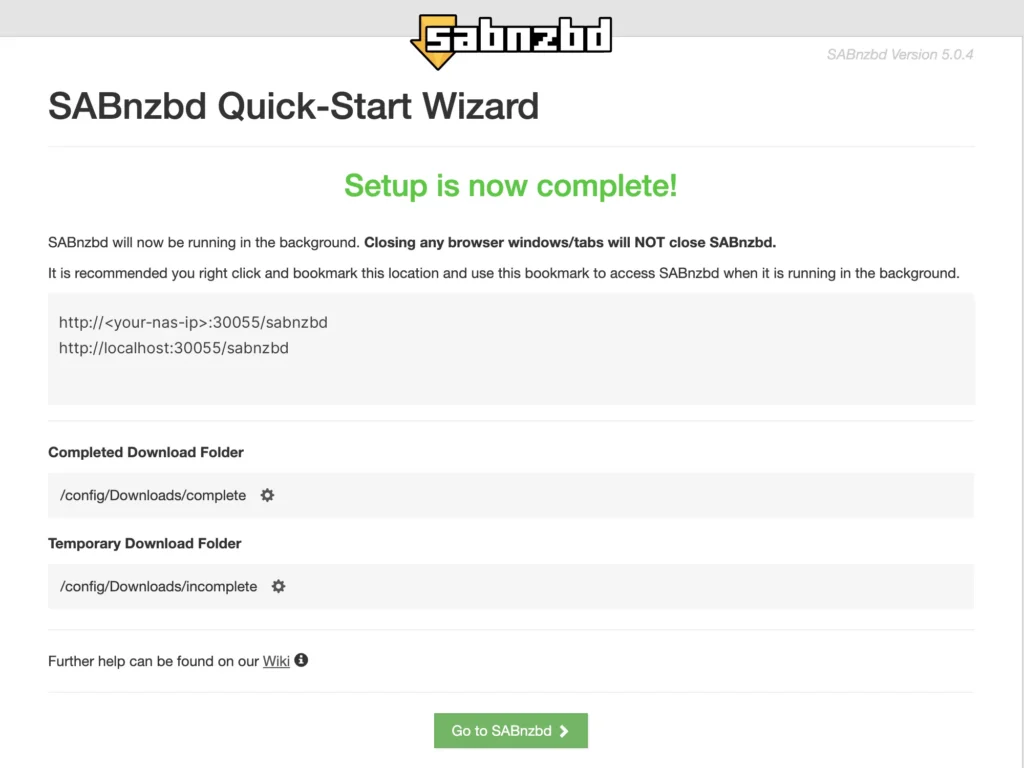
Step 5: Configure folders
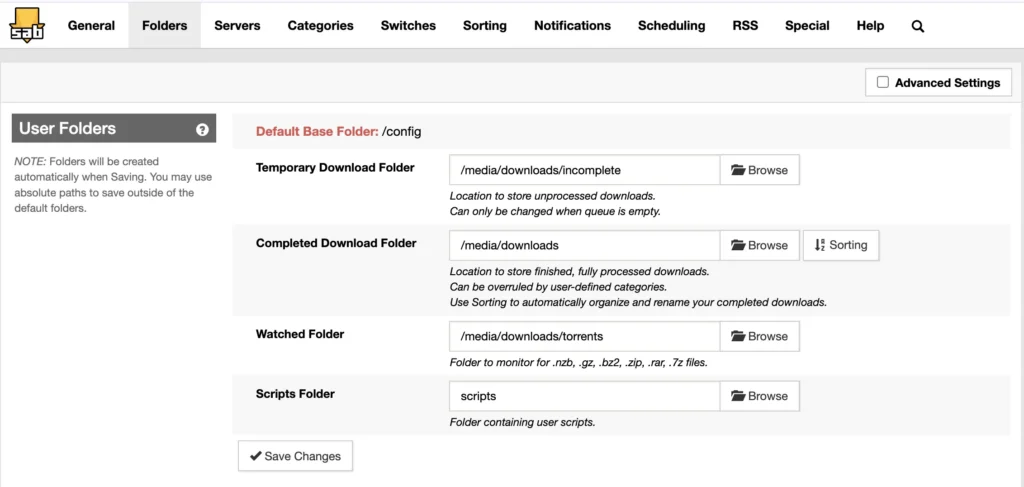
Go to Config → Folders and confirm the paths match your container’s mounted volumes:
- Temporary Download Folder:
/incomplete-downloads - Completed Download Folder:
/downloads
Step 6: Set categories (optional but recommended)
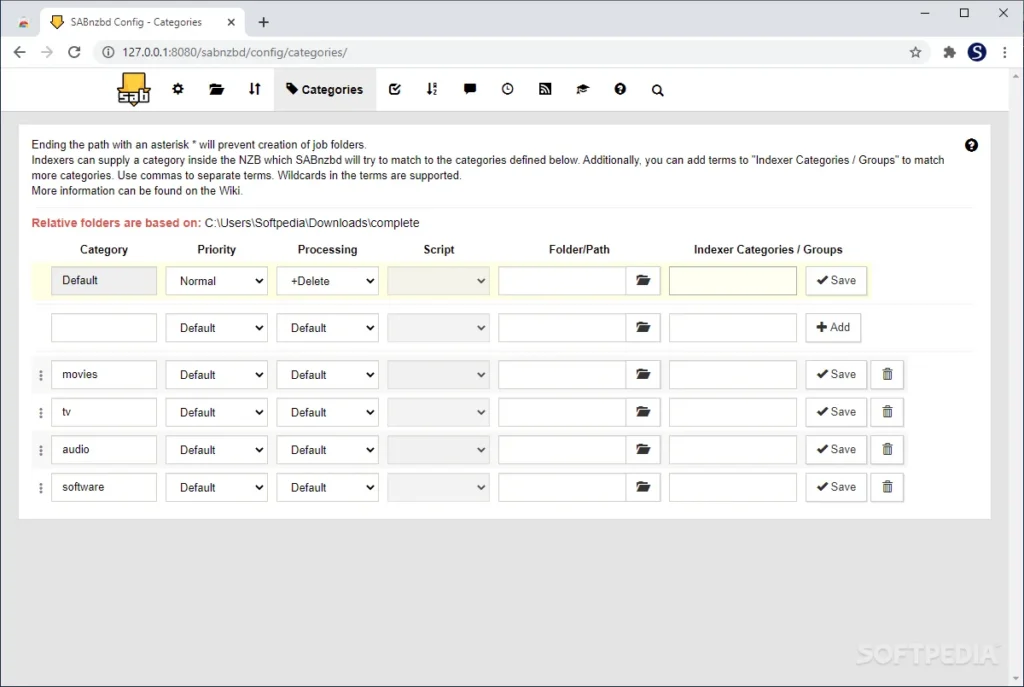
Under Config → Categories, create categories like movies, tv, or software with their own subfolders. This keeps downloads organized and makes it easy to hand off to tools like Sonarr/Radarr later.
Step 7: Test with an NZB
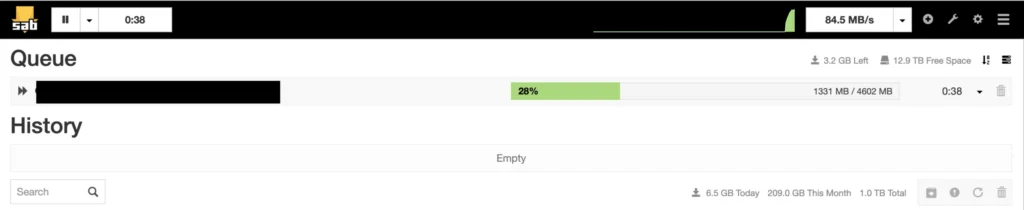
Drag an .nzb file onto the SABnzbd web interface, or paste an NZB URL, and confirm it downloads, extracts, and lands in the completed folder.
Wrapping up
At this point you have a working SABnzbd instance with:
- A persistent config volume so settings survive container restarts/updates
- Correctly mapped download folders
- Usenet server credentials configured
- Basic categories for organizing downloads
From here, natural next steps are putting SABnzbd behind a reverse proxy with HTTPS, and connecting it to Sonarr/Radarr for automated fetching.