
Use this at your own risk, and test it before relying on it, especially anything that controls a real device. Full disclaimer
Updated 15 November 2026
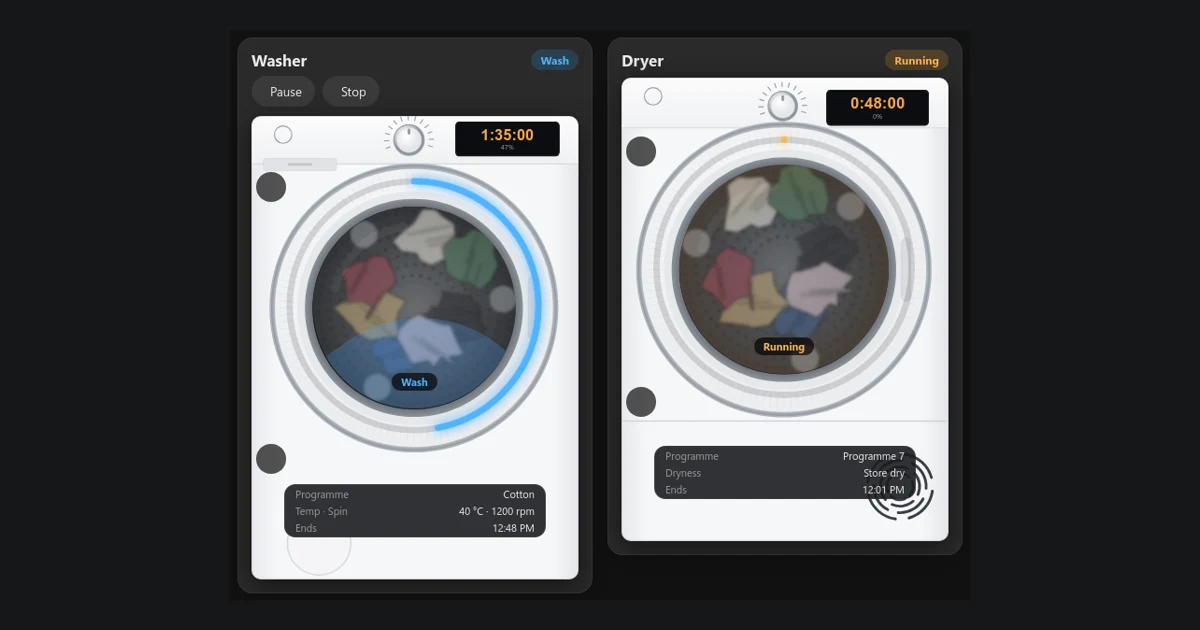
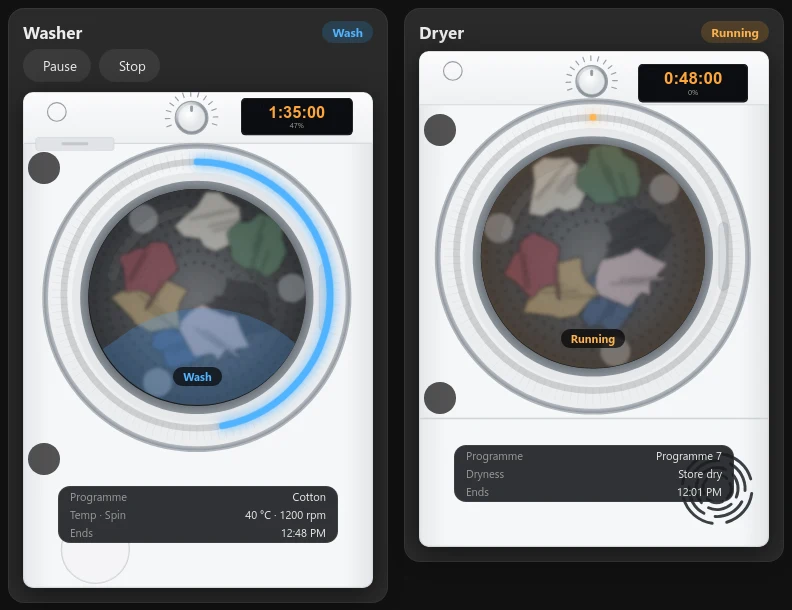
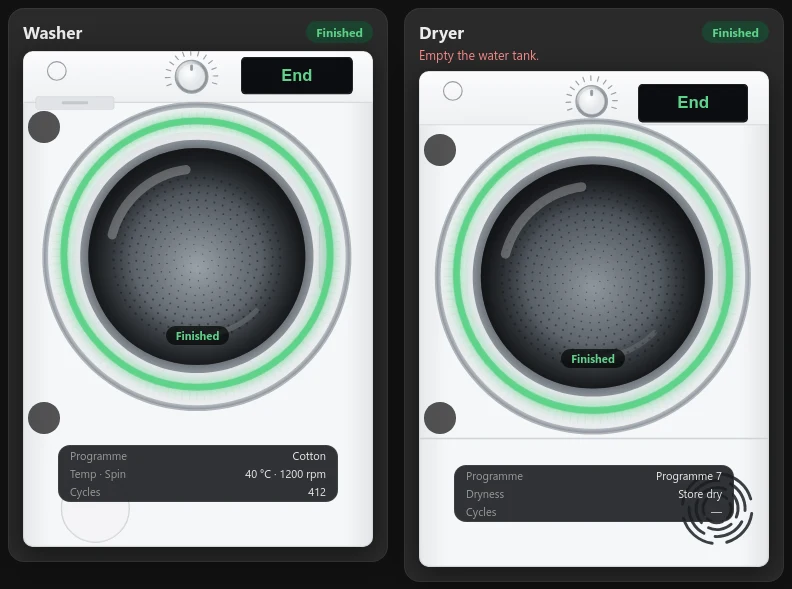
Got a Candy washing machine or tumble dryer with Simply-Fi? This free card puts it on your Home Assistant dashboard looking like the real machine: the time left on its display, a progress ring round the door, the laundry turning in the drum, and buttons to start, pause or stop the wash from your phone.
This guide covers the Candy washer and dryer card for Home Assistant. It’s the sister card of my hOn washer and dryer card, made for Candy, Haier and Hoover machines that use the Simply-Fi app and the local Candy integration instead of hOn. You can try it below with pretend machines before you set anything up.
Beta: testers wanted
I don’t own a Candy machine. I built the card from the Candy integration’s source code and tested it against simulated machines, so it hasn’t been tried on a real washer yet. If you have a Candy Simply-Fi machine, please try it and open an issue on GitHub with your model and what you see.
That’s how it gets out of beta. Version 0.2.0 adds eight languages and is still a test release.
On this page (12 sections)
- 1See it in action
- 2Try the live demo
- 3What the Candy card for Home Assistant does
- 4Before you add the Candy washer and dryer card
- 5Step 1: Get the card
- 6Step 2: Register it as a dashboard resource
- 7Step 3: Add the cards
- 8In your language
- 9What it can’t do (yet)
- 10Troubleshooting
- 11Help test it
- 12Frequently asked questions
See it in action
A 52-second video of the card: starting a programme, the countdown and progress ring through each phase, Pause, all eight languages, and both machines finishing.
Try the live demo
This is the real card running in your browser, with pretend machines. Use the buttons along the top to switch between states (running, rinse, paused, delayed start, finished, error and more). In the idle state, tap a programme and press Start, then try Pause and Stop while it runs. The second row of buttons switches the card’s language.
What the Candy card for Home Assistant does
- The machine’s status: Ready, Running (with the wash phase), Paused, Delayed start, Finished, Error and Off.
- The time left on the machine’s own display, the time it will finish, and a progress ring round the door that fills as the cycle runs.
- A drum that turns while it runs, with the current phase on the glass: Wash, Rinse, Spin and so on.
- The details that matter: programme, temperature and spin speed on the washer, the dryness level on the dryer.
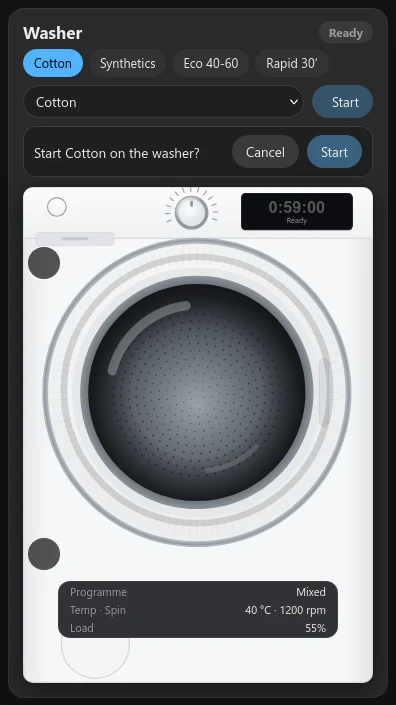
- Start from your phone. While the washer is idle, tap one of your favourite programmes (or pick any from the list) and press Start. It asks before it sends anything.
- Pause and Stop while a cycle runs. Stop asks first.
- Helpful notes when Remote Control is off, when the machine reports an error, and when the dryer’s water tank is full or its filter needs cleaning.
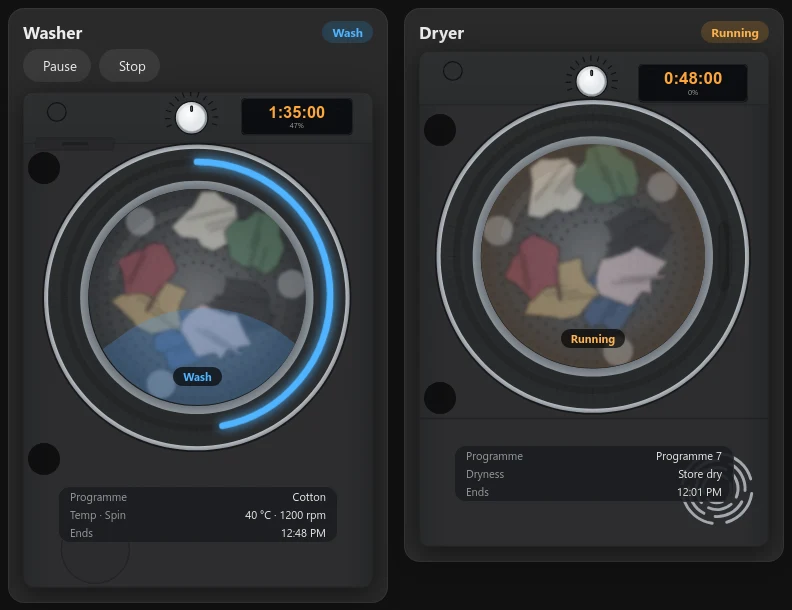
- White, graphite or black machines, to match yours.
Before you add the Candy washer and dryer card
- A Candy, Haier or Hoover washer or dryer that works with the Simply-Fi app and is on your home Wi-Fi.
- The Candy integration by bigmoby, bigmoby/home-assistant-candy. It talks to the machine directly on your network, with no cloud account. Install it from Marketplace (HACS before 2026.11), restart Home Assistant, then add Candy under Settings → Devices & services and set it to Full Control if you want the buttons.
- Remote Control switched on at the machine for start, pause and stop. Without it the card still shows everything; it just can’t send commands.
Is your machine in the hOn app instead? Newer Candy, Haier and Hoover machines use the hOn app and a different integration. Use my hOn washer and dryer card for those.
Quickest way: install the card from Marketplace
⚡Open in Marketplace (one click)


The button opens Marketplace in your own Home Assistant with the card filled in. If asked, connect GitHub and click Add, then click Install. The first time, it asks for your Home Assistant’s address. Or do it by hand:
In Settings → Marketplace, click Add from link, paste https://github.com/spikey1965/ha-candy-appliance-card, choose the type Dashboard if asked and click Add. This asks you to connect GitHub. Find Candy Appliance Card under New, open it, click Install and refresh the browser. Because it’s a beta, Marketplace shows a short code such as f5fa069 instead of a version number, which is normal. To get the numbered beta instead, open the ⋮ menu → Include pre-releases → Include before you install.
The first time you use Marketplace, tick I understand the risks and agree and click Continue. On a version older than 2026.11? Marketplace is still called HACS there (what changed in 2026.11). The same steps work, with Download in place of Install and ⋮ → Custom repositories in place of Add from link.
That replaces Steps 1 and 2, so skip to Step 3. View it on GitHub →
Step 1: Get the card
The card is one JavaScript file, candy-appliance-card.js, with the washer and dryer pictures built in. It’s free. This is version 0.2.0 (beta). Download it, then save it in your Home Assistant config folder as config/www/candy-appliance-card.js.
⬇Download the Candy card (free)
It’s MIT licensed, so use it, change it and share it.
Step 2: Register it as a dashboard resource
- Go to Settings → Dashboards, open the ⋮ menu → Resources. If you can’t see Resources, turn on Advanced mode in your user profile first.
- Click Add resource, enter
/local/candy-appliance-card.js?v=0.2.0and choose JavaScript module. - Refresh the browser.
Tip: when you update the file later, change the number at the end too. Tablets and the Home Assistant app cache the old file hard, and changing the number is the only reliable way to get every screen onto the new version.
Step 3: Add the cards
Add a Manual card to your dashboard and paste this for the washer:
type: custom:candy-appliance-card
entity: sensor.washing_machine
favourites: [Cotton, Synthetics, Mixed]
And this for the dryer:
type: custom:candy-appliance-card
entity: sensor.tumble_dryer
entity is the machine’s main sensor, the one whose state is Idle, Running, Finished and so on. The card finds the machine’s other sensors and buttons by itself, whatever you named the machine. Leave entity out and it uses the first Candy washer it finds (or dryer, with appliance: dryer).
The favourites are programme names exactly as they appear in the integration’s Wash program list.
Options
entity: the machine’s main sensor, for examplesensor.washing_machine.appliance:washerordryer. Worked out from the entity if you leave it out.name: the card title. Defaults to Washer or Dryer, in your language.language:en,it,fr,es,de,nl,plorpt. Defaults to the language in your Home Assistant profile.colour: the accent colour, for example"#4fb3ff".favourites: programme names to show as quick-pick buttons.show_start: false: hides the programme picker and Start button.finish: the machine colour,white(the default),graphiteorblack.style: drawn: a simpler drawing that suits any front loader.max_width: how wide the card can get. Defaults to440px.images: a folder with your ownwasher.svg,dryer.svgandlaundry-drum.webp, if you want your own pictures.entities: only if the card can’t find something, for examplephase: sensor.my_washer_wash_cycle_status. The keys arephase remaining program temp spin fill finish starts estimate error cycles remote start pause stop select.
In your language
The card speaks English, Italiano, Français, Español, Deutsch, Nederlands, Polski and Português. It follows the language set in your Home Assistant profile, so there’s nothing to set up. Any other language shows English.
To choose a language for one card, add language:
type: custom:candy-appliance-card
entity: sensor.washing_machine
language: it- Everything on the card is translated: the buttons, the status, the wash phase on the door, the dryness level, the notes and the “Stop?” question. The Candy integration reports the status and phase in English, so the card translates those itself.
- Programme names come from your machine, in the language you picked when you set up the integration.
- Times use your language’s clock, so 24-hour across most of Europe.
The translations haven’t been checked by native speakers yet. If something reads oddly, or you’d like your language added, open an issue on GitHub.
What it can’t do (yet)
These limits come from the Candy integration and the machines, not the card:
- The buttons only work with Remote Control on at the machine and the integration in Full Control mode.
- Candy machines have no remote resume. A paused cycle has to be carried on from the machine.
- The integration has no dryer controls, so the dryer card shows status only.
Troubleshooting
- No Start, Pause or Stop buttons: switch Remote Control on at the machine, and check the integration is set to Full Control. The buttons don’t exist in Read-Only mode.
- Something shows “—”: open Developer tools → States, search for your machine, and set that entity under
entities:. Then please open an issue with the entity list so the card can find it by itself next time. - The dryer programme shows a number: that’s what the integration reports for dryers.
Help test it
If you try the card on a real Candy machine, I’d love to hear how it goes. The most useful things to send are your machine’s model and the list of its entities (Developer tools → States, search for “wash” or “dryer”). Open an issue on GitHub.
New to Home Assistant? Start with my guide to installing Home Assistant with Docker Compose.
More Home Assistant guides: the hOn washer and dryer card, setting up a Home Assistant wall tablet and a live 3D floor plan for Home Assistant.
Frequently asked questions
Which machines does the Candy card work with?
Candy, Haier and Hoover washers and tumble dryers that use the Simply-Fi app and the local Candy integration. For machines in the hOn app, use my hOn washer and dryer card.
Why are there no Start, Pause or Stop buttons?
Switch Remote Control on at the machine, and set the integration to Full Control. The buttons don't exist in Read-Only mode.
Why does something show a dash?
The card didn't find that entity. Find it in Developer tools → States and set it under entities:.
Is the Candy card free?
Yes, it's free. It's a beta, so reports from real machines are welcome.
Thank you
The card wouldn’t work without the Candy integration by bigmoby, which does all the talking to the machine. If it’s useful to you, give the project a star on GitHub.
More cards in beta: GE washer and dryer (SmartHQ) · Frigate Timeline (CCTV) · Kid Watch (parental controls) · all betas
If you like the card, consider buying me a coffee. It helps keep projects like this one free.
More free Home Assistant cards
All free, with a live demo and step-by-step setup.

Want one made for your home? See custom cards and dashboards.
Get new guides by email
About one email a month: new step-by-step guides and card releases. No spam, unsubscribe any time.
 spikey1965