
Use this at your own risk, and test it before relying on it, especially anything that controls a real device. Full disclaimer
Updated 15 November 2026
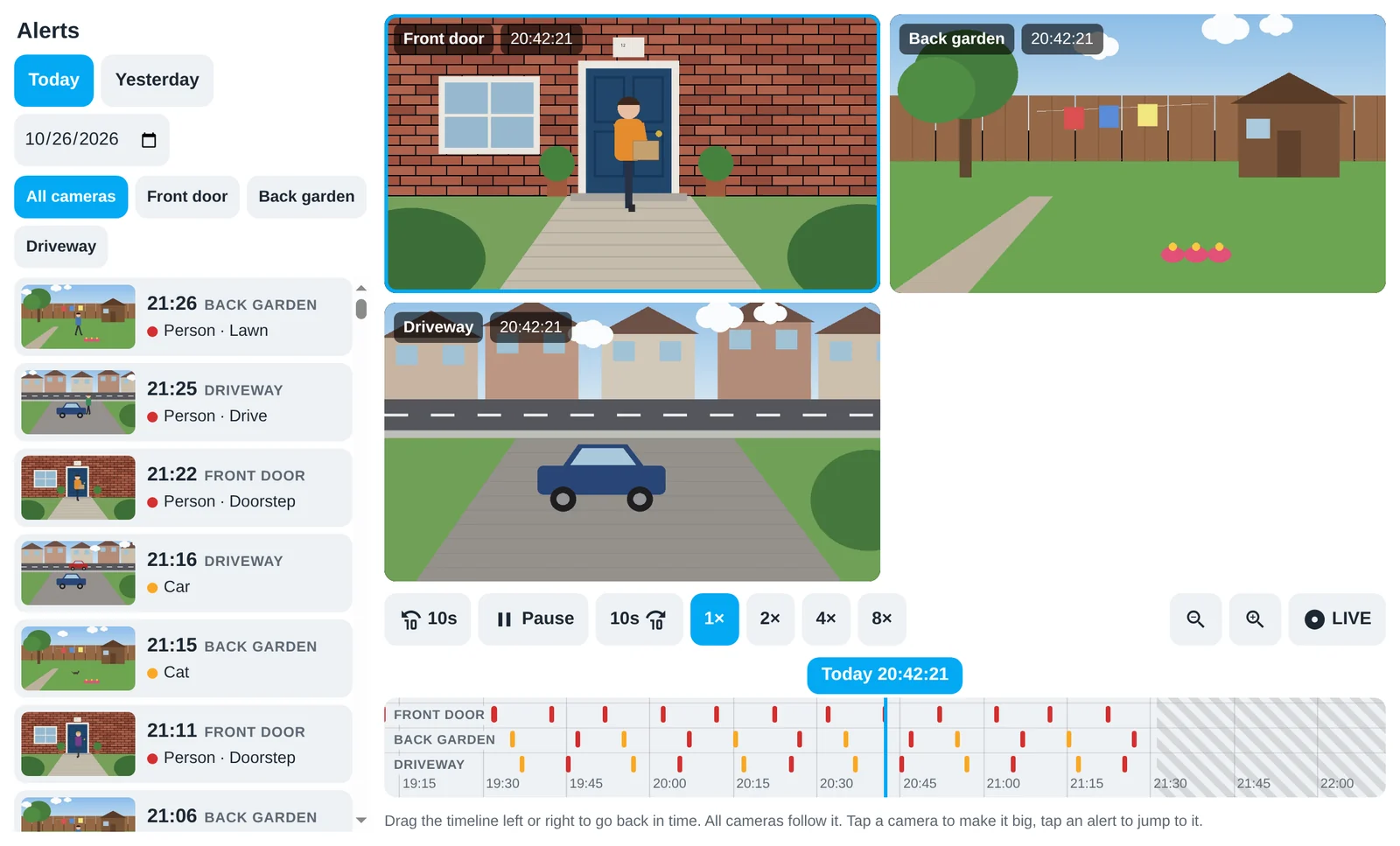
Want to see what happened at the front door this afternoon, without digging through Frigate’s own pages? This free card gives Home Assistant a camera page like a home CCTV recorder: all your cameras live, a list of everything Frigate spotted, and one timeline you drag to go back in time. Every camera rewinds together, so you can follow someone from the drive to the door.
This guide covers the Frigate Timeline Card for Home Assistant: what it does, how to install it from Marketplace (formerly HACS), and how to set it up for your cameras. You can try it below with pretend cameras before you install anything.
Beta: testers wanted
The card runs every day on my own Home Assistant with three Frigate cameras, but every Frigate setup is a bit different. If you try it, please open an issue on GitHub with what works and what doesn’t.
This is version 0.1.0, the first public release.
On this page (12 sections)
- 1See it in action
- 2Try the live demo
- 3What the Frigate Timeline Card does
- 4Before you start
- 5Step 1: Get the card
- 6Step 2: Register it as a dashboard resource
- 7Step 3: Add the card
- 8How it’s different from the Advanced Camera Card
- 9What it can’t do (yet)
- 10Troubleshooting
- 11Help test it
- 12Frequently asked questions
See it in action
A short video of the card: all three cameras live, an alert, dragging the timeline back, watching it at 4×, and the phone layout.
Try the live demo
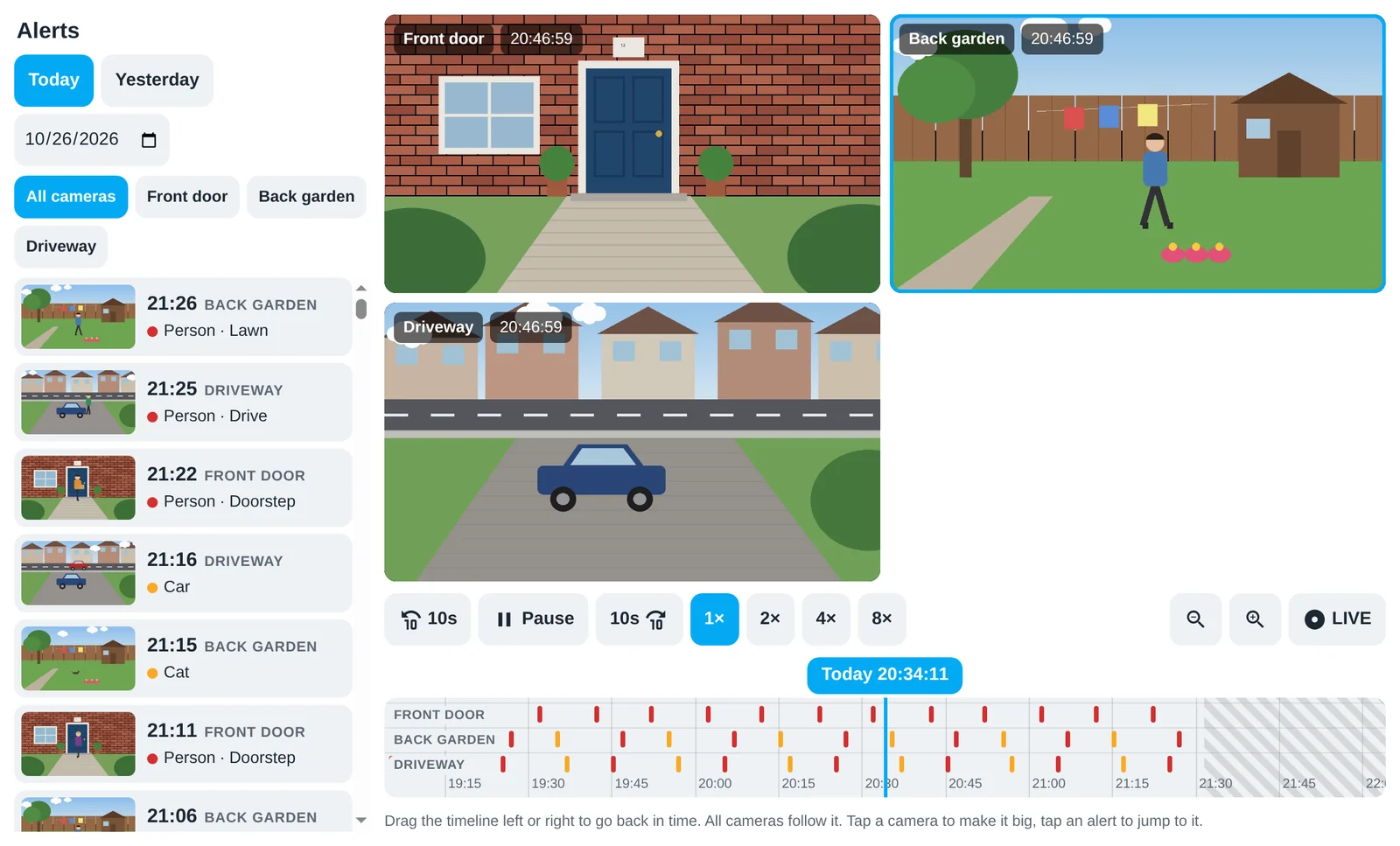
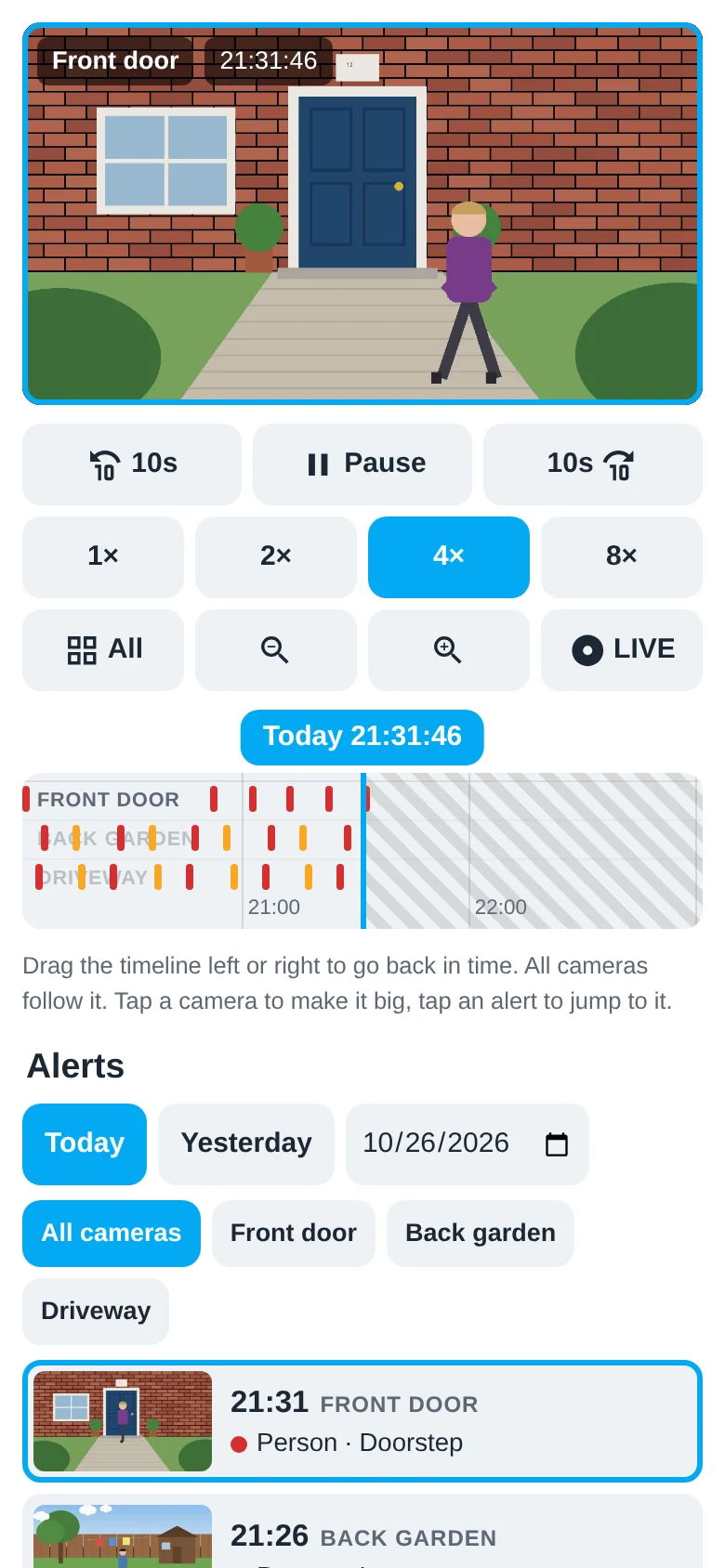
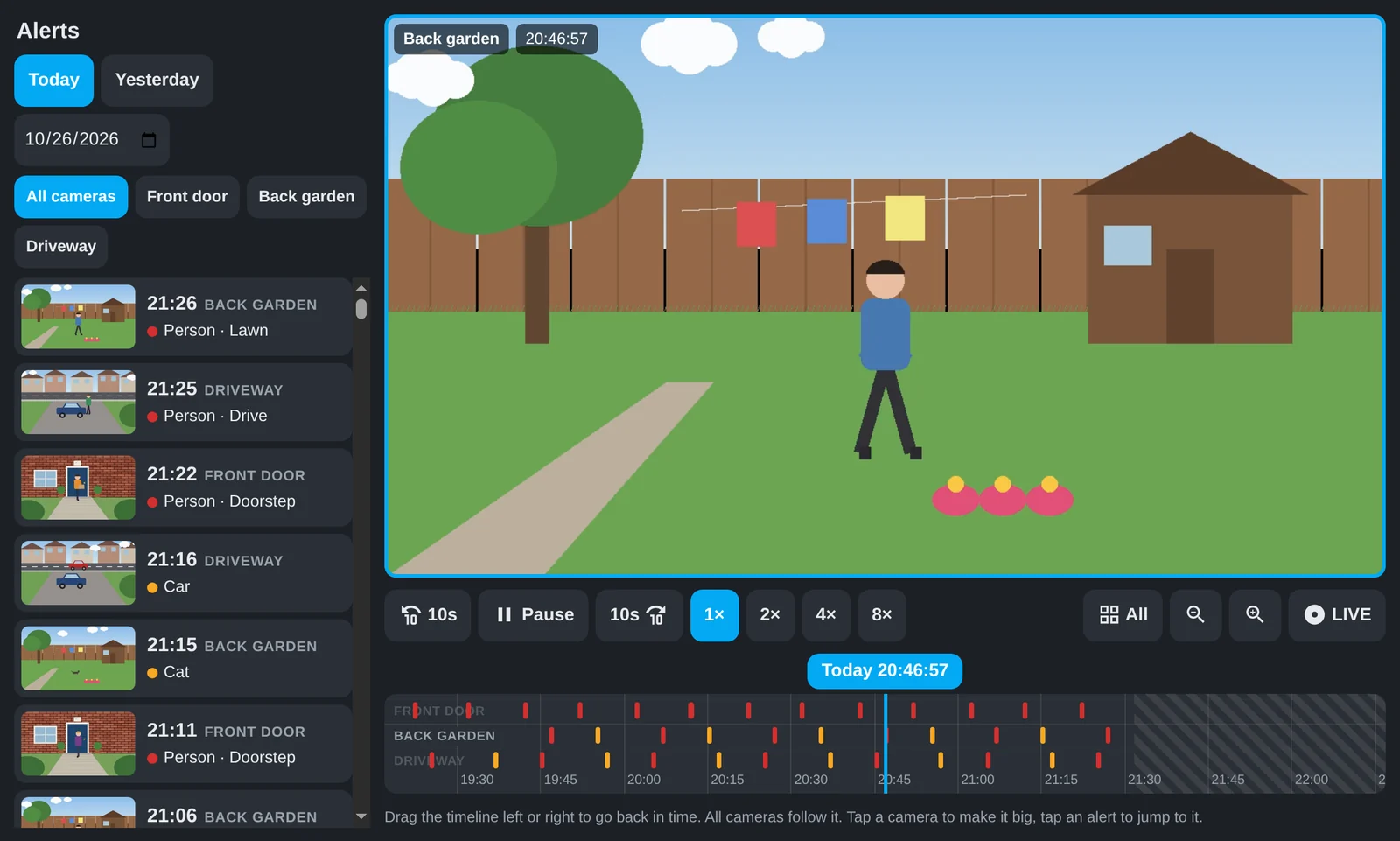
This is the real card running in your browser, with three drawn, made-up cameras instead of a real house. Drag the timeline to the right to go back in time, tap an alert in the list, tap a camera to make it big, and try the speed buttons. Use the buttons along the top to see it at phone or tablet size, or in dark mode.
What the Frigate Timeline Card does
- Every camera live in a grid. Tap one to make it big, and tap All to go back to the grid.
- An alerts list of everything Frigate saw: today, yesterday or any day you pick, for every camera or just one, each with a picture. Tap one to watch it straight away.
- One timeline for every camera, with a row each: red marks for alerts, yellow for detections. Drag it to go back in time, tap a mark to jump to it, and zoom from 10 minutes to a whole day.
- All the cameras play together. Go back to 14:20 and every camera shows 14:20, so you can see where someone went next.
- Proper playback buttons: back 10 seconds, pause, forward 10 seconds, and 1×, 2×, 4× or 8× speed.
- LIVE jumps back to now, and playback goes live by itself when it catches up.
- Phones, tablets and computers: on a big screen the alerts sit down the side, and on a phone everything stacks with big buttons. It follows your light or dark theme.
- No Frigate login needed. Alerts and recordings come through the Frigate integration, using your Home Assistant login, so it works in the Home Assistant app away from home too.
Before you start
- Frigate recording your cameras, with recordings switched on. The timeline plays recordings, not just short clips, so set how many days Frigate keeps under
record:in its config. - The Frigate integration for Home Assistant, blakeblackshear/frigate-hass-integration, set up so your cameras show as
camera.*entities. Not done yet? Follow How to Connect Frigate to Home Assistant with MQTT first. - Home Assistant 2025.1 or newer, and Marketplace (HACS before 2026.11) if you want the easy install.
New to Frigate? It’s a free NVR (network video recorder) that records your cameras and spots people, cars and animals. The Frigate docs walk you through setting it up.
Quickest way: install the card from Marketplace
⚡Open in Marketplace (one click)


The button opens Marketplace in your own Home Assistant with the card filled in. If asked, connect GitHub and click Add, then click Install. The first time, it asks for your Home Assistant’s address. Or do it by hand:
In Settings → Marketplace, click Add from link, paste https://github.com/spikey1965/ha-frigate-timeline-card, choose the type Dashboard if asked and click Add. This asks you to connect GitHub. Find Frigate Timeline Card under New, open it, click Install and refresh the browser. Because it’s a beta, Marketplace shows a short code such as f5fa069 instead of a version number, which is normal. To get the numbered beta instead, open the ⋮ menu → Include pre-releases → Include before you install.
The first time you use Marketplace, tick I understand the risks and agree and click Continue. On a version older than 2026.11? Marketplace is still called HACS there (what changed in 2026.11). The same steps work, with Download in place of Install and ⋮ → Custom repositories in place of Add from link.
That replaces Steps 1 and 2, so skip to Step 3. View it on GitHub →
Step 1: Get the card
The card is two files: frigate-timeline-card.js and hls.min.js (the video player for browsers that need one). It’s free, and this is version 0.1.0 (beta). Download the zip, unzip it, and copy the files into a new folder in your Home Assistant config: config/www/frigate-timeline-card/.
⬇Download the Frigate Timeline Card (free)
It’s MIT licensed, so use it, change it and share it.
Step 2: Register it as a dashboard resource
- Go to Settings → Dashboards, open the ⋮ menu → Resources. If you can’t see Resources, turn on Advanced mode in your user profile first.
- Click Add resource, enter
/local/frigate-timeline-card/frigate-timeline-card.js?v=0.1.0and choose JavaScript module. - Refresh the browser.
Tip: when you update the files later, change the number at the end too. Tablets and the Home Assistant app cache the old file hard, and changing the number is the only reliable way to get every screen onto the new version.
Step 3: Add the card
The card works best with a dashboard page to itself. Edit your dashboard, add a new view, and set its View type to Panel (single card) so the card fills the screen. Then add a Manual card and paste this, with your own cameras:
type: custom:frigate-timeline-card
cameras:
  - entity: camera.front_door
    frigate: front_door
    name: Front door
  - entity: camera.back_garden
    frigate: back_garden
    name: Back garden
  - entity: camera.driveway
    frigate: driveway
name: Drivewayentityis the camera entity the Frigate integration made. Find it under Settings → Devices & services → Frigate.frigateis the camera’s name in Frigate’s own config, the name undercameras:in Frigate’sconfig.yml. It’s usually the same as the entity withoutcamera..nameis the label you’ll see on the card. Use whatever you like.
Save it, and the cameras appear live. Drag the timeline to the right to check recordings play.
Options
cameras: your cameras, in the order you want them.cameras[].entity: the Frigate camera entity.cameras[].frigate: the camera’s name in Frigate.cameras[].name: the label on the tile, the timeline and the alerts.cameras[].live: a different camera entity for the live view only, for example a lower-resolution sub-stream. It’s smoother on phones and wall tablets, and recordings still play at full resolution.instance: only if you have more than one Frigate server, the Frigate integration’s instance id. The default isfrigate.
To change the colours, for example on a dark glass-style dashboard, set any of these CSS variables with card-mod: --cam-card-bg, --cam-btn-bg, --cam-fg and --cam-sub.
How it’s different from the Advanced Camera Card
The Advanced Camera Card is brilliant and does far more. It has dozens of views and hundreds of options. This card deliberately does less: one screen, big labelled buttons, and one timeline for all your cameras at once. It’s for the people in your house who just want to know “what happened at the door this afternoon?” without learning a new app. Plenty of people will happily use both.
What it can’t do (yet)
- H.265 (HEVC) cameras only play on devices that can decode HEVC. That covers iPhones, iPads and Macs, and most Android phones and tablets, but not some Windows and Linux PCs. The card tells you when a screen can’t play it rather than showing a black box.
- It shows Frigate’s review items (alerts and detections). Plain motion with nothing detected doesn’t get a mark, but you can still drag to any time and watch it.
- No two-way audio or pan/tilt controls. Use the camera’s own app or the Advanced Camera Card for those.
Troubleshooting
- “No recording for this time”: Frigate has nothing saved for that moment. Check recordings are on for that camera (
record: enabled: true) and how many days it keeps. - “This screen can’t play this camera’s video format”: that camera records in H.265. Try a phone or iPad, or set the camera to H.264.
- No alerts in the list: check the
frigatenames match Frigate’s config exactly. They’re case-sensitive. - The card doesn’t appear, or you see an old version: refresh the browser, or bump the
?v=number on the resource.
Help test it
If you try the card, I’d love to hear how it goes, especially with different cameras, lots of cameras, or Frigate on its own server. Open an issue on GitHub.
New to Home Assistant? Start with my guide to installing Home Assistant with Docker Compose.
More Home Assistant guides: setting up a Home Assistant wall tablet, a live 3D floor plan for Home Assistant and Kid Watch parental controls.
Frequently asked questions
What does the Frigate Timeline Card do?
It gives Home Assistant a camera page like a home CCTV recorder: all cameras live, a list of everything Frigate spotted, and one timeline that rewinds every camera together.
How is it different from the Advanced Camera Card?
The Timeline Card is built around one shared timeline for all cameras. See the section comparing the two above.
Why does it say "No recording for this time"?
Frigate has nothing saved for that moment. Check recording is on for that camera (record: enabled: true) and how many days it keeps.
Why can't this screen play a camera's video?
That camera records in H.265, which some browsers can't play. Try a phone or iPad, or set the camera to H.264.
Thank you
All the hard work is done by Frigate and the Frigate Home Assistant integration. Recordings play through hls.js on browsers that need it. If the card is useful to you, give it a star on GitHub.
More cards in beta: GE washer and dryer (SmartHQ) · Candy, Haier and Hoover (Simply-Fi) · Kid Watch (parental controls) · all betas
If you like the card, consider buying me a coffee. It helps keep projects like this one free.
More free Home Assistant cards
All free, with a live demo and step-by-step setup.

Want one made for your home? See custom cards and dashboards.
Get new guides by email
About one email a month: new step-by-step guides and card releases. No spam, unsubscribe any time.