
Use this at your own risk, and test it before relying on it, especially anything that controls a real device. Full disclaimer
Updated 12 November 2026
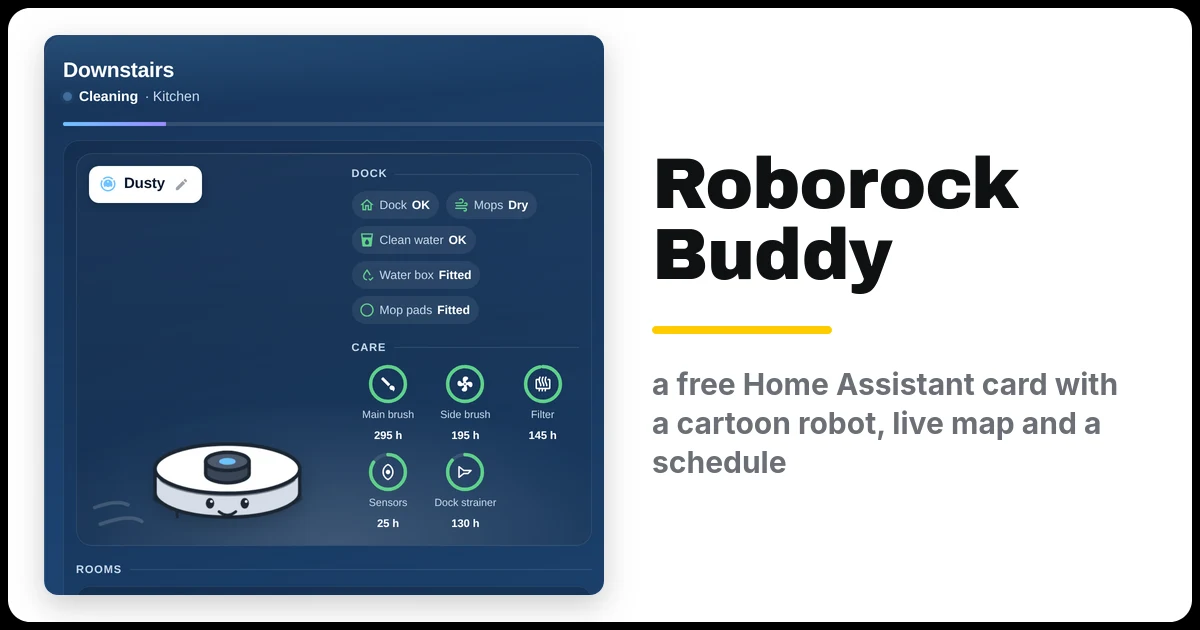
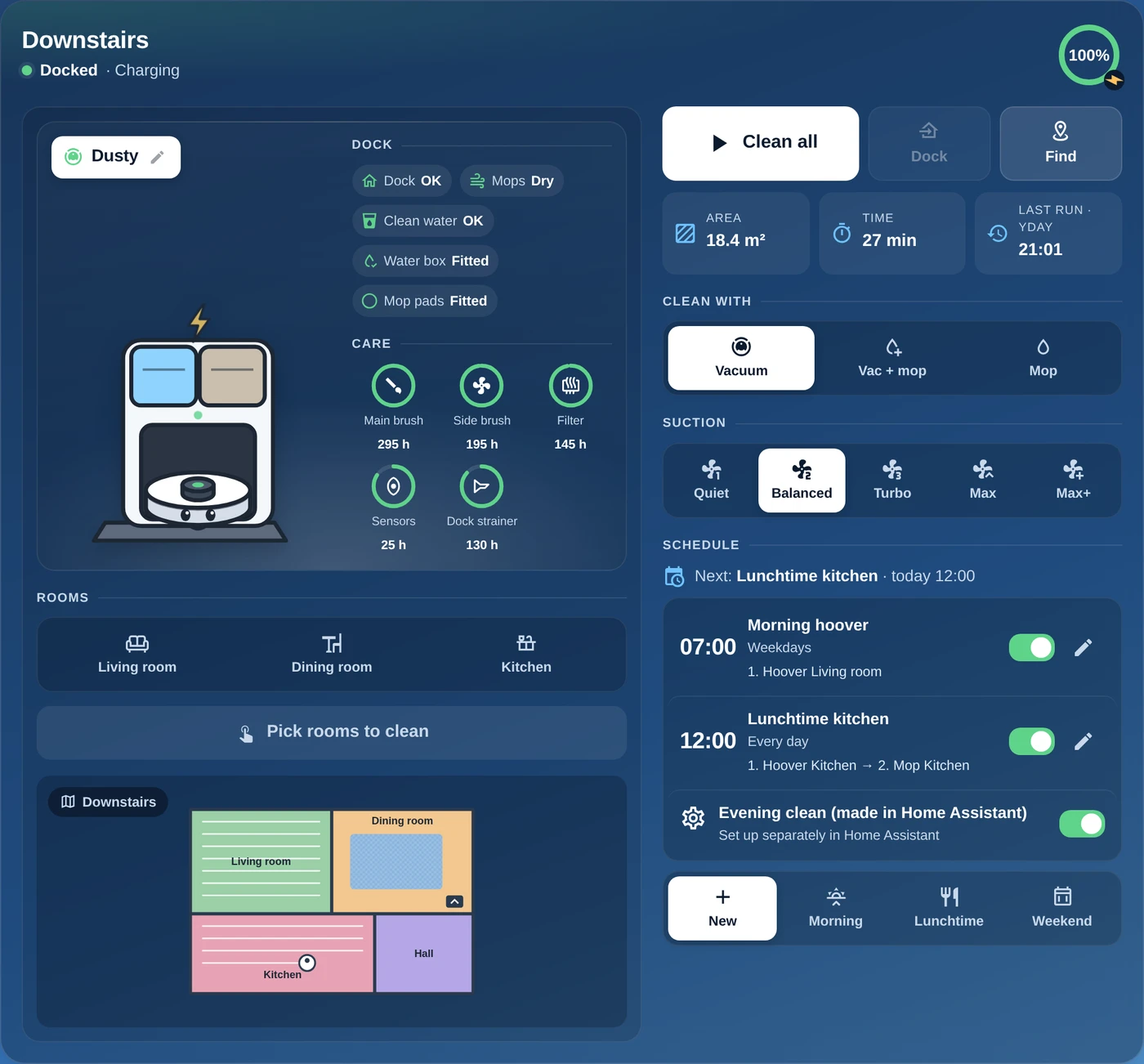
Want your robot vacuum on your Home Assistant dashboard to be a bit more fun, and a lot more useful? This free card gives your Roborock a cartoon of itself and its dock that follows what it’s doing, the live map, rooms you tap to clean, every control, and a cleaning schedule you set up right on the card.
This guide covers the Roborock Buddy Card for Home Assistant: what it does, how to install it from Marketplace (formerly HACS), and every setting. You can try it below with a pretend robot before you install anything.
Here it is in a one-minute video with a pretend robot called Dusty: picking rooms and cleaning, switching to vacuum and mop, adding a schedule, the four dock pictures, giving it a name and the alert when it’s stuck.
Beta: testers wanted
The card runs every day on my own Roborock Qrevo S with its mop-wash dock. It also runs on my Roborock Q7 L5+ upstairs, and other Roborocks should work too. If you try it on another model, please open an issue on GitHub with what works and what doesn’t.
The download on this page is version 1.3.0 (beta), with zone cleaning, walls and no-go zones, cleaning patterns, the dizzy face and room highlighting. Marketplace (formerly HACS) installs version 0.4.0, which has zone cleaning, walls and no-go zones and cleaning patterns but not the dizzy face or room highlighting.
On this page (16 sections)
- 1Try the live demo
- 2What the Roborock Buddy Card does
- 3Before you start
- 4Step 1: Get the card
- 5Step 2: Register it as a dashboard resource
- 6Step 3: Add the card
- 7Step 4: Give your robot a name
- 8Step 5: Set up a schedule
- 9Step 6: See rooms on the map (version 1.0.0)
- 10Step 7: Clean a zone (version 1.1.0)
- 11Step 8: Walls and no-go zones (version 1.3.0)
- 12All the settings
- 13Which Roborocks work?
- 14If something’s wrong
- 15Updating
- 16Frequently asked questions
Try the live demo
This is the real card running in your browser, with a pretend robot called Dusty and a drawn floor plan. Press the buttons along the top to see it cleaning, emptying the bin or stuck, switch the robot type, then try the card itself: pick rooms and press Clean, add a schedule, or tap Dusty’s name to rename it.
What the Roborock Buddy Card does
- A cartoon of your robot and dock that follows what it’s doing: asleep on the dock, charging, out cleaning with a trail behind it, heading home, paused, or stuck, when it goes dizzy with spiral eyes and circling stars (version 1.0.0; the Marketplace version shows X eyes and a red “!”). Mop docks show the pads being washed and dried, and dust clouds puff out of the dock while it empties the bin. Its eyes blink and glance around, and while it cleans they look the way it’s heading (new in 0.1.1).
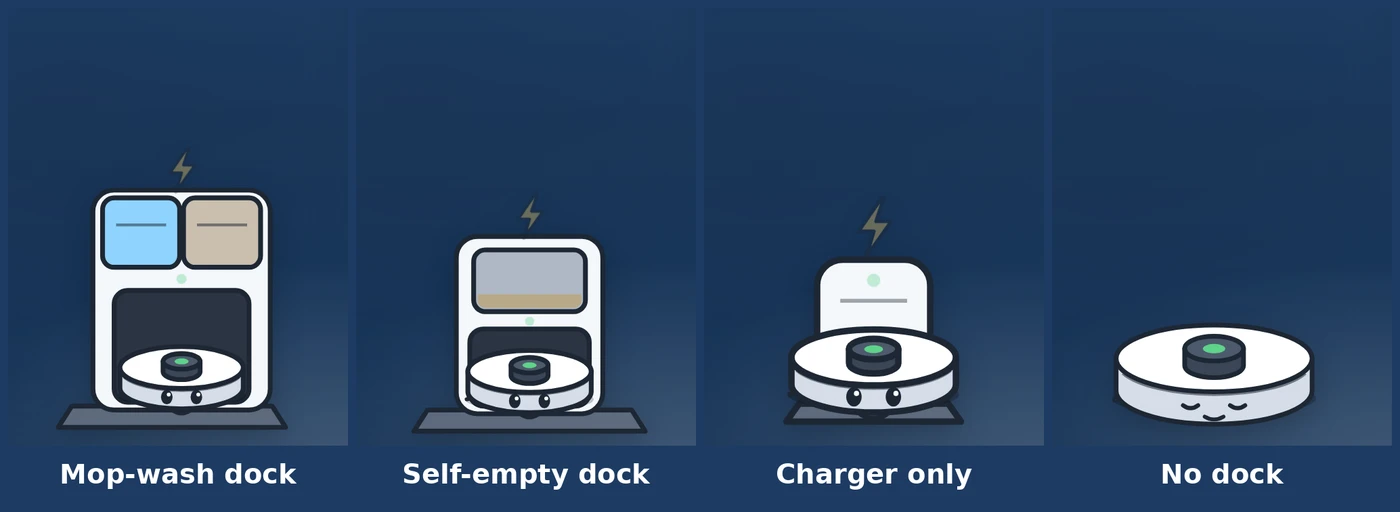
- Four robot types, picked for you: a mop-wash dock, a self-empty dock, a plain charger, or no dock.
- Give it a name. Tap the name tag and pick one (Dustbin Hoffman, Moptimus Prime, Jeeves…) or type your own.
- A status line that says what it’s actually doing, like “Cleaning · Kitchen” or “Drying the mops”, with a progress bar, and a red banner that tells you what’s wrong when it gets stuck.
- The live map, with its empty border trimmed off so your rooms are as big as possible.
- See your rooms on the map (version 1.0.0). The rooms you pick stay bright and the rest fade, so you can check them before you press Clean.
- Tap rooms to clean them, or use the big Clean all / Pause / Resume button, plus Dock and Find.
- Clean just a zone (new in 1.1.0). Press Zone, drag a box over the bit you want, like round the dining table, and press Clean. Up to five boxes at once.
- Walls and no-go zones (new in 1.3.0). Tap the map for a 1 m wall or box, drag it into place, resize it with the white dots and save it to the robot. Tap for a 1 m zone, too.
- Cleaning pattern (new in 1.2.0). Standard, Deep, Deep+ or Fast, the same as the mop route in the Roborock app. It’s always on the card and greys out while the robot only hoovers, because it’s a mopping setting. Mop steps in the schedule have it too.
- Clean with, suction, mop water and cleaning pattern as simple icon buttons, without the options that only make sense in the Roborock app.
- Dock and care at a glance: dock errors, mop drying, clean water and mop pads, and rings for the brushes, filter, sensors and dock strainer.
- A schedule on the card. More on that below.
- Phones, tablets and wall panels.
Before you start
- A Roborock robot vacuum, added to Home Assistant with its own Roborock integration: Settings → Devices & services → Add integration → Roborock, then sign in with your Roborock account.
- Home Assistant 2025.1 or newer (the Q7 M5 family needs a recent version; 2026.10 has it), and Marketplace (HACS before 2026.11) if you want the easy install.
- Your rooms named in the Roborock app. The card reads them from the robot’s map.
New to Home Assistant? My free Home Assistant install guide gets you started.
Quickest way: install the card from Marketplace
⚡Open in Marketplace (one click)


The button opens Marketplace in your own Home Assistant with the card filled in. If asked, connect GitHub and click Add, then click Install. The first time, it asks for your Home Assistant’s address. Or do it by hand:
In Settings → Marketplace, click Add from link, paste https://github.com/spikey1965/ha-roborock-buddy-card, choose the type Dashboard if asked and click Add. This asks you to connect GitHub. Find Roborock Buddy Card under New, open it, click Install and refresh the browser. Because it’s a beta, Marketplace shows a short code such as f5fa069 instead of a version number, which is normal. To get the numbered beta instead, open the ⋮ menu → Include pre-releases → Include before you install.
The first time you use Marketplace, tick I understand the risks and agree and click Continue. On a version older than 2026.11? Marketplace is still called HACS there (what changed in 2026.11). The same steps work, with Download in place of Install and ⋮ → Custom repositories in place of Add from link.
Marketplace installs version 0.4.0, the simpler card, with zone cleaning, walls and no-go zones and cleaning patterns. For the dizzy face, room highlighting and map rotation, use the download in Step 1 instead.
That replaces Steps 1 and 2, so skip to Step 3. View it on GitHub →
Step 1: Get the card
The card is one file, roborock-buddy-card.js. It’s free and MIT licensed, and this is version 1.3.0 (beta). Download it and copy it into a new folder in your Home Assistant config: config/www/roborock-buddy-card/.
Download the card, version 1.0.0 (free)
Use the download or Marketplace, not both. If you already installed the card from Marketplace or HACS, remove it there first, or your dashboard may keep using the old one.
Step 2: Register it as a dashboard resource
- Go to Settings → Dashboards, open the ⋮ menu → Resources. If you can’t see Resources, turn on Advanced mode in your user profile first.
- Click Add resource, enter
/local/roborock-buddy-card/roborock-buddy-card.js?v=1.3.0and choose JavaScript module. - Refresh the browser.
Step 3: Add the card
Edit your dashboard, click Add card, scroll to the bottom and choose Manual. With one Roborock, this is all you need:
type: custom:roborock-buddy-cardClick Save. The card finds your robot, its dock, its map and its rooms by itself. The card is wide, so it looks best on its own dashboard view or a panel view.
Got two robots, or a robot with a map for each floor? Tell each card which one:
type: custom:roborock-buddy-card
name: Downstairs
entity: vacuum.dusty
map: Map 0
Step 4: Give your robot a name
Tap the white name tag on the picture. Pick a name from the list, grouped into funny, sci-fi, cute and butler names, or type your own, then press Save. Original name puts it back.
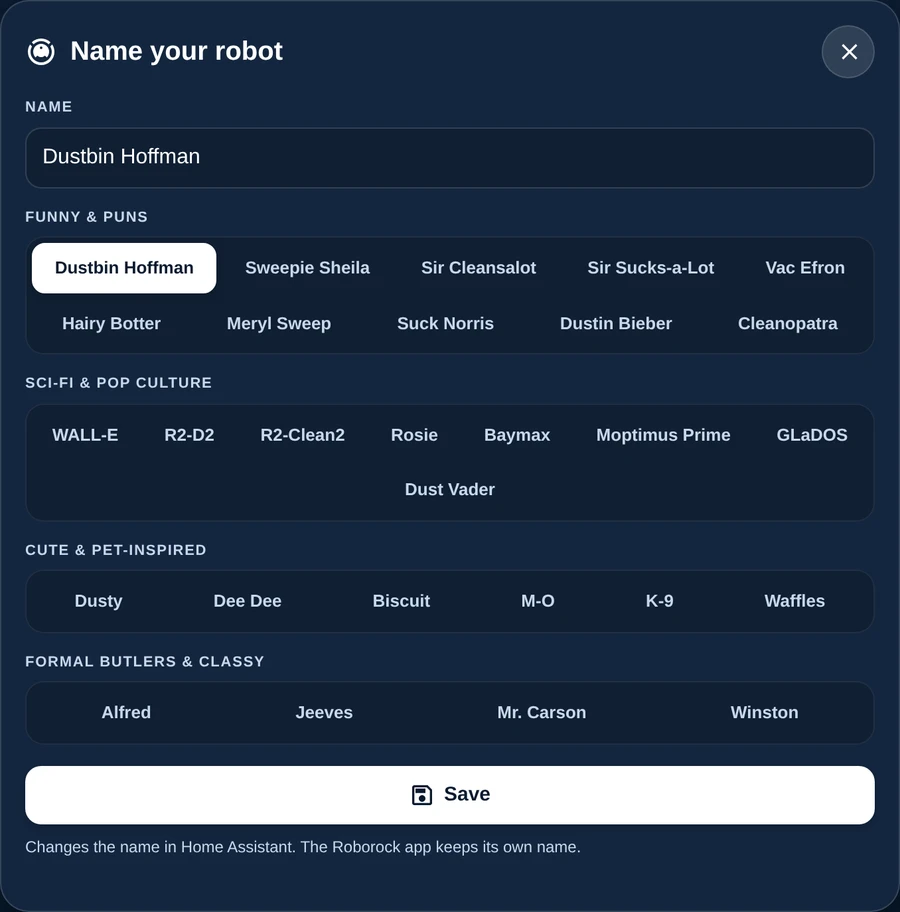
This changes the robot’s name in Home Assistant. The Roborock app keeps its own name, and your entity IDs don’t change, so nothing else breaks.
Step 5: Set up a schedule
Under the controls is the Schedule. Each programme is a time, the days, and one or more steps that run one after another.
- Press New, or start from a suggestion: Morning (hoover the living room on weekdays), Lunchtime (the kitchen every day) or Weekend (everywhere twice, then mop).
- Give it a name, pick the time and the days.
- For each step, tap the rooms and choose Hoover, Hoover + mop or Mop, the suction, the mop water, the cleaning pattern and once or twice. Add a step for another, such as hoovering first and then mopping.
- Press Save.
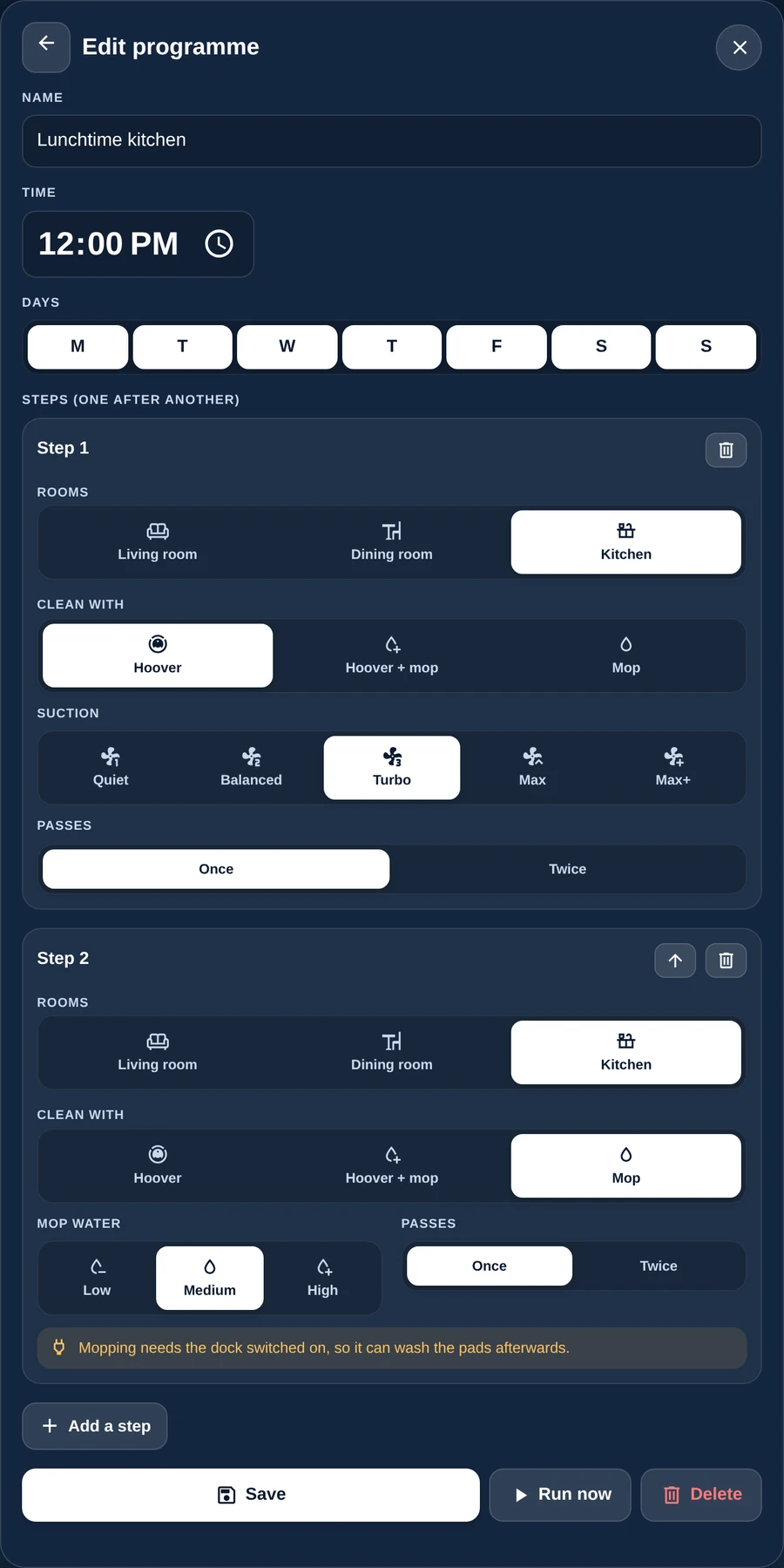
Each programme is saved as a normal Home Assistant automation called “Robot: …”. It runs at its time even when no dashboard is open, survives restarts, and you’ll find it in Settings → Automations. On the card, each programme has an on/off switch and a ✎ to edit it, with Run now and Delete inside.
Between steps the card waits for the robot to finish and settle on its dock before it starts the next one. If the robot isn’t on its dock at the start time, the programme is skipped and Home Assistant shows a notification (add notify: to get it on your phone too).
Good to know: saving, changing and deleting programmes needs a Home Assistant admin login, the same as making any automation. Everyone else can see the schedule and its next run. Mopping on a schedule needs the dock to have power so it can wash the pads afterwards.
Step 6: See rooms on the map (version 1.0.0)
- Press a room on the card. The first time, it asks you to tap that room on the map.
- Tap it. The room stays bright and the rest of the map fades.
- Press more rooms and they all stay bright. Press one again to fade it back.
Each room only asks once for each Home Assistant login. If the wrong room lights up, press Wrong room? on the map and tap the right one. Not now skips it. The card asks again if you rename a room or its colour changes on a new map.
This works by reading the colours Home Assistant draws on the map. It’s tested on two Roborocks so far, so if your map behaves differently, please tell me on GitHub.
Step 7: Clean a zone (version 1.1.0)
- Press Zone in the tool bar above the rooms (Rooms, Zone, Wall, No-go). The map gets a yellow outline.
- Tap the map for a 1 m box, or drag a box over the bit you want cleaned. Add more boxes for more places, up to five. The × on a box removes it.
- Press Clean 1 zone (or Clean 2 zones, and so on). The robot cleans just those boxes, with your suction and mop settings.
There’s nothing to set up. The card finds the robot on Home Assistant’s map and asks it where it is, which lines your boxes up with the robot’s own map. It does that while the robot is standing still, on its dock is fine, and remembers it for while it’s moving. Cancel or picking a room goes back to rooms. The Q7 family can’t clean zones from Home Assistant, so the card doesn’t show Zone, Wall or No-go there.
Step 8: Walls and no-go zones (version 1.3.0)
- Press Wall or No-go in the tool bar above the rooms. The map gets a red outline.
- Tap the map for a 1 m wall or a 1 m box, or drag to draw one any size. Up to 10 of each.
- Drag a box or wall to move it. Drag the white dots to resize a box, or to stretch and turn a wall. The × removes one.
- Press Save to robot, then check the map in the Roborock app.
Saving replaces all walls and no-go zones on the robot, including any you drew in the Roborock app, because Home Assistant can’t read those. So either keep them all in the card or all in the app. The card remembers what it saved for each Home Assistant user. Like zones, it needs the robot to show on the map, and the Q7 family can’t do it.
All the settings
Every setting is optional.
| Setting | What it does | Example |
|---|---|---|
entity | The vacuum to show. Leave it out if you have one Roborock. | vacuum.dusty |
find | Instead of entity: pick the robot by a word in its entity ID, name or model. | "q7" |
name | The card’s title. | Downstairs |
robot_name | The name on the tag, without renaming the robot in Home Assistant. | Dusty |
map | Pin the card to one map (rooms and picture) and load it before cleaning. For robots with a map per floor. | Map 1 |
map_height | The smallest height of the map, in pixels (300 to start with). | 260 |
map_rotate | Turn the map clockwise: 90, 180 or 270. Room names on the map turn with it. Version 1.0.0 only. | 90 |
zones | false hides the Zone button. Version 1.1.0 and later (Marketplace 0.2.0 and later). | false |
no_go | false hides the Wall and No-go tools and brings back the plain Zone button. Version 1.3.0 and later (Marketplace 0.4.0 and later). | false |
carry | For a robot you carry to this floor: it won’t start while on its dock, and the picture shows no dock. | true |
mode | Set the cleaning mode before every clean from this card. | vacuum |
skip | Room IDs to leave out of the room list and “Clean all”. | [19] |
dock | Force the picture: wash, empty, charger or none. | empty |
schedule | false hides the schedule. | false |
also_show | Your own automations to list in the schedule, with a switch. | [automation.evening_clean] |
notify | A notify service to tell you when a programme is skipped. | notify.mobile_app_phone |
dock_hours | Shown in the reminder on mop steps, if your dock only has power at certain times. | 00:30-07:30 |
bin_helper, bin_every | For robots without a self-empty dock: an input_number helper that remembers when you last emptied the bin, and the runs between emptying (2 to start with). An Emptied button appears. | input_number.bin_emptied |
Which Roborocks work?
- Qrevo, QV, S and Saros series: fully supported by Home Assistant’s Roborock integration. The card is tested on a Qrevo S.
- Q7 M5, M5+ and L5 family: recent versions of Home Assistant support these. The card sends them their own room-cleaning command. They don’t report “emptying the bin” or offer a “clean twice” setting, so the card repeats the step instead. Zone cleaning isn’t available for them in Home Assistant, so there’s no Zone button. I run it on a real Q7 L5+, which needs
dock: empty. See my Q7 L5+ post. - Other Q-series: should work if the Roborock integration supports your robot.
If something’s wrong
- “Waiting for the robot”: the Roborock integration isn’t set up, or the card can’t tell which robot you mean. Add
entity: vacuum.your_robot. - No rooms, or old room names: name your rooms in the Roborock app, then reload the Roborock integration (Settings → Devices & services → Roborock → ⋮ → Reload).
- The wrong rooms or map on a robot with a map per floor: add
map: Map 0(or Map 1) to each card. - “Only a Home Assistant admin can…”: you’re signed in as a normal user. Sign in as an admin to change the schedule or the name.
- The picture shows the wrong dock: add
dock: wash,empty,chargerornone. - A programme didn’t run: check the robot was on its dock at that time, and look at the automation’s trace in Settings → Automations → Robot: … → Traces.
- Zone says “Can’t find the robot on the map”: the robot has to show on the map picture. Send it back to its dock, wait a minute for the map to update, then press Zone again. On a robot with a map per floor, load this card’s map first.
- Zones or no-go boxes come out far too big: newer Home Assistant draws the robot differently, which threw older versions out by four times. Update to 1.3.0 (Marketplace 0.4.0), then press Zone once with the robot standing still.
Updating
With Marketplace, you’ll see the update under Settings (HACS → Updates before 2026.11). Installed by hand? Download the new file over the old one and bump the ?v= number in the resource. The website and Marketplace have separate version numbers, so version 1.3.0 here is newer than Marketplace version 0.4.0.
🧰 What I use
- Roborock Qrevo S Pro: the newer version of my Qrevo S, the robot this card was built on. It vacuums and mops downstairs every evening and washes its own mop pads.
The rest of my setup is on the My Home Assistant Kit page. As an Amazon Associate I earn from qualifying purchases; the price is the same for you.
Frequently asked questions
Which Roborock vacuums work with the Buddy Card?
The Qrevo, QV, S and Saros series are fully supported. The Q7 M5 and L5 family work on recent Home Assistant versions without zone cleaning. Other Q-series robots should work if the Roborock integration supports them.
Is the Roborock Buddy Card free?
Yes. It's free, and you can install it from Marketplace (formerly HACS).
Why does the card say "Waiting for the robot"?
The Roborock integration isn't set up, or the card can't tell which robot you mean. Add entity: vacuum.your_robot.
Why doesn't the card show my rooms?
Name your rooms in the Roborock app, then reload the Roborock integration under Settings → Devices & services → Roborock → ⋮ → Reload.
Thank you
Thanks to the developers of Home Assistant’s Roborock integration and python-roborock, who make all of this possible. The cartoon robots are drawn for this card; Roborock is a trademark of its owner, and this card isn’t connected to them.
Found a bug or have an idea? Open an issue on GitHub.
Related guides: Install Home Assistant, Home Assistant wall tablet, Frigate Timeline Card.
If this card saves you time, consider buying me a coffee. It helps keep cards like this one coming.
☕Buy me a coffeeMore free Home Assistant cards
All free, with a live demo and step-by-step setup.

Want one made for your home? See custom cards and dashboards.
Get new guides by email
About one email a month: new step-by-step guides and card releases. No spam, unsubscribe any time.