
For educational purposes only. This guide shows how to install self-hosted software on your own hardware. I don't condone piracy: only use these apps with media you own or have the right to use, and follow the law where you live. Back up your data first. Full disclaimer
Updated 16 November 2026 Tested with: NZBGet 26.3
NZBGet downloads from Usenet, one of the oldest parts of the internet: a network of servers that also carries files. NZBGet is small and quick: it uses very little memory and CPU, so it runs happily on a NAS or a Raspberry Pi. Radarr and Sonarr send it what to fetch, and it downloads, repairs and unpacks everything for you.
Use these tools with media you own or have the rights to, and with legal sources such as Linux downloads and public-domain films. Downloading copyrighted material without permission is illegal in the UK and most other countries.
This guide sets up NZBGet with Docker Compose in five short steps. It takes about 15 minutes.
On this page (12 sections)
- 1Watch: install NZBGet with Docker Compose
- 2See how NZBGet handles a download
- 3What you need to set up NZBGet with Docker Compose
- 4Step 1: Make your compose file
- 5Step 2: Add your Usenet server
- 6Step 3: Set the folders
- 7Step 4: Name the categories
- 8Step 5: Connect Radarr and Sonarr
- 9Optional: two quick speed-ups
- 10If something’s wrong
- 11Updating NZBGet
- 12Frequently asked questions
Watch: install NZBGet with Docker Compose
The video has subtitles at the bottom and no sound. It was recorded on a clean test install with example server details, so it doesn’t test a real provider. It uses one simple /downloads folder; the generator and steps below use the /data layout that Radarr and Sonarr need.
See how NZBGet handles a download
Press Download to watch the pieces arrive, get repaired and unpacked. Then tick Badly damaged release to see NZBGet’s health check give up early, so Radarr can try another copy. Under the demo is the generator you’ll use in Step 1.
Open the generator full screen
What you need to set up NZBGet with Docker Compose
- A computer or NAS running Docker. New to Docker? The Docker install guide covers Windows, Mac and Linux.
- A Usenet provider account (the servers you download from). You get a server address, username and password.
- At least one Usenet indexer (the search sites), added in Prowlarr.
Step 1: Make your compose file
In the generator, choose On its own (recommended). Pick your own username, press New password, and use the same data folder as Radarr and Sonarr. Then:
mkdir -p ~/nzbget && cd ~/nzbgetSave compose.yaml and .env there, and run the commands from the Commands tab.
nzbget / tegbzn6789. To change the password later, edit .env and run docker compose up -d. A password changed in NZBGet’s own settings is replaced by the one in .env next time the container starts.Step 2: Add your Usenet server
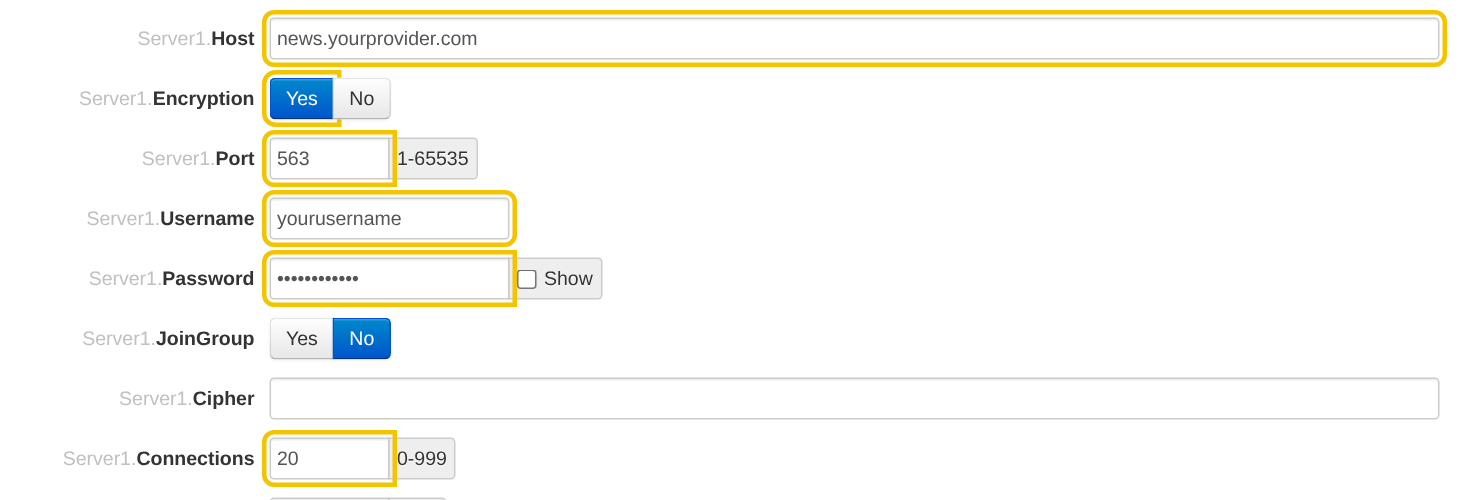
Open http://YOUR-SERVER-IP:6789 and log in with the username and password from .env. Go to Settings → News-Servers and fill in:
- Host: your provider’s server address, for example
news.yourprovider.com. - Encryption: Yes, and Port:
563. - Username and Password from your provider.
- Connections: the number your plan allows (often 20 to 50).
Click Test connection under the server, then Save all changes on the left. When NZBGet asks, click Reload to load the new settings. Do the same after Steps 3 and 4.
Step 3: Set the folders
Go to Settings → Paths and set:
- DestDir:
/data/usenet/complete - InterDir:
/data/usenet/incomplete
Leave MainDir as /config. Click Save all changes.

Step 4: Name the categories
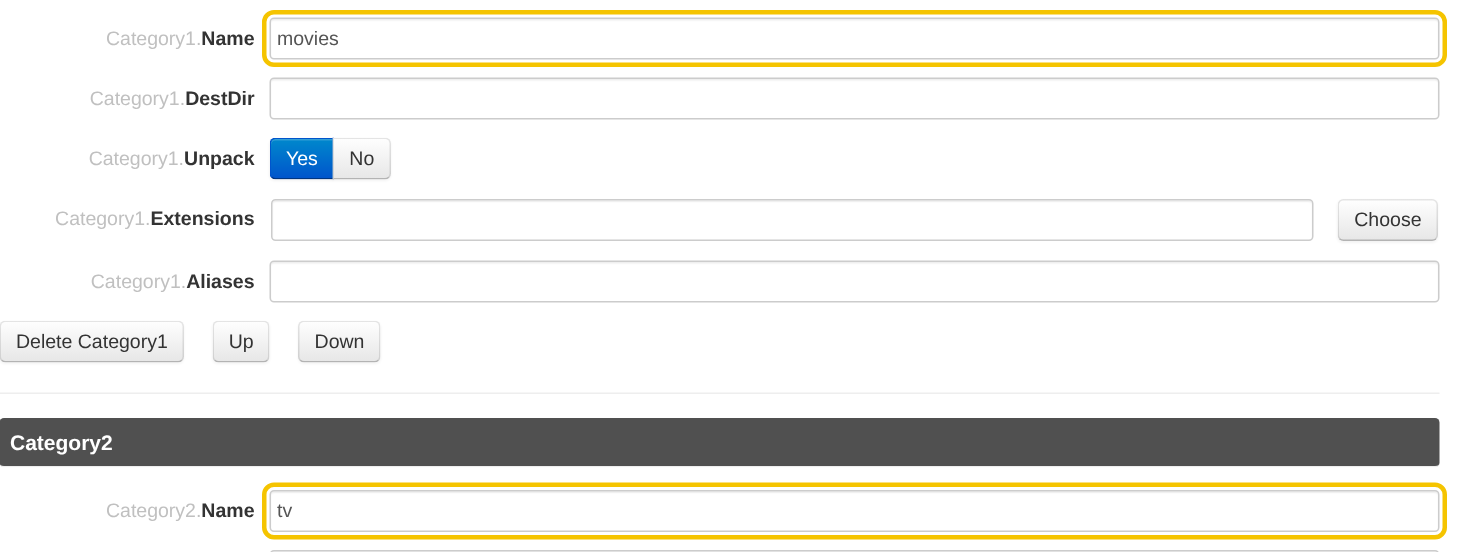
NZBGet comes with four categories. Go to Settings → Categories and rename two of them:
- Category1.Name:
Movies→movies - Category2.Name:
Series→tv
Leave DestDir empty. Each category then gets its own folder, like /data/usenet/complete/movies. Click Save all changes.
Step 5: Connect Radarr and Sonarr
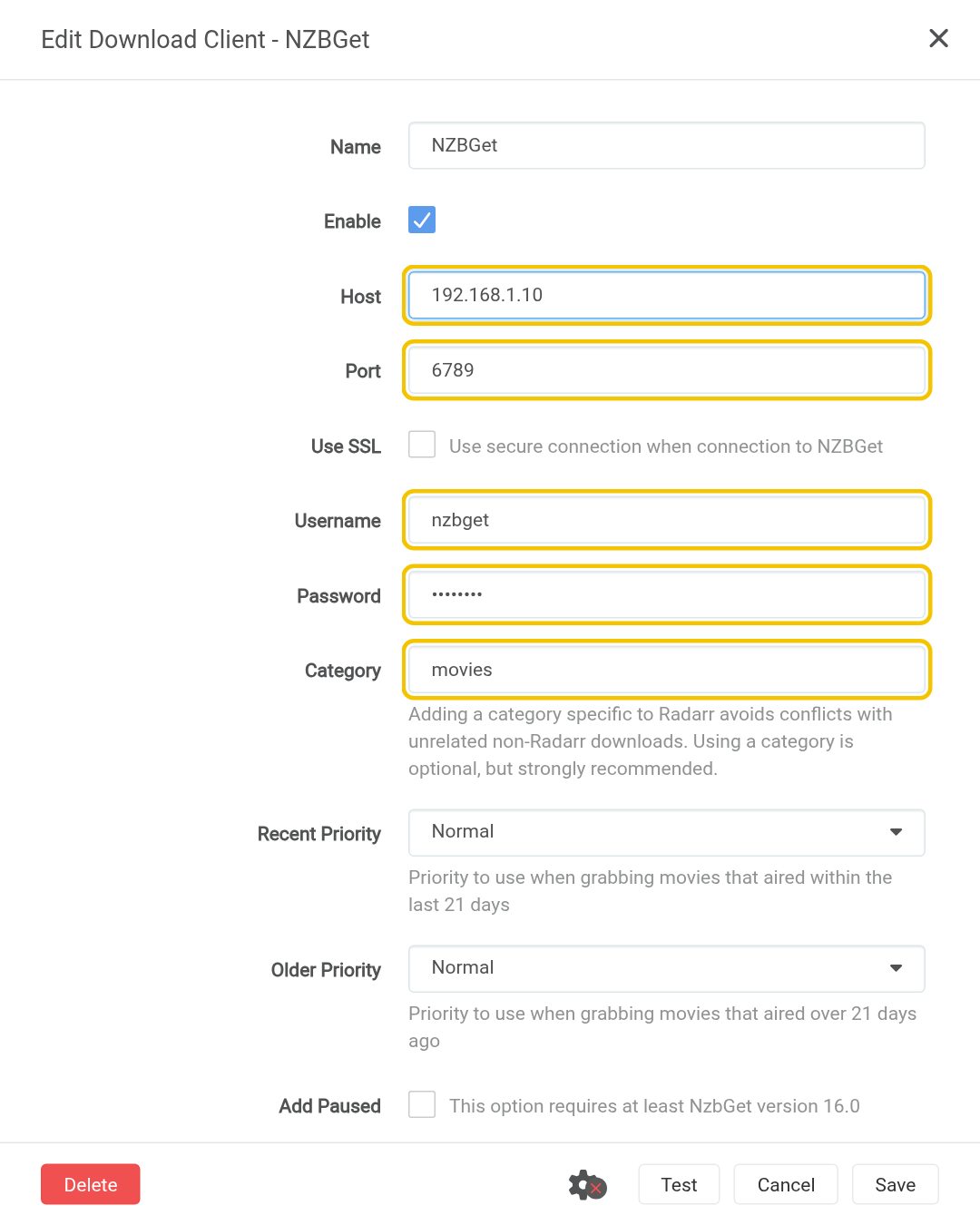
- In Radarr, go to Settings → Download Clients → + → NZBGet.
- Enter your server’s IP, port
6789, and the username and password from.env. - Change Category to
movies. Radarr fills inMovieswith a capital M, and the test fails with “Category does not exist” until you change it. - Click Test, then Save.
- Do the same in Sonarr. Its category is already
tv.
That’s it. Radarr and Sonarr can now send downloads to NZBGet. 🎉
Optional: two quick speed-ups
NZBGet shows two warnings under Settings → Status on a fresh install. Both are safe to fix:
- Settings → Download Queue → ArticleCache:
200(MB of memory used to put pieces together before writing them to disk). - Settings → Download Queue → WriteBuffer:
1024(KB per connection).
On a small device with little memory, use smaller numbers, or leave them alone.
If something’s wrong
- Radarr says “Category does not exist”. The category in Radarr must match NZBGet’s exactly, including capitals. Use
moviesin both. - Radarr says “Authentication failed”. Check the username and password in
.env. They replace anything set inside NZBGet. - Downloads stop with “failed: health”. Too many pieces have expired from your provider. That’s NZBGet’s health check working: Radarr and Sonarr try another release automatically.
- NZBGet says DestDir doesn’t exist. Run the
mkdirandchownlines from the Commands tab again, thendocker compose restart. - Radarr says the download folder doesn’t exist. NZBGet and Radarr must share the same data folder, so both see
/data/usenet/complete.
Updating NZBGet
cd ~/nzbget
docker compose pull && docker compose up -d
🧰 What I use
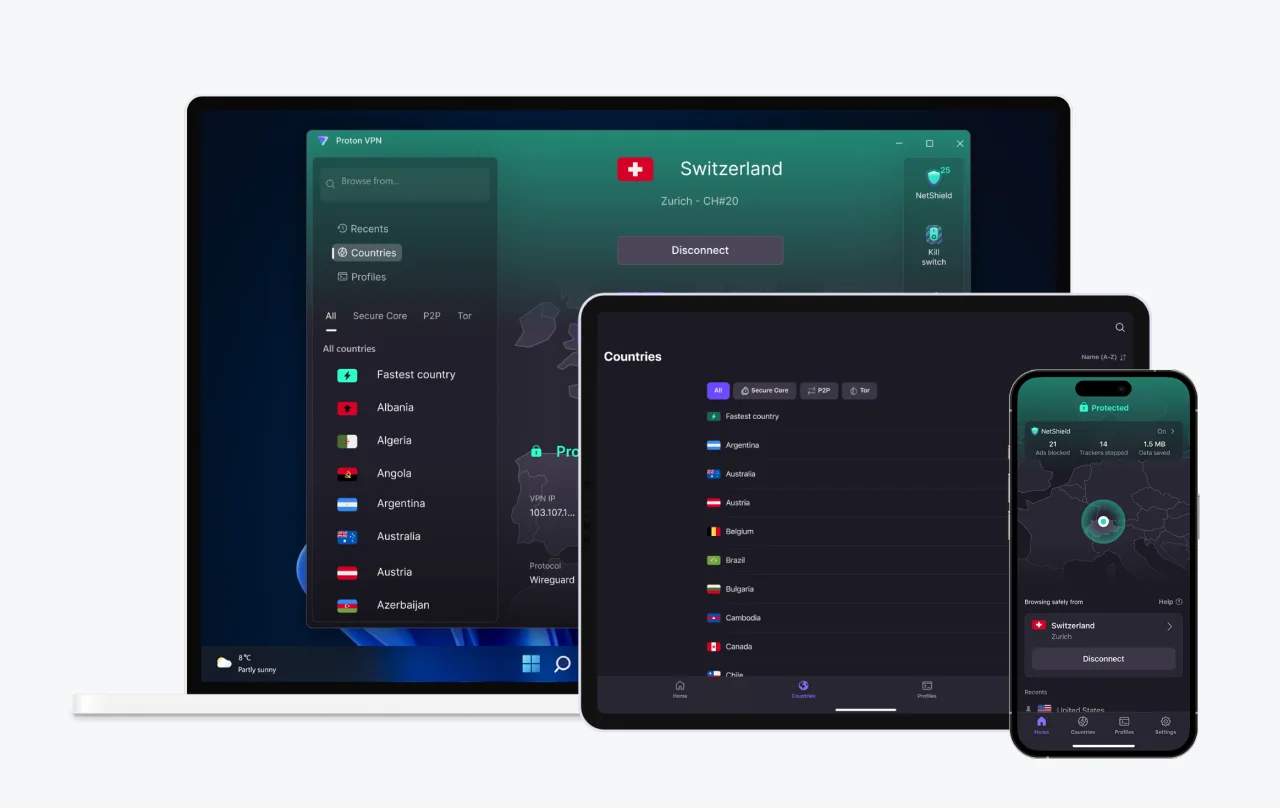
Proton VPN: works with Gluetun over WireGuard. Usenet downloads are already encrypted when you use SSL (port 563), so a VPN is optional for NZBGet.
This is an affiliate link: if you sign up through it, I may earn a commission, at no extra cost to you. Use a VPN for privacy, and only download what you have the right to.
Frequently asked questions
NZBGet or SABnzbd?
They do the same job, so pick one. NZBGet is lighter, with a handy health check that gives up early on broken downloads. SABnzbd is more widely used. See the SABnzbd guide.
Why does Radarr say "Category does not exist"?
The category in Radarr must match NZBGet's exactly, including capitals. Use movies in both.
What does "failed: health" mean in NZBGet?
Too many pieces have expired from your provider. That's NZBGet's health check working: Radarr and Sonarr try another release automatically.
Will NZBGet run on a Raspberry Pi?
Yes. It uses very little memory and CPU, so it runs happily on a Raspberry Pi or a small NAS.
Thank you
NZBGet is free and open source, kept going by the team at nzbget.com. Thanks also to LinuxServer.io for the image.
Related guides: SABnzbd · Prowlarr · Radarr · Sonarr · Gluetun
If this guide helped you, consider buying me a coffee. It helps keep guides like this one coming.
☕Buy me a coffeeGet new guides by email
About one email a month: new step-by-step guides and card releases. No spam, unsubscribe any time.