
For educational purposes only. This guide shows how to install self-hosted software on your own hardware. I don't condone piracy: only use these apps with media you own or have the right to use, and follow the law where you live. Back up your data first. Full disclaimer
Updated 16 November 2026 Tested with: Sonarr 4.0.20
Sonarr looks after your TV shows. Add a show once and Sonarr downloads the episodes you already missed, then grabs every new episode as soon as it airs. It renames them, files them into tidy season folders, and Plex picks them up. It’s Radarr for TV.
Use these tools with media you own or have the rights to, and with legal sources such as Linux downloads and public-domain films. Downloading copyrighted material without permission is illegal in the UK and most other countries.
This guide sets up Sonarr with Docker Compose in six short steps. It takes about 15 minutes. If you’ve already followed the Radarr guide, this will feel very familiar.
On this page (14 sections)
- 1Watch: install Sonarr with Docker Compose
- 2See what Sonarr does
- 3What you need to set up Sonarr with Docker Compose
- 4Step 1: Get your folders right
- 5Step 2: Make your compose file
- 6Step 3: Sign in
- 7Step 4: Tell Sonarr where your shows go
- 8Step 5: Connect qBittorrent
- 9Step 6: Get your indexers from Prowlarr
- 10Try it: add your first show
- 11Video formats explained
- 12If something’s wrong
- 13Updating Sonarr
- 14Frequently asked questions
Watch: install Sonarr with Docker Compose
The video has subtitles at the bottom and no sound. It was recorded on a clean test install. The test show is Pioneer One (2010), which its makers released under a Creative Commons licence (CC BY-NC-SA 3.0). Every video format Sonarr uses is explained in Video formats explained below.
See what Sonarr does
Choose what to Monitor, press Add show, then keep pressing Next week. Try Future episodes and None too. Under the demo is the generator you’ll use in Step 2.
Open the generator full screen
What you need to set up Sonarr with Docker Compose
- A computer or NAS running Docker. New to Docker? The Docker install guide covers Windows, Mac and Linux.
- A download client: qBittorrent, or SABnzbd for Usenet.
- Prowlarr, to give Sonarr its indexers.
Step 1: Get your folders right
Just like Radarr, downloads and TV shows must live inside one data folder on the same disk:
/data
├── torrents
│   └── tv        ← qBittorrent downloads here
└── media
    └── tv        ← your TV library (Plex reads this)
Sonarr gets the whole /data folder, so it can hardlink each finished episode into your library: instant, no copying, and the space is only used once while qBittorrent keeps seeding.
/downloads and /tv folders, or putting them on different disks. Then every episode gets copied, and a whole series takes up double the space. The Radarr guide’s demo shows exactly what happens.Step 2: Make your compose file
In the generator, choose On its own (recommended), tick My qBittorrent runs behind Gluetun if it does, and use the same data folder as qBittorrent and Radarr. Then on your server:
- Make a folder and go into it:
mkdir -p ~/sonarr && cd ~/sonarr - Save compose.yaml and .env from the generator there.
- Run the commands from the Commands tab. They create the folders, give them to your user and start Sonarr.
Want 4K? One Sonarr handles it: pick the Ultra-HD quality profile. Video formats explained covers what each format means.
Step 3: Sign in
Open http://YOUR-SERVER-IP:8989. The first time, Sonarr asks you to set up a login: choose Forms (Login Page), set Authentication Required to Enabled, pick a username and password, and click Save.
Step 4: Tell Sonarr where your shows go
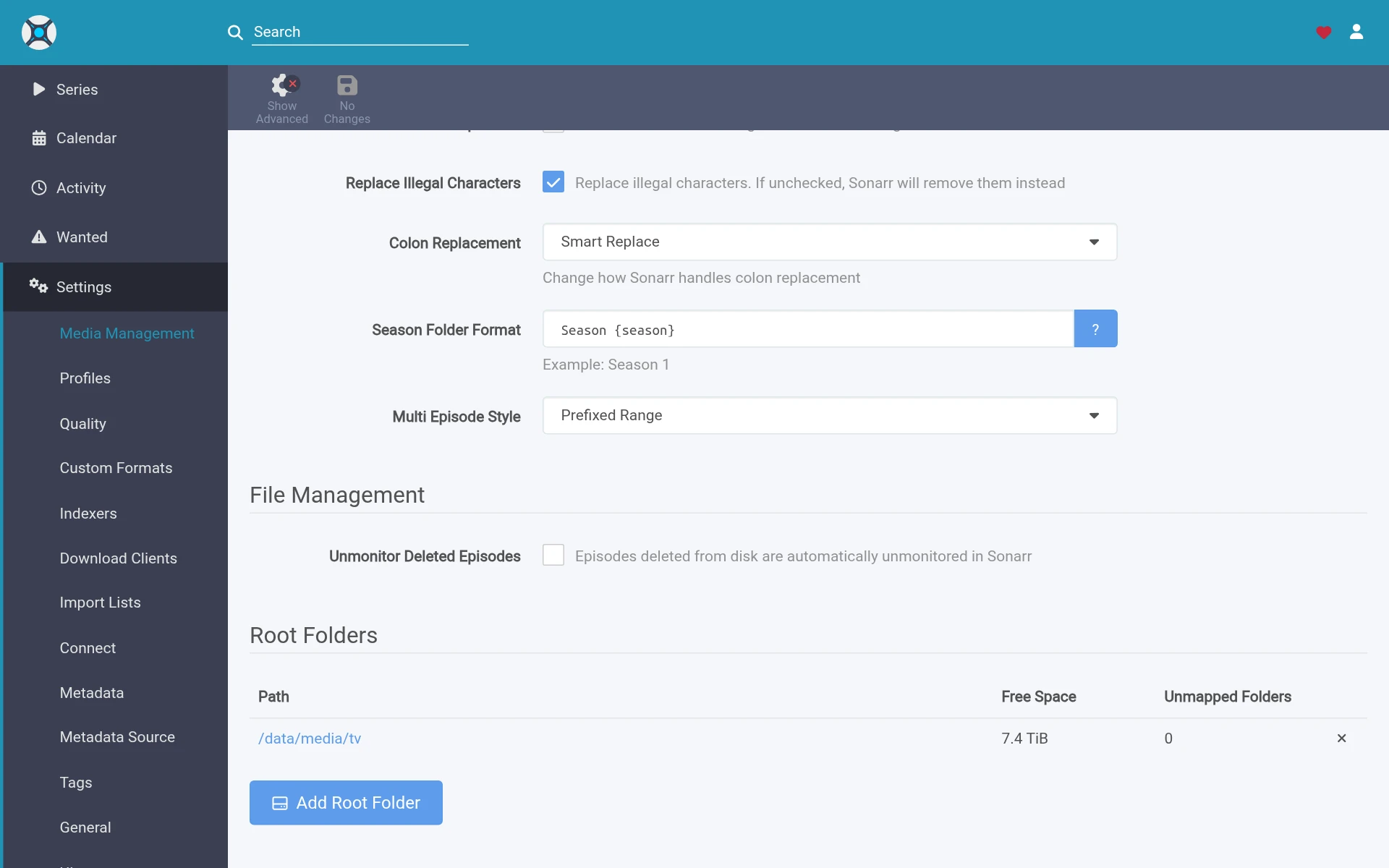
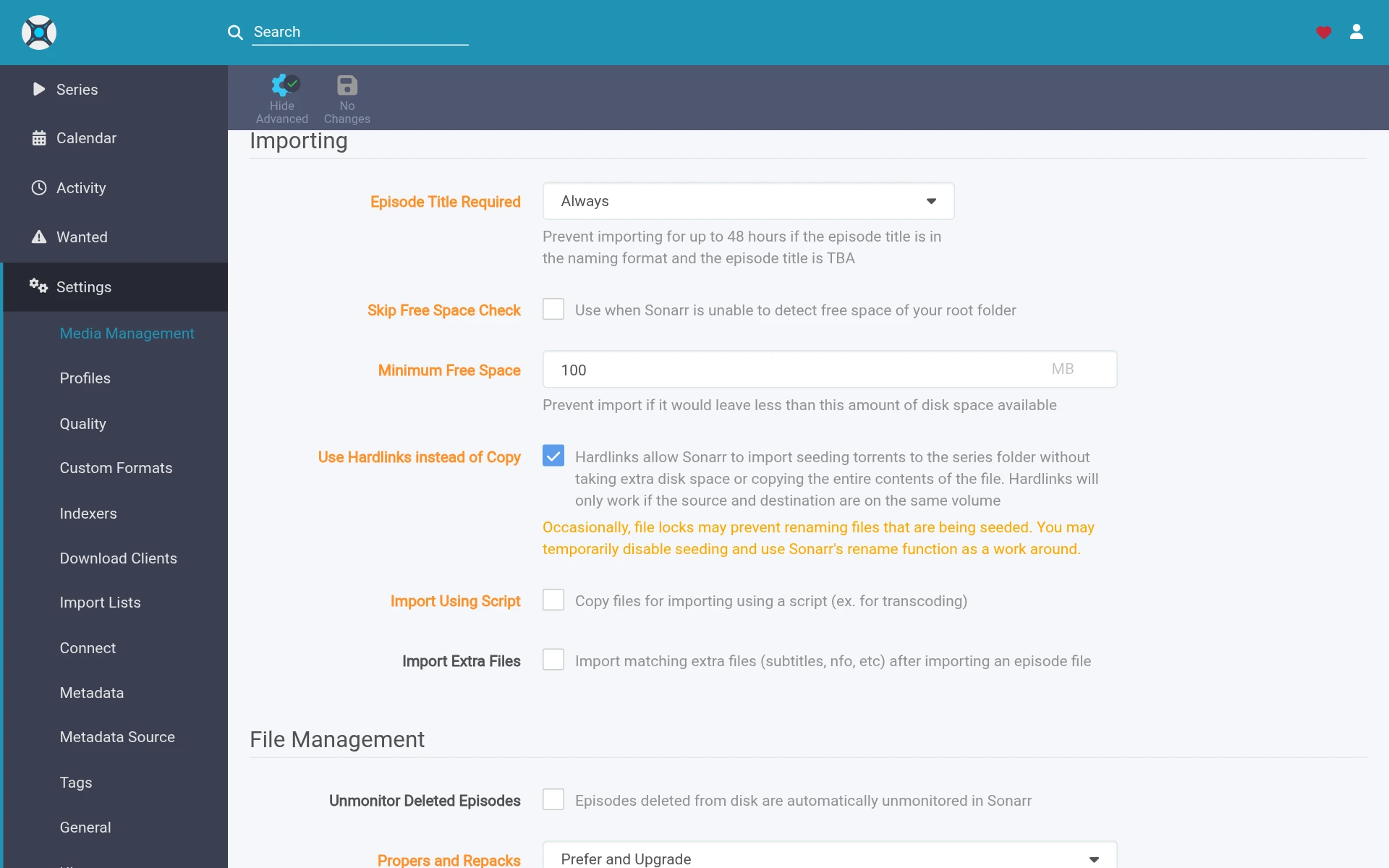
- Go to Settings → Media Management.
- At the top, tick Rename Episodes so every episode gets a clean name like
Show (2026) - S01E03 - Title.mkv. - Scroll to Root Folders, click Add Root Folder and choose
/data/media/tv. - Click Show Advanced at the top. Under Importing, check Use Hardlinks instead of Copy is ticked (it is by default).
- Click Save Changes.
Optional: better file names
Sonarr’s default names work, but these give Plex the best chance of matching every show and show the quality at a glance. They’re based on the TRaSH Guides. In Settings → Media Management, under Episode Naming, paste each one into its box and click Save Changes.
Standard Episode Format:
{Series TitleYear} - S{season:00}E{episode:00} - {Episode CleanTitle} {[Custom Formats]}{[Quality Full]}{[MediaInfo VideoDynamicRangeType]}{[Mediainfo AudioCodec}{ Mediainfo AudioChannels]}{[MediaInfo VideoCodec]}{-Release Group}Daily Episode Format (talk shows and news):
{Series TitleYear} - {Air-Date} - {Episode CleanTitle} {[Custom Formats]}{[Quality Full]}{[MediaInfo VideoDynamicRangeType]}{[Mediainfo AudioCodec}{ Mediainfo AudioChannels]}{[MediaInfo VideoCodec]}{-Release Group}Anime Episode Format:
{Series TitleYear} - S{season:00}E{episode:00} - {absolute:000} - {Episode CleanTitle} {[Custom Formats]}{[Quality Full]}{[MediaInfo VideoDynamicRangeType]}[{MediaInfo VideoBitDepth}bit]{[MediaInfo VideoCodec]}[{Mediainfo AudioCodec} { Mediainfo AudioChannels}]{MediaInfo AudioLanguages}{-Release Group}Series Folder Format:
{Series TitleYear} {tvdb-{TvdbId}}Season Folder Format:
Season {season:00}An episode then ends up like this. The {tvdb-…} part tells Plex exactly which show it is:
The Home Server Show (2026) {tvdb-123456}/
└── Season 01/
    └── The Home Server Show (2026) - S01E03 - The VPN [WEBDL-1080p][EAC3 5.1][h264]-GROUP.mkv
Step 5: Connect qBittorrent
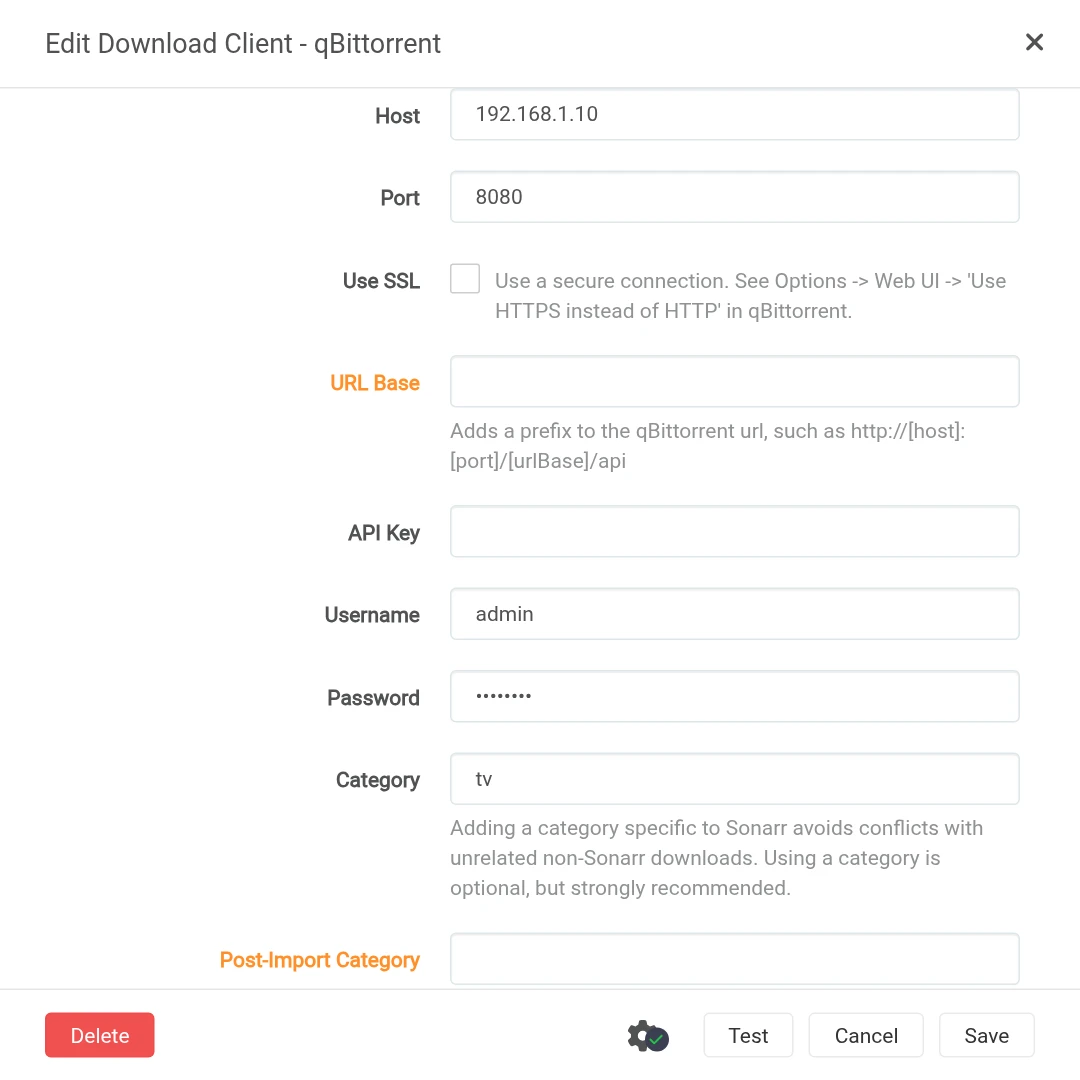
- Go to Settings → Download Clients, click + and choose qBittorrent.
- Host and Port: copy them from the generator’s Connect tab (usually your server’s IP and
8080). - Username and Password: your qBittorrent login.
- Category:
tv. Downloads then land in/data/torrents/tv, separate from Radarr’s films. - Click Test (green tick), then Save.
tv category.Step 6: Get your indexers from Prowlarr
- In Sonarr, go to Settings → General and copy the API Key.
- In Prowlarr, go to Settings → Apps, click + and choose Sonarr.
- Prowlarr Server:
http://YOUR-SERVER-IP:9696. Sonarr Server:http://YOUR-SERVER-IP:8989. Paste the API key, then Test and Save.
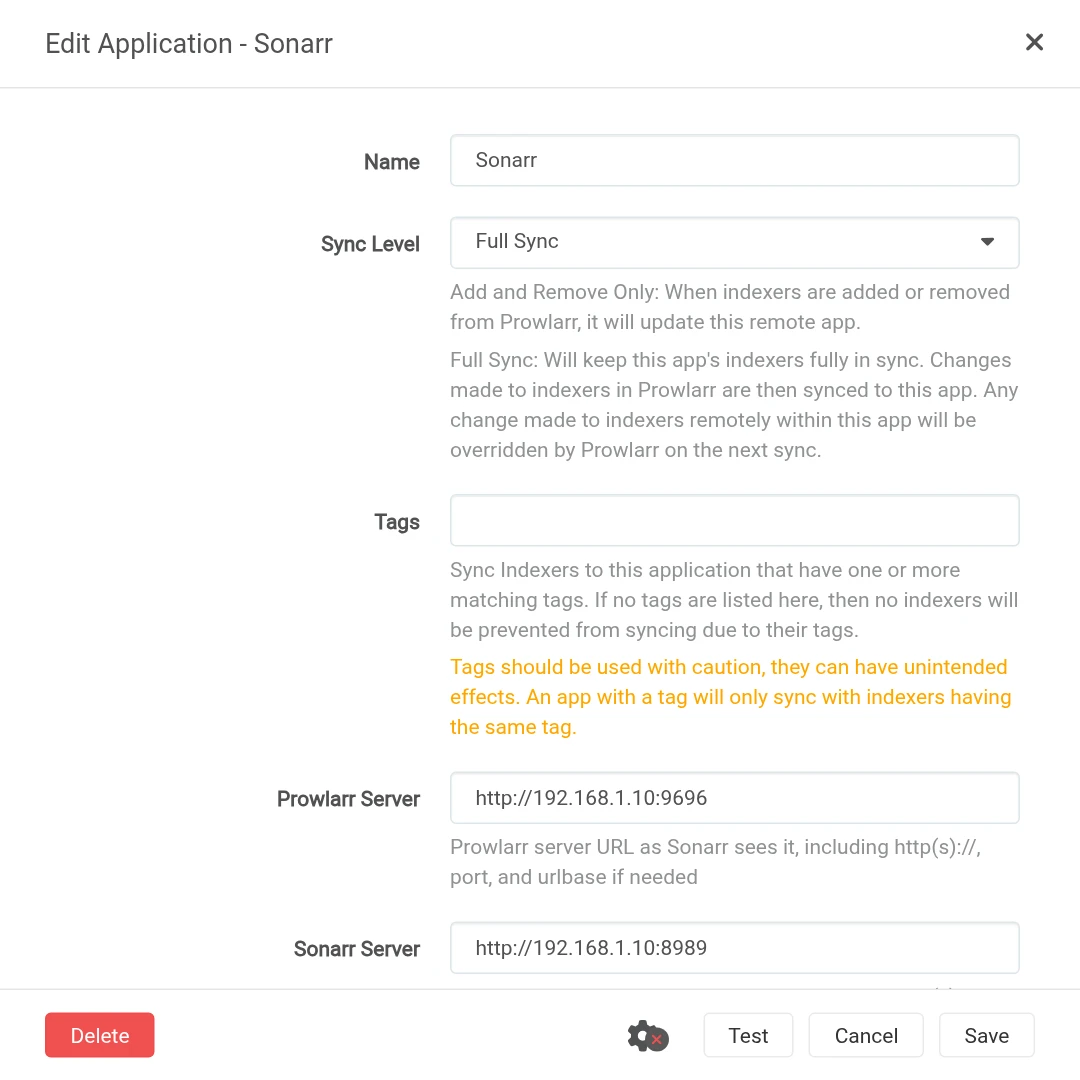
Within a minute, your indexers appear in Sonarr under Settings → Indexers. More detail is in Step 6 of the Prowlarr guide.
Try it: add your first show
- Click Series → Add New and search for a show you have the right to download. Pioneer One (search
tvdb:170551) is a free, Creative Commons series, so it makes a good test. - Pick your root folder, a quality profile (HD-1080p is a good start) and what to Monitor:
- All Episodes: everything, past and future.
- Future Episodes: only new ones from now on.
- None: add it, but download nothing yet.
- Leave Series Type on Standard (use Daily for talk shows and Anime for anime), keep Season Folder ticked, and tick Start search for missing episodes.
- Click Add.
Missing episodes appear under Activity → Queue and in qBittorrent within a minute. New ones arrive on their own as they air. The Calendar page shows what’s coming up. 🎉
Video formats explained
Every episode file has a resolution, a source and a codec, and some also have HDR. Sonarr reads these from the file name. Your quality profile uses the resolution and source to decide what Sonarr may download and when to upgrade. Custom formats (Settings → Custom Formats) can score codecs, HDR and audio on top. Here’s what each one means.
Resolution
| Name | Pixels | What it is |
|---|---|---|
| SD (480p / 576p) | 720×480 or 720×576 | DVD-level picture. Fine on a phone, soft on a big TV. |
| 720p | 1280×720 | HD. Small files, good for tablets and slow connections. |
| 1080p | 1920×1080 | Full HD. The best balance of size and picture for most TVs. |
| 2160p (4K) | 3840×2160 | Ultra HD. Needs a 4K TV and a lot more disk space. Often comes with HDR. |
Source: the quality names in Sonarr
These names describe how a file was made. Sonarr uses them for every file, including recordings from your own TV tuner and copies of box sets you own: a Blu-ray you back up with a tool like MakeMKV shows up as Remux or Bluray.
| Quality name | What it means | Typical 1080p hour-long episode |
|---|---|---|
| SDTV / HDTV | Recorded from a TV broadcast, for example with an HDHomeRun tuner. | 1 to 3 GB |
| DVD | Made from a DVD box set. Always SD. | 0.3 to 1 GB (SD) |
| WEB-DL | The file as a streaming service delivers it, not re-encoded. The most common source for TV. | 1.5 to 4 GB |
| WEBRip | Re-encoded from a streaming service’s stream. Usually a little lower quality than WEB-DL. | 1 to 2.5 GB |
| Bluray-720p / 1080p / 2160p | Encoded from a Blu-ray box set into a smaller file. | 2 to 5 GB |
| Remux-1080p / 2160p | The Blu-ray’s video and audio copied as they are, without re-encoding. The best quality and the biggest files. | 6 to 15 GB |
| Raw-HD | Uncompressed broadcast capture. Huge and rarely useful, so leave it unticked. | very large |
| Unknown | Sonarr couldn’t tell the quality from the file name. Leave it unticked. | – |
Avoid the Any profile. It accepts every quality, from SD and Unknown up to 4K, so you end up with a mix. Pick a profile that matches your screen instead.
Which quality profile to pick
| Profile | Downloads | Good for |
|---|---|---|
| HD-1080p | 1080p from TV, web and Blu-ray sources | Most people. Start here. |
| HD-720p/1080p | 720p or 1080p | Saving space, or older TVs. |
| Ultra-HD | 2160p (4K) only | A 4K TV and plenty of disk space. |
| SD | DVD-level only | Phones and small screens. |
To change what a profile accepts, open it under Settings → Profiles, tick or untick qualities, and drag them into order. Higher in the list means preferred. Tick Upgrades Allowed if you want Sonarr to replace an episode when a better version comes along.
Video codecs
The codec is how the picture is compressed. It decides the file size and which devices can play it without your server having to convert it on the fly (transcoding).
| Codec | What to know |
|---|---|
| H.264 (AVC, x264) | The most compatible. Plays on almost everything, but files are bigger. |
| H.265 (HEVC, x265) | About half the size of H.264 for the same picture. Most TVs and streaming sticks from 2016 on play it; older ones make the server transcode. |
| AV1 | The newest and smallest. Needs recent hardware: TVs and sticks from about 2021, and newer graphics chips. |
| VC-1 and MPEG-2 | Older codecs found on some Blu-rays and DVDs. Big files, and some devices can’t play them. |
| MPEG-4 Part 2 (Xvid / DivX) | Very old, SD only. Fine to replace with something newer. |
Running short of space? Tdarr can convert your library to H.265 automatically.
HDR formats
HDR (high dynamic range) gives brighter highlights and richer colour, mostly on 4K files. Your TV has to support the format, or the player converts it.
| Format | What to know |
|---|---|
| SDR | Standard dynamic range. Every non-HDR file. Plays everywhere. |
| HDR10 | The most common HDR format. Works on nearly every HDR TV. |
| HDR10+ | HDR10 with scene-by-scene adjustments. Mainly Samsung TVs; others fall back to HDR10. |
| Dolby Vision | Scene-by-scene HDR on Dolby Vision TVs and players. Files with an HDR10 fallback play on any HDR TV. Profile 5 files have no fallback and show green and purple colours on TVs without Dolby Vision. |
| HLG | Broadcast HDR, used by TV channels such as the BBC. Plays as SDR on older TVs. |
If your TV doesn’t support Dolby Vision, use a custom format to avoid Dolby Vision files without an HDR10 fallback. The TRaSH Guides have ready-made custom formats for all of these, and Profilarr can sync them for you.
Audio, in brief
| Format | What to know |
|---|---|
| AAC | Small and plays everywhere. Common on web files. |
| AC3 (Dolby Digital) / E-AC3 (Dolby Digital Plus) | 5.1 surround. E-AC3 can carry Dolby Atmos on streaming files. |
| DTS / DTS-HD MA | Common on Blu-rays. DTS-HD MA is lossless. |
| TrueHD (Atmos) | Lossless Blu-ray audio, often with Atmos. Needs a receiver or soundbar that supports it. |
If something’s wrong
- “No files found are eligible for import” or a path error. qBittorrent and Sonarr are using different folders. Both must use the same data folder on your server, and qBittorrent must save into
/data/torrents. - Episodes import slowly and fill the disk. Hardlinks aren’t working. Downloads and TV must be on the same disk, with Sonarr getting the whole
/datafolder (Step 1). - New episodes aren’t grabbed automatically. Check the show is monitored (the bookmark icon on its page) and that its episodes are too. Sonarr only grabs monitored episodes.
- A daily or anime show matches the wrong episodes. Edit the series and set the right Series Type.
- Nothing gets found. Check Settings → Indexers has indexers from Prowlarr. If it’s empty, redo Step 6.
Updating Sonarr
cd ~/sonarr
docker compose pull && docker compose up -d
Want to try Sonarr 5? It’s in beta. The Sonarr 5 beta guide shows what’s new and runs it as a test copy next to this one, so your real Sonarr isn’t touched.
Frequently asked questions
What does Sonarr do?
Sonarr looks after your TV shows. Add a show once and it downloads the episodes you missed, grabs new ones as they air, and files them into tidy season folders for Plex or Jellyfin. It's Radarr for TV.
Why isn't Sonarr grabbing new episodes?
The show or its episodes aren't monitored. Check the bookmark icon on the show's page and on the episodes. Sonarr only grabs monitored episodes.
Why does a daily or anime show match the wrong episodes?
Its Series Type is wrong. Edit the series and set it to Daily or Anime.
Should I use Sonarr 4 or Sonarr 5?
Sonarr 4 is the stable version this guide uses. Sonarr 5 is in beta, and once it upgrades your database you can't go back without a backup. See the Sonarr 5 guide to try it safely as a test copy.
Can Sonarr download 4K episodes?
Yes. Pick the Ultra-HD quality profile, or add the 2160p qualities to your own profile. One Sonarr handles 4K and HD.
What is the difference between WEB-DL and WEBRip?
A WEB-DL is the file as a streaming service delivers it. A WEBRip has been re-encoded from the stream, so it is usually smaller and a little lower quality.
Thank you
Sonarr is made by the Sonarr team and is free and open source. You can support them on Open Collective. Thanks also to LinuxServer.io for the image and the TRaSH Guides for the folder layout.
Next in this series: Plex, to watch it all.
If this guide helped you, consider buying me a coffee. It helps keep guides like this one coming.
Get new guides by email
About one email a month: new step-by-step guides and card releases. No spam, unsubscribe any time.
 spikey1965