
For educational purposes only. This guide shows how to install self-hosted software on your own hardware. I don't condone piracy: only use these apps with media you own or have the right to use, and follow the law where you live. Back up your data first. Full disclaimer
Updated 16 November 2026 Tested with: Bazarr 1.6.2
Bazarr finds subtitles for your films and TV shows by itself. It watches Radarr and Sonarr, and when something new arrives it searches the subtitle sites, picks the one that best matches your exact file, and saves it next to the video. Plex and Jellyfin pick it up on their own.
This guide sets up Bazarr with Docker Compose in six short steps. It takes about 15 minutes.
On this page (12 sections)
- 1Watch: install Bazarr with Docker Compose
- 2See how Bazarr picks subtitles
- 3What you need to set up Bazarr with Docker Compose
- 4Step 1: Make your compose file
- 5Step 2: Turn on a login
- 6Step 3: Choose your language
- 7Step 4: Add subtitle sites
- 8Step 5: Connect Sonarr and Radarr
- 9Step 6: Check it’s working
- 10If something’s wrong
- 11Updating Bazarr
- 12Frequently asked questions
Watch: install Bazarr with Docker Compose
The video has subtitles at the bottom and no sound. It was recorded on a clean test install connected to a test Radarr. The OpenSubtitles.com login shown is an example, so it isn’t saved. The test film is Big Buck Bunny © Blender Foundation, peach.blender.org, licensed under Creative Commons Attribution 3.0.
See how Bazarr picks subtitles
Press Search to see Bazarr score each result against your file and download the best one above the red line. Then try A few days later, the TV episode and the slider. Under the demo is the generator you’ll use in Step 1.
Open the generator full screen
What you need to set up Bazarr with Docker Compose
- A computer or NAS running Docker. New to Docker? The Docker install guide covers Windows, Mac and Linux.
- Radarr and/or Sonarr, already running.
- A free OpenSubtitles.com account. It’s optional, but it’s the biggest subtitle site by far.
Step 1: Make your compose file
In the generator, use the same data folder as Radarr and Sonarr. Bazarr then sees your films at /data/media/movies, exactly where Radarr says they are, so you don’t need any “path mappings”. Then:
mkdir -p ~/bazarr && cd ~/bazarrSave compose.yaml and .env there, and run the commands from the Commands tab. Bazarr opens at http://YOUR-SERVER-IP:6767.
Step 2: Turn on a login
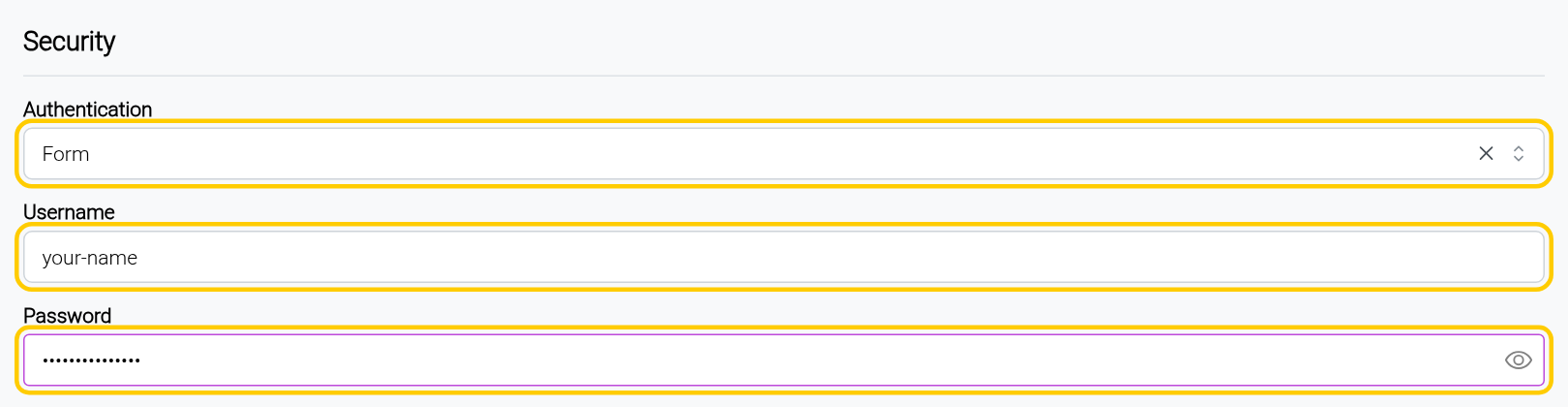
Bazarr starts with no login at all, so anyone on your network can open it. Fix that first:
- Go to Settings → General and scroll to Security.
- Set Authentication to
Form. - Pick a Username and Password.
- Click Save at the top. Bazarr now shows a sign-in page.
Step 3: Choose your language
Bazarr only looks for languages that are in a language profile. Do this before connecting Radarr and Sonarr, so every film and show gets the profile as it’s added.
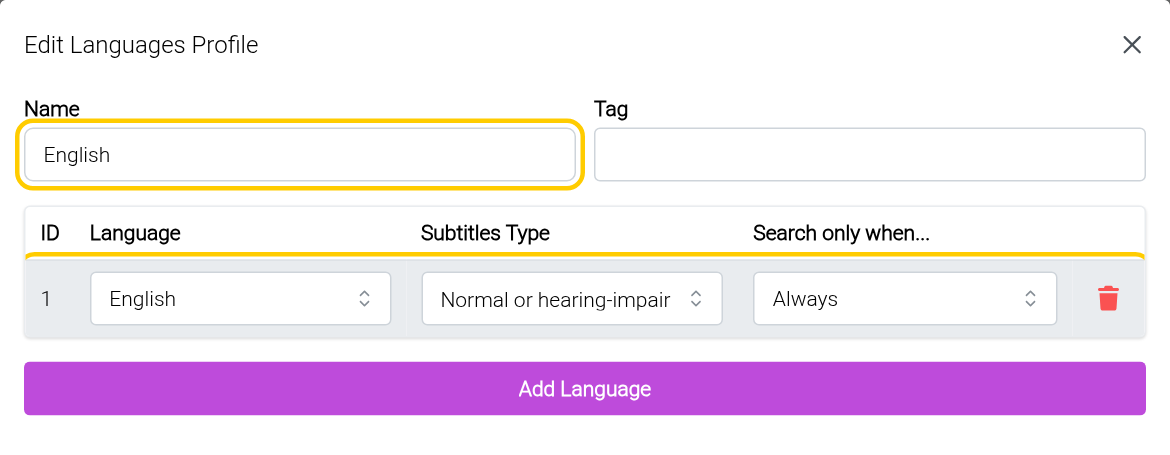
- Go to Settings → Languages → Profiles.
- In Languages Filter, pick
English(or your language). An Add New Profile button appears. - Click it. Set Name to
English, click Add Language, and leave it onEnglish. Click Confirm.
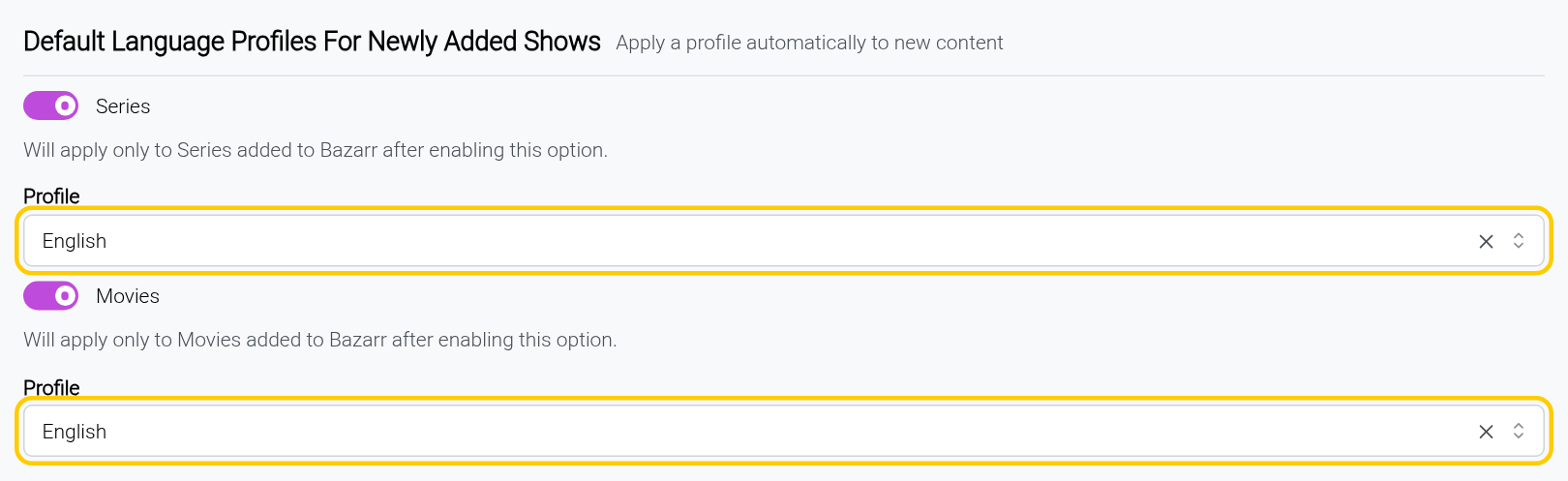
Now scroll down to Default Language Profiles For Newly Added Shows. Turn on Series and Movies, pick English for both, and click Save.
Step 4: Add subtitle sites
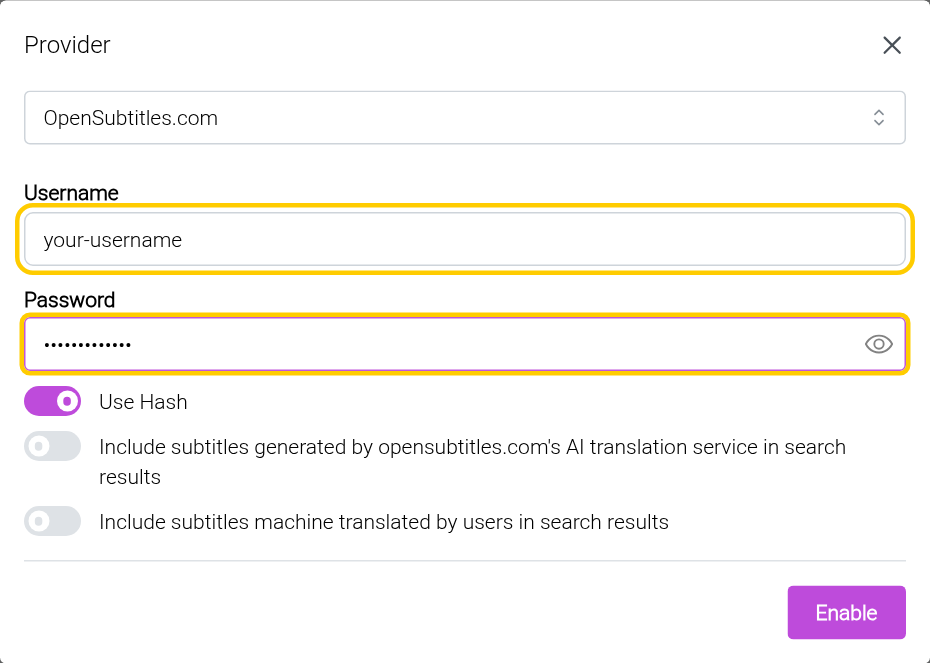
Bazarr calls these providers. Go to Settings → Providers, click the big +, choose a provider and click Enable. These two cover most needs:
- OpenSubtitles.com: films and TV. Enter your free account’s username and password.
- Gestdown (Addic7ed proxy): TV shows. No account needed.
Then click Save at the top.
Step 5: Connect Sonarr and Radarr
- In Sonarr, go to Settings → General and copy the API Key.
- In Bazarr, go to Settings → Library → Sonarr and turn on Enabled.
- Address: your server’s IP. Port:
8989. Paste the API Key. - Click Test. When it works, the button shows Sonarr’s version number. Click Save.
- Open the Radarr tab and do the same with port
7878and Radarr’s API key.
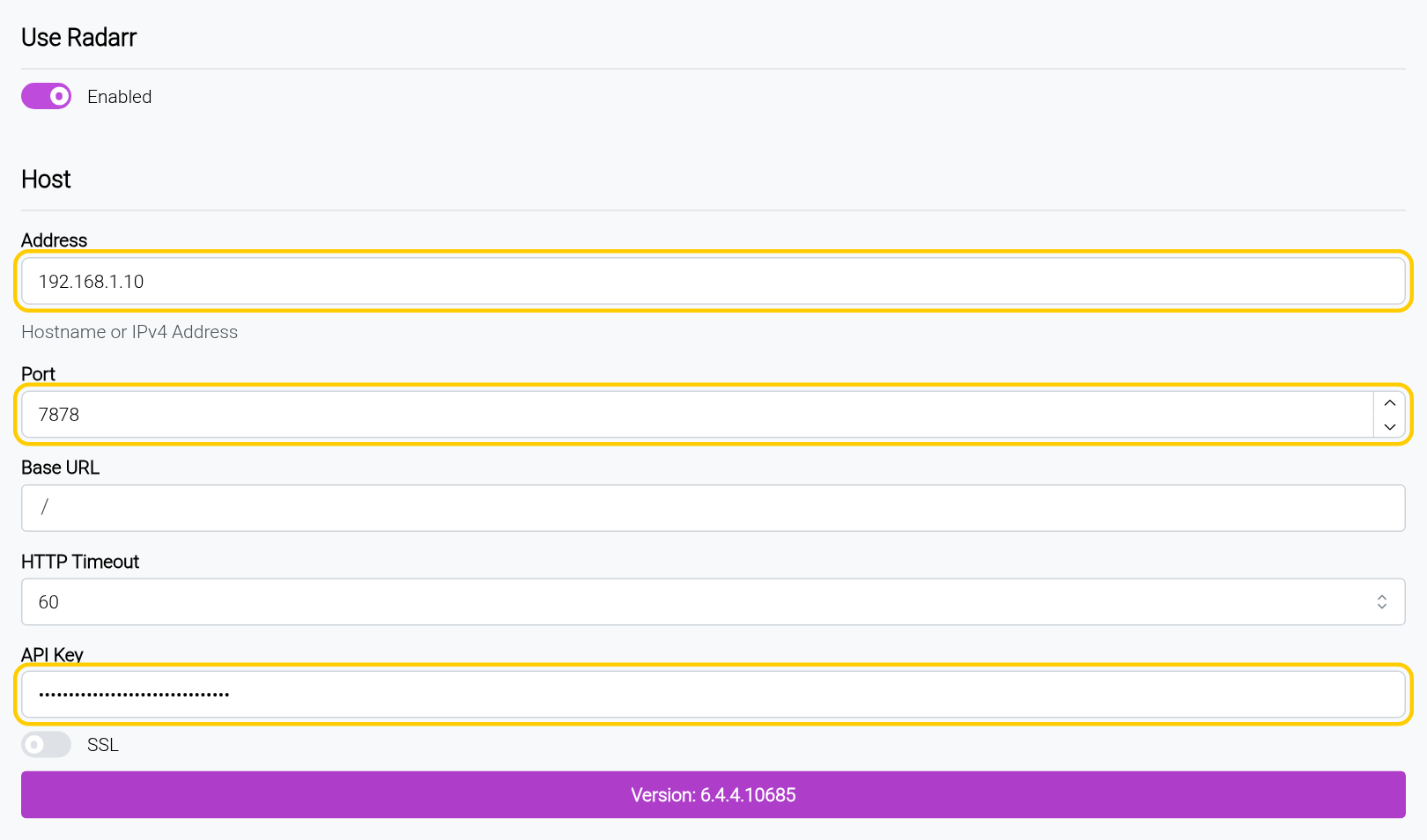
Leave Path Mappings empty. You only need them when Bazarr sees your files in a different folder from Radarr and Sonarr, and the generator made sure it doesn’t.
Step 6: Check it’s working
Within a minute, your films appear under Movies and your shows under Series, each with the English profile. Anything without English subtitles shows EN under Missing Subtitles.
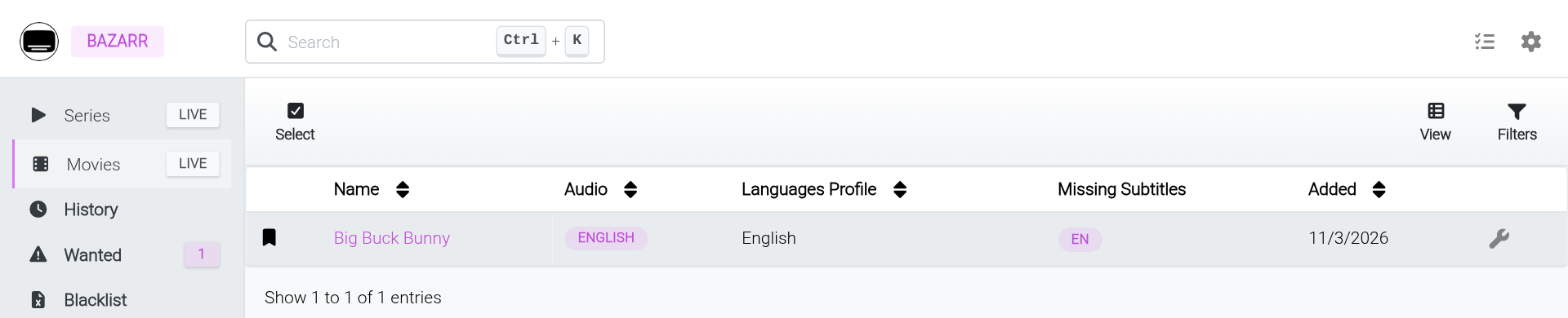
To fill in your existing library now, go to Wanted → Movies and click Search All. Do the same under Wanted → Series. A big library can take a while.
From now on it’s automatic. 🎉 New downloads get subtitles as soon as Radarr or Sonarr imports them. Anything still missing is searched again every 6 hours, and for 7 days Bazarr keeps swapping in better matches when they turn up.
If something’s wrong
- Films show no language profile. They were added before you set the defaults in Step 3. Go to Movies → Select, tick them all, choose Change Profile → English and click Save. Do the same under Series.
- Test fails. Check the IP, port and API key. Use your server’s IP, not
localhost: inside the Bazarr container,localhostmeans Bazarr itself. - Bazarr says a file doesn’t exist. Bazarr and Radarr/Sonarr see your media in different folders. Use the same data folder in both compose files, so both see
/data/media. - Subtitles are out of sync. The match wasn’t close enough. Open the film, delete the subtitle, and use the manual search to pick one with your release name. Don’t lower the minimum score to get more results.
- Nothing gets found. Make sure the providers from Step 4 are enabled and saved. Older or rare titles sometimes have no subtitles anywhere. Bazarr keeps trying every 6 hours.
Updating Bazarr
cd ~/bazarr
docker compose pull && docker compose up -d
Frequently asked questions
Doesn't Plex already find subtitles?
Plex can search for one while you watch. Bazarr does it ahead of time for everything, picks subtitles made for your exact release so the timing lines up, and keeps looking for better matches. It works with Jellyfin too.
Why are my subtitles out of sync?
The match wasn't close enough. Delete the subtitle and use manual search to pick one with your release name. Don't lower the minimum score to get more results.
Why does Bazarr say a file doesn't exist?
Bazarr and Radarr/Sonarr see your media in different folders. Use the same data folder in both compose files so both see /data/media.
Why does Bazarr find nothing?
Make sure your subtitle providers are enabled and saved. Older or rare titles sometimes have no subtitles anywhere. Bazarr keeps trying every 6 hours.
Thank you
Bazarr is free and open source, made by morpheus65535 and the Bazarr team. Thanks also to LinuxServer.io for the image, and to the volunteers who write subtitles in the first place.
Related guides: Radarr · Sonarr · Plex · Jellyfin · Complete Arr Stack
If this guide helped you, consider buying me a coffee. It helps keep guides like this one coming.
Get new guides by email
About one email a month: new step-by-step guides and card releases. No spam, unsubscribe any time.