

Radarr is the movie half of the arr stack. You tell it what films you want, it searches your indexers through Prowlarr, sends the release to qBittorrent or SABnzbd, waits for it to finish, renames the file, moves it into your library, and tells Plex or Jellyfin to scan. This guide walks through deploying it with Docker Compose and configuring it for first use, including hooking up both qBittorrent and SABnzbd as download clients.
Prerequisites
- Prowlarr running and configured with at least one indexer — Radarr asks Prowlarr for search results rather than talking to indexers directly
- A download client — qBittorrent (behind Gluetun for VPN), SABnzbd, or both
- A movies dataset on your TrueNAS pool, e.g.
/mnt/tank/media/movies - The downloads folder mounted the same way in both Radarr and your download client — this is the most common source of import failures
Step 1: Write the docker-compose.yml
Create /mnt/tank/stacks/radarr/docker-compose.yml:
services:
  radarr:
    image: lscr.io/linuxserver/radarr:latest
    container_name: radarr
    environment:
      - PUID=568
      - PGID=568
      - TZ=Europe/London
    volumes:
      - /mnt/tank/configs/radarr:/config
      - /mnt/tank/media/movies:/movies
      - /mnt/tank/downloads:/downloads
    ports:
      - 7878:7878
    restart: unless-stopped
Adjust PUID/PGID to match the user that should own the config and media files (this NAS uses 568:568 for all app data — run id on your own host to check), and point the volumes at whatever paths you use for movies and downloads.
Step 2: Start the container
cd /mnt/tank/stacks/radarr
docker compose up -d
docker compose logs -f radarr
Radarr will be available at http://<your-nas-ip>:7878 within a few seconds.
Volume paths matter. The
/downloadspath inside Radarr must be identical to the path inside your download client. If qBittorrent or SABnzbd saves to/downloads/completeand Radarr looks in/downloads/complete, imports happen instantly via hardlink. If the paths differ, Radarr has to copy the file instead, which is slow and wastes disk space.
Step 3: First-time setup
3a — Set your media management paths
Go to Settings → Media Management. Add a root folder pointing to /movies (the path inside the container, not the host path). This is where Radarr will move finished downloads.
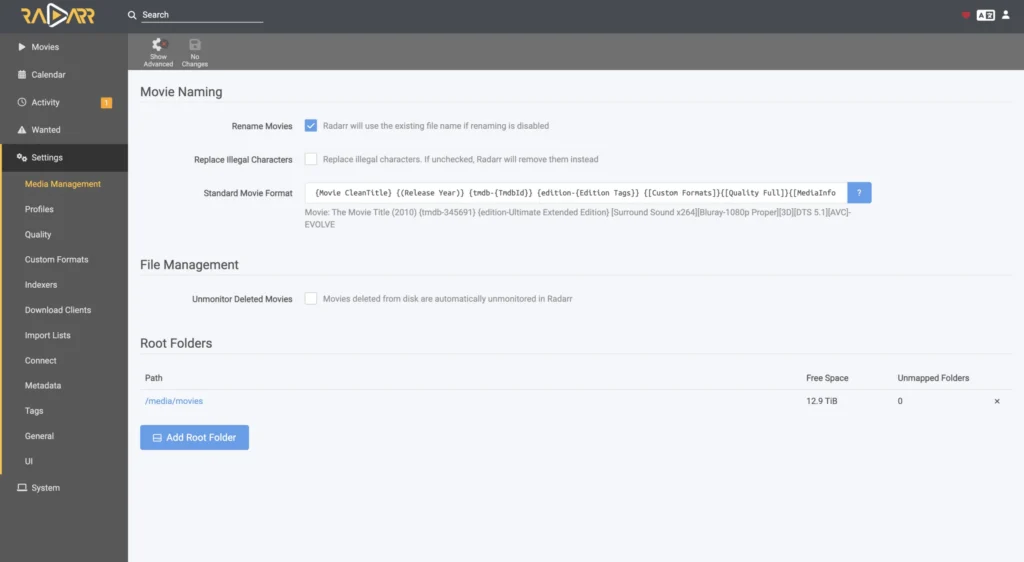
While you’re here, enable:
- Rename Movies — lets Radarr tidy up filenames into a consistent format
- Use Hardlinks instead of Copy — critical for seeding torrents while also having the file in your library
3b — Add your download client(s)
Go to Settings → Download Clients → +. You can add more than one client — Radarr routes to whichever one’s category matches the release, so there’s no harm running qBittorrent and SABnzbd side by side.
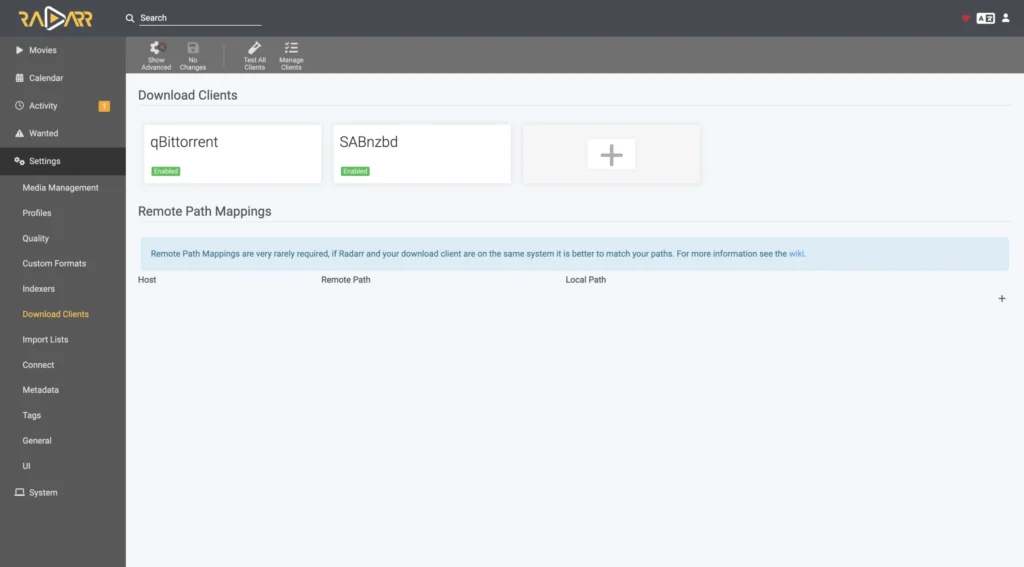
qBittorrent
- Host:
localhost(if qBittorrent usesnetwork_mode: container:gluetunand Radarr does not, use the host IP instead) - Port:
8080 - Username / Password: whatever you set in qBittorrent
- Category:
radarr— keeps Radarr’s downloads separate from other apps
SABnzbd
- Host: the SABnzbd container name if it’s on the same Docker network (e.g.
sabnzbd), otherwise the NAS IP - Port:
8080— SABnzbd’s default web UI port - API Key: copy it from SABnzbd’s Config → General → API Key field
- Category:
movies— use the same category you created in Config → Categories during the SABnzbd setup guide, so completed NZBs land in the matching subfolder automatically
Click Test before saving on either client — a failed test almost always means a port, host, or API key mismatch.
3c — Connect Prowlarr
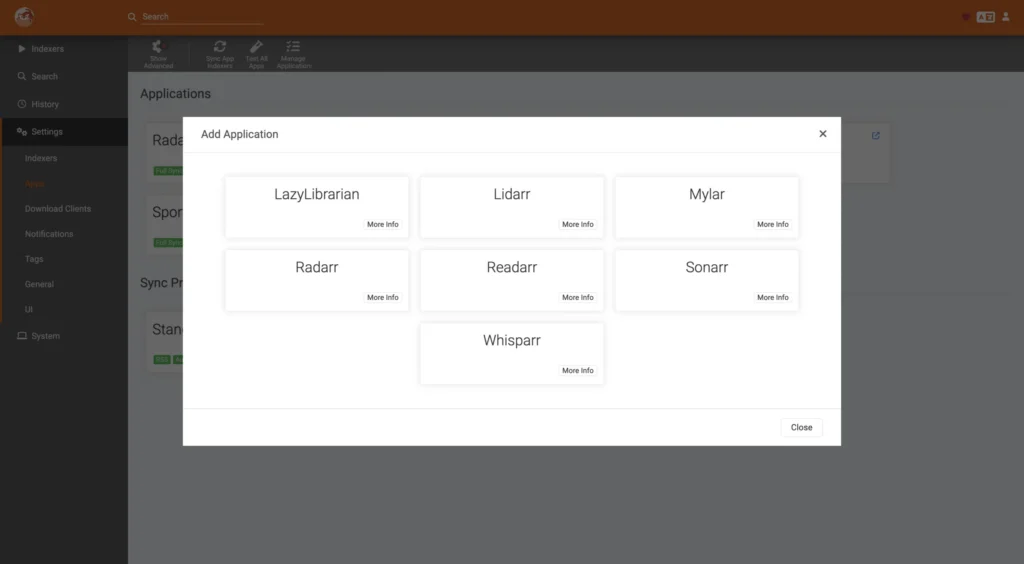
The easiest way: in Prowlarr go to Settings → Apps → + and add Radarr. Prowlarr will automatically sync all your indexers across — you don’t need to configure indexers in Radarr at all.
3d — Create quality profiles
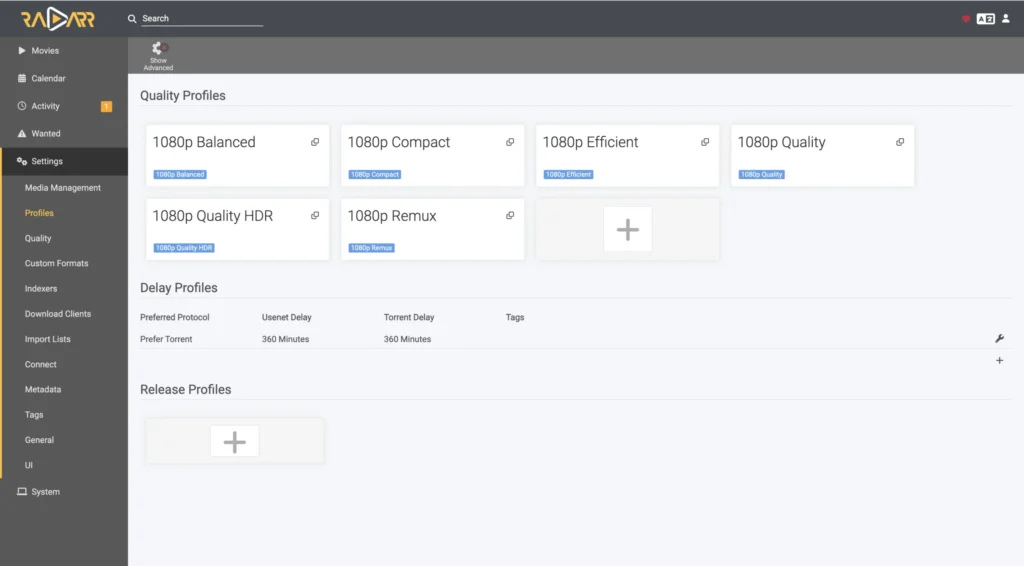
Go to Settings → Profiles. The defaults are fine to start with. A common setup:
3e — Add your first movie
Go to Movies → Add New, search for a title, pick your quality profile and root folder, then click Add Movie. If you want it now, click Search — otherwise Radarr will grab it automatically when a matching release appears.
How the import pipeline works
- Movie automation
- Standard + 4K
- Hardlink on import
Stream anywhere
Understanding this flow saves a lot of debugging time:
- Radarr searches Prowlarr for a release matching your quality profile
- It sends the
.torrentor.nzbto whichever download client owns that category — qBittorrent or SABnzbd - The download client finishes and calls Radarr’s webhook (or Radarr polls for it)
- Radarr finds the completed file in
/downloads, checks it matches the movie - It creates a hardlink in
/movies/Movie Title (Year)/Movie Title (Year).mkv - It triggers a library refresh in Plex / Jellyfin via the connection you configure in Settings → Connect
The hardlink means the torrent keeps seeding from /downloads while your media server plays the file from /movies — both point to the same data on disk, no extra space used. NZBs from SABnzbd don’t seed, so this mainly matters for the qBittorrent side.
Useful commands
# Check logs for import errors
docker compose logs --tail 50 radarr

# Restart after a config change
docker compose restart radarr

# Check the container is healthy
docker inspect radarr --format "{{.State.Status}}"
Common problems
| Problem | Likely cause |
|---|---|
| Import stuck — “file is in use” | Torrent still downloading or being checked |
| “Remote path mapping” error | /downloads path differs between Radarr and the download client |
| Hardlinks not working | /movies and /downloads are on different datasets or filesystems |
| SABnzbd download client test fails | Wrong API key, or host/port unreachable from the Radarr container’s network |
| No search results | Prowlarr not synced, or indexers require a login |
| Permission denied on import | PUID/PGID not matching dataset ownership (should be 568:568) |