
For educational purposes only. This guide shows how to install self-hosted software on your own hardware. I don't condone piracy: only use these apps with media you own or have the right to use, and follow the law where you live. Back up your data first. Full disclaimer
Updated 16 November 2026 Tested with: Lidarr 3.1.6
Lidarr does for music what Radarr does for films. You add the artists you like, and it finds their albums, sends them to your download client, then names and files everything neatly so Plex or Jellyfin show proper artists, albums and track lists. When an artist releases something new, Lidarr grabs it on its own.
This guide sets up Lidarr with Docker Compose in seven short steps. It takes about 20 minutes.
On this page (13 sections)
- 1Watch: install Lidarr with Docker Compose
- 2See which albums Lidarr will grab
- 3What you need to set up Lidarr with Docker Compose
- 4Step 1: Make your compose file
- 5Step 2: Set your login
- 6Step 3: Add your music folder
- 7Step 4: Connect your download client
- 8Step 5: Connect Prowlarr
- 9Step 6: Add your first artist
- 10Step 7: Add the music to Plex or Jellyfin
- 11If something’s wrong
- 12Updating Lidarr
- 13Frequently asked questions
Watch: install Lidarr with Docker Compose
The video has subtitles at the bottom and no sound. It was recorded on a clean test install. The test artist is Kevin MacLeod, a composer who shares his music under a Creative Commons licence; artist photos were turned off for the recording.
See which albums Lidarr will grab
Change the metadata profile, Monitor option and quality profile to see which releases Lidarr lists and goes looking for, then press Search. Tick Rename Tracks to see the difference it makes. Under the demo is the generator you’ll use in Step 1.
Open the generator full screen
What you need to set up Lidarr with Docker Compose
- A computer or NAS running Docker. New to Docker? The Docker install guide covers Windows, Mac and Linux.
- A download client: qBittorrent, SABnzbd or NZBGet.
- Prowlarr with at least one indexer that carries music. Usenet indexers usually carry plenty of music.
Step 1: Make your compose file
In the generator, choose On its own (recommended), pick your download client, and use the same data folder as your download client and Plex. Then:
mkdir -p ~/lidarr && cd ~/lidarrSave compose.yaml and .env there, and run the commands from the Commands tab. Lidarr opens at http://YOUR-SERVER-IP:8686.
Step 2: Set your login
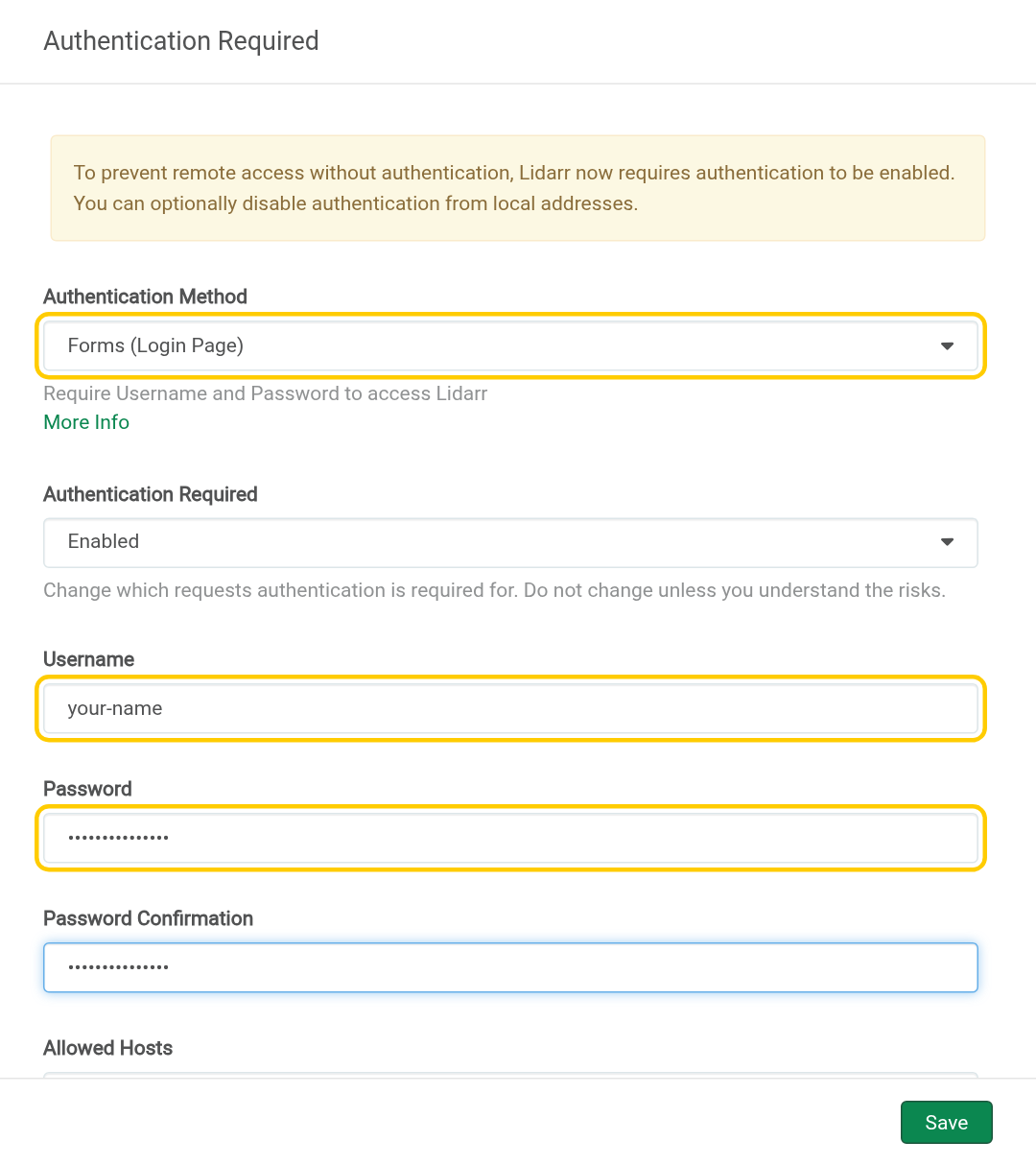
The first time you open Lidarr, it asks you to turn on a login. Set Authentication Method to Forms (Login Page), pick a Username and Password, and click Save.
Step 3: Add your music folder
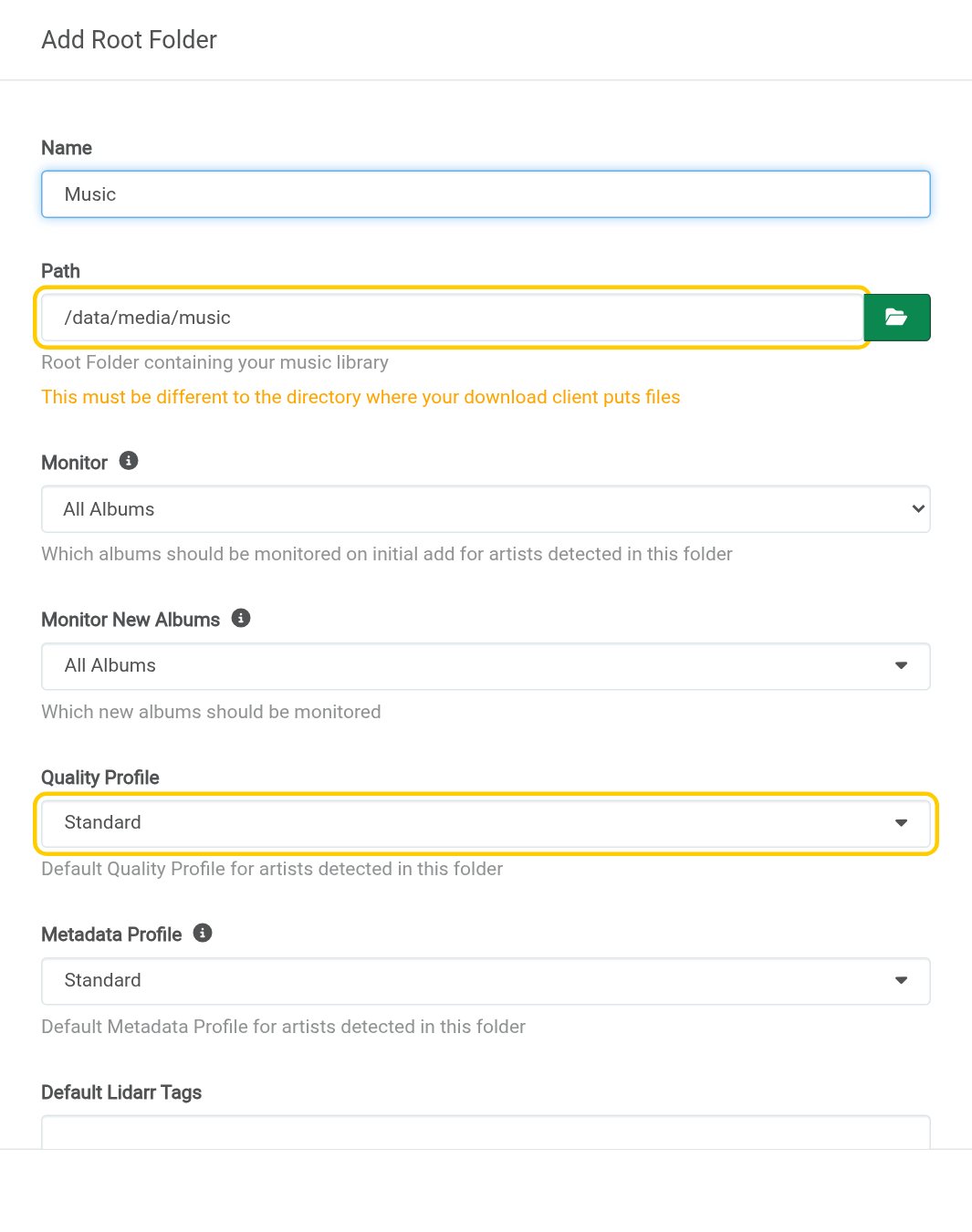
- Go to Settings → Media Management and click the big + under Root Folders.
- Name:
Music. Path:/data/media/music. - Quality Profile:
Standard(MP3 and AAC, small files) orLossless(FLAC, about four times bigger). Leave the rest and click Save.
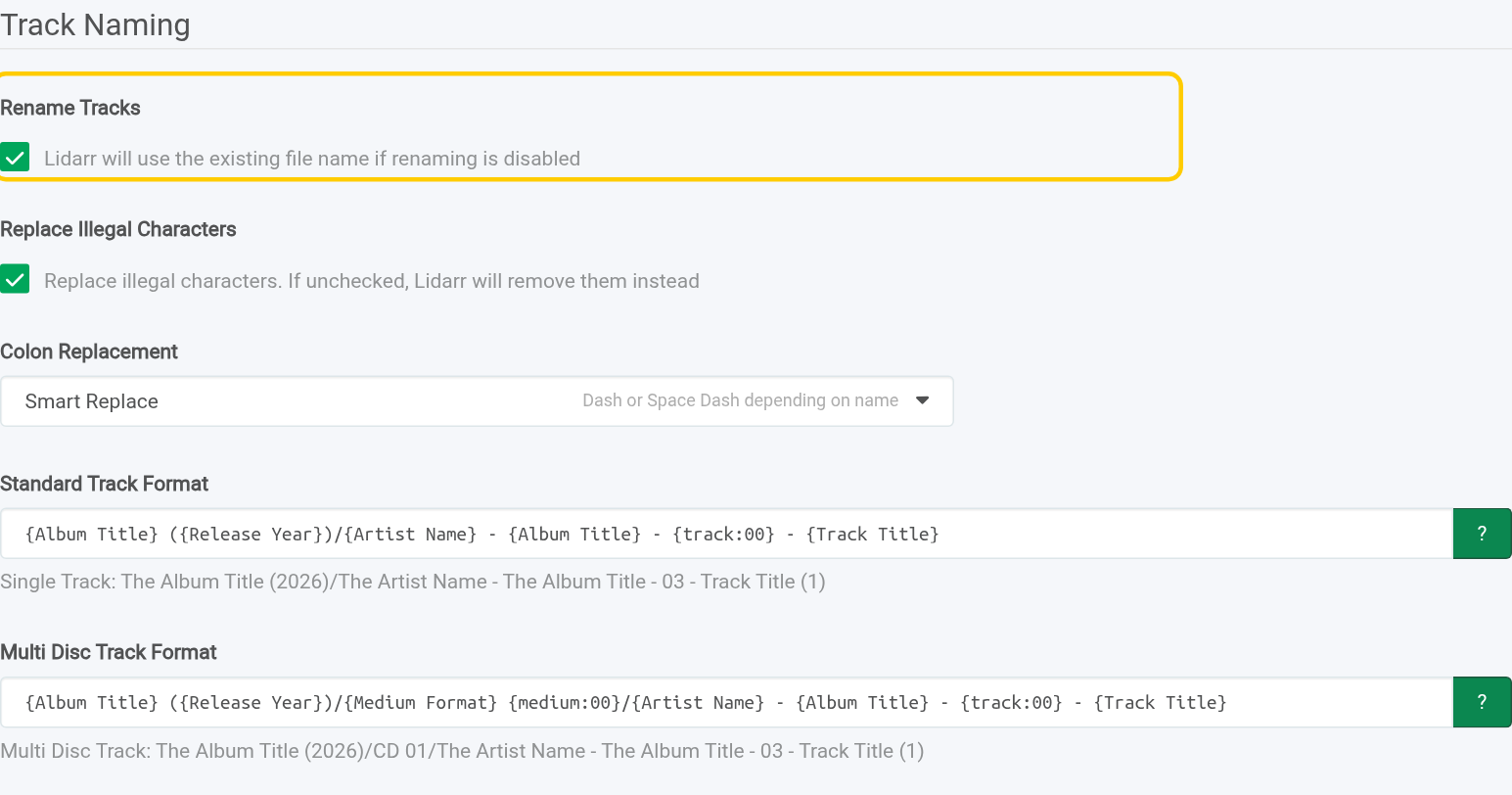
On the same page, tick Rename Tracks and click Save Changes. It’s off by default, so files would keep whatever names the uploader gave them.
Step 4: Connect your download client
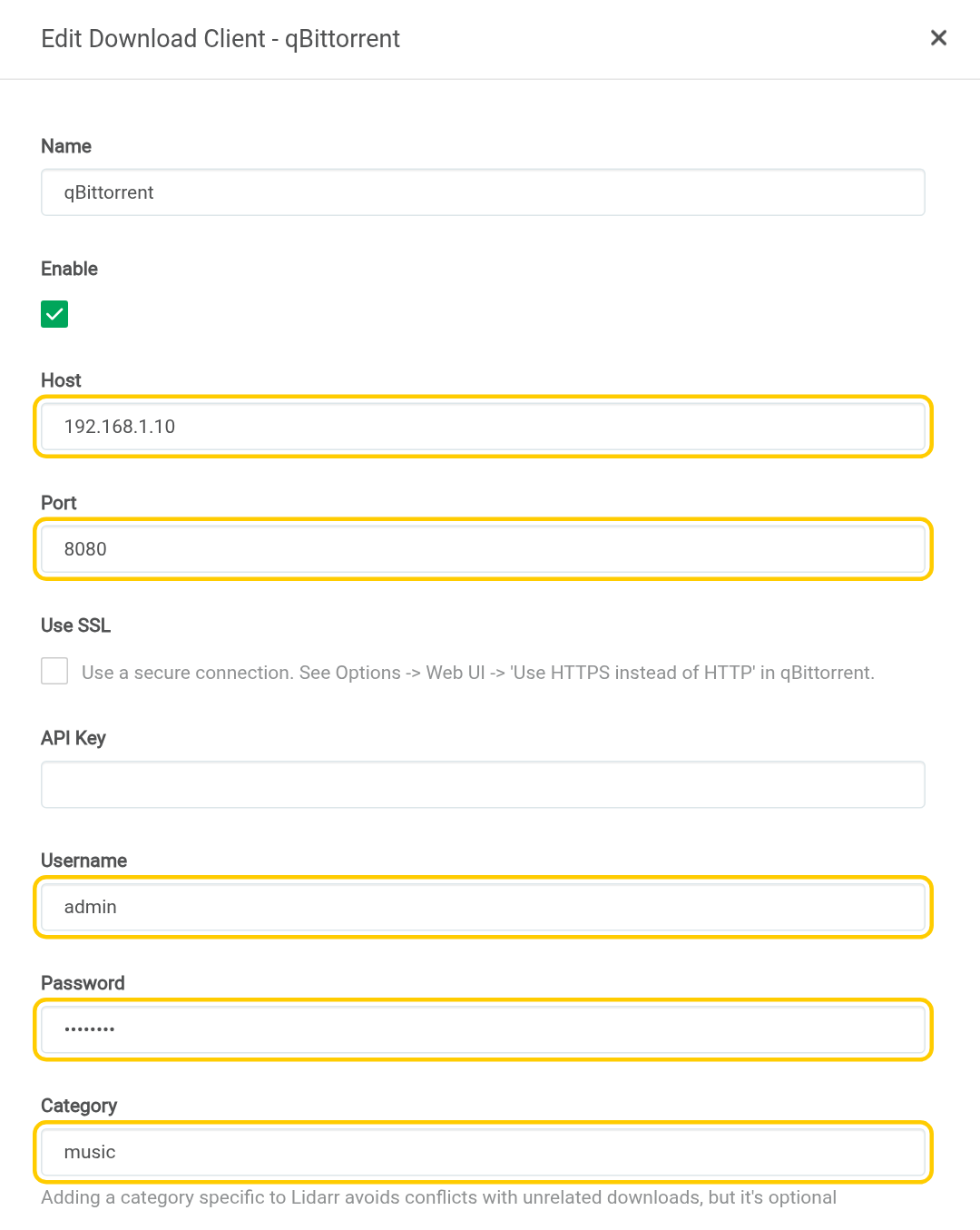
Go to Settings → Download Clients → + and pick yours. Enter your server’s IP, the port and the login, then set the Category:
- qBittorrent: change
lidarrtomusic, so downloads land in/data/torrents/music. - SABnzbd: change
musictoaudio. SABnzbd’s built-in music category is calledaudio, and withmusicthe test fails with “Category does not exist”. I tested both. - NZBGet: leave it as
Music. It already matches.
Click Test (a green tick means it worked), then Save.
Step 5: Connect Prowlarr
- In Lidarr, go to Settings → General and copy the API Key.
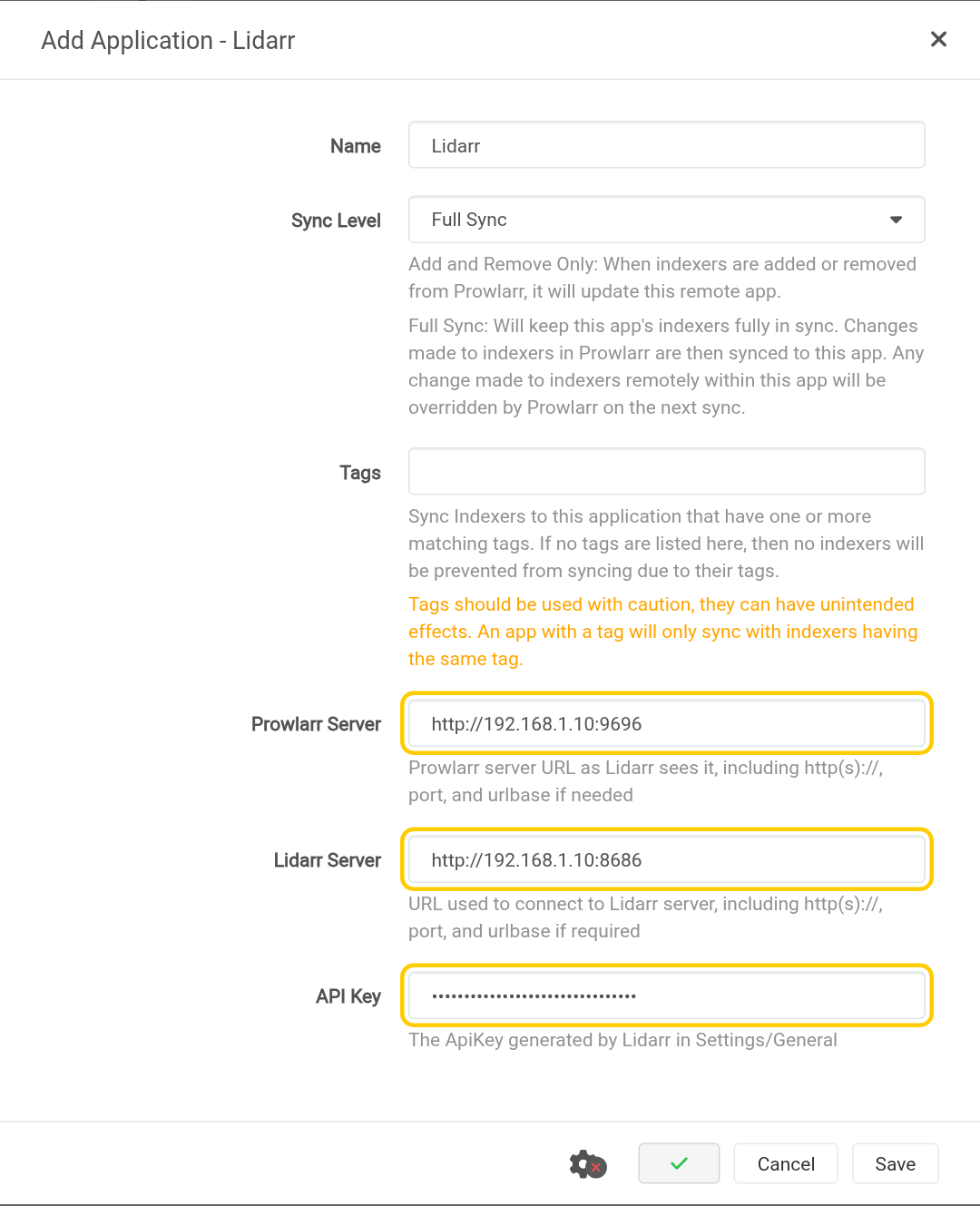
- In Prowlarr, go to Settings → Apps → + and pick Lidarr.
- Prowlarr Server:
http://YOUR-SERVER-IP:9696. Lidarr Server:http://YOUR-SERVER-IP:8686. Paste the API Key. - Click Test, then Save. Prowlarr copies your music indexers into Lidarr within a minute.
Step 6: Add your first artist
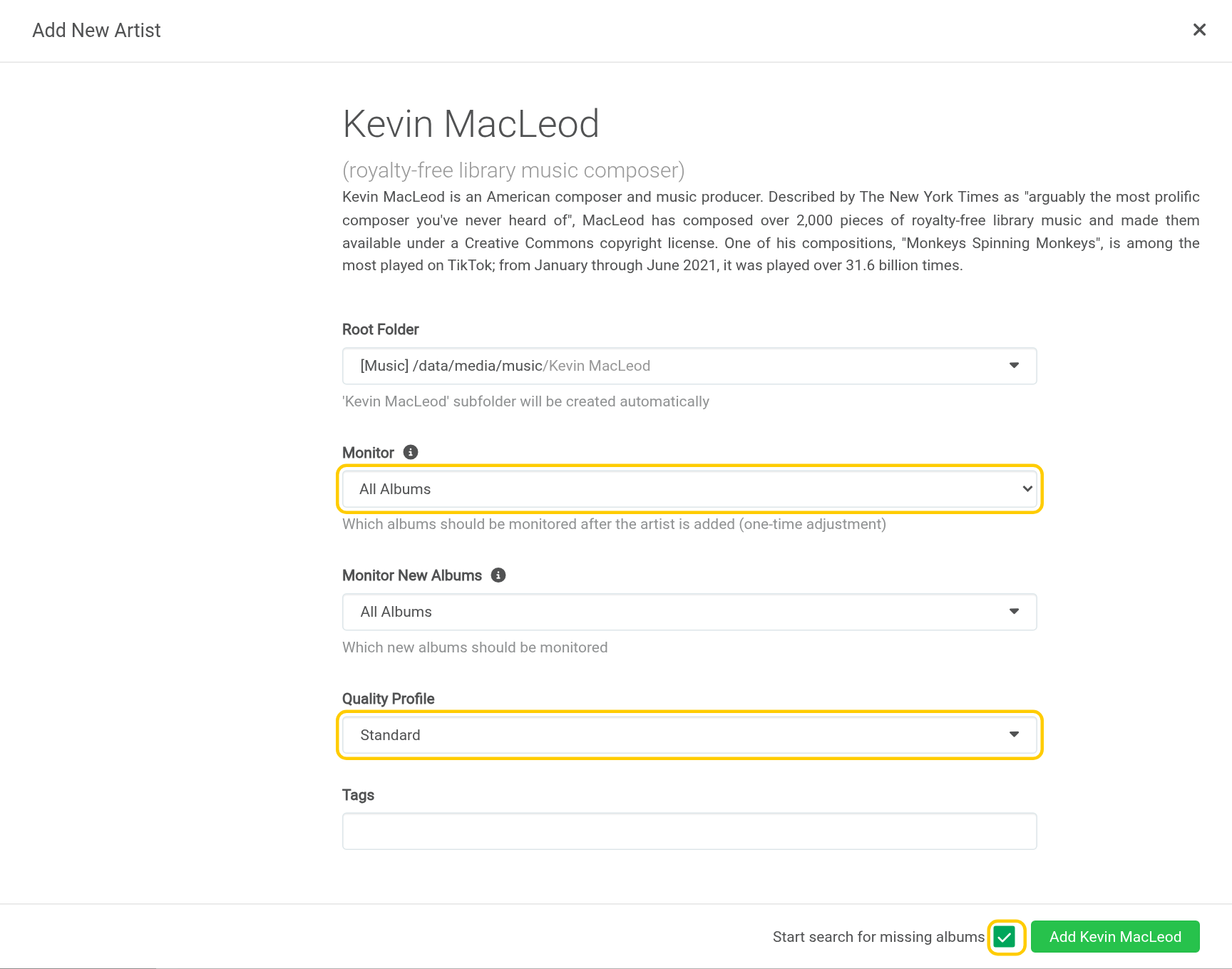
- Go to Library → Add New and type an artist’s name.
- Click the right result. Check the description: lots of artists share a name.
- Monitor:
All Albumsgrabs the whole discography. For a big artist, start withLatest Album. - Quality Profile: check it. On a fresh install this window starts on
Any, not the profile you gave your folder. - Tick Start search for missing albums and click Add.
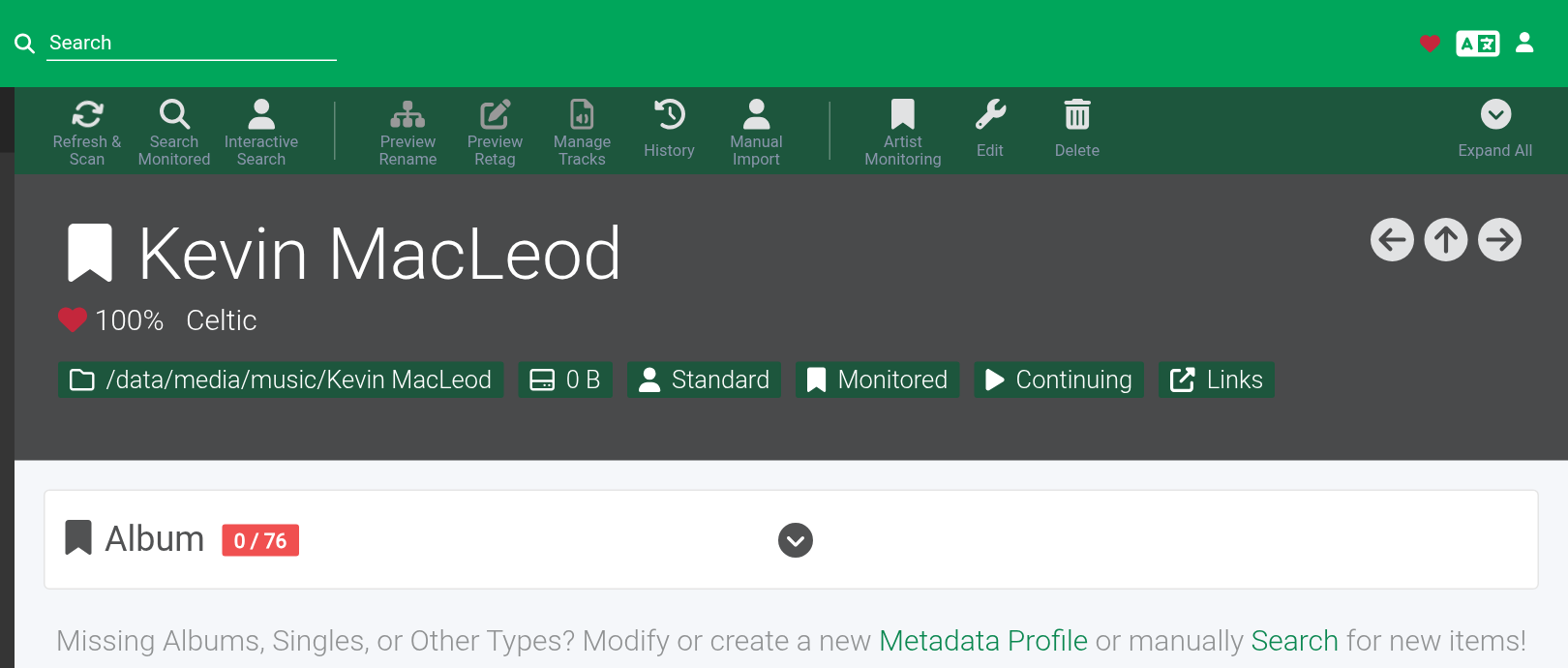
The artist page then lists their albums and how many you have. 🎉
Step 7: Add the music to Plex or Jellyfin
Add a Music library pointing at /data/media/music: in Plex, choose the Music library type; in Jellyfin, the Music content type. Because Lidarr names the folders and files properly, both match artists and albums correctly.
If something’s wrong
- “Category does not exist” with SABnzbd. Use
audio, notmusic(Step 4). - Albums download but never import. Lidarr and your download client must share the same data folder, so both see
/data/torrentsor/data/usenet. - Lidarr finds nothing. Check Prowlarr has an indexer with music, and that it synced (Lidarr → Settings → Indexers). Old or obscure albums may simply not be available.
- Too many albums being grabbed. Click Artist Monitoring on the artist page and choose
Latest AlbumorFuture Albums. - The wrong artist was added. Delete it (don’t tick “delete files” if you have some) and add the right one. Check the description under the name in the search results.
- Files have messy names. Tick Rename Tracks (Step 3), then use Preview Rename on each artist page to tidy what’s already there.
Updating Lidarr
cd ~/lidarr
docker compose pull && docker compose up -d
Frequently asked questions
What does Lidarr do?
Lidarr does for music what Radarr does for films. Add the artists you like and it finds their albums, sends them to your download client, then names and files everything so Plex or Jellyfin show proper artists, albums and track lists.
Why does SABnzbd say "Category does not exist" for Lidarr?
SABnzbd's music category is called audio, not music. Use audio in Lidarr's download client settings.
How do I stop Lidarr grabbing an artist's whole back catalogue?
Click Artist Monitoring on the artist page and choose Latest Album or Future Albums.
Why do albums download but never import?
Lidarr and your download client must share the same data folder, so both see /data/torrents or /data/usenet.
Thank you
Lidarr is free and open source, made by the Lidarr team, with music data from MusicBrainz. Thanks also to LinuxServer.io for the image.
Related guides: Media Server Stack · Radarr · Sonarr · Prowlarr · Plex
If this guide helped you, consider buying me a coffee. It helps keep guides like this one coming.
Get new guides by email
About one email a month: new step-by-step guides and card releases. No spam, unsubscribe any time.